

Changes are not showing on the site
Also called: setting not saving, colour will not change, site looks the same, old styles, cache problem, font not changing, layout not updating.
What this does
Section titled “What this does”You changed a colour, a layout or a font, saved it, and the live site has not moved. Nearly always this is caching or a more specific setting winning. Your setting is rarely lost.
Just updated to Reign 8.1? Some layouts and plugin styles changed on purpose. Read what changed in Reign 8.1.0 first. The colour switch is explained in updating from 8.0.x to 8.1.
Work down this list in order.
1. Check it actually saved
Section titled “1. Check it actually saved”- In the Customizer, select Publish. Changes are not live until you do.
- Reopen the setting and confirm the value is what you expect.
If you left the tab open for a long time, the change may still be waiting to be published.
2. Clear every cache
Section titled “2. Clear every cache”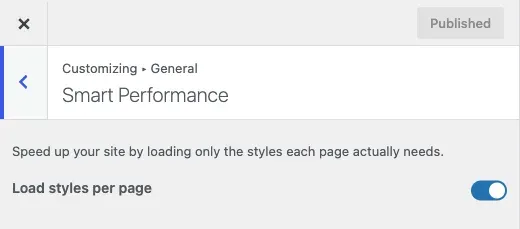
The order matters, because caches stack on top of each other.
- Page cache plugin. For example WP Rocket, W3 Total Cache or LiteSpeed. Purge all.
- Host cache. Many managed hosts run their own cache. Purge it from the host’s dashboard.
- CDN. Cloudflare and similar services cache CSS. Purge everything.
- Browser. Hard reload, or open the site in a private window.
Test in a private window after each step. When you are logged in, you often skip caches that visitors still get. A change can look fine to you and stale to everyone else.
3. Check a more specific setting is not winning
Section titled “3. Check a more specific setting is not winning”Reign’s colour system has layers. A narrower setting beats a broader one.
Say you set a palette but one element keeps its old colour. Something more specific is set for that element, most likely in Individual Colors. Clear that setting instead of fighting it from the palette.
Dark mode has its own colour set. If the site looks right in light mode and wrong in dark mode, look in Dark Mode Colors, not the palette. Read how the colour system works for the layers.
4. Check custom CSS is not winning
Section titled “4. Check custom CSS is not winning”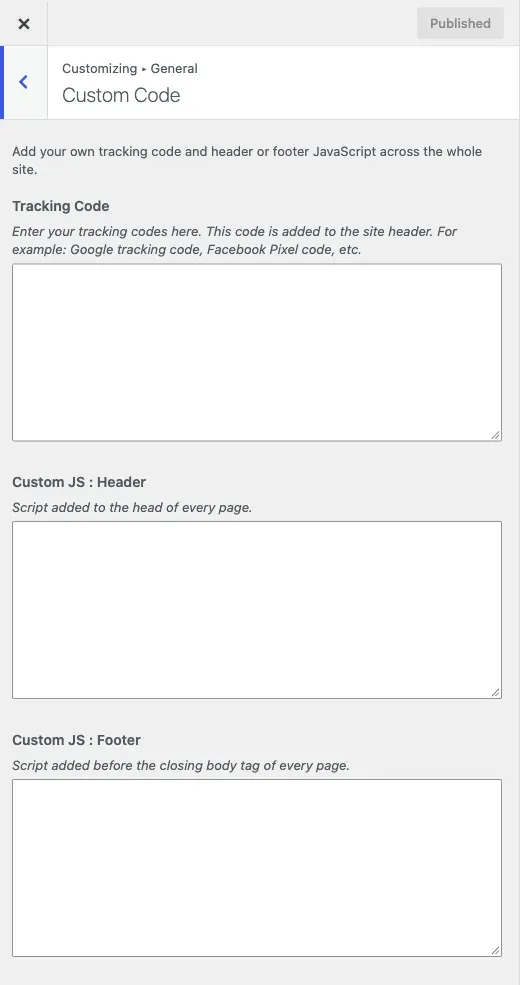
The Custom Code section holds scripts, not CSS. A script there can still change how a page looks, so check it too.
- Open Customize > Additional CSS. It adds CSS after the theme’s own.
- Search it for the property you are trying to change.
- Look hardest at any rule with
!important. It overrides the Customizer.
5. Check you edited the right screen
Section titled “5. Check you edited the right screen”Content Layouts settings are per content type. Changing Blog: Single does nothing to the blog list. Changing Page: Single does nothing to a custom post type, which has its own pair of sections.
Confirm you are editing the section for the screen you are looking at.
6. Rule out a plugin
Section titled “6. Rule out a plugin”Some plugins add their own CSS after the theme’s. Turn plugins off one at a time on a staging copy. When the change starts working, the last plugin you turned off is the cause.
You’ll know it worked when
Section titled “You’ll know it worked when”The live page, opened in a private window, shows your new colour, layout or font.
Good to know
Section titled “Good to know”Why did styles break after I turned on Smart Performance?
Section titled “Why did styles break after I turned on Smart Performance?”Smart Performance loads only the styles each page needs. A plugin that adds its own CSS late can lose styles. Turn Smart Performance off in Customize > General and test again. See Smart Performance.
I changed the colour but one plugin still looks different.
Section titled “I changed the colour but one plugin still looks different.”Plugins that keep their own design do not follow your palette. See plugins Reign matches to your colours.
Still stuck
Section titled “Still stuck”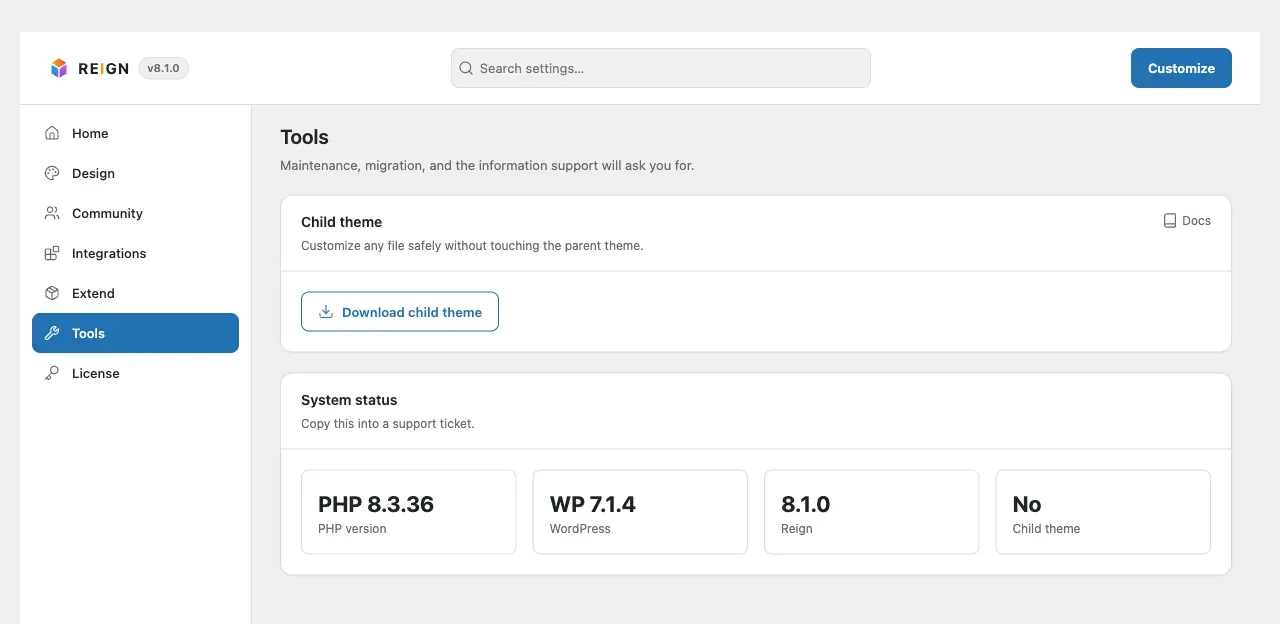
Copy System status from Reign Settings > Tools. Note the exact setting you changed and the page address where it should show. Then open a ticket.