

Page title area and breadcrumbs (Sub header)
Also called: page title bar, title area, page banner, hero, page header, header image, breadcrumb bar, title bar.
Not to be confused with the Header and the Topbar. The Topbar is the thin strip at the very top. The Header holds your logo and menu. The page title area is the banner below the header that shows each page’s title.
What this does
Section titled “What this does”The sub header is the banner under your header that shows a page’s title and its breadcrumb trail. Breadcrumbs are the small “Home > Blog > Post” links that show where the visitor is. You can show the title in this banner, above the content, or hide it. The banner styling applies to the whole site.
Choose where the page title shows
Section titled “Choose where the page title shows”-
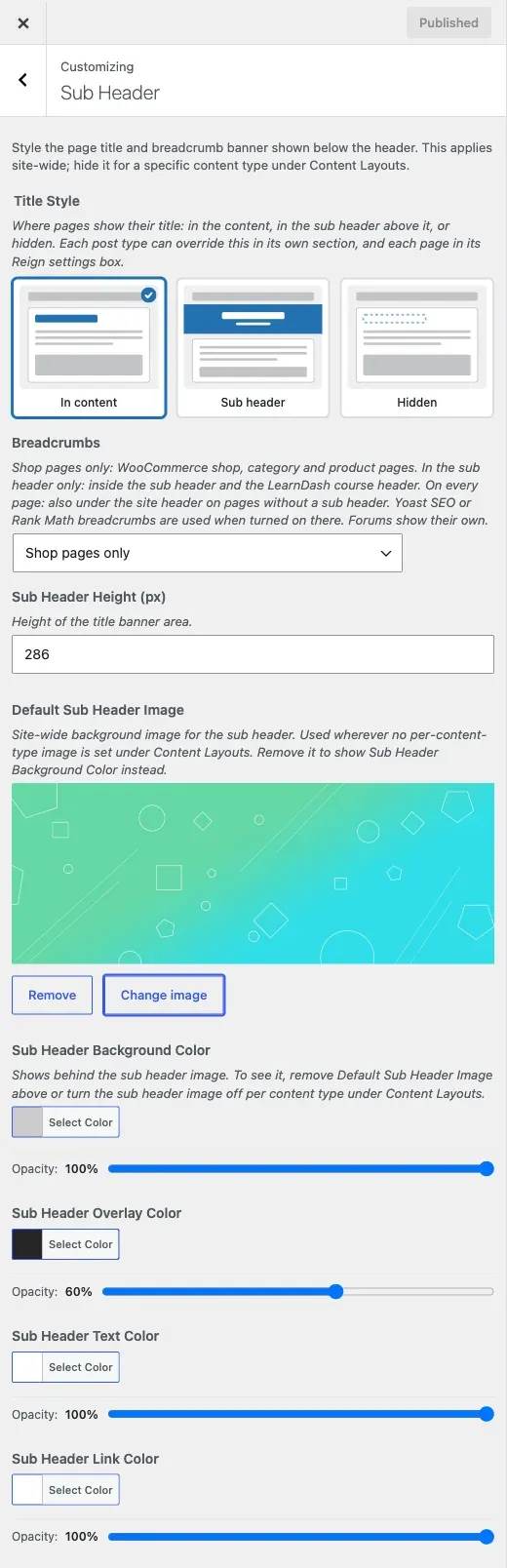
Go to Appearance > Customize > Sub Header. It is a top-level section, not inside a panel.
-
Set Title Style:
-
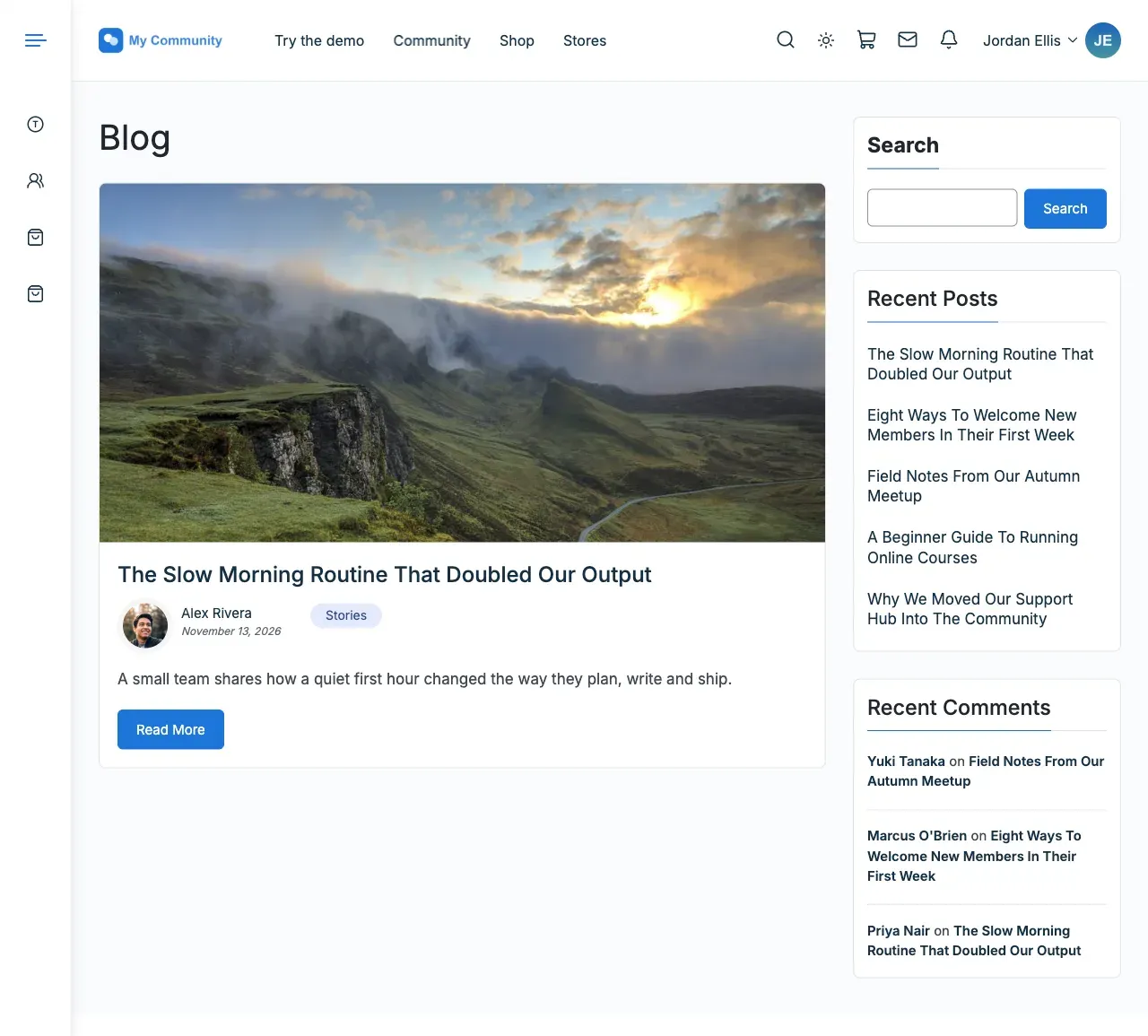
In content is the default. The title sits at the top of the page content and there is no banner.
-
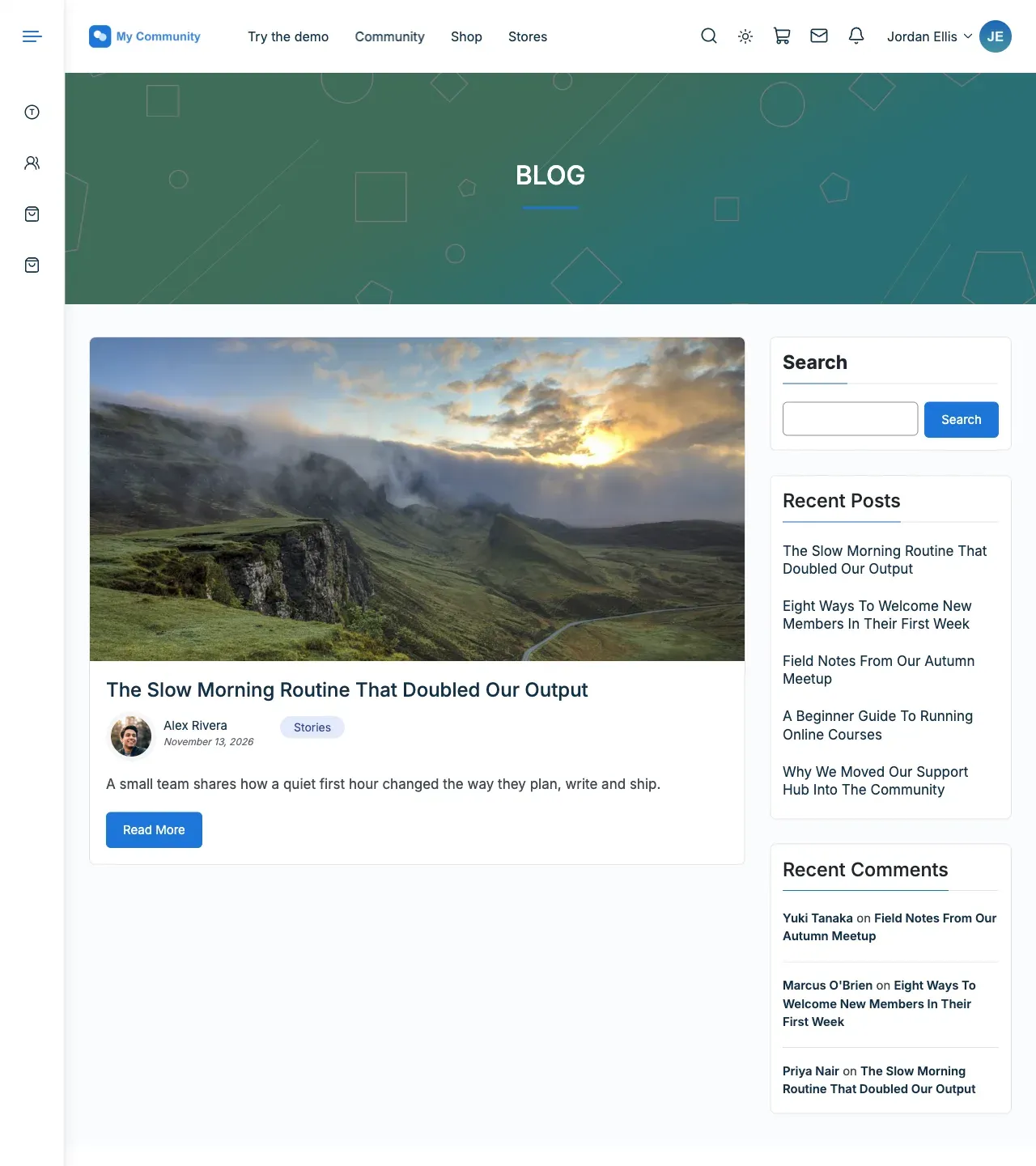
Sub header shows the banner with the title and breadcrumbs under the header.
-
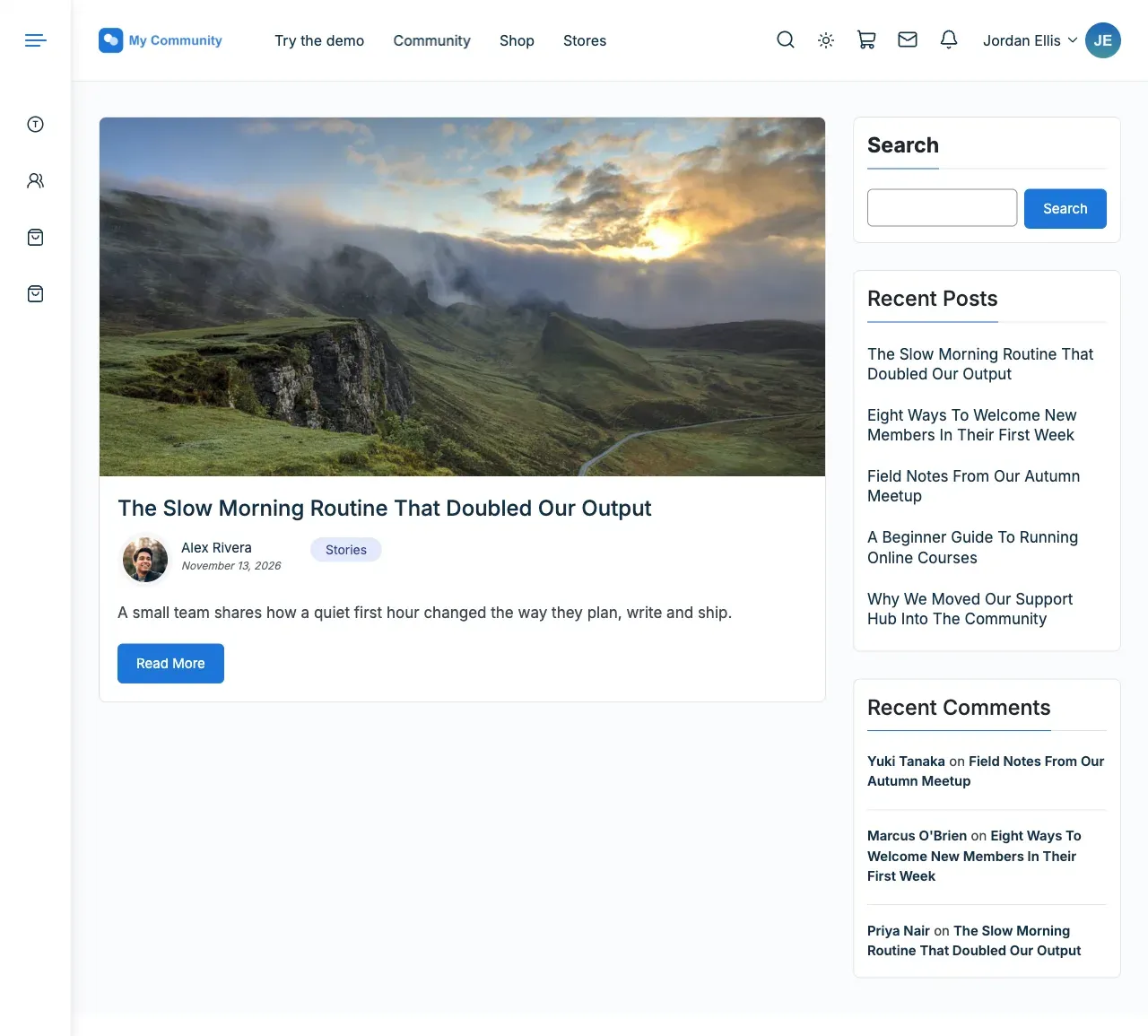
Hidden shows no title. If the content has no heading of its own, the title is still read out to screen readers.
-
-
Click Publish.
Style the banner
Section titled “Style the banner”The next steps matter wherever the title style is Sub header.
- Set Sub Header Height (px). The default is 286. You can enter 80 to 600.
- Pick a Default Sub Header Image. Content types such as posts, pages and archives can have their own image under Content Layouts. This image is used for any type without one, so no banner is left empty.
- Set the four colours:
- Sub Header Background Color (default
#cccccc) shows where the image does not cover the banner. - Sub Header Overlay Color (default dark grey at 60% strength) darkens the image so the title stays readable.
- Sub Header Text Color (default white) colours the title and breadcrumb text.
- Sub Header Link Color (default white) colours the clickable breadcrumb links.
- Sub Header Background Color (default
- Click Publish.
Choose where breadcrumbs show
Section titled “Choose where breadcrumbs show”Set Breadcrumbs to one of these:
- Off shows them nowhere.
- Shop pages only is the default. They show on WooCommerce shop, category and product pages.
- In the sub header only shows them in the banner and the LearnDash course header.
- On every page also adds a bar under the header on pages without a banner.
You’ll know it worked when
Section titled “You’ll know it worked when”Open a page on your site. The title appears where you chose, and breadcrumbs appear where you set them.
Good to know
Section titled “Good to know”How do I remove the big title bar on a page?
Section titled “How do I remove the big title bar on a page?”Set Title Style to In content or Hidden for the whole site. For one page, use the Page Title setting in the Reign Custom Settings box (see below).
How do I turn off breadcrumbs?
Section titled “How do I turn off breadcrumbs?”Set Breadcrumbs to Off. Yoast SEO or Rank Math breadcrumbs are used when you turn them on in those plugins. Forums show their own.
How do I add a background image behind page titles?
Section titled “How do I add a background image behind page titles?”Pick a Default Sub Header Image. Make sure Title Style is Sub header.
Why is the banner not where I expect?
Section titled “Why is the banner not where I expect?”The title style can be set at three levels. The most specific level wins:
- The site, here in Title Style.
- A content type, under Content Layouts. Each type has its own Title Style with Default, In content, Sub header or Hidden. For example, Page Title Style and Search Title Style. Default follows the site setting.
- One page or post, in the Reign Custom Settings box, Layout tab, under Page Title. Default (Customizer setting) follows the content type.
To show banners everywhere, set the site Title Style to Sub header. To show them on pages only, leave the site on In content. Then set Page Title Style under Content Layouts > Page: Single to Sub header. If a banner is wrong, check the page first, then its content type, then the site.
What happens to sites updated from before 8.1.0?
Section titled “What happens to sites updated from before 8.1.0?”They look the same. The old “Hide Sub Header” switches and page settings were converted once to the matching title style. Breadcrumbs keep what they had: banner breadcrumbs if the old switch was on, none if it was off.