

Set up your site in about 2 minutes
Also called: first steps, what do I do first, getting started, quick start, demo site, starter site, set up wizard, setup films.
What this does
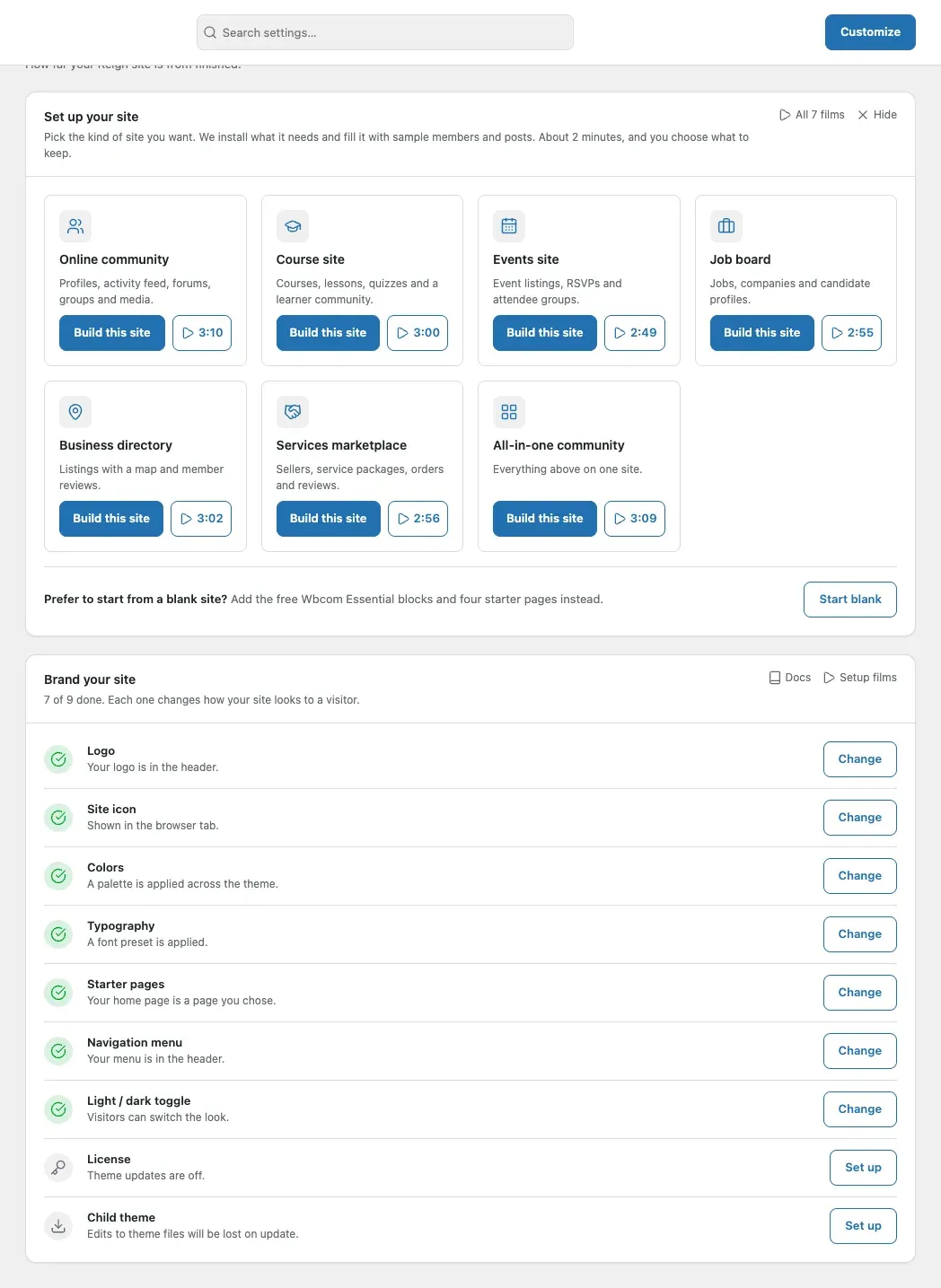
Section titled “What this does”When you activate Reign, WordPress opens Reign Settings > Home. At the top is a card called Set up your site. It is the one thing to do first.
You pick the kind of site you want, such as an online community or a course site. Reign then builds that site for you, with sample members and posts, so you can see how it looks and works. When you are happy, you remove the samples and keep the setup.
Before you start
Section titled “Before you start”- Reign is installed and active. See Install Reign.
- Give PHP at least 256 MB of memory. The Demo Installer needs it to build a full demo, and its site check warns you when the limit is lower. Your host can raise it, or you can add
define( 'WP_MEMORY_LIMIT', '256M' );towp-config.php. - Use a new site, or a test copy of your site. The sample content is easy to remove, but a live site with real members is the wrong place to try it first.
1. Pick the kind of site you want
Section titled “1. Pick the kind of site you want”The card shows these kinds of site:
| Kind of site | What it has |
|---|---|
| Online community | Profiles, activity feed, forums, groups and media |
| Course site | Courses, lessons, quizzes and a learner community |
| Events site | Event listings, RSVPs and attendee groups |
| Job board | Jobs, companies and candidate profiles |
| Business directory | Listings with a map and member reviews |
| Services marketplace | Sellers, service packages, orders and reviews |
| Online store | Products, cart, checkout and reviews |
| All-in-one community | Everything above on one site |
Each tile says what it still needs. Installs N free plugins for you means one click does it. A paid plugin or Reign add-on gets its own line with a Get it link: download it (Reign add-ons come from your Wbcom account), then upload it under Plugins > Add New > Upload Plugin, and select Build this site again.
2. Watch the film (optional)
Section titled “2. Watch the film (optional)”Each kind of site has a play button with the film’s length, about 3 minutes. Select it and the film plays over the page. Nothing loads from YouTube until you select play.
Select Close, or press Escape, to go back to the card. Open on YouTube opens the film in a new tab. All the films are in one playlist.
3. Select Build this site
Section titled “3. Select Build this site”The first time, Reign installs the free Wbcom Demo Installer for you and switches it on. Then the installer opens. It shows what it will add before it changes anything, and it installs the plugins that kind of site needs. On its Starting point step it asks what your site is for. Pick the same kind of site again, for example Learnomy courses for a course site.
You don’t need to download anything yourself.
4. Make it yours
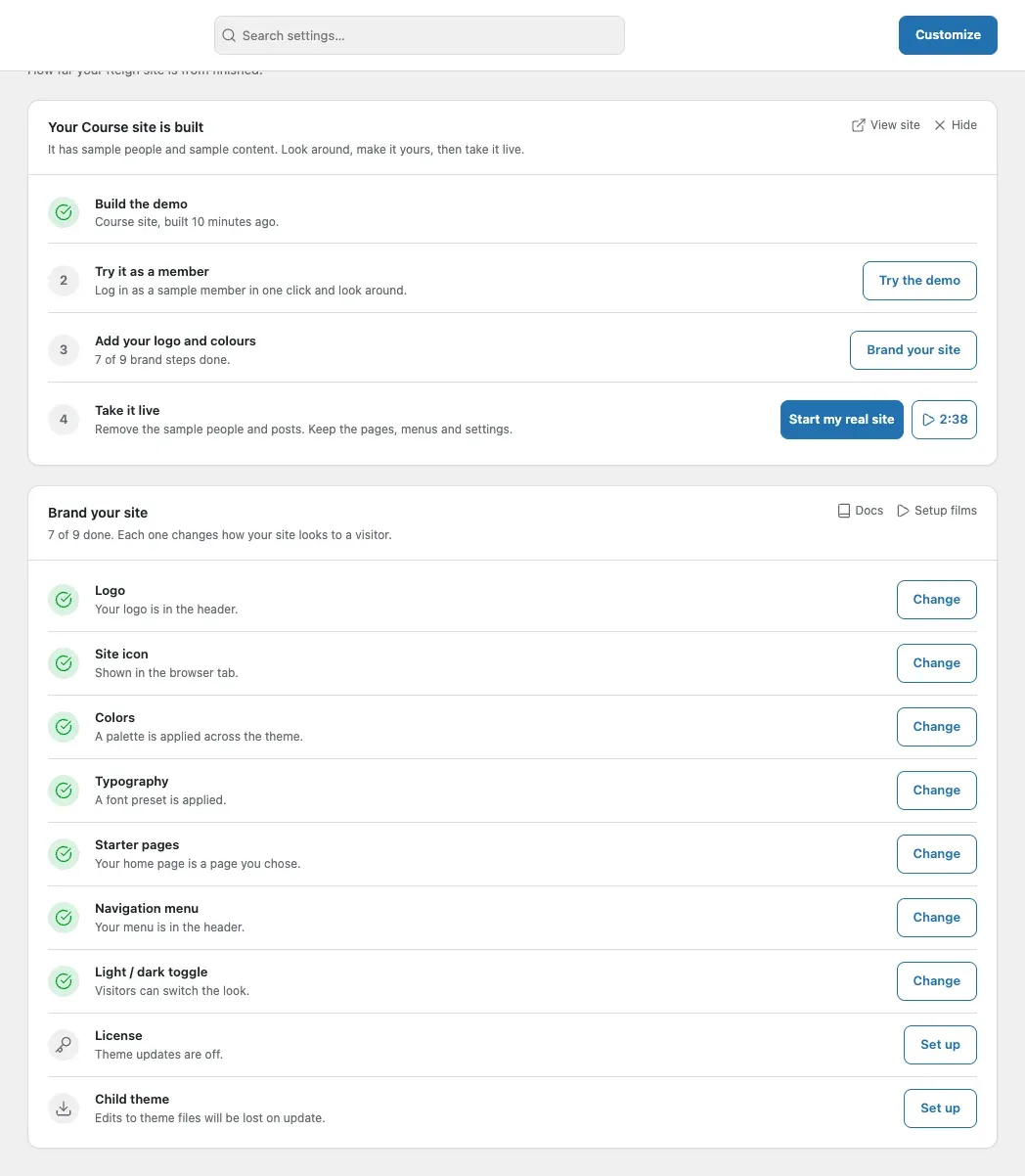
Section titled “4. Make it yours”When the demo is built, the card on Reign Settings > Home becomes a short checklist:
- Build the demo. Done.
- Try it as a member. Try the demo opens a page where you can look around as one of the sample members.
- Add your logo and colours. Brand your site takes you to the checklist under the card.
- Take it live. Start my real site opens the installer’s last step. It removes the sample people and everything they made, such as courses, posts and photos, and keeps your pages, menus and settings. A 2:39 film shows how.
5. Take it live
Section titled “5. Take it live”Select Start my real site and follow the installer. When it finishes, the Set up your site card goes away. Home shows only Brand your site again.
The demo’s sample logo and site icon stay until you replace them. Brand your site shows Logo and Site icon as not done until you add your own.
You’ll know it worked when
Section titled “You’ll know it worked when”Your site opens with the pages, menu and sample members of the kind of site you picked. After Start my real site, the sample members and everything they made are gone, and your pages and menus stay. Reign Settings > Home no longer shows the Set up your site card.
If you’d rather start from a blank site
Section titled “If you’d rather start from a blank site”Under the kinds of site, the card says Prefer to start from a blank site? Select Start blank. Reign installs the free Wbcom Essential blocks and opens the starter pages preview: Welcome, About, Community and Contact. Nothing changes on your site until you publish.
This row shows only while Wbcom Essential is not active. Every demo installs Wbcom Essential anyway.
Hide the card
Section titled “Hide the card”Select Hide at the top of the card. It is hidden for you only, not for other admins. The films stay one click away: Setup films at the top of Brand your site.
If something goes wrong
Section titled “If something goes wrong”The install stops with a message. Reign downloads the Demo Installer from GitHub. The card says in plain words what went wrong:
| Message | What to do |
|---|---|
| Your site could not be reached. Check your connection, then try again. | Your browser lost the connection to your site. Check it, then select the button again. |
| This page has expired. Reload it, then try again. | You were away too long. Reload the page and select the button again. |
| The install did not finish. Try again, or add the plugin by hand. | Try once more. If it fails again, use Download it instead below the message. |
| The install did not finish on the server. Try again, or add the plugin by hand. | Your server could not download or unpack the plugin, often because it can’t reach GitHub. Use Download it instead. |
Download it instead saves the Demo Installer zip to your computer. Go to Plugins > Add New > Upload Plugin, upload it and activate it. Back on Reign Settings > Home, the buttons now open the installer. The zip is also on the Demo Installer releases page.
The card says “Your site is being built”. The installer is still working. Select Open the installer and keep its screen open until it says it is done.
I don’t see the card. You may have hidden it, or already taken a demo live. You can still build a demo from Appearance > Set up your site once the Demo Installer is active.
For developers
Section titled “For developers”- The card asks the Demo Installer where the site is through
wbcom_demo_status()(Demo Installer 1.2.0 and later). Older installer versions are read from their savedwbcom_demo_stateoption. Reign stores no setting of its own. Once the demo is taken live the card stays hidden, even after the installer is deactivated. Remove everything puts the site back as before, so the card shows the site choices again. - The tiles, their films, links and what each still needs (
needsandoptional) come fromwbcom_demo_list()(the featured demo for each purpose plus the all-in-one BuddyNext demo), so a new demo or film needs no Reign release. Reign keeps its own wording per purpose. Before the installer is active, Reign shows its built-in list. - Reign follows the installer’s theme onboarding guide (
docs/website/developer-guide/theme-onboarding.mdin the Demo Installer repo). - Reign filters
wbcom_demo_returnso the installer’s last screen offers Back to Reign Home. - Hide stores the user meta
reign_setup_card_dismissedfor the current user. - One-click installs go through
Reign_Plugin_Installer. Public plugins come from the zip on their latest GitHub release, and the Wbcom store is the fallback. The catalog can be changed with thereign_install_catalogfilter.