

Form and input box colours (Forms)
Also called: input fields, text box colour, form colours, field border, form style, focus colour, form colors, input colors.
What this does
Section titled “What this does”Form fields get their colours from your colour palette. The Forms panel lets you fine-tune them. It covers every text input, text area and select box on the site. You see only the colours for the palette you picked, and each palette keeps its own form colours.
-
Go to Appearance > Customize > Forms.
-
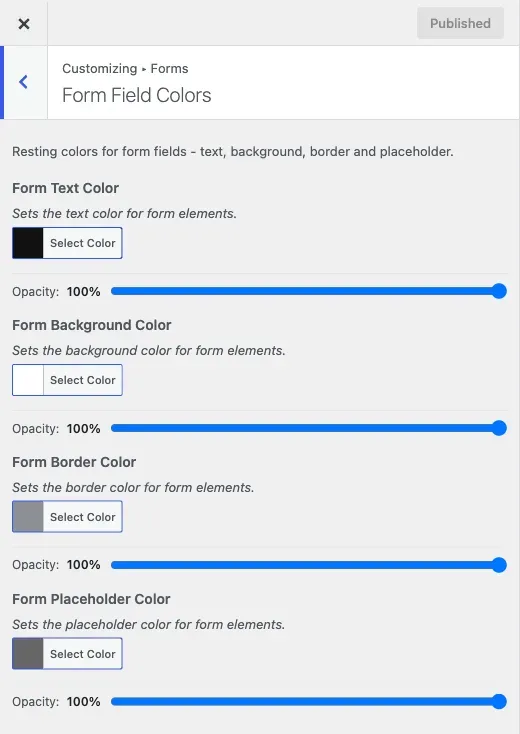
Open Form Field Colors. These set a field at rest, before anyone touches it:
- Form Text Color.
- Form Background Color.
- Form Border Color.
- Form Placeholder Color.
-
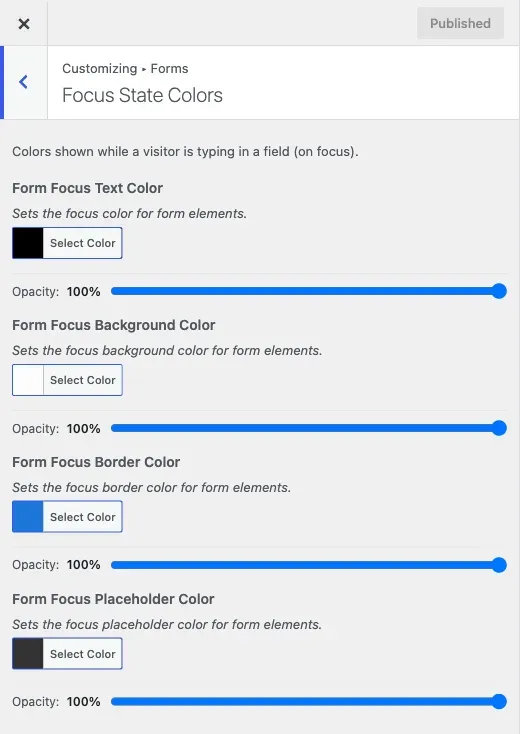
Open Focus State Colors. These set a field while someone types in it:
- Form Focus Text Color.
- Form Focus Background Color.
- Form Focus Border Color.
- Form Focus Placeholder Color.
-
Click Publish.
You’ll know it worked when
Section titled “You’ll know it worked when”Click into a form field on your site. The border or background changes from its resting look to your focus colours.
Good to know
Section titled “Good to know”Why should I set the focus colours?
Section titled “Why should I set the focus colours?”Focus is how someone using a keyboard knows which field they are about to type in. A custom palette can hide the browser’s default outline. Then a keyboard user can lose their place. Low-vision visitors also rely on that change.
To check, tab into a field without using the mouse. Look for a clear change from the resting look. If the focus colour is too close to the resting colour or the page background, fix it here.
Why are my forms wrong in dark mode?
Section titled “Why are my forms wrong in dark mode?”Forms colours are light-mode settings. There is no separate dark Forms panel. Dark-mode form colours are in the form group of Dark mode colours. See Change your site colours for how palette, individual and dark colours combine.