

Site width, full width or boxed, rounded corners (Global layout)
Also called: site width, content width, container width, boxed, full width, wide, page width, rounded corners, preloader, loading spinner, scroll to top, back to top.
Not to be confused with the Side menu (Left panel). The sidebar set here is the column of widgets beside your content. The side menu is the strip of menu icons down the edge of the screen.
What this does
Section titled “What this does”Global layout holds the settings that apply to the whole site. They set how wide it is, how rounded the corners are, the sidebar width, and two small extras: a loading animation and a scroll-up button. Sidebar position and grid columns are set per content type under Content Layouts instead.
-
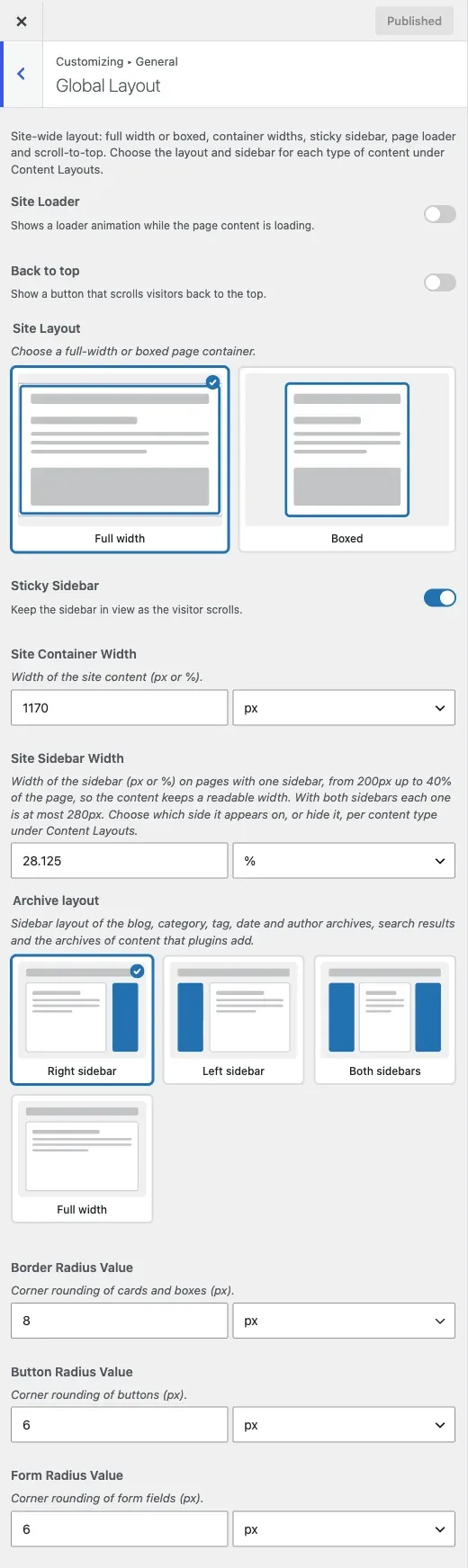
Go to Appearance > Customize > General > Global Layout.
-
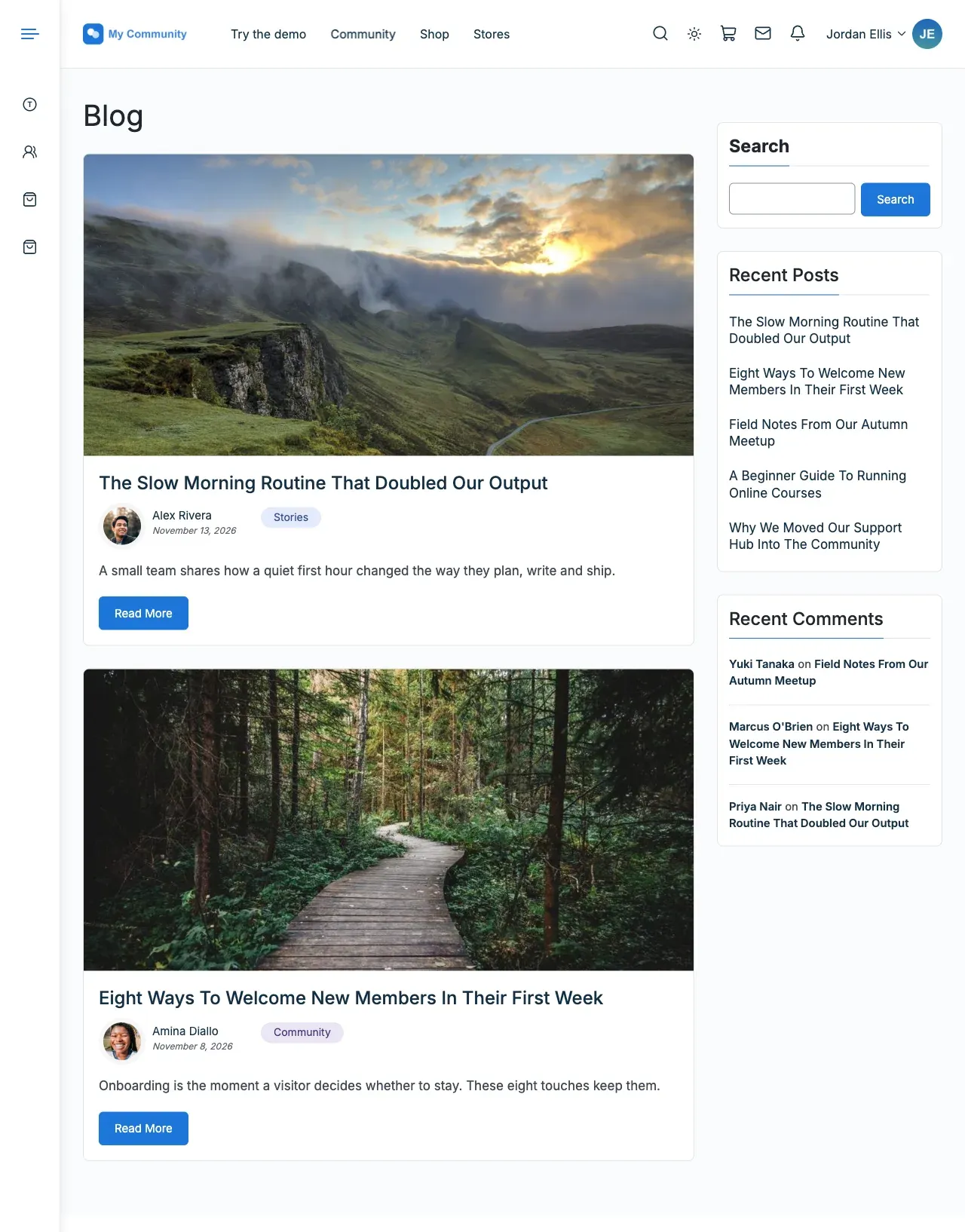
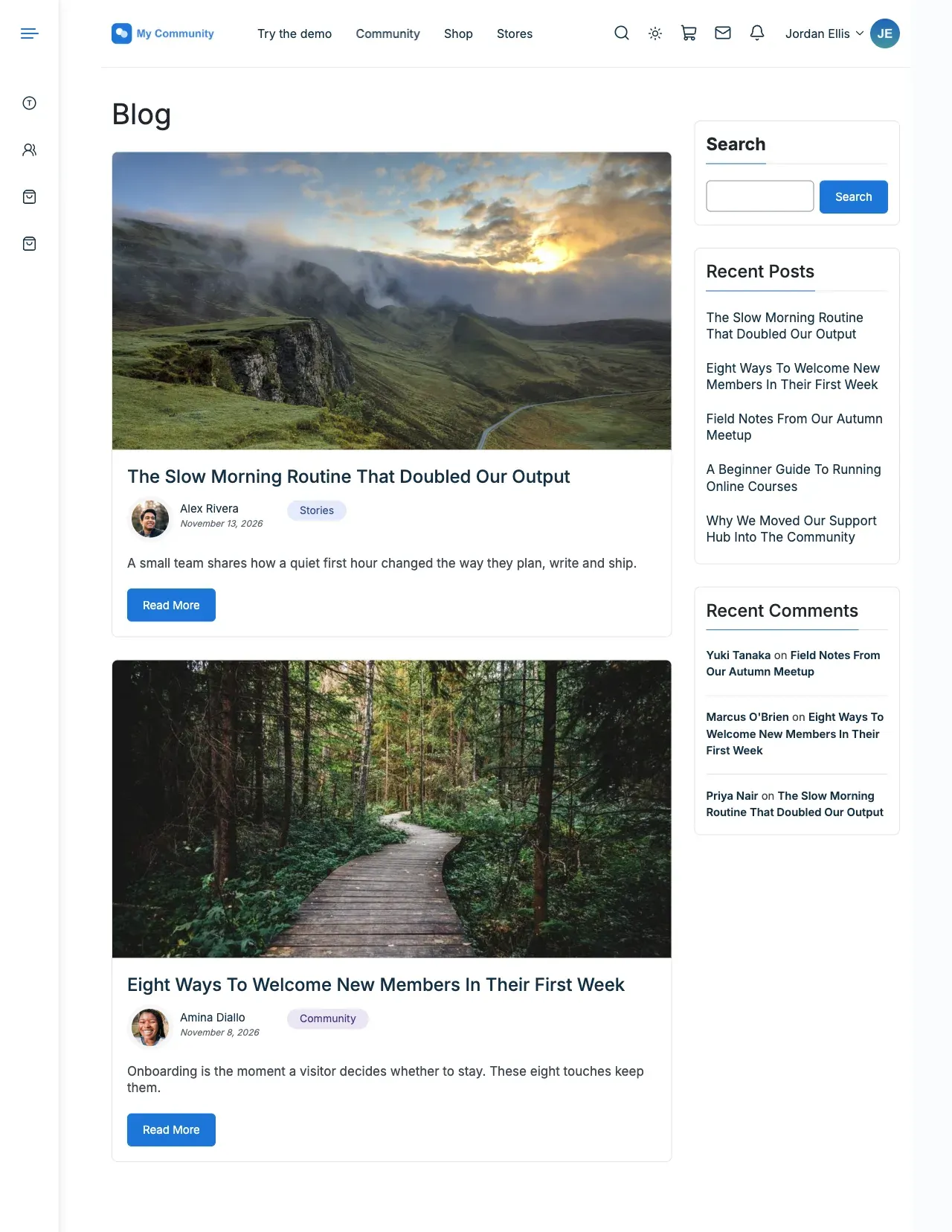
Set Site Layout: full width or boxed.
-
Set the width. Both fields take px or %, so you can build a fluid layout.
- Site Container Width is the inner width of the full-width layout. The default is 1170px.
- Site Box Layout Container Width is the width of the boxed layout. It shows only when the layout is boxed. The default is 1170px.
-
Set Site Sidebar Width. The default is 28.125%. With one sidebar it runs from 200px to 40% of the page. With two, each is at most 280px.
-
Leave Sticky Sidebar on to keep the sidebar in view while visitors scroll. It is on by default.
-
Set Archive layout to choose the sidebar layout of the blog, category, tag, date and author archives, search results and plugin archives. Choose right sidebar, left sidebar, both sidebars or full width. Right sidebar is the default.
-
Set the corners (see “Good to know”).
-
Click Publish.
You’ll know it worked when
Section titled “You’ll know it worked when”The site is wider or narrower, or boxed, as you set it. Buttons, forms and cards show the new corners.
Good to know
Section titled “Good to know”How do I make my site full width?
Section titled “How do I make my site full width?”Set Site Layout to full width. Then set Site Container Width to 100% for edge-to-edge content.
How do I make the content narrower?
Section titled “How do I make the content narrower?”Lower Site Container Width, or switch to boxed and lower Site Box Layout Container Width. A narrower width is easier to read.
How do I round the corners?
Section titled “How do I round the corners?”Three controls cover different parts of the theme:
- Border Radius Value is the general radius. The default is 8px.
- Button Radius Value sets buttons. The default is 6px.
- Form Radius Value sets inputs, selects and text areas. The default is 6px.
You can give buttons a pill shape and keep form fields square. If you want a squared-off look, change all three together so the site stays consistent.
How do I remove the loading animation?
Section titled “How do I remove the loading animation?”Site Loader is off by default. Turn it off if it is on. When on, Loader Icon picks one of six styles and Loader Background Color sets the colour behind it. Most sites do not need a loader.
How do I add or remove the scroll-up button?
Section titled “How do I add or remove the scroll-up button?”Turn Back to top on or off. It is off by default. When on:
- Button style is Round with progress ring or Vertical bar with text.
- Button corner sets the bottom corner, left or right. Right is the default. It applies to the round style only.
It helps most on long posts, long product lists and long profile pages.
Where do I choose left or right sidebar, or no sidebar?
Section titled “Where do I choose left or right sidebar, or no sidebar?”Sidebar position is set per content type under Content Layouts. For one page only, see Remove or move the sidebar on a page.