

A tour of Reign Settings
Reign Settings is the top-level menu in your admin sidebar. It is the dashboard for the theme: licence, plugin installs, integration status and maintenance tools. It is not where you change how the site looks. Visual settings live in the Customizer, and Reign Settings links you across to them.
Open it at Reign Settings in the sidebar. The version number sits next to the Reign wordmark at the top left, which is the quickest way to confirm which release you are running.
There are seven screens.
A checklist called “Brand your site”, showing how far the initial setup has got, for example “4 of 8 done”. Each row is a setup step with a button that takes you straight to the right place.
See the Brand your site checklist for what each of the eight items changes.
Design
Section titled “Design”A jumping-off point rather than a settings screen. Everything here opens in the Customizer, so you see changes previewed live as you make them.
It links to five areas:
| Card | Opens |
|---|---|
| Colors | Palette and dark mode |
| Typography | Fonts and scale |
| Header | Layout and sticky behaviour |
| Layout | Containers and sidebars |
| Dark mode images | Swapping images per colour mode |
Community
Section titled “Community”Settings for member and group screens.
These settings apply to BuddyPress and BuddyBoss Platform. If neither is active, the screen says so and offers a Browse plugins button.
If BuddyNext is your community plugin, the screen tells you there is nothing to configure here: BuddyNext manages its own member and space screens, and Reign styles them automatically. See Set up BuddyNext.
Integrations
Section titled “Integrations”A status board for the plugins Reign styles. It splits into what is running on your site now and what Reign is ready for.
The important thing this screen tells you: these are styling layers, and Reign ships them. They do not install or configure the plugin itself, and installing the plugin is all it takes to turn the styling on.
Reign carries a styling layer for BuddyPress, WooCommerce, Easy Digital Downloads, bbPress, Elementor, PeepSo, LearnDash, Tutor LMS, Sensei LMS, LifterLMS, Dokan, WCFM, WC Vendors, WP Job Manager and GeoDirectory.
If you have installed any Reign add-ons, their settings appear at the top of this screen under Addon settings, with a Configure button for each one.
Extend
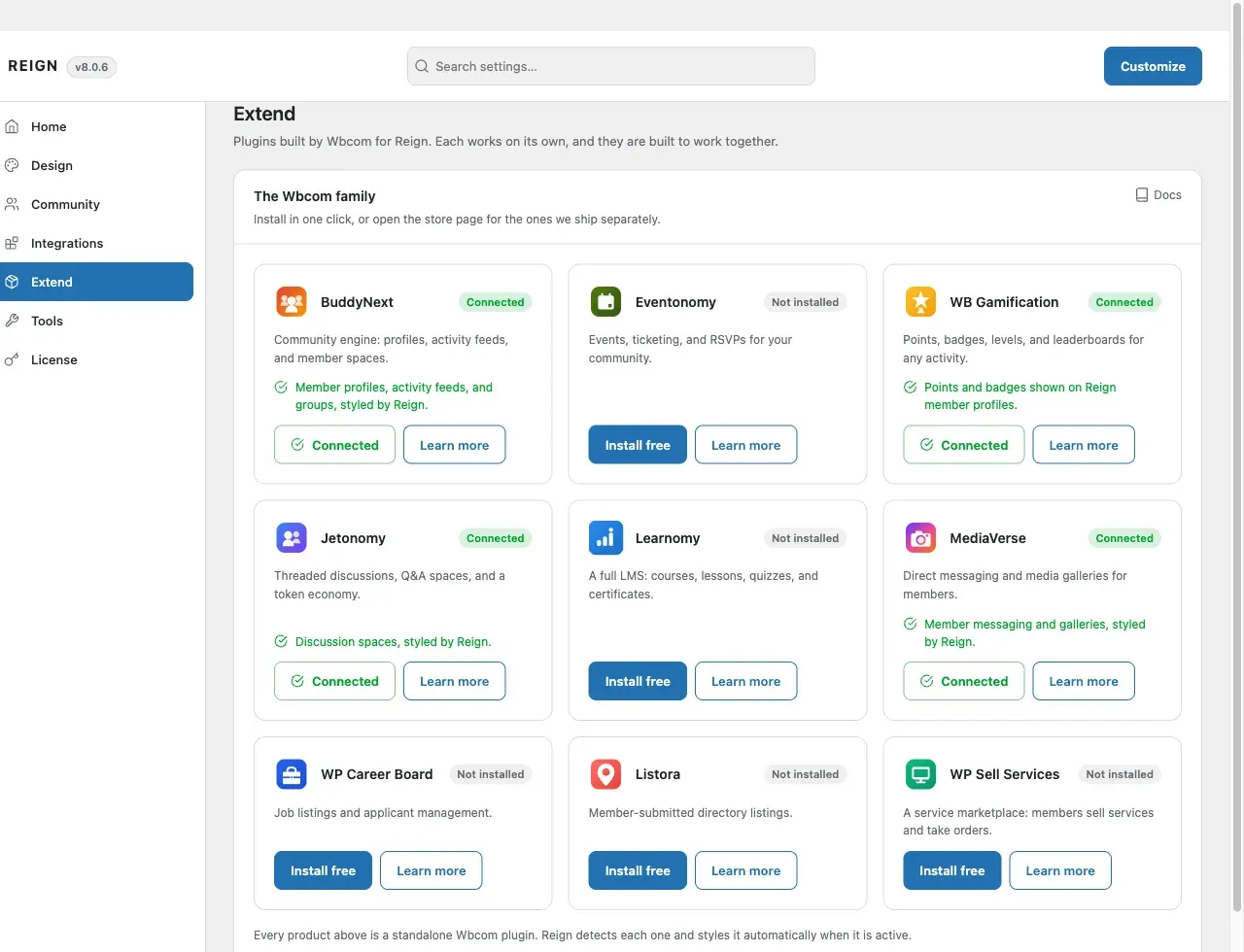
Section titled “Extend”The plugins Wbcom builds for Reign. Each one works on its own, and they are built to work together. The first card is Wbcom Essential, which is part of Reign and adds the blocks and Elementor widgets for building pages.
Every entry shows one of three states on your site:
| State | Meaning | Action |
|---|---|---|
| Connected | Installed and active | None needed |
| Installed, activate | Installed but switched off | Activate |
| Not installed | Not on the site | Install free |
Each entry also has a Learn more link. Installs and activation need an administrator who can install plugins; they do not need a licence. See Wbcom plugins for what Reign does with each one.
Maintenance and the information support asks for.
- Child theme. Download a ready-made child theme so you can customise any file without touching the parent. See child themes.
- Re-run 8.0.0 setup. Re-applies the 8.0.0 colour defaults. Your saved settings are preserved. If the migration already ran on your site, the screen says so.
- System status. PHP version, WordPress version, Reign version and whether a child theme is active. Copy this into a support ticket.
License
Section titled “License”Your licence key and its state. Activating turns on theme updates. Installed Reign add-ons each show their own licence box here too, because add-on keys are separate from the theme key.
At the bottom, Help links to the documentation, the video tutorial series and the support desk.
Which screen changes what
Section titled “Which screen changes what”A quick way to decide where to go:
| You want to | Go to |
|---|---|
| Change how something looks | Customizer, via Design |
| Install a Wbcom plugin | Reign Settings > Extend |
| Check whether Reign styles a plugin you run | Reign Settings > Integrations |
| Get a child theme, or system info for support | Reign Settings > Tools |
| Turn on updates | Reign Settings > License |