

Member and group lists (Directories)
Also called: members directory, groups directory, member list, group list, activity page layout, profile header layout, cover header, directory sidebar, members per page.
What this does
Section titled “What this does”This page covers the pages that list your members, groups and activity. It also covers the page for one member or one group. You choose the sidebar, how each card looks, and how the header at the top is laid out.
These settings need BuddyPress or BuddyBoss Platform. See Set up BuddyPress or Set up BuddyBoss Platform. Running BuddyNext? These controls do not appear. Reign styles BuddyNext’s own screens. See Set up BuddyNext.
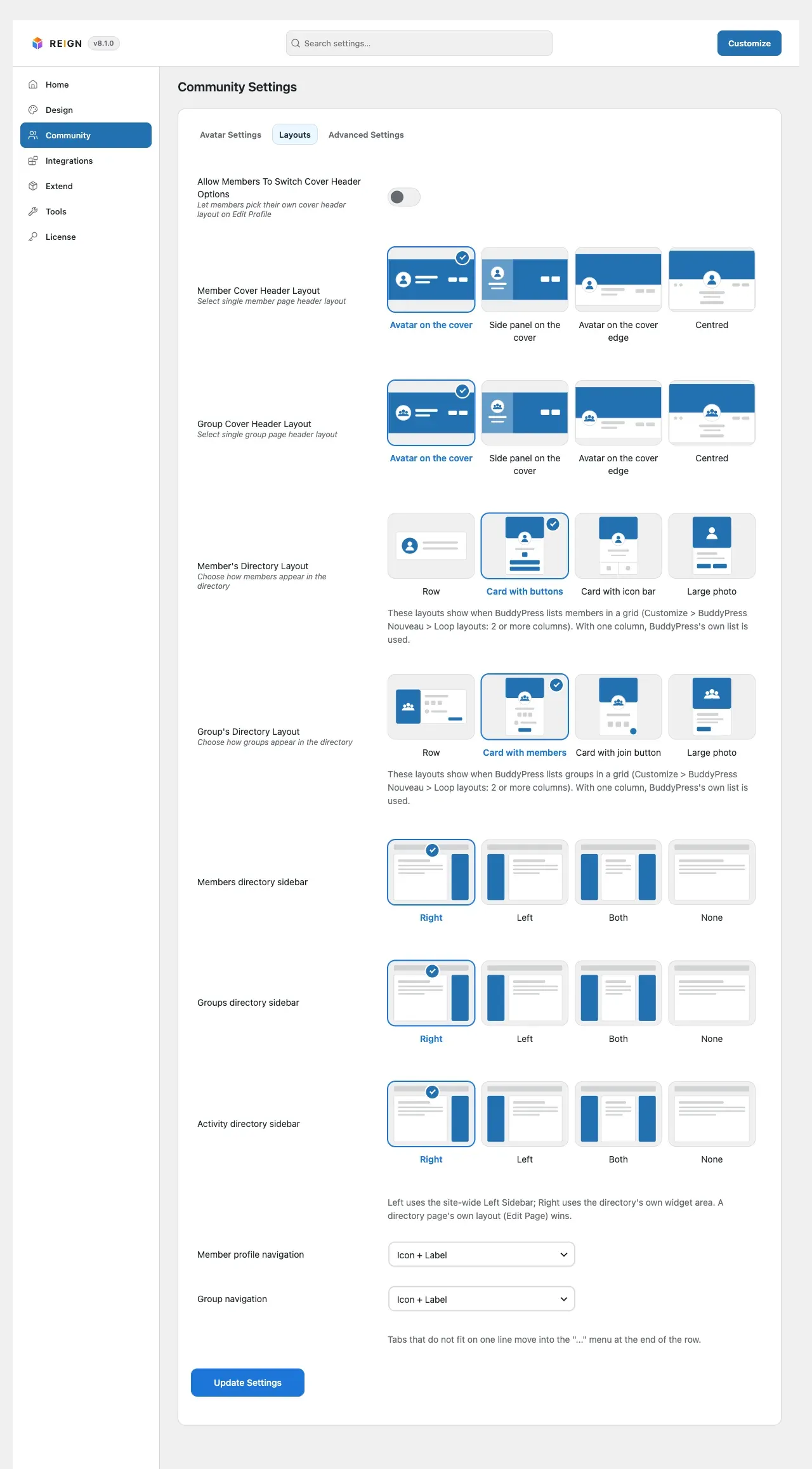
Go to Reign Settings > Community > Community Settings. Most choices are in the Layouts tab.
-
Pick a sidebar for each list: Members directory sidebar, Groups directory sidebar and Activity directory sidebar. Choose Right (the default), Left, Both or None (full width). The Layout box on a page itself wins over these. Under them, Activity sidebar on tablets and phones decides what happens below 1025px wide, where the sidebar can only sit under the activity feed. Hide leaves just the feed. Show below the feed keeps it at the bottom. New sites start on Hide; a site updated from an earlier Reign keeps Show below the feed until you change it. Desktop is not affected, and profiles and groups keep their sidebar.
-
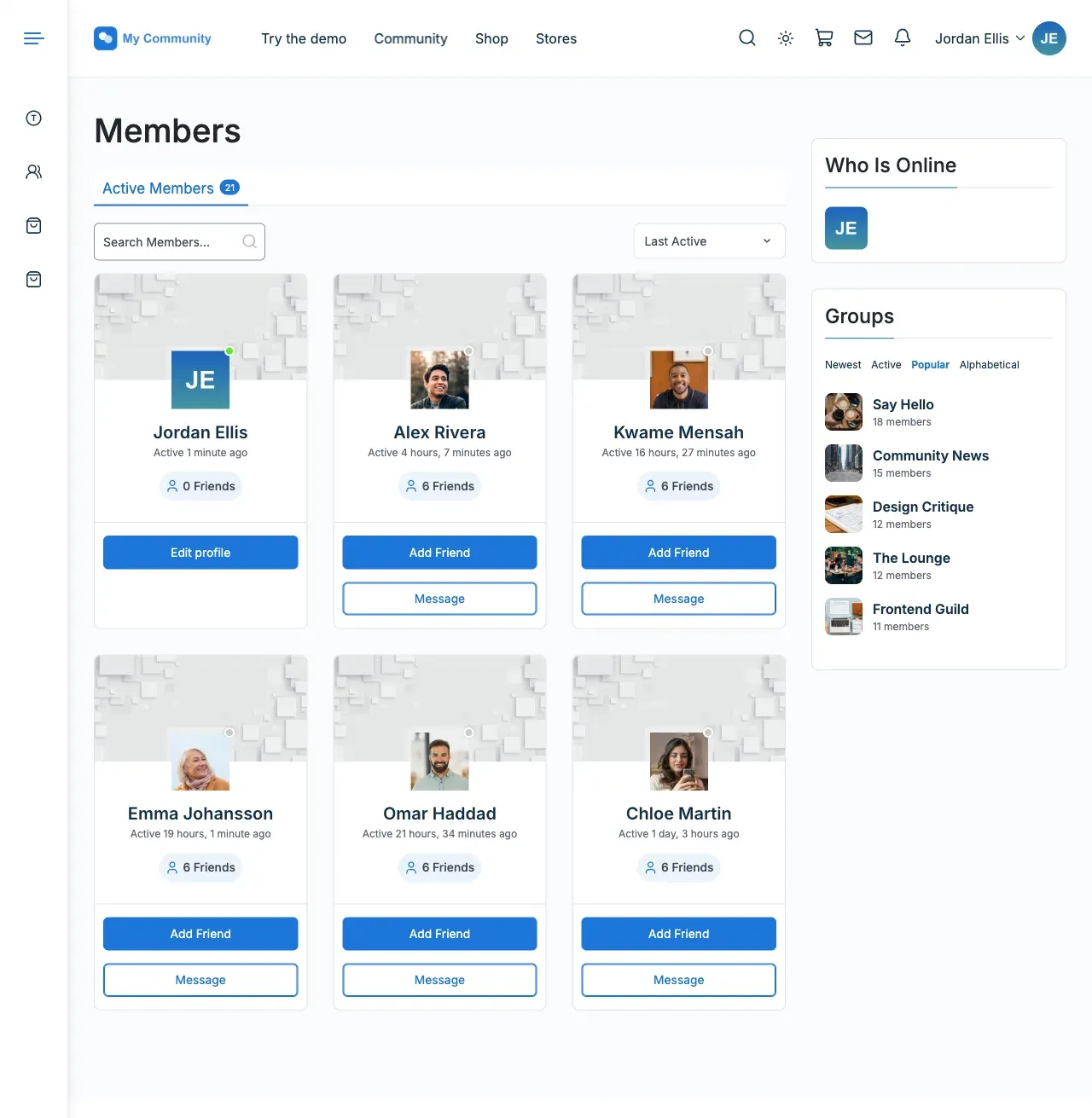
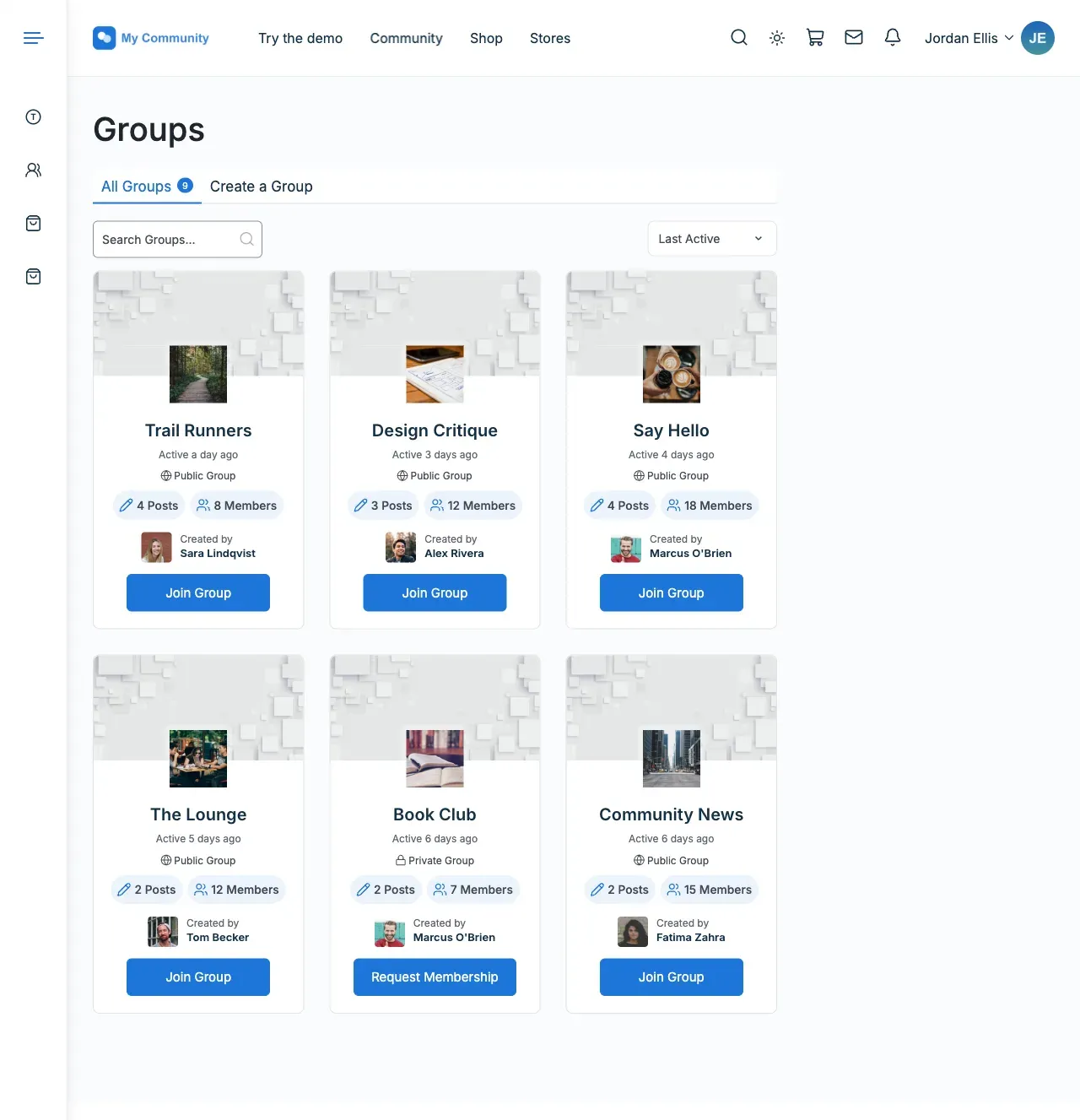
Pick Member’s Directory Layout and Group’s Directory Layout. Each has four layouts, shown as pictures. This sets how closely members and groups are packed and how much of each card shows.
-
Pick Member Cover Header Layout and Group Cover Header Layout. See “Choose a header layout” below.
-
Pick the tab style under Member profile navigation and Group navigation: Icon + Label, Icon only or Label only.
-
Open Advanced Settings. Set Members per page and Groups per page, from 1 to 100. If you leave them empty, BuddyPress’s own number is used.
-
Open Avatar Settings. Set the default avatar for members and groups, the default covers and the cover size. This tab is hidden on BuddyBoss.
Which sidebar? Full width suits a clean grid or an app-style feed. One or two sidebars suit filters, promotions or a “who’s online” widget. Left uses the site-wide Left Sidebar. Right uses the directory’s own widget area. Empty directory sidebars show community widgets until you add your own. See Sidebar, header and footer widgets.
Choose a header layout
Section titled “Choose a header layout”The cover always runs full width across the top of a profile or group page. On screens 1025px and wider, you can choose:
- Layout 1: photo, name, details and buttons sit on the cover, in one row.
- Layout 2: the same, inside a frosted card on the cover.
- Layout 3: the cover above, the photo on its lower edge, details beside it, buttons at the end of the row.
- Layout 4: the same as layout 3, centred.
On phones and tablets every layout looks the same. You see the cover, the photo on its lower edge, then the name, details, counts and buttons.
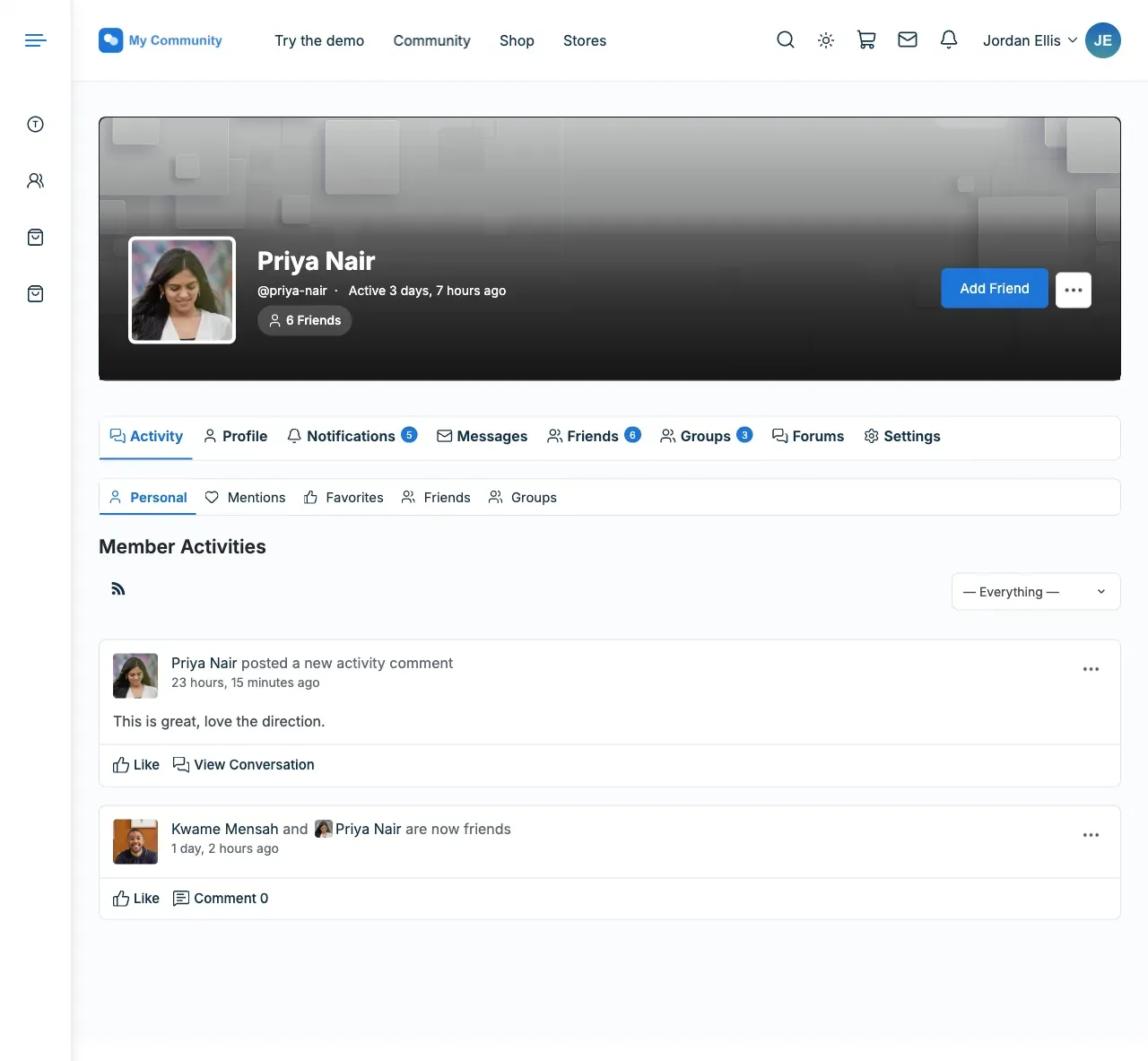
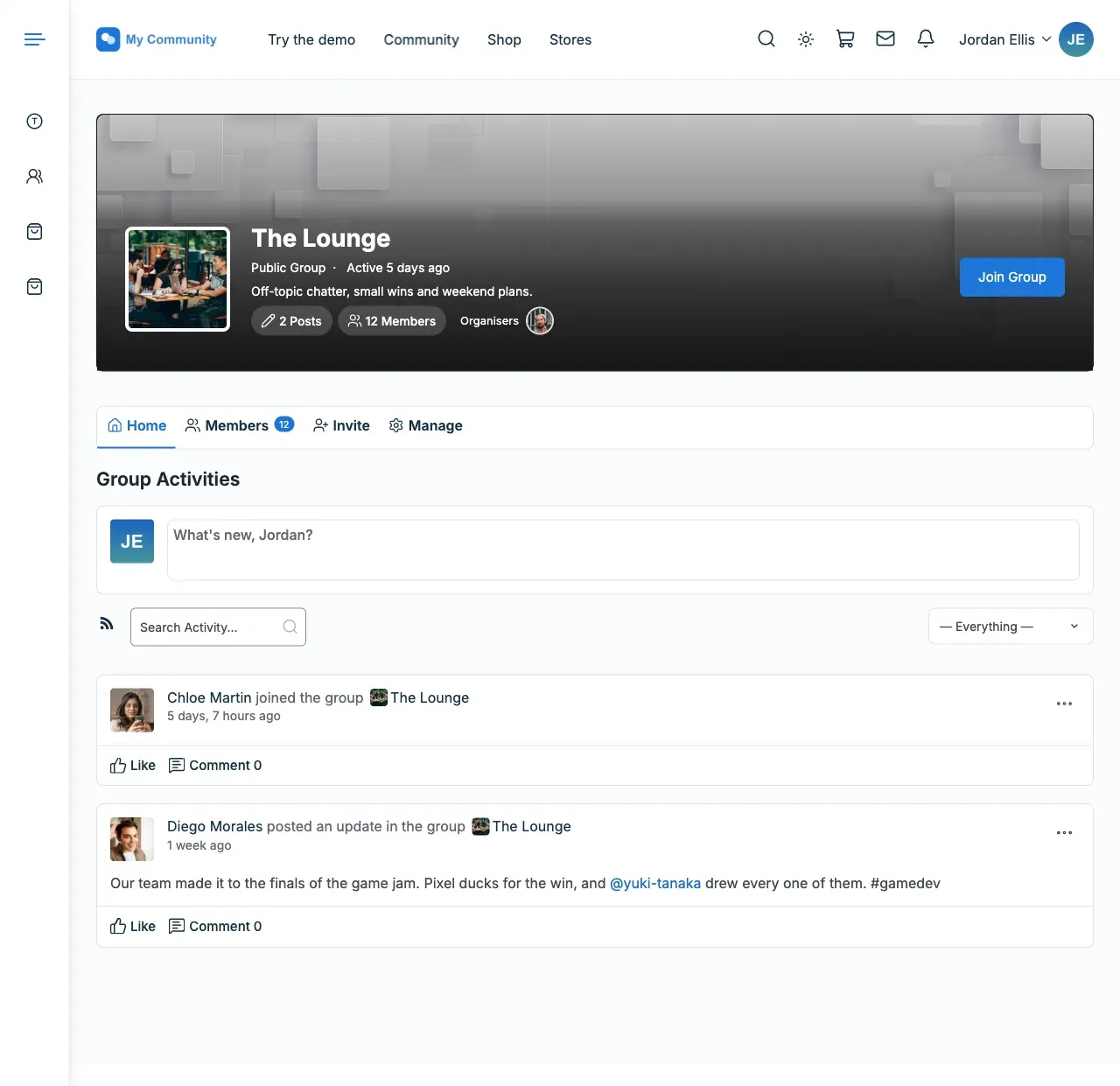
The header shows:
- The name, the @handle or group type, and when the member or group was last active.
- Counts as small links: friends for a member, posts and members for a group.
- For a group, its description (two lines, with More for the rest). Also its organisers, admins first and then moderators, as one row of photos. The row shows up to five, then a “+N” link to the members tab.
The cover uses the size set in Avatar Settings > Profile cover size and Group cover size. That is 1750 x 450 when empty. BuddyPress crops new uploads to that size, so the photo is never stretched.
You’ll know it worked when
Section titled “You’ll know it worked when”Open /members/, /groups/ and one profile. The sidebar, cards, header and tabs match your choices. On a phone, tabs that do not fit move into a “…” menu. The tab you are on always stays in view.
Good to know
Section titled “Good to know”How do I let members choose their own header?
Section titled “How do I let members choose their own header?”Turn on Allow Members To Switch Cover Header Options. Each member then sees Profile Header View on Edit Profile. It is off by default. When it is off, any layout a member picked earlier is ignored. The site-wide Member Cover Header Layout applies to everyone.
Why do I see Override Member Cover Header Layout?
Section titled “Why do I see Override Member Cover Header Layout?”It appears only with BuddyBoss Platform Pro. Platform Pro has its own Header Style setting. Reign follows it: a left-aligned style uses layout 3, and a centred style uses layout 4. Tick an override to use your own layout instead. On BuddyBoss the same four layouts apply to its own header. BuddyBoss keeps followers, the “Organized by” row, View more and its cover Reposition setting.
How do I add social links to profiles?
Section titled “How do I add social links to profiles?”Under Advanced Settings, turn on Enable Member Social Media Links. It is off by default. Members get a link field for each network in Edit Profile. The links show in the profile header and on the Profile tab. A Social networks list appears. Upload Icon sets an icon, Remove Icon clears it, Add New Site adds a network, and Delete removes one.
Where is the Activity directory sidebar?
Section titled “Where is the Activity directory sidebar?”It is in the Layouts tab. On BuddyBoss it also covers the Photos, Documents and Videos pages. On tablets and phones it follows Activity sidebar on tablets and phones: hidden on new sites, below the feed on sites updated from an earlier Reign.
What happened to the Swipe view?
Section titled “What happened to the Swipe view?”Sites updated from Reign 8.0.8 that used Swipe (icons only) now use Icon only. The tabs look the same.
Which settings should I start with?
Section titled “Which settings should I start with?”Pick a list layout that fits how many members or groups you expect. Leave the sidebar on right or full width. Use Icon + Label tabs so they stay clear on a phone. Raise the per-page count only after you have real content, and test load time on a large member base.
For developers
Section titled “For developers”- Cover or group photo changes post to the activity stream only if you use the
reign_record_photo_activityfilter. It is off by default. See the hooks reference. - Change the cover size with the
bp_before_members_cover_image_settings_parse_argsandbp_before_groups_cover_image_settings_parse_argsfilters, at a priority above 10.