

Blog single post layout
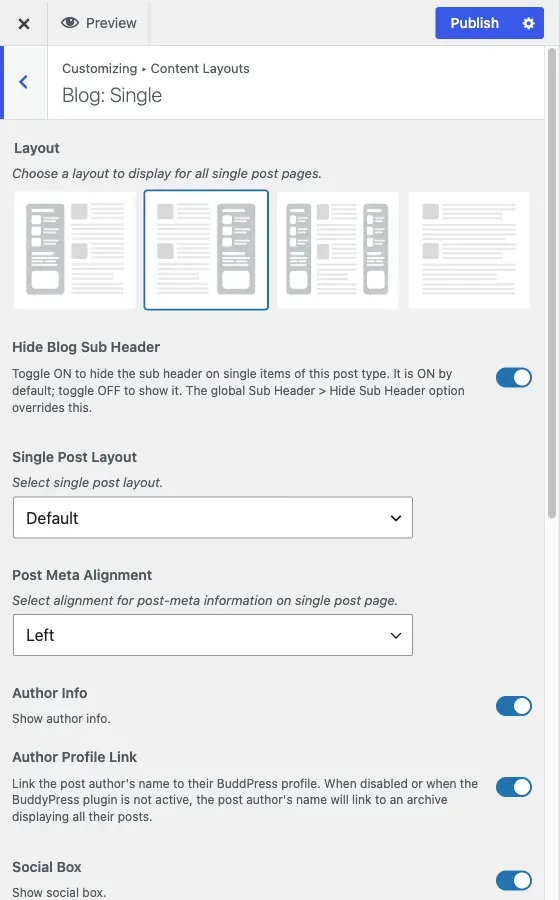
Customize > Content Layouts > Blog: Single
This section controls what a reader sees on an individual blog post: /your-post-slug/.
Content Layouts is generated once per registered post type, so on your site you will see a matching pair of sections for every post type that has a single view, not just Blog. If BuddyPress, WooCommerce or another plugin registers a post type, it gets its own “[Post Type]: Single” section here with the same shape as this one, minus the post-only controls described below. This page documents Blog: Single as the reference example for that pattern.
Layout and sidebar
Section titled “Layout and sidebar”Layout picks between a left sidebar, a right sidebar, both, or full width with no sidebar. The default is a right sidebar.
Left Sidebar and Right Sidebar pick which widget area fills the sidebar slot, from your registered sidebars. They only render when Layout puts a sidebar on that side.
Sub header
Section titled “Sub header”Hide Blog Sub Header is on by default, meaning the page-title banner above the post is hidden until you turn this off. The site-wide Sub Header > Hide Sub Header switch overrides this for every content type, so if the banner still is not showing after you turn this off, check that global switch first. See sub header.
Once the banner is showing, Enable Sub Header Image turns on a background image for it, and the image field below it sets which one. Switch Sub Header Image With Featured Image replaces that banner image with the post’s own featured image, and removes the featured image from the post content area so it does not show twice.
Post layout and meta
Section titled “Post layout and meta”Single Post Layout chooses between the default layout, a wide layout with no sidebar, and a wide layout that keeps the sidebar. Post Meta Alignment sets whether the byline and date sit left, center or right, and only applies when Single Post Layout is set to Default.
Author, sharing and related posts
Section titled “Author, sharing and related posts”Author Info shows or hides the author box under the post. Author Profile Link controls whether the author’s name links out: to their BuddyPress or BuddyBoss profile if one of those is active, or to an archive of their posts otherwise.
Social Box shows or hides the share icons, and Social Links is a sortable list picking which networks appear and in what order, from Facebook, Twitter, Pinterest, LinkedIn and WhatsApp. Facebook and Twitter are on by default.
Related Post is off by default. Turn it on to show a related-posts block under the content, and use Related Post Title to relabel it from the default “Related Posts”.
Post Navigation shows or hides the previous/next post links at the bottom of the page. It is on by default.
Featured Image Layout (per post)
Section titled “Featured Image Layout (per post)”On a single post you can choose how the featured image shows, for that post only. In the block editor, open the Post tab of the settings panel and find the Featured Image Layout panel. Use the Display Position dropdown:
- Default (Above Content): the image sits above the post content. This is the default.
- Behind Title (Hero): the image becomes a full background and the post title and meta sit on top of it.
- Beside Title: the image sits next to the title and meta.
- Hidden: no featured image on the post page.
The panel appears for posts only and has no effect on pages. It also does not change posts that use the Video, Audio, Gallery, Quote or Link format, because those formats lay out their own top section. It works only when the post has a featured image.
Post Format Settings (per post)
Section titled “Post Format Settings (per post)”The Post Format Settings box appears on posts only, below the editor. Set the post’s Format first, in the Post tab of the settings panel. The box then shows only the fields for that format. The Standard format and other formats not listed here have no extra fields.
| Format | Fields | How the post shows them |
|---|---|---|
| Gallery | Add Image Gallery | The chosen images appear as a gallery at the top of the post, in place of the featured image. You can drag images to reorder them. |
| Video | Video URL | The video plays at the top of the single post. YouTube, Vimeo and other supported links embed; other links use a standard video player. In blog listings the post shows its featured image with a play icon when it has one. |
| Audio | Audio URL | Supported links, such as SoundCloud, embed at the top of the post. Other links appear as an audio player at the start of the post content. |
| Quote | Quote Text and Quote Author | The quote appears as a large block at the top, with the author’s name under it. The featured image, if any, is the block’s background. |
| Link | Link Title and Link URL | A link block appears with the title and an arrow. It shows only when both fields are filled in. |
Use the Add Media button next to a Video or Audio URL to pick a file from your Media Library.
What is missing here
Section titled “What is missing here”Excerpt length, the blog listing layout, and pagination all belong to the archive view, not this one. See blog archive layout.