

Set up BuddyNext
Also called: BuddyNext setup, social network, community plugin, members area, profiles, activity feed, spaces, community login, header notification bell.
What this does
Section titled “What this does”BuddyNext is the newer community plugin. It adds members, spaces and an activity feed. Reign notices it and adapts. Reign does not install or configure BuddyNext for you.
BuddyNext and BuddyPress cannot both run. Reign uses its BuddyNext layer only when BuddyNext is active and BuddyPress is not. Moving from BuddyPress? Treat it as a migration and test on a staging copy first. Your BuddyPress content does not transfer when you turn on BuddyNext.
- If BuddyPress is active, deactivate it.
- Install and activate BuddyNext. Reign can install it in one click from Reign Settings > Extend. No licence is needed. See Installation.
- Finish BuddyNext Setup. It opens on the first admin page you visit after activation. Reign styles what BuddyNext shows, so an unfinished setup looks like a Reign problem when it is not.
- Go through the wizard’s eight steps. They cover branding, who can join, profile fields and default notifications. They also cover space categories, the pages it creates (Community Feed, Members, Spaces), companion plugins and a final screen.
- On What’s powering your community?, untick any Wbcom companion plugin you do not want. They all start ticked, and Continue installs every ticked one.
- On Your community is ready., choose Add sample content if you want it. It adds 12 members, 14 spaces and 22 posts with images. Load it before other plugins’ demo content. Remove it later at BuddyNext > Platform > Tools > Demo Data > Remove Demo Data.
You do not need to run the wizard again. Each step tells you where its settings live. For example, BuddyNext > Members > Registration & Login sets who can join. For everything BuddyNext does, see the BuddyNext documentation, buddynext.com, or the live demo.
You’ll know it worked when
Section titled “You’ll know it worked when”You see a BuddyNext activity feed inside your Reign header and footer.
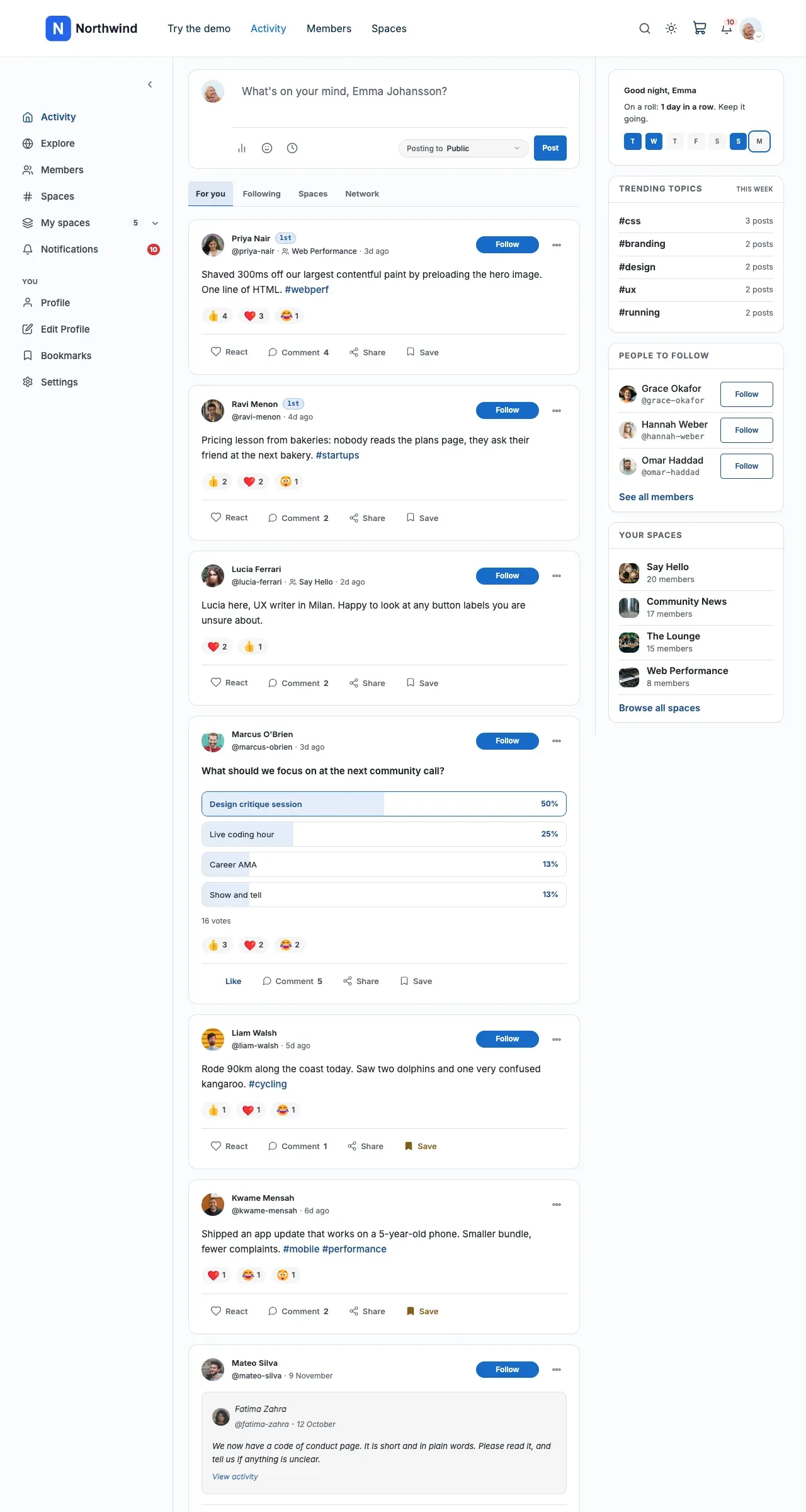
Then check four things:
- Log in as a member. The bell, messages icon and avatar menu show in the header.
- Open the avatar menu. It shows your User Profile menu, and Log Out is there.
- Log out and click a login or register link. You land on the BuddyNext login screen, not
wp-login.php. - Check the login screen on a phone. The cover reaches the header and footer with no gap.
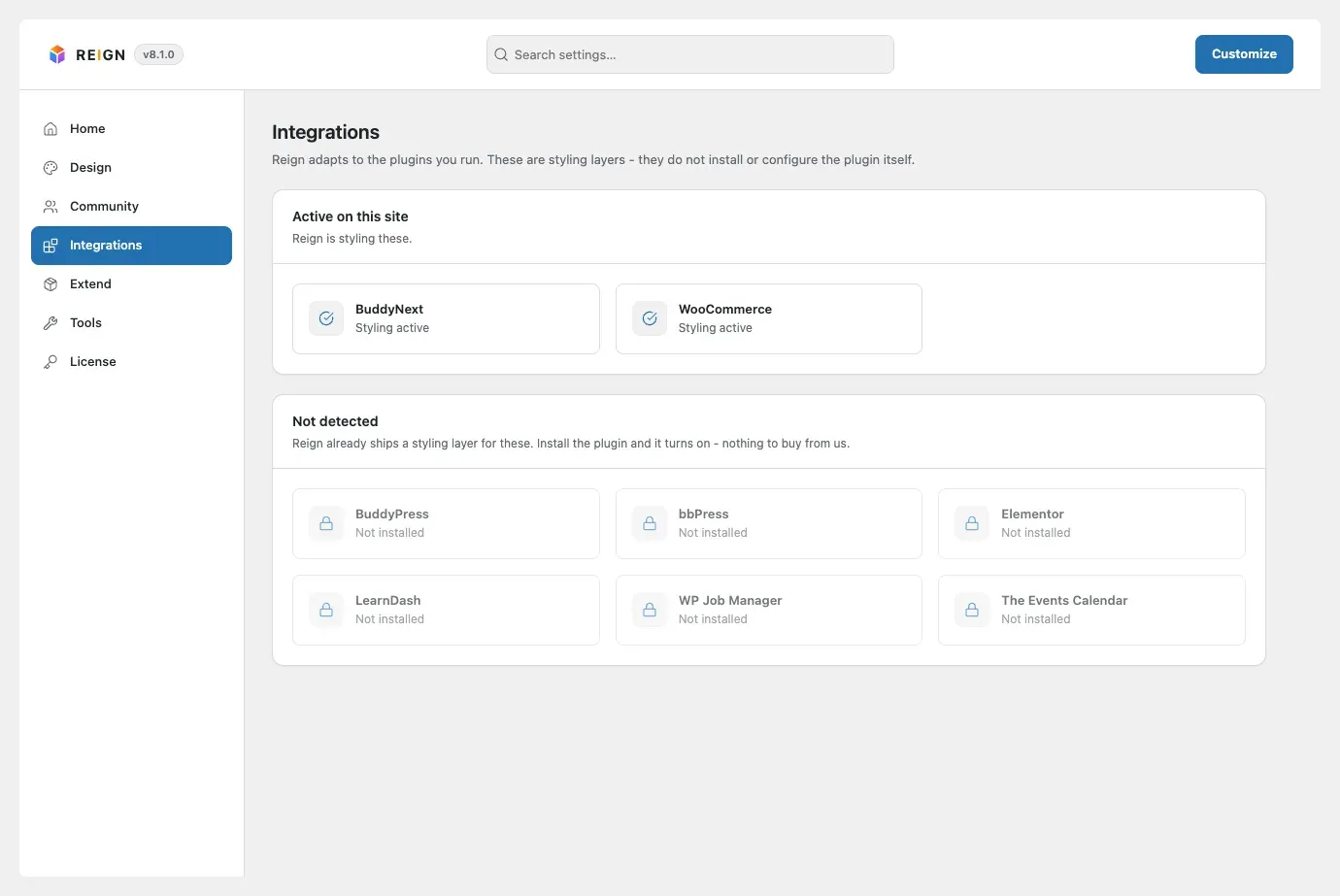
In Reign Settings > Integrations, you see a BuddyNext tile reading Styling active, and no BuddyPress tile. If it says BuddyPress, your build is older than 8.0.7.
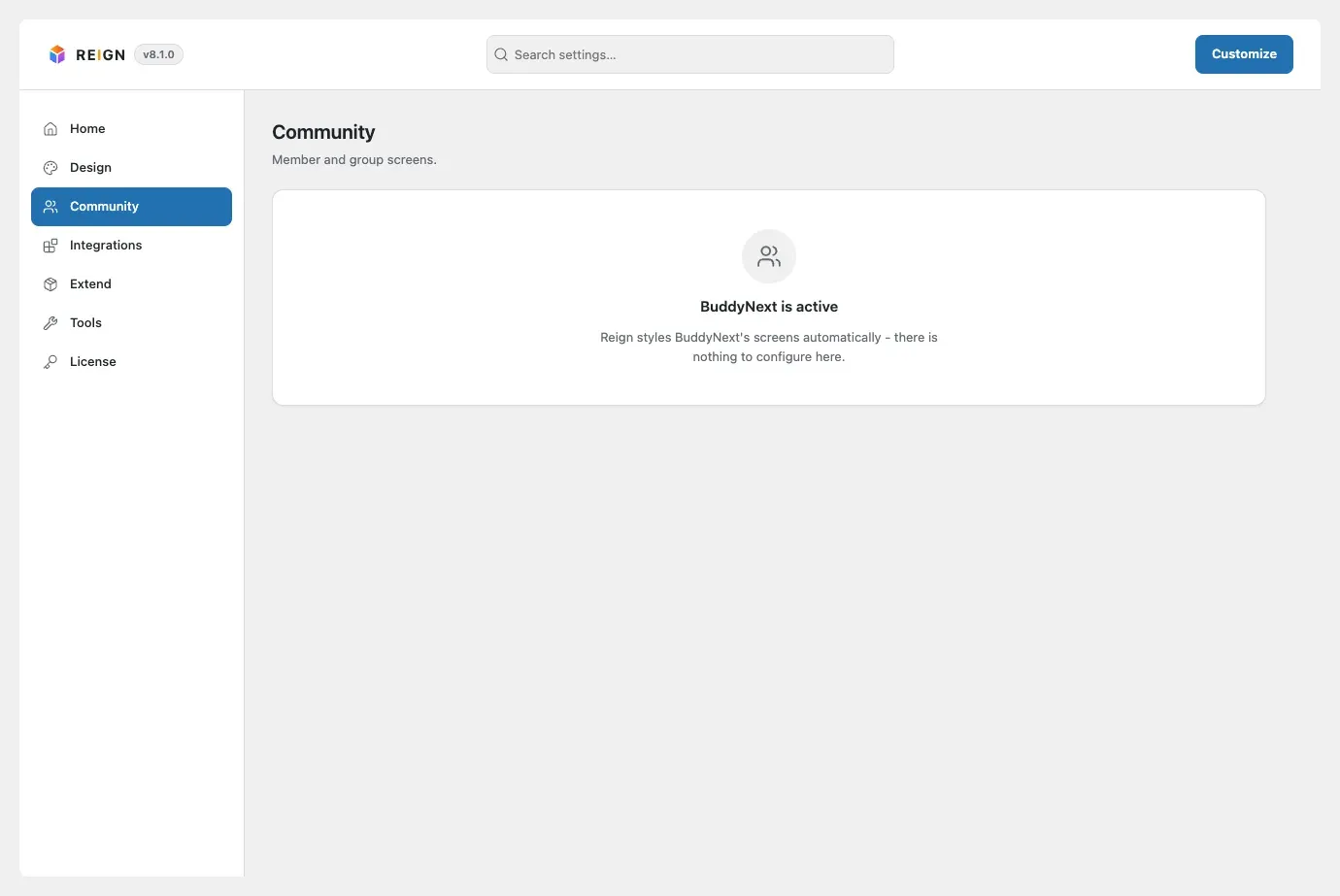
Reign Settings > Community says there is nothing to configure.
Good to know
Section titled “Good to know”What does the header user area show?
Section titled “What does the header user area show?”Reign draws the bell, the messages icon and the avatar menu through BuddyNext’s own header section. This is the avatar menu, open.
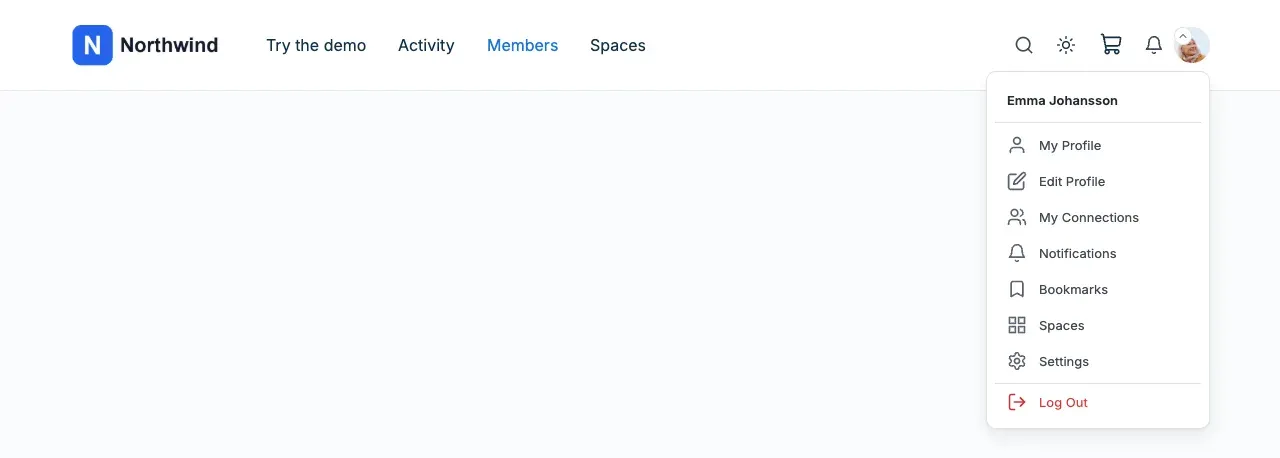
The bell opens BuddyNext’s notification list.
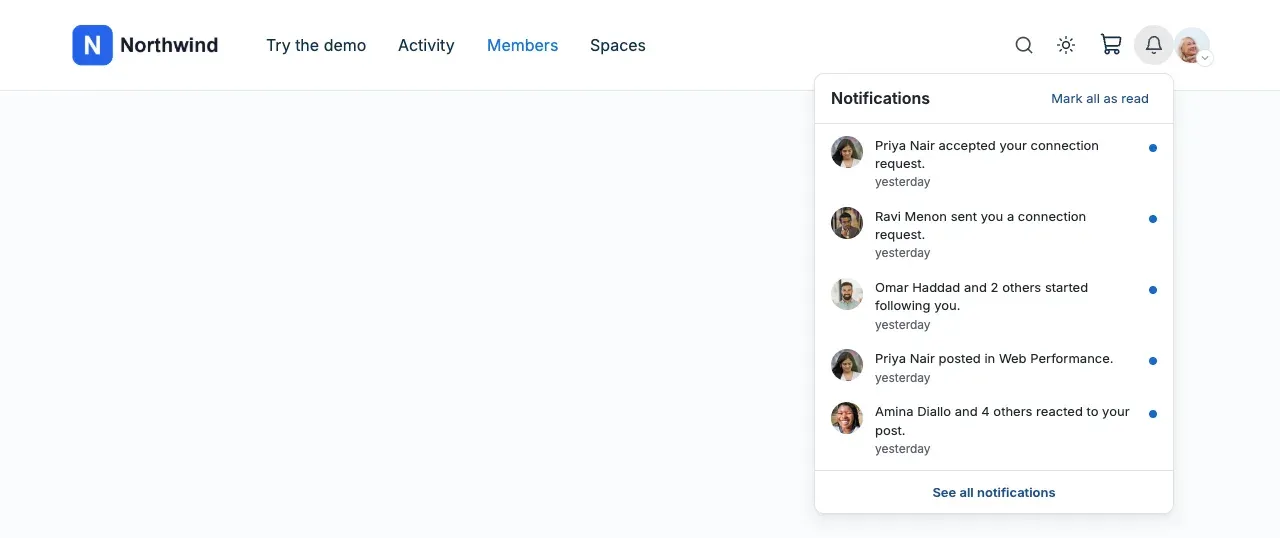
Reign makes sure the three icons it needs (Message, Notification, User Menu) are in your header icon set. You can still reorder or hide them in Appearance > Customize > Header > Layout > Header Icons Options. The Friends Request icon is not offered, because friends is a BuddyPress feature.
Why is the messages icon missing?
Section titled “Why is the messages icon missing?”Member messages run on MediaVerse. Without MediaVerse active, Reign hides the header messages icon, the Messages menu item and the Message buttons on profiles. Turn messaging on at MediaVerse > Settings > Messages > Turn on private messages.
How do I add my own links to the profile menu?
Section titled “How do I add my own links to the profile menu?”Assign a menu to the User Profile location in Appearance > Menus. Reign puts it in the avatar menu. With no menu assigned, BuddyNext shows its own quick links. Log Out always stays, so you cannot lock members out.
How does the header search work?
Section titled “How does the header search work?”The search icon opens BuddyNext’s community search, so members find people, spaces and posts from any page. See Page, search and plugin-content layouts.
Why does the search icon still search products?
Section titled “Why does the search icon still search products?”If WooCommerce is also active, the header search keeps searching products. To switch it to community search:
- Go to Appearance > Customize > Header > Layout and set Layout to v4.
- Set Header Search Style to Default Search.
- Select Publish. Then set Layout back to the one you use and publish again.
The choice is kept after you switch layouts.
Where do login, register and reset password go?
Section titled “Where do login, register and reset password go?”With BuddyNext active, WordPress’s login, register and reset links open BuddyNext’s own screens. On a default install:
| Link | Opens |
|---|---|
| Login | /login/ |
| Register | /login/signup/ |
| Reset password | /login/reset/ |
This applies on the front end only. wp-login.php and wp-admin are left alone, so you always keep a working admin login.
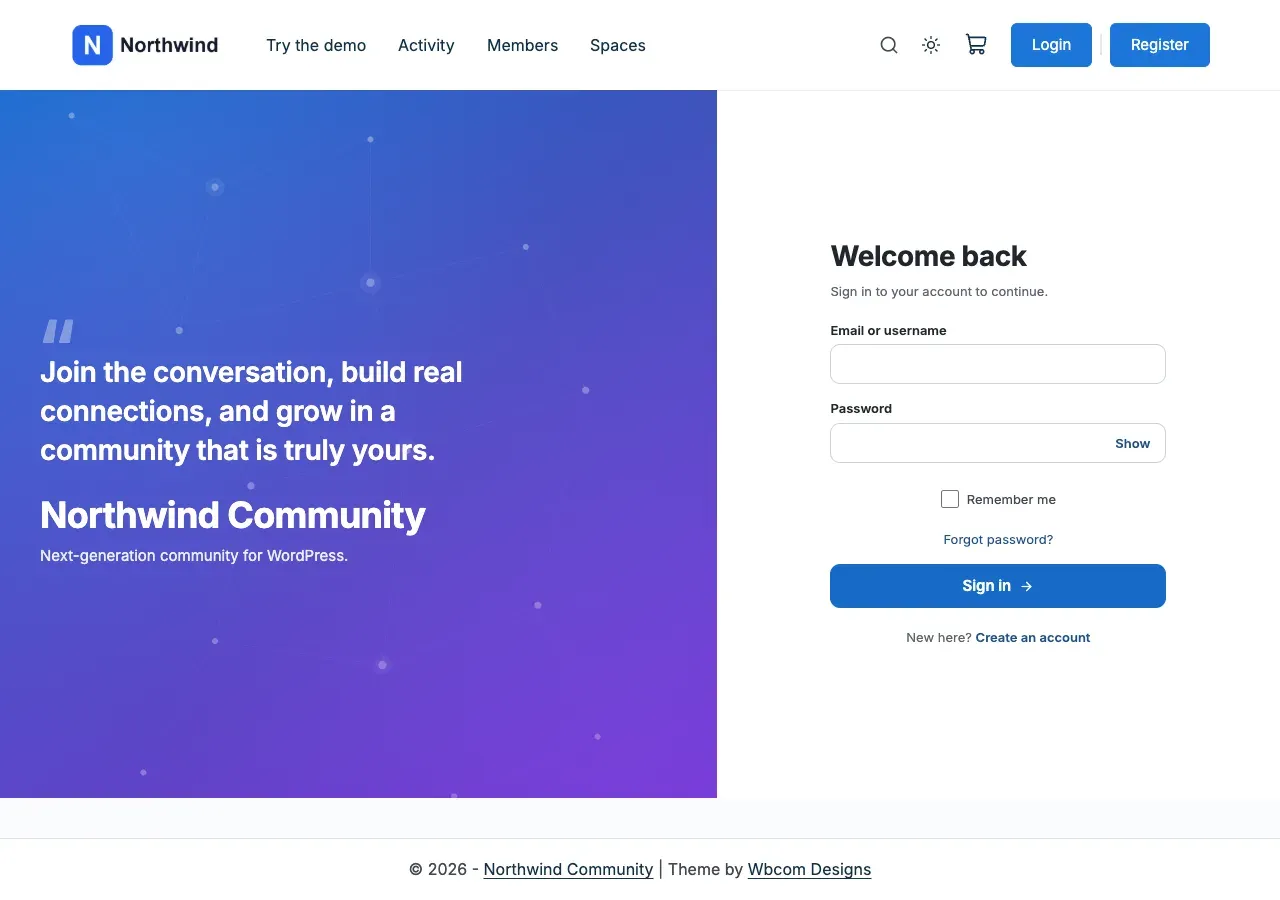
Which screen do the header Login and Register buttons open?
Section titled “Which screen do the header Login and Register buttons open?”Reign picks in this order. The first match wins.
- The Login popup (Sign-in popup) is on. The button opens the popup.
- You set a Login Page or Register Page in Page mapping. The button opens that page.
- Neither. The button opens BuddyNext’s login screen.
To send members to BuddyNext’s screens, leave the popup off and leave both page settings empty. The Register button also needs Settings > General > Membership > Anyone can register turned on.
Why is there no gap around the login cover?
Section titled “Why is there no gap around the login cover?”Reign removes the padding around BuddyNext’s full-width login screens. The cover sits flush against the header and footer.