

Header style, search and icons (Header layout)
Also called: header style, header layout, navigation bar layout, navbar, centred logo, menu below logo, search icon, cart icon.
Not to be confused with the Topbar or the Page title area. The Topbar is the thin strip above the header. The Page title area (Sub header) is the banner below it that shows each page’s title.
What this does
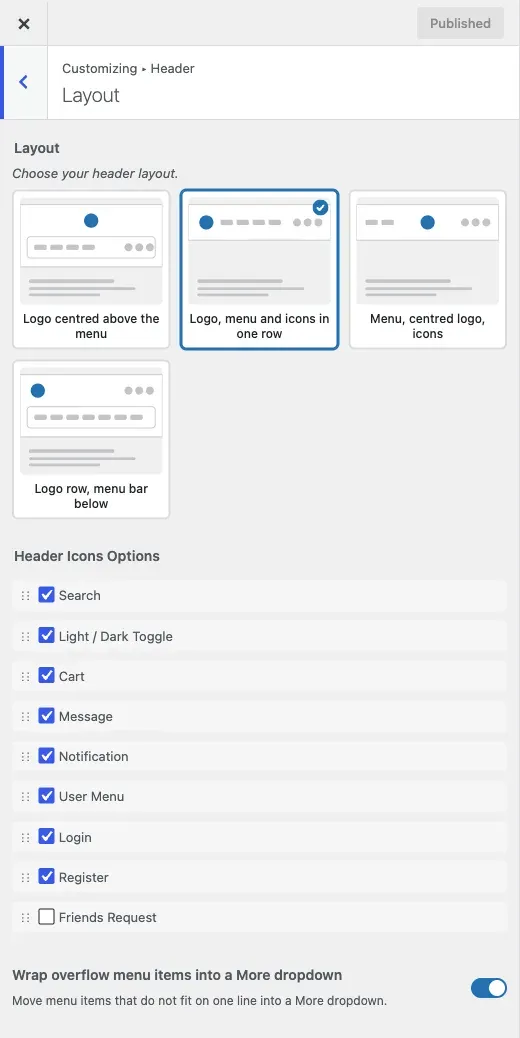
Section titled “What this does”The header is the bar with your logo, menu and icons. Here you choose one of four layouts. You also pick which icons show and in what order. A third setting decides what happens when your menu is too long for one line.
-
Go to Appearance > Customize > Header > Layout.
-
Under Layout, pick one of four styles from the visual picker. Try each with your own menu and logo before you settle.




-
Under Header Icons Options, drag the icons into the order you want. Untick any you do not want.

-
Leave Wrap overflow menu items into a More dropdown on. Menu items that do not fit on one line move into a “More” dropdown.
-
Click Publish.
You’ll know it worked when
Section titled “You’ll know it worked when”The header shows the style you picked, with icons in your order. A long menu shows a “More” item, not a second line.
Good to know
Section titled “Good to know”Which icons can I use?
Section titled “Which icons can I use?”- Search and User Menu / Login / Register are always there.
- Cart appears once WooCommerce is active.
- Message, Notification and Friends Request appear once BuddyPress or BuddyNext is active. Friends Request is BuddyPress only.
- Light / Dark Toggle can be dragged into the list to put the dark mode switch among the other icons.
Reordering here changes the desktop header only. Phones have their own order in Phone menu (Mobile menu).
How do I centre my logo or put the menu under the logo?
Section titled “How do I centre my logo or put the menu under the logo?”Pick style v1 (logo centred above the menu), v3 (menu left, logo centred) or v4 (logo row with the menu underneath).
How do I remove the search icon or the cart icon?
Section titled “How do I remove the search icon or the cart icon?”Untick it in Header Icons Options.
Why does my menu wrap onto two lines?
Section titled “Why does my menu wrap onto two lines?”Turn Wrap overflow menu items into a More dropdown on. It is on by default. Turn it off only for a short menu where you would rather items wrap or disappear.
How do I make the search box search products?
Section titled “How do I make the search box search products?”With WooCommerce active and style v4, an extra Header Search Style control appears. Product Search searches products. Default Search uses WordPress search.
With BuddyNext and WooCommerce both active, this control sets the search icon on every layout. Product Search keeps product search. Default Search opens the community search. See the header search in the BuddyNext guide.
Which should I choose first?
Section titled “Which should I choose first?”Choose the style first, then the icon order. A shop leads with cart and search. A community site leads with message and notification.