

Dark mode switch and dark colours (Light and dark mode)
Also called: dark mode, night mode, dark theme, light and dark toggle, colour mode switch, dark logo, dark switch missing, dark colors.
What this does
Section titled “What this does”This section adds a sun and moon button that lets visitors choose light or dark mode. Their choice is remembered for next time. The section holds no colours. The dark colours live in Dark Mode Colors, covered below. This is step three of Change your site colours.
-
Pick a palette first in Pick a colour palette. Its dark version is prepared for you.
-
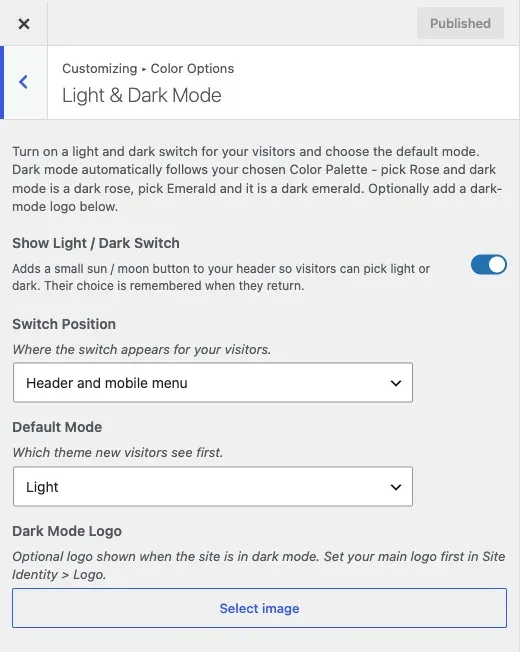
Go to Appearance > Customize > Color Options > Light & Dark Mode.
-
Turn on Show Light / Dark Switch.
-
Set Switch Position: header and mobile menu, header only, or mobile menu only. It shows only once the switch is on.
-
Set Default Mode: light or dark. This is what a new visitor sees before they choose.
-
Optional: add a Dark Mode Logo. It shows only in dark mode, so a dark logo does not vanish on a dark header. Set your main logo first in Site Identity > Logo. This field appears once the switch is on.
-
Click Publish.
You’ll know it worked when
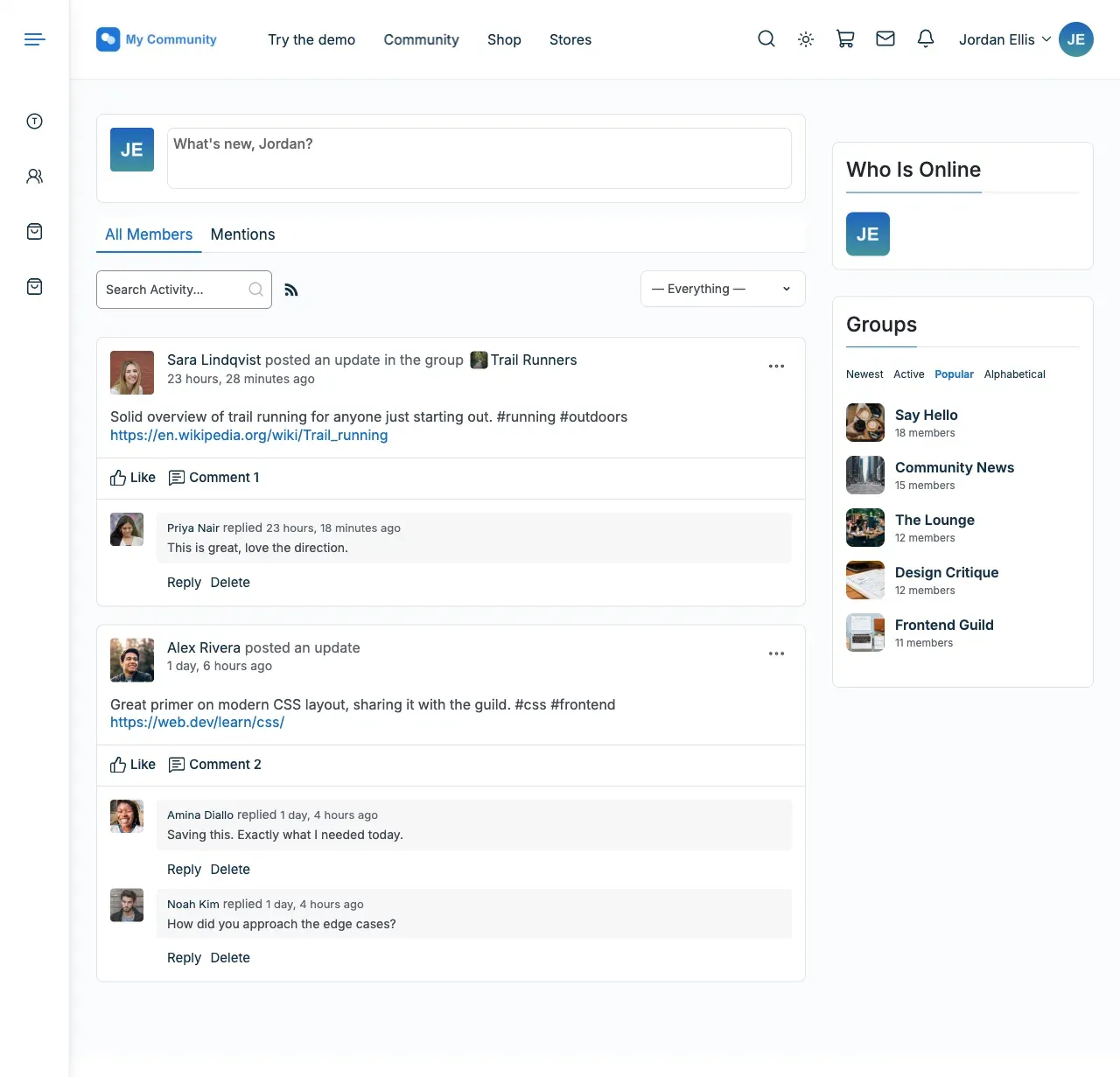
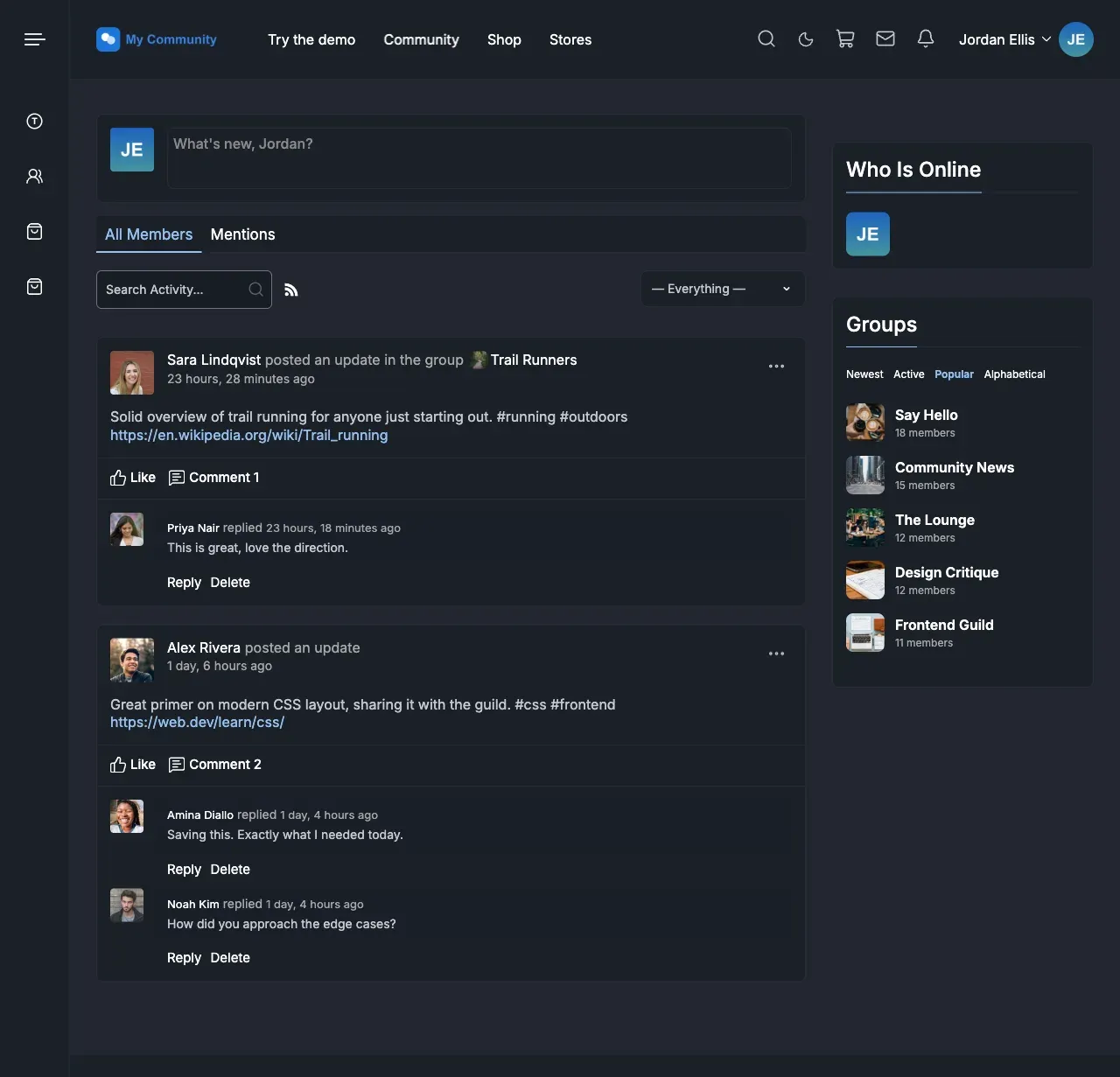
Section titled “You’ll know it worked when”A sun and moon button shows in the header. Click it and the site changes between light and dark. Test in a private window as a first-time visitor.
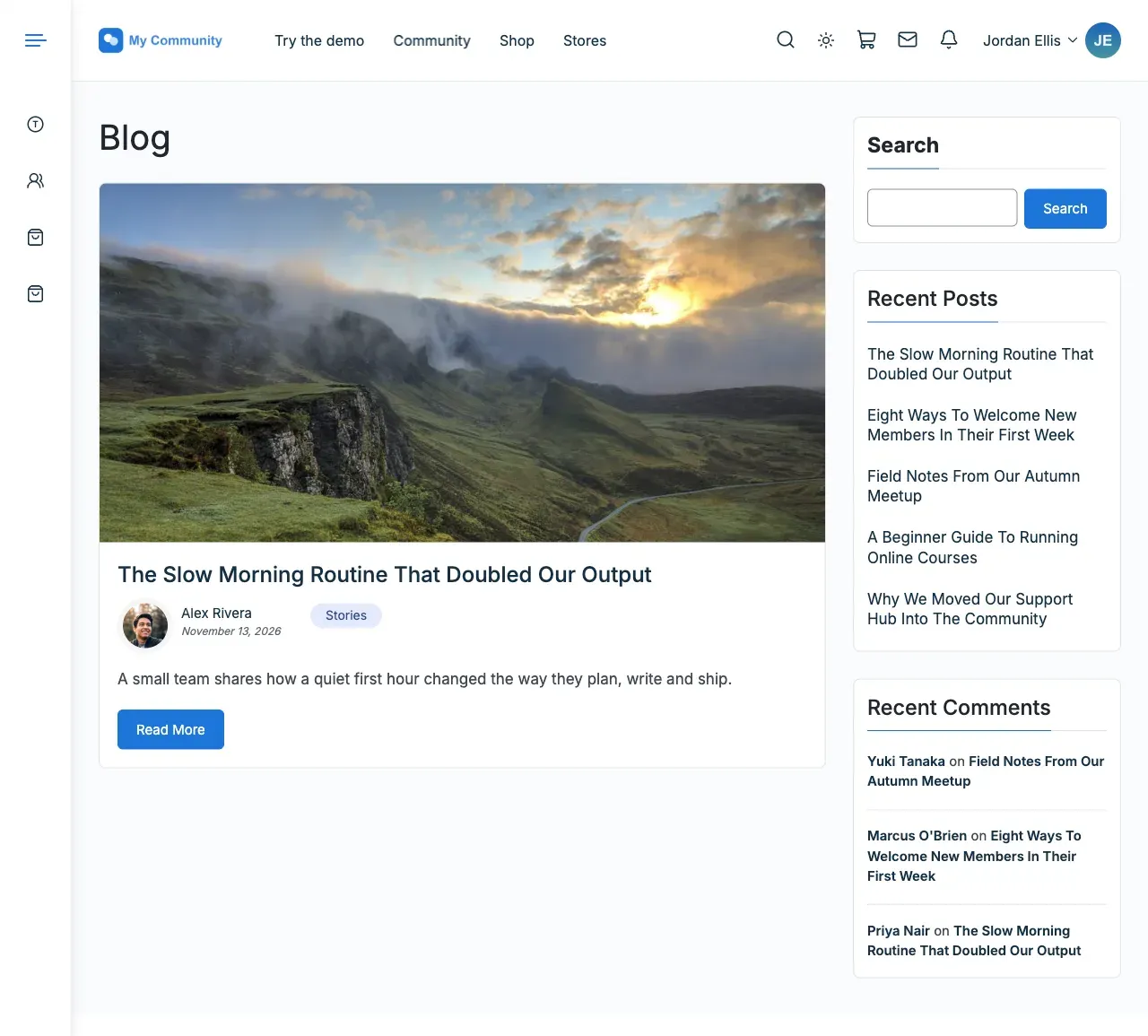
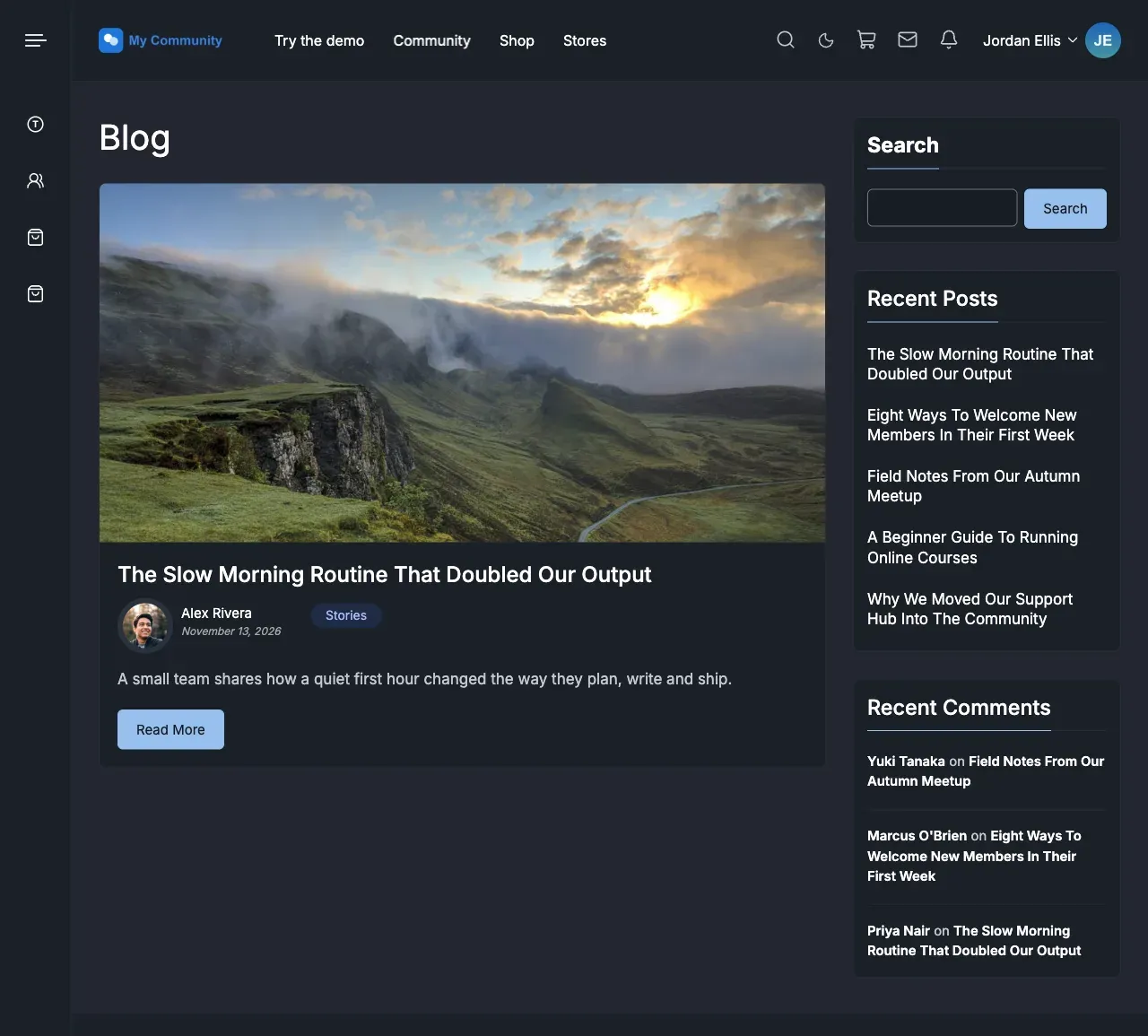
Check a page with a photo-heavy header and a page with forms. A leftover colour you set by hand is most likely to look wrong in one mode there.
Good to know
Section titled “Good to know”How do I change the dark mode colours?
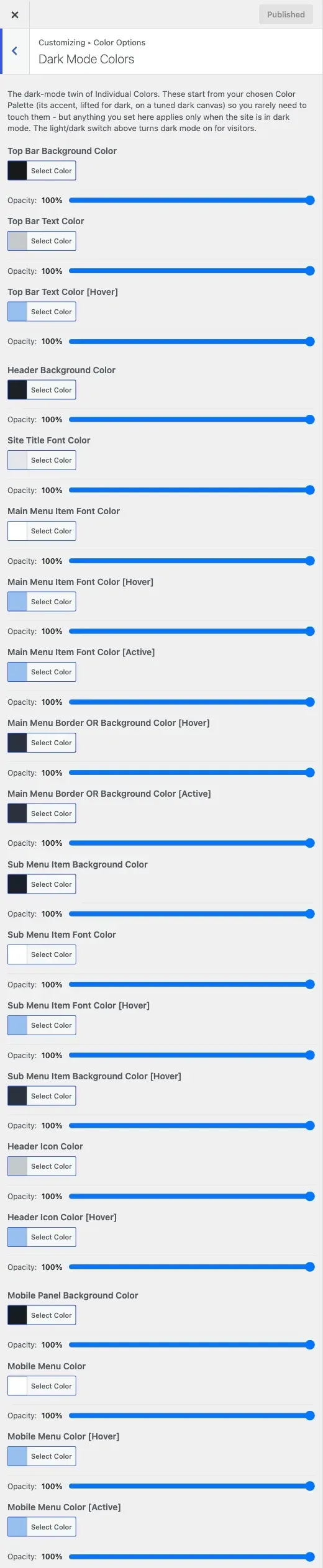
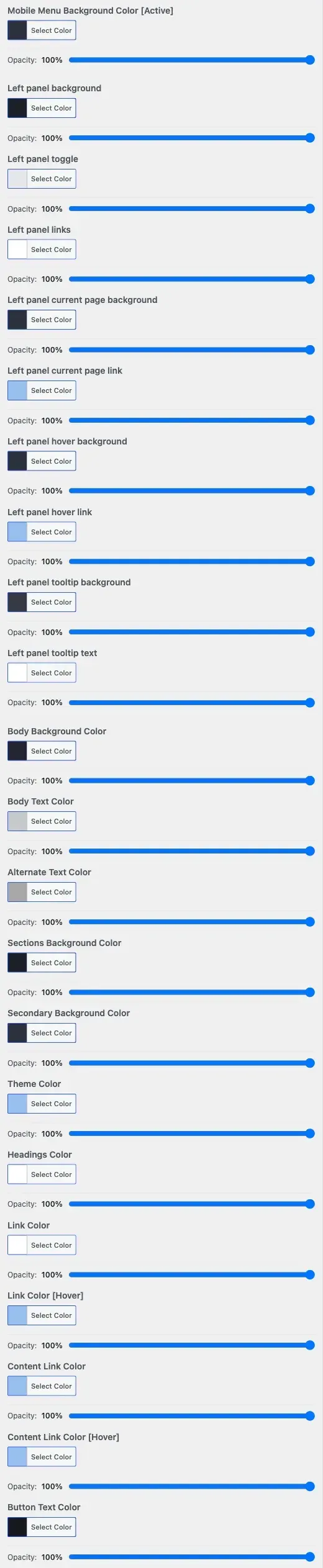
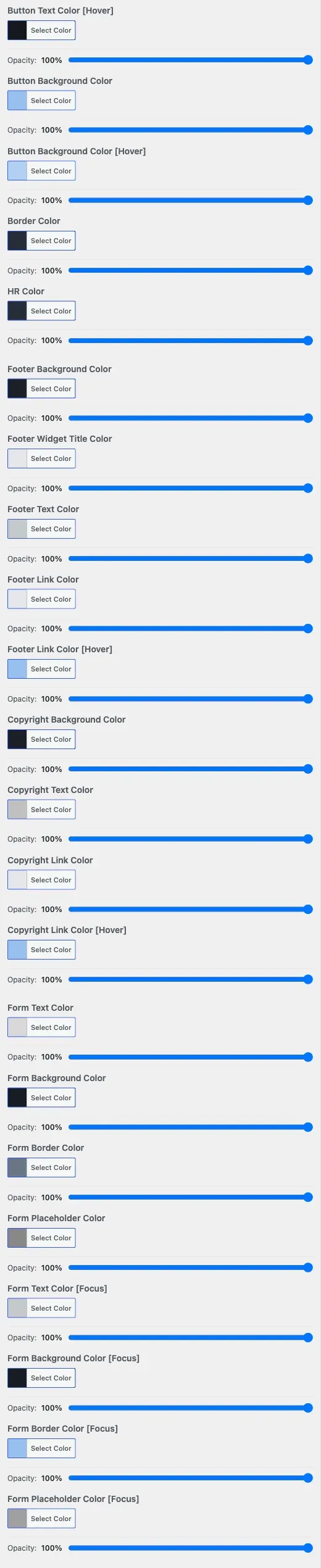
Section titled “How do I change the dark mode colours?”Most sites never need to. Dark colours start from your palette. To fine-tune one, open Color Options > Dark Mode Colors. It sets the background, text, header, menu, button and footer colours used only in dark mode. See the full list of colour settings and how the colour system works.
Why are my logos swapped in dark mode?
Section titled “Why are my logos swapped in dark mode?”Check the two logos. Site Identity > Logo is your main logo. Dark Mode Logo shows only in dark mode. Put the dark-coloured logo in the main field and the light one in the dark mode field.
Why isn’t some content dark?
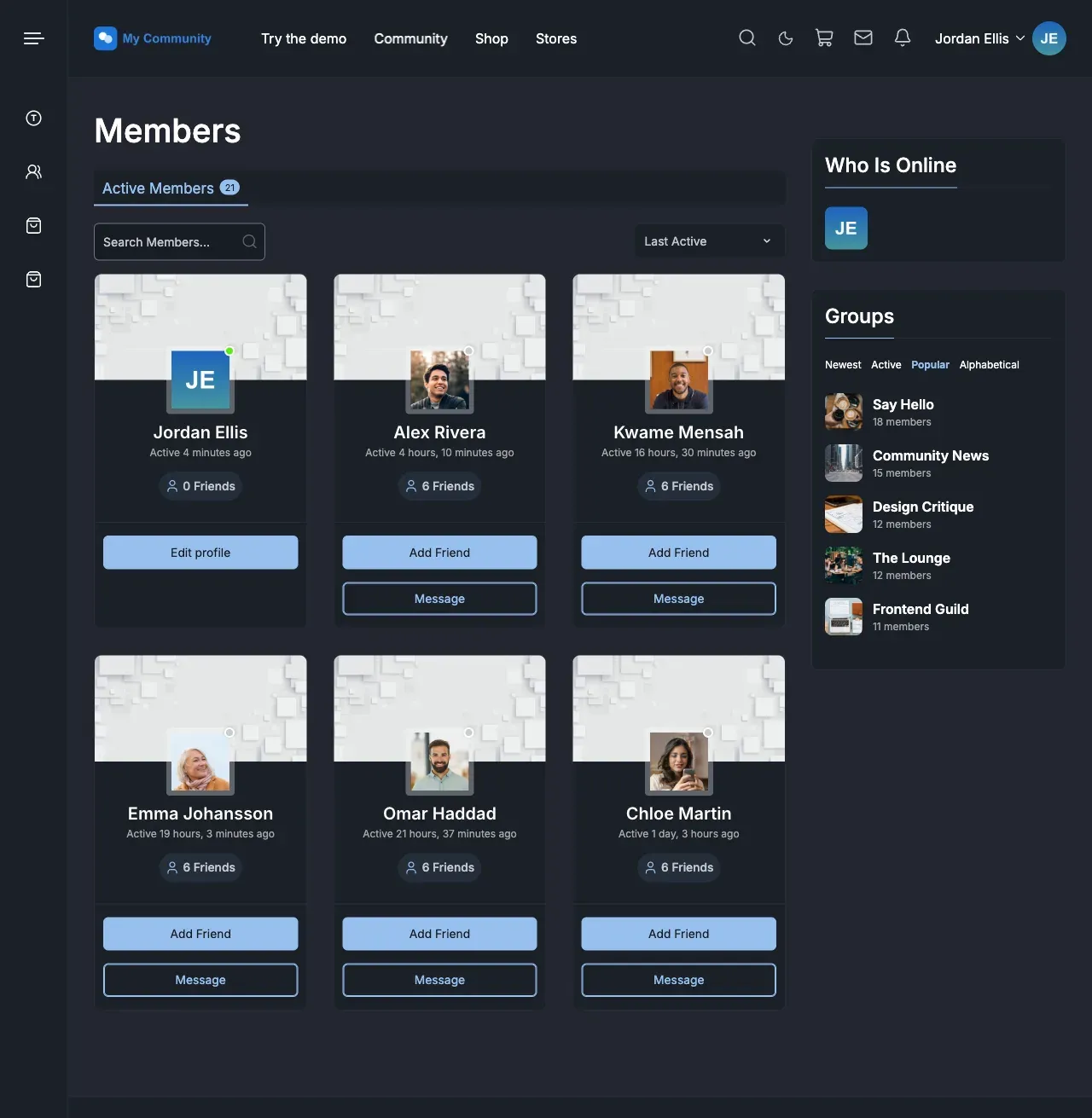
Section titled “Why isn’t some content dark?”Reign’s dark colours reach WooCommerce, BuddyPress, bbPress, LearnDash, The Events Calendar and WP Job Manager. They also reach the marketplace, store, membership, form and LMS plugins that get a colour fit. See plugins Reign matches to your colours and dark mode for the list. A plugin not named there uses its own design and does not switch by itself. Check its own settings for a dark option.
How do I start my site in dark mode?
Section titled “How do I start my site in dark mode?”Set Default Mode to dark.
How do I swap a photo or banner between light and dark?
Section titled “How do I swap a photo or banner between light and dark?”That is a separate feature, not the Customizer. Go to Reign Settings > Design and open the Dark mode images card. It links to a screen where you pair a light-mode image with its dark-mode twin. See also turn on dark mode.