

Change your site colours (How the colour system works)
Also called: colour scheme, theme colours, site colours, change colours, brand colours, global colours, colour skin, change colors, site colors, color scheme, theme colors.
What this does
Section titled “What this does”Reign colours your header, menus, content, footer, forms and dark mode. You do not set them one by one. You work in three steps, from broad to narrow. Always go in this order.
-
Pick a palette. One choice sets the colours for the whole site, in light and dark mode. For most sites this is all you need. See Pick a colour palette.

-
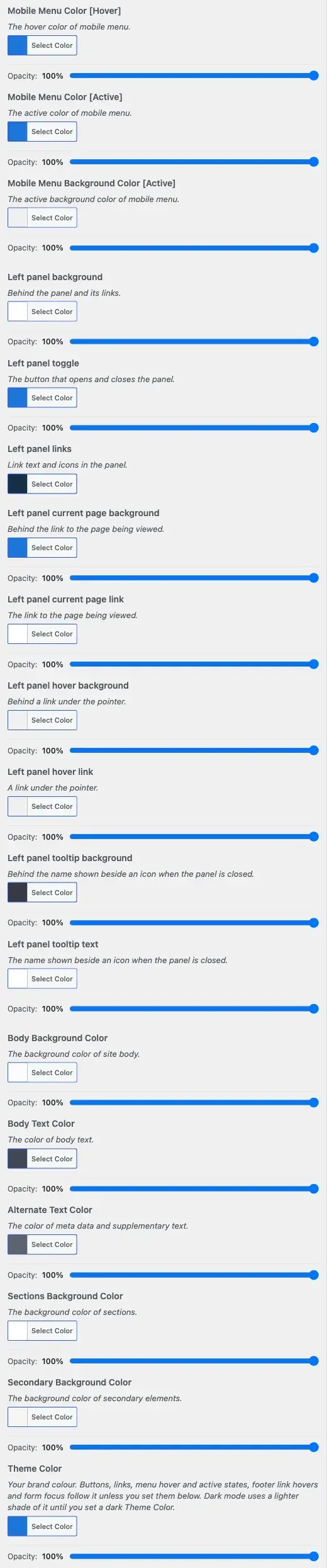
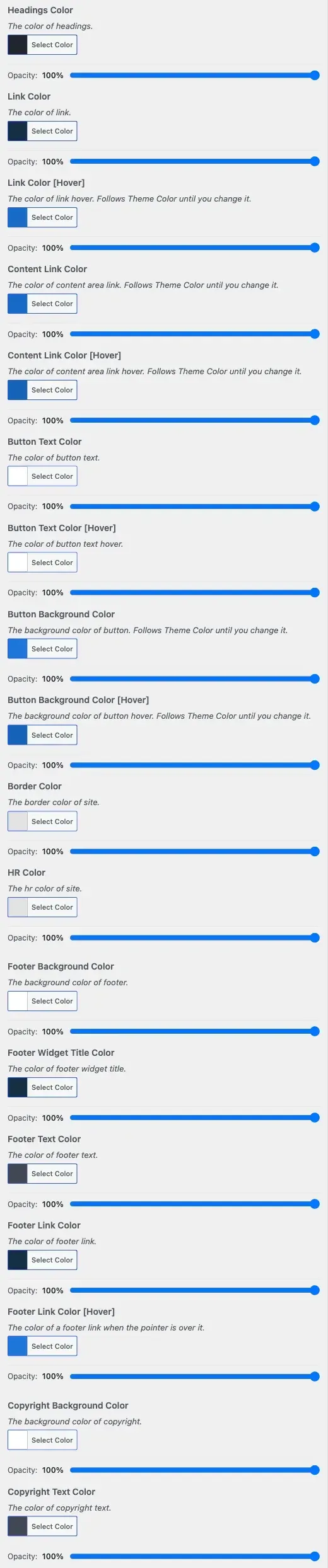
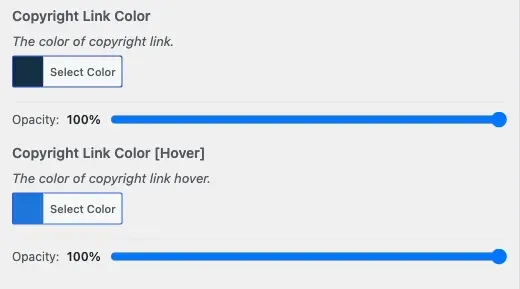
Change one colour. Only if one thing needs its own colour, such as a header that must match your brand. See Change one specific colour. Whatever you set there wins over the palette, for that one element.
-
Set dark mode colours. Only if something looks wrong in dark mode. See Dark mode switch and dark colours.
All three live under Appearance > Customize > Color Options. Dark mode also has its own switch section, Light & Dark Mode. It holds no colours. It only controls the visitor toggle, the default mode, the switch position and an optional dark logo.
You’ll know it worked when
Section titled “You’ll know it worked when”Your site shows the new colours on the header, menus, buttons and footer. In dark mode, the dark version of those colours shows.
Good to know
Section titled “Good to know”Which setting wins when two disagree?
Section titled “Which setting wins when two disagree?”The narrower setting wins. Palette is the baseline for light and dark. Individual Colors pins one element in light mode. Dark Mode Colors pins one element in dark mode. They start from the same palette but move apart once you touch them. A change in one has no effect on the other.
Why did a palette change skip one element?
Section titled “Why did a palette change skip one element?”Usually one of two reasons. Both work as designed.
- That element already has its own colour under this palette. Reign saves your per-element colours separately for each palette. A colour you picked while “Emerald” was active is still there next time you choose “Emerald”, even after you tried three other palettes. Open Individual Colors, or Dark Mode Colors if it is only wrong in dark mode. Change that one field. Or click the small reset arrow on the colour picker to return it to the palette colour.
- The element is wrong in one mode only. Light and dark colours are separate sections. If a colour looks right in light mode and wrong in dark mode, fix it in Dark Mode Colors. Do not change the palette or Individual Colors.
If something will not change, a narrower setting is holding it. Find that setting and clear it. Do not fight it from the palette.
Why can I only see some of the colour controls?
Section titled “Why can I only see some of the colour controls?”You only see the controls for the palette you are using now. Reign stores each palette’s colours separately, so switching palettes never loses your work. If a palette you just picked shows no controls, publish and reload the Customizer.
What is “Classic Color Scheme” inside Individual Colors?
Section titled “What is “Classic Color Scheme” inside Individual Colors?”It is the same setting as Color Palette. Reign shows it there so the section knows which palette’s fields to show. It also offers three older palettes: Classic, Sunrise and Coffee. They exist for sites that already use them. On a new site, choose from Color Palette and leave this alone.
How do I change colours for forms?
Section titled “How do I change colours for forms?”Use the Forms panel. See Form and input box colours.