

General Settings
MediaVerse overviewFree + ProGet MediaVerse →
Access these settings at MediaVerse > Settings > General.
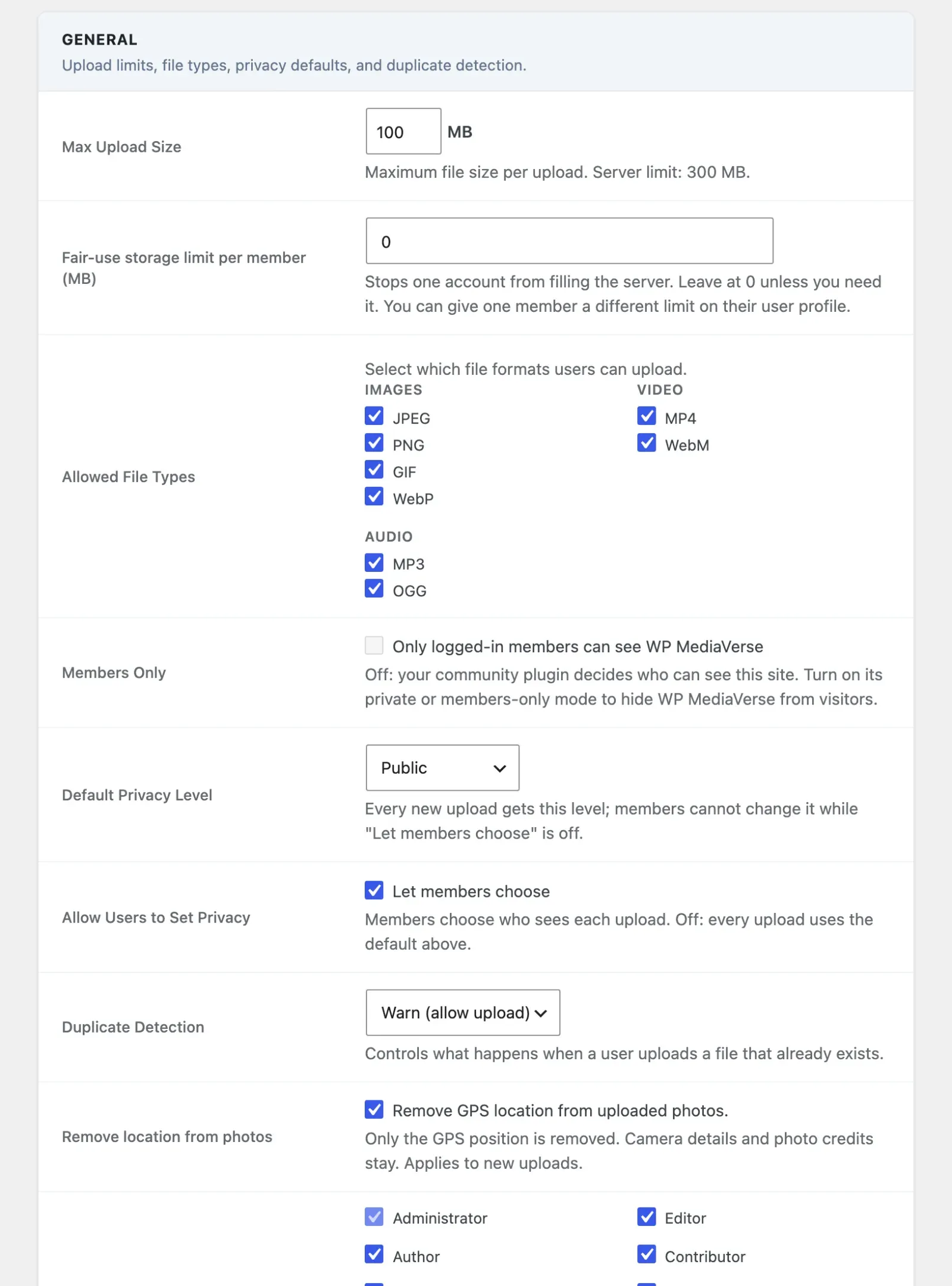
General Section
Section titled “General Section”| Option | Default | Description |
|---|---|---|
| Fair-use storage limit per member (MB) | 0 (no limit) | How much each member can store in total, across every file type. Stops one account from filling the server; leave at 0 unless you need it. Give one member a different limit on their user profile (Users > edit a member > “Storage limit for this member (MB)”): blank uses this site limit, 0 means no limit for them. A member over the limit sees “You have used X of Y. Delete something to upload more.” Site administrators are never limited. |
| Max Upload Size | 100 MB | Maximum file size per upload. Enter value in MB. The plugin reads this setting server-side - WordPress’s upload_max_filesize PHP ini value also applies. |
| Allowed File Types | JPEG, PNG, GIF, WebP, MP4, WebM, MP3, OGG | Tick the file formats members can upload. |
| Default Privacy Level | Public | The privacy level given to new uploads when the member does not choose one, or to every upload when “Allow Users to Set Privacy” is off. Options: Public, Members Only, Private. |
| Members Only | Off | Ticking “Only logged-in members can see WP MediaVerse” sends visitors who are not logged in to the login page from Explore, media pages, profiles and Compete, and the API refuses them. Members see everything as before. If a community plugin such as BuddyNext controls site privacy, this row shows that plugin’s answer instead of a switch; change it in that plugin. |
| Allow Users to Set Privacy | On | Members choose who sees each upload. Off: every upload uses the default above, and members see a line in the upload modal, My Media and the upload page, for example “Public: anyone can see. The site owner sets this for every upload.” |
| Duplicate Detection | Warn (allow upload) | What happens when a member uploads a file they already uploaded (same SHA-256 hash). A file another member uploaded is not a duplicate. The notice says “You had already uploaded N of these files.” Options: Warn (allow upload), Block the upload, Allow (no check). |
| Remove location from photos | On | Removes the GPS location from uploaded photos. Only the GPS position is removed. Camera details and photo credits stay. Applies to new uploads. |
| Who can upload media | Every standard role (new install) | One checkbox per role. Members of the ticked roles can upload. Administrators can always upload, so their box is shown ticked and locked. Unticking a role deletes nothing: media that role already uploaded stays. |
| Remove Data on Delete | Off | Deletes all MediaVerse data when the plugin is deleted. Uploaded files and the pages MediaVerse created are kept. Leave this off if you might reinstall. |
Who can upload media replaces the old Permissions tab. The box you tick grants the upload_mvs_media capability to that role, so this list always shows who can really upload. See Permissions.
Emails Section
Section titled “Emails Section”MediaVerse emails members about the few things they would otherwise miss while away. Each email is one checkbox. On a new install they start on. On a site that updates, each email starts off the first time it appears (the original three in 2.6.0, New follower and Comment on their media in 2.6.1), so turn on the ones you want.
| Option | Default | Description |
|---|---|---|
| Photo battle invites | On (new install) / Off (update) | Someone challenged the member to a photo battle (MediaVerse Pro). |
| Documents shared with a member | On (new install) / Off (update) | Someone shared a document with the member (MediaVerse Pro). |
| Report reviewed | On (new install) / Off (update) | A moderator resolved or dismissed a report the member filed. The email does not say what was decided. |
| New follower | On (new install) / Off (update) | Someone started following the member. |
| Comment on their media | On (new install) / Off (update) | Someone commented on a photo, video or file the member posted. |
BuddyNext sites: when BuddyNext is active, MediaVerse sends none of its activity emails and this section does not appear. BuddyNext sends member emails for MediaVerse activity, and members choose them in BuddyNext’s notification settings. The account deletion confirmation is always sent.
Account deletion confirmations are always sent: they are how a member learns that someone with their password asked to delete the account.
Emails come from your site name and the admin email address (Settings > General in WordPress). A member can stop them with “Email me about activity” in their profile settings, or with the link at the bottom of any email. Developers can change the wording with the mvs_email_subject and mvs_email_body filters.
Storage
Section titled “Storage”Storage has its own tab: MediaVerse > Settings > Storage.
| Option | Default | Description |
|---|---|---|
| Where files are stored | This server (WordPress uploads) | Where new uploads go. Choices: This server (WordPress uploads), Amazon S3, BunnyCDN, Cloudflare R2, DigitalOcean Spaces. Cloud storage needs MediaVerse Pro. Only the account details card for the cloud service you pick is shown. |
| Compress uploaded images | Off | Makes new images 10-30% smaller. JPEGs lose a little quality. |
Changing where files are stored only affects new uploads. Existing files stay where they are. After you save, a notice says “New uploads now go to” and names the place.
With MediaVerse Pro, Image Watermarking is on this tab too. See Display Settings.
A few storage options have no screen control since 2.6.0, because almost every site wants the default: signed URL expiry (1 hour), how long view events are kept (90 days), stored filenames (hashed), WebP copies (on) and AVIF copies (off). They still work and can be set in code or with WP-CLI. See the Settings Reference.
Pages Section
Section titled “Pages Section”Assign existing WordPress pages to MediaVerse page roles. MediaVerse uses these assignments to generate links in the navigation, chat panel, and notification emails.
| Option | Option Key | Description |
|---|---|---|
| My Media page | mvs_page_dashboard |
The member’s own media page (the logged-in dashboard). Shows the follow feed, quick upload, and activity summary. |
| Explore Page | mvs_page_explore |
The public media browse archive. Used as the landing page for non-logged-in visitors. |
| Upload Page | mvs_page_upload |
The dedicated upload form page. Linked from the My Media page and the navigation bar. |
| Explore Documents Page | mvs_page_explore_documents |
The document listing. Created only when Pro can show documents, or when the site holds legacy_document rows from before 2.4.0 that no media grid lists. |
Create a standard WordPress page for each role, then select it from the corresponding dropdown. Each page should contain only the matching MediaVerse shortcode and no other content - [mvs_dashboard], [mvs_gallery] for Explore, [mvs_upload], and [mvs_documents] for Explore Documents. These are the exact shortcodes Core\Activator writes when it creates the pages on activation. There is no [mvs_explore] shortcode; the explore feed block and shortcode are [mvs_explore_feed], which is a different surface.
If a page assignment is empty, MediaVerse falls back to the site home URL for that link. Set every page you use to avoid broken navigation.