

Your First Upload
MediaVerse overviewFree + ProGet MediaVerse →
Upload your first photo in two minutes - drag, drop, set privacy, done. Here is exactly how it works.
Option 1: Use the Upload Block or Shortcode
Section titled “Option 1: Use the Upload Block or Shortcode”Add the upload form to any page using either the Gutenberg block or shortcode.
In the Block Editor: Add the Media Upload block (in the MediaVerse block category) to your page.
In the Classic Editor or any text area:
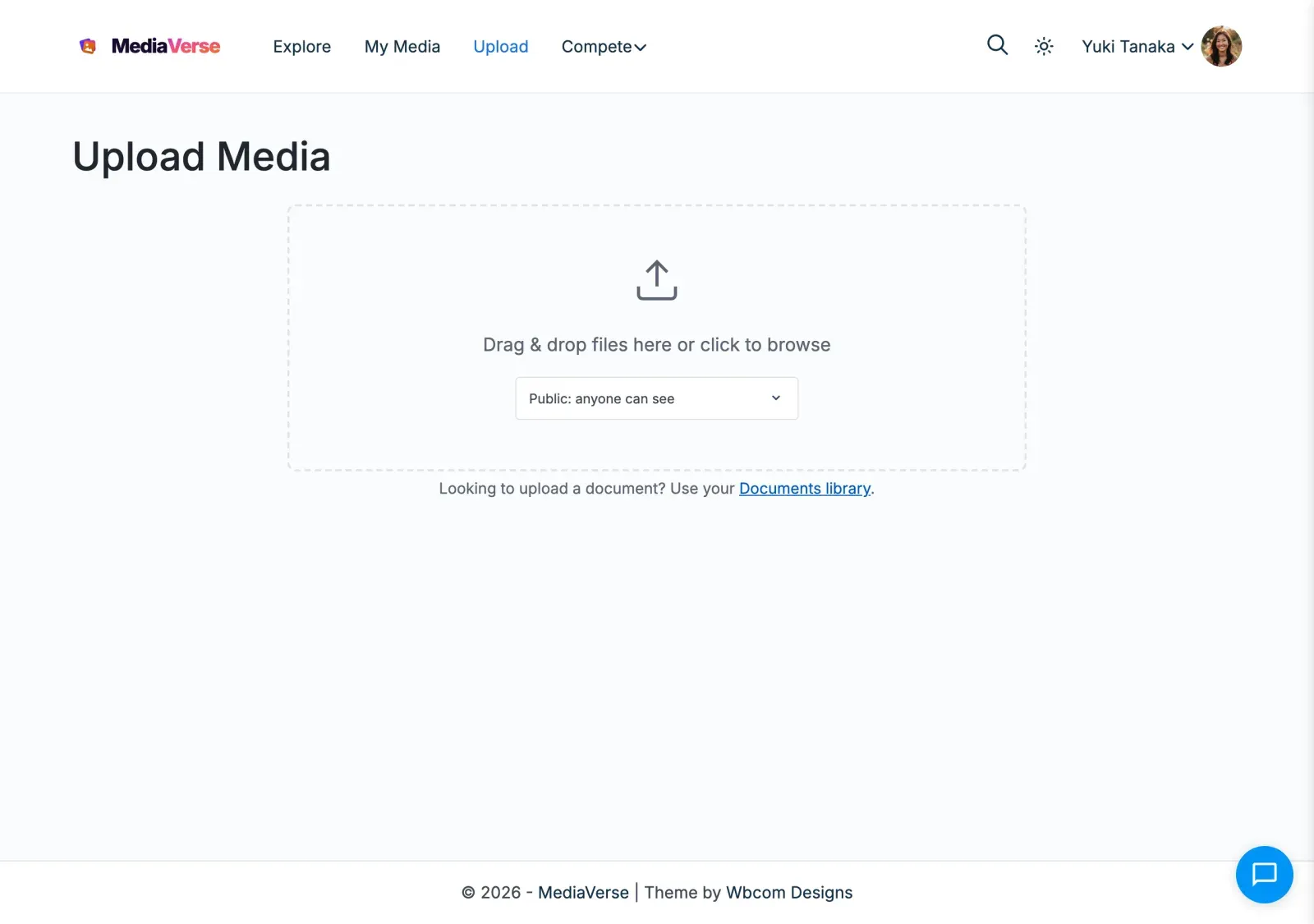
[mvs_upload]MediaVerse already creates an Upload Media page (/upload-media/) with this form when you activate the plugin. Members who can upload also see a + button on MediaVerse pages and an upload button in My Media. Which roles can upload is set under MediaVerse > Settings > General > Who can upload media.
Option 2: Upload via REST API
Section titled “Option 2: Upload via REST API”Use the REST endpoint directly (for custom integrations):
curl -X POST https://yoursite.com/wp-json/mvs/v1/media \ -H "X-WP-Nonce: YOUR_NONCE" \ -F "file=@/path/to/image.jpg" \ -F "title=My First Upload" \ -F "privacy=public"The Upload Process
Section titled “The Upload Process”When you upload a file, MediaVerse:
- Validates the MIME type against your allowed file types list.
- Checks the file size against your configured maximum (Max Upload Size, default: 100 MB).
- Checks for duplicates using a SHA-256 hash of the file. Only the member’s own earlier uploads count. By default the upload goes ahead with a warning; Duplicate Detection can block it or turn the check off.
- Removes the GPS location from photos (the Remove location from photos setting, on by default). Camera details stay.
- Stores the file where MediaVerse > Settings > Storage says (this server by default; cloud storage needs Pro). New files get a random file name.
- Creates a record in the
mvs_media_indextable with the title, privacy level, and file metadata (media is not stored as a WordPress post). - Runs AI analysis if Auto-Analyze Uploads is on (needs an AI provider key).
- Runs AI moderation if AI Moderation is on.
- Records BuddyPress activity if BuddyPress is active. On a BuddyNext community, BuddyNext publishes the feed card.
If a member has a storage limit, an upload that would go over it is refused with a message.
Supported File Types
Section titled “Supported File Types”By default, MediaVerse accepts:
| Type | Formats |
|---|---|
| Images | JPEG, PNG, GIF, WebP |
| Video | MP4, WebM |
| Audio | MP3 (MPEG), OGG |
You can change the allowed file types in MediaVerse > Settings > General > Allowed File Types.
Setting Privacy on Upload
Section titled “Setting Privacy on Upload”The upload form offers these privacy levels:
| Level | Who Can See It |
|---|---|
| Public: anyone can see | Everyone, including logged-out visitors |
| Members: logged-in users only | Any logged-in WordPress user |
| Friends: your friends only | The uploader’s BuddyPress friends. Only offered when the BuddyPress Friends component is active |
| Only me: hidden from everyone else | Only the uploader and administrators |
Media posted into a BuddyPress group is limited to that group’s members automatically. MediaVerse also honours Group, Space and Custom levels that come from an import or the API, but the upload form does not offer them.
The default privacy level is set in MediaVerse > Settings > General > Default Privacy Level (Public, Members Only or Private). It starts as Public, or Members Only on a private community. If you turn off Allow Users to Set Privacy on the same screen, the form does not show the choice. It tells the member who will see the upload instead.
After Uploading
Section titled “After Uploading”Your uploaded media appears:
- On the Explore Media page (
/explore-media/), if its privacy allows - In the MediaVerse > All Media list in your admin dashboard
- In the Media tab on your BuddyPress profile (if BuddyPress is active)
- In your My Media page (
/my-media/, or the[mvs_dashboard]shortcode on another page)