

Connected Accounts
MediaVerse overviewFree + ProGet MediaVerse →
PRO - Requires MediaVerse Pro. This feature is not in the free plugin.
Connect an external photo platform to MediaVerse and move media in both directions - import existing photos and albums into your media library, and auto-push new uploads back out to that platform. The only built-in connector is Flickr. Members can import photos and auto-push new uploads from the website. Exporting a single item and metadata sync are available through the API.
The connector framework is pluggable, so additional platforms can be added by developers in the future. This page covers the Flickr connector as it ships today.
What the Flickr Connector Does
Section titled “What the Flickr Connector Does”Once a member connects their Flickr account, they can:
- Import photos and videos from their Flickr photostream or from a specific album (set) into MediaVerse.
- Export (auto-push) - automatically copy every new MediaVerse upload to their Flickr account.
- Browse albums - pick a Flickr album to import from or push exports into.
- Sync metadata (API only) - pull the latest title, description, tags, and privacy from Flickr back into the local media record (delta sync). There is no button for this on the website.
Privacy is mapped both ways. A Flickr “public/friends/family/private” visibility maps to the matching MediaVerse privacy level on import, and the member can choose how MediaVerse privacy maps back to Flickr on export.
Two Levels of Setup
Section titled “Two Levels of Setup”There are two separate roles in this feature, and it helps to keep them apart:
- Site owner (admin) - enables the feature and optionally provides a plugin-level Flickr app key/secret so members can connect with one click. This is done once, in MediaVerse > Settings > Flickr import.
- Member (user) - connects their own Flickr account through an OAuth flow from the Connectors tab of their My Media page, then imports their photos and turns on auto-push. Each user authorizes their own account; the connection (access token) is stored per user.
Step 1 - Enable Connected Accounts (Admin)
Section titled “Step 1 - Enable Connected Accounts (Admin)”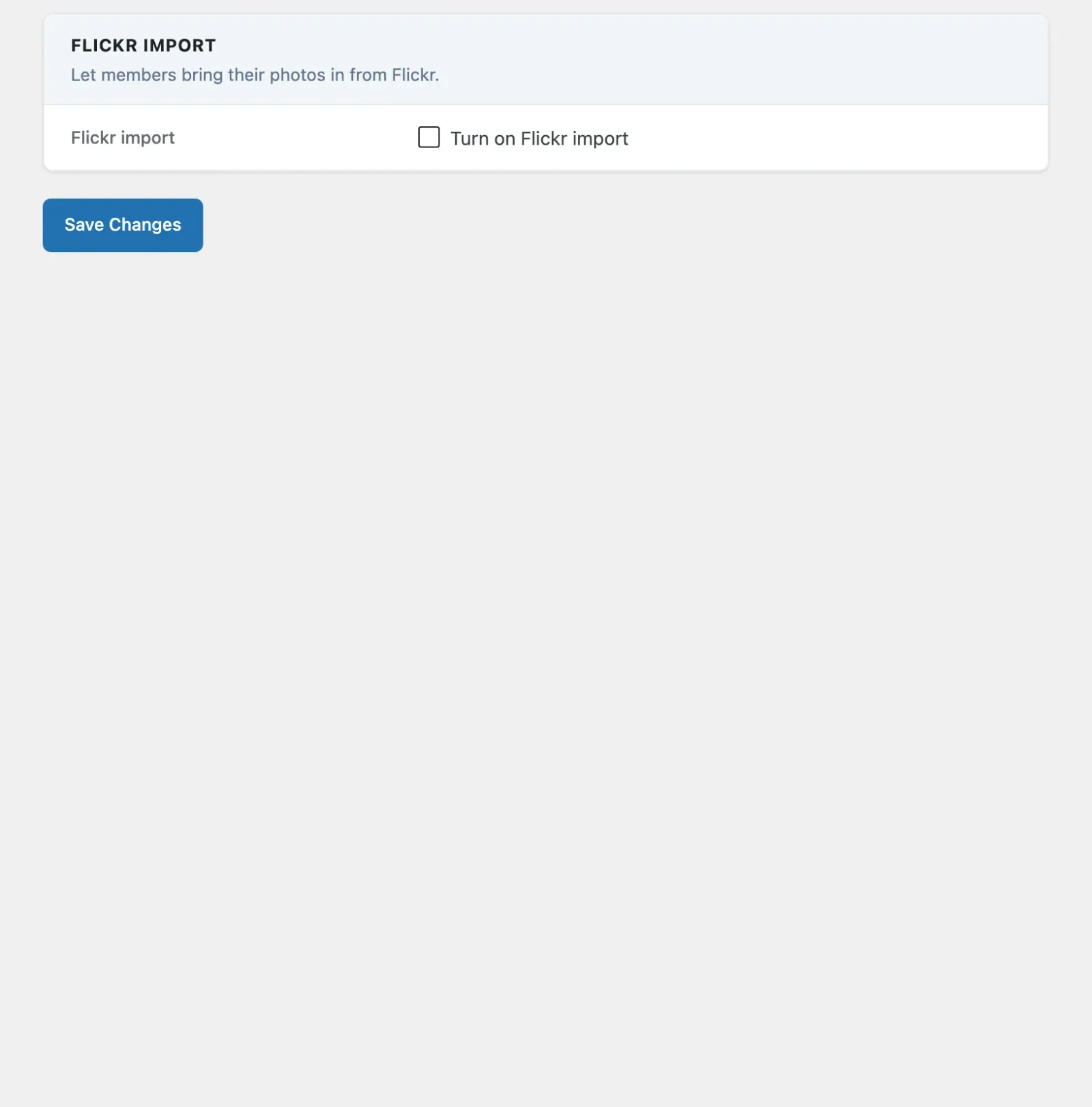
- In WordPress admin, go to MediaVerse > Settings.
- In the settings sidebar, open the Flickr import tab (under Access & Integrations).
- Tick Turn on Flickr import.
- Click Save Changes.
When the feature is disabled, no connectors load and the connector REST endpoints are not registered.
Step 2 - (Recommended) Add a Plugin-Level Flickr App (Admin)
Section titled “Step 2 - (Recommended) Add a Plugin-Level Flickr App (Admin)”Providing a built-in Flickr API key/secret lets your members connect with a single Connect with Flickr button - they never need their own developer key. This is the smoothest experience for most sites.
Create a Flickr app
Section titled “Create a Flickr app”- Sign in at Flickr and go to flickr.com/services/apps/create.
- Choose Apply for a non-commercial key (or commercial, depending on your use).
- Give the app a name and description, agree to the API terms, and submit.
- Flickr shows you a Key and a Secret - copy both.
Enter the credentials in MediaVerse
Section titled “Enter the credentials in MediaVerse”- Back in MediaVerse > Settings > Flickr import.
- Paste the key into Flickr Plugin API Key.
- Paste the secret into Flickr Plugin API Secret.
- Click Save Changes.
The secret field is masked. When you re-save the settings page without re-typing it, the stored secret is preserved - an empty submit will not wipe it.
If you leave these two fields empty, the one-click Connect with Flickr button is hidden and members must supply their own Flickr key instead (see “Members using their own key” below).
Step 3 - Connect a Flickr Account (Member)
Section titled “Step 3 - Connect a Flickr Account (Member)”Members connect from the Connectors tab on their My Media page. Each registered platform shows as a card. The site owner sees the same kind of card on MediaVerse > Settings > Flickr import, for their own account.
With the plugin-level key (one click)
Section titled “With the plugin-level key (one click)”- On the Flickr card, click Connect with Flickr.
- You are redirected to Flickr’s authorization page. Sign in if needed and click OK, I’ll authorize it.
- Flickr redirects back to MediaVerse. The card now shows Connected as @yourusername.
Members using their own key
Section titled “Members using their own key”If your site has no plugin-level key - or a member wants a dedicated rate limit - they can use their own Flickr app:
- On the Flickr card, open Use your own API key (on the settings screen it reads Use your own API key (recommended for heavy usage)).
- Create a Flickr app at flickr.com/services/apps (same steps as above) and copy the Key and Secret.
- Enter the Flickr API Key and Flickr API Secret in the expanded fields.
- Click Connect with My Key and complete the Flickr authorization.
A member using their own key gets the note “Using: Your own key (dedicated rate limit)” on the connected card; a member on the plugin key sees “Using: Plugin key (shared)”.
How the connection is stored
Section titled “How the connection is stored”The OAuth authorization returns an access token that is encrypted before being saved to that user’s profile. Flickr does not expose a token-revocation endpoint, so disconnecting clears the locally stored token and validation cache. The actual API key/secret never reaches the browser.
Step 4 - Import Photos and Albums
Section titled “Step 4 - Import Photos and Albums”After connecting, the member can browse and import their Flickr media.
- On the connected Flickr card, click Import from Flickr.
- Browse All Photos, or use Filter by album to pick a single album (set).
- Select the photos to import. Select All and Deselect All help with long lists.
- Click Import Selected.
For each photo, MediaVerse:
- Downloads the best available image size from Flickr.
- Creates a media item in your library through the standard upload pipeline (so the storage limit, watermarking and AI features all apply).
- Copies the title, description, tags, and Flickr privacy (mapped to MediaVerse privacy).
- Records the Flickr photo ID so the same photo is never imported twice - re-importing an already-imported photo is reported as “skipped”.
The import result reports per-item outcomes: imported, skipped (already present), or failed (with an error message).
Step 5 - Export and Auto-Push New Uploads
Section titled “Step 5 - Export and Auto-Push New Uploads”Exporting copies a MediaVerse media item up to the member’s Flickr account.
Auto-push
Section titled “Auto-push”On the member’s connected Flickr card, the member ticks Auto-push my new uploads (on the settings screen, Auto-push new uploads > Enable). With this on, every new MediaVerse upload by that member is automatically exported to Flickr. When Action Scheduler is available the export runs in the background; otherwise it runs inline at upload time.
Default privacy on Flickr
Section titled “Default privacy on Flickr”The Flickr card on MediaVerse > Settings > Flickr import has a Default privacy on Flickr selector that controls how exported media is made visible on Flickr. It is not on the member’s Connectors tab:
| Option | Effect on Flickr |
|---|---|
| Match MediaVerse | Use the media item’s own privacy, mapped to Flickr |
| Public | Always public on Flickr |
| Friends | Visible to Flickr friends |
| Friends + Family | Visible to Flickr friends and family (MediaVerse “members” level) |
| Private | Private on Flickr |
If a default Flickr album is stored for the member (it can only be set through the API; there is no field for it on the screens), exported photos are also added to that album. Like import, export deduplicates - a media item already exported to Flickr is reported as “skipped” rather than uploaded again.
Step 6 - Sync Metadata (Delta Sync, API only)
Section titled “Step 6 - Sync Metadata (Delta Sync, API only)”The Flickr connector supports delta sync: pulling the latest title, description, tags, and privacy from Flickr back into the matching local media records. This is useful when a member edits photo metadata on Flickr and wants MediaVerse to reflect those edits. Sync only touches media that originated from (or was exported to) Flickr for that member, and records a “last synced” timestamp.
Test the Connection
Section titled “Test the Connection”The Flickr card on MediaVerse > Settings > Flickr import has a Test Connection button. It runs a live check against Flickr’s identity endpoint (flickr.test.login) and confirms the stored token still works. The result is cached for 15 minutes to avoid hammering the API. If the token has been revoked on Flickr’s side, the test reports the failure and the member can reconnect.
Disconnecting
Section titled “Disconnecting”Click Disconnect on a connected card to remove the local connection. This clears the encrypted tokens, the cached account identity, the auto-push and default-privacy preferences, and the validation cache. Because Flickr has no remote revoke endpoint, you may also want to revoke MediaVerse from your Flickr account’s connected apps page if you want Flickr’s side cleared too.
Settings
Section titled “Settings”These options live on MediaVerse > Settings > Flickr import and are stored in wp_options.
| Setting | Option key | Default | Description |
|---|---|---|---|
| Turn on Flickr import | mvs_connectors_enabled |
0 (off) |
Master switch for the whole Connected Accounts feature. When off, no connectors load and the REST endpoints are not registered. |
| Flickr Plugin API Key | mvs_pro_connector_flickr_app_key |
(empty) | Site-wide Flickr app key for one-click member connection. Leave empty to require each member to supply their own. |
| Flickr Plugin API Secret | mvs_pro_connector_flickr_app_secret |
(empty) | Site-wide Flickr app secret. Masked field - an empty re-save keeps the existing value. |
Per-member preferences (auto-push toggle, default privacy, the member’s own key, and the OAuth tokens) are stored in user meta, not site options, so each member’s Flickr connection is independent.
Troubleshooting
Section titled “Troubleshooting”The “Connect with Flickr” button is missing. The plugin-level Flickr key/secret are empty. Either add them under Flickr import (Step 2) or have the member use Use your own API key instead.
No connector cards appear at all. The feature is off. Tick Turn on Flickr import and save (Step 1).
“Flickr OAuth token mismatch or session expired.” The connect flow took longer than the 5-minute request-token window, or it was started in one browser tab and finished in another. Start the connect again from the Flickr card.
Imported photos look low-resolution. MediaVerse imports the best size Flickr exposes for that photo. Photos uploaded to Flickr at small sizes, or with download restrictions, may not offer a high-resolution original.
Test Connection still shows a stale result after reconnecting. The validation result is cached for 15 minutes. Disconnecting clears that cache; after a fresh connect the next Test Connection reflects the new token.
Auto-push isn’t sending new uploads. Confirm the member has Auto-push new uploads enabled on the connected card, and that the media is owned by that connected member. Background exports rely on WordPress cron / Action Scheduler running on your site.
Developer Notes
Section titled “Developer Notes”The connector framework is pluggable. Each connector implements WPMediaVersePro\Connectors\ConnectorInterface and registers itself on the mvs_connectors filter, keyed by a slug. The REST surface lives under mvs-pro/v1/connectors:
| Route | Method | Purpose |
|---|---|---|
/connectors |
GET | List connectors and per-user connection state |
/connectors/{id}/connect |
POST | Start the OAuth flow (returns a redirect URL) |
/connectors/{id}/disconnect |
POST | Remove the stored connection |
/connectors/{id}/status |
GET | Live connection validation |
/connectors/{id}/photos |
GET | Browse remote photos (paginated) |
/connectors/{id}/albums |
GET | Browse remote albums |
/connectors/{id}/import |
POST | Import remote photos by ID |
/connectors/{id}/export |
POST | Export local media by ID |
/connectors/{id}/sync |
POST | Delta-sync metadata for linked media |
Read and initiate routes require the user to be logged in; browse, import, export, and sync routes require the user to be connected to that connector.