

Installation
MediaVerse overviewFree + ProGet MediaVerse →
Get MediaVerse running on your WordPress site in under five minutes - install, activate, and your community is ready to start uploading.
Requirements
Section titled “Requirements”- WordPress 6.5+
- PHP 8.1 or newer (8.1 to 8.5)
- MySQL 5.7+ or MariaDB 10.4+
- BuddyPress 12.0+ (optional, for social integration)
Installing via WordPress Admin
Section titled “Installing via WordPress Admin”- Go to Plugins > Add New Plugin in your WordPress dashboard.
- Search for MediaVerse.
- Click Install Now, then Activate.
Installing via ZIP Upload
Section titled “Installing via ZIP Upload”- Download the
wpmediaverse.zipfile from wbcomdesigns.com. - Go to Plugins > Add New Plugin > Upload Plugin.
- Choose the ZIP file and click Install Now.
- Click Activate Plugin.
Installing via FTP
Section titled “Installing via FTP”- Unzip the downloaded archive.
- Upload the
wpmediaversefolder to/wp-content/plugins/. - Go to Plugins in your dashboard and activate MediaVerse.
What Happens on Activation
Section titled “What Happens on Activation”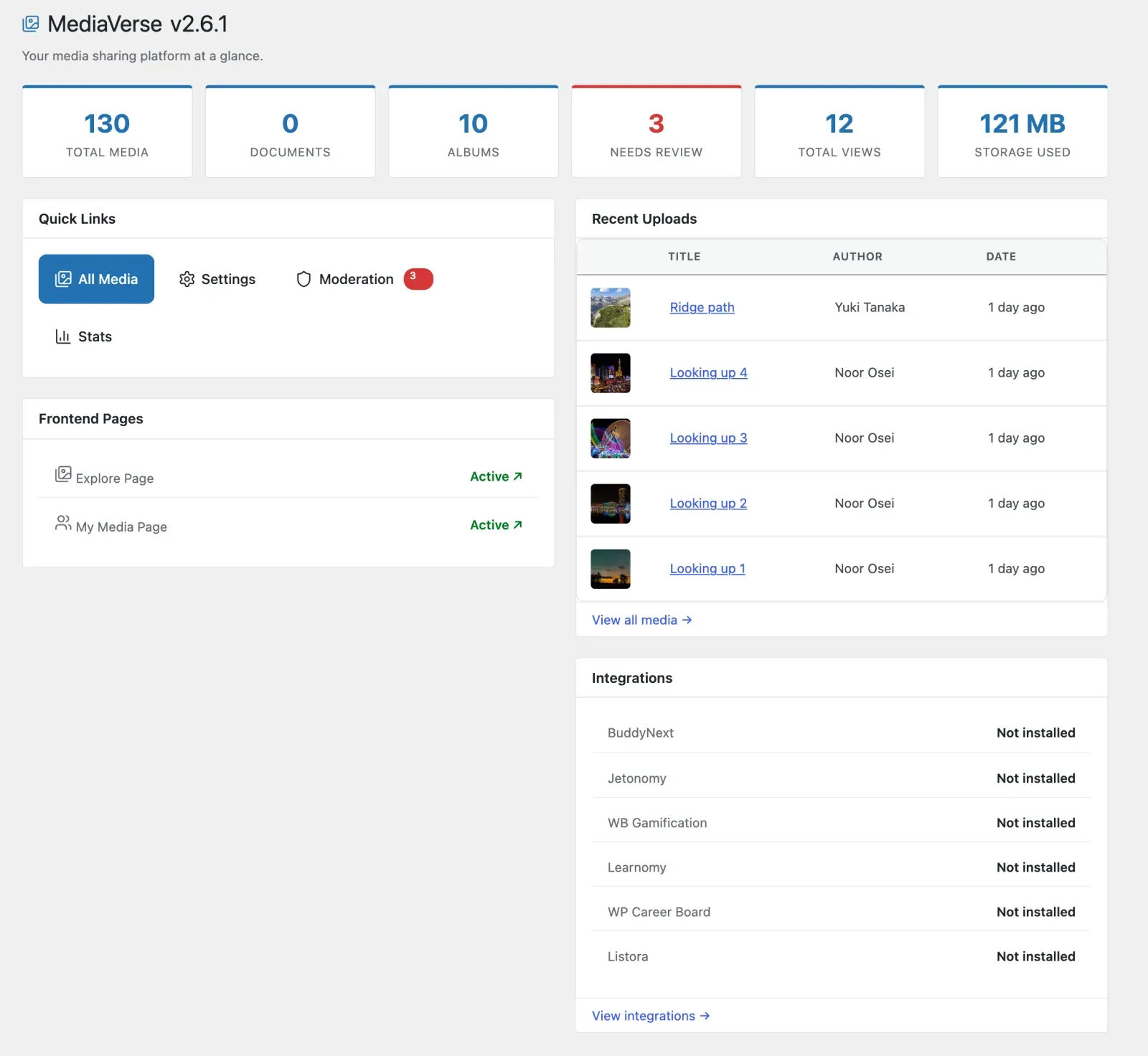
When you activate MediaVerse, the plugin automatically:
- Creates 23 custom database tables for the media index, stats, reactions, favorites, follows, notifications, reports, blocks, album items, conversations, messages and more - all separate from wp_posts for maximum performance. Comments use WordPress comments, and webhooks are stored as a setting.
- Creates the Explore Media (
/explore-media/), My Media (/my-media/) and Upload Media (/upload-media/) pages if they do not exist. - Registers the
mvs_albumandmvs_collectioncustom post types (media itself uses the custommvs_media_indextable, not wp_posts). - Registers the
mvs_tagandmvs_categorytaxonomies. - Adds default capabilities to the Administrator, Editor, Author, Contributor, and Subscriber roles.
- Redirects you to the Setup Wizard for initial configuration, until you finish it. A bulk activation or WP-CLI activation does not redirect.
Deactivation and Uninstall
Section titled “Deactivation and Uninstall”Deactivation stops all plugin functionality but keeps your data intact.
Uninstall (deleting the plugin) keeps your media records, albums, messages and settings by default. This means you can delete and re-upload the plugin to update it without losing anything. Uploaded files and the pages MediaVerse created are never deleted.
To remove everything on delete, turn on Remove Data on Delete under MediaVerse > Settings > General before you delete the plugin. Then deleting the plugin also removes:
- All
mvs_albumandmvs_collectionposts - All custom database tables (including the
mvs_media_indexmedia records) - All plugin options, member settings, tags and categories
Removed data cannot be restored, so export what you need first.