

Albums
MediaVerse overviewFree + ProGet MediaVerse →
Included in Free - This feature is available in the free version of MediaVerse.
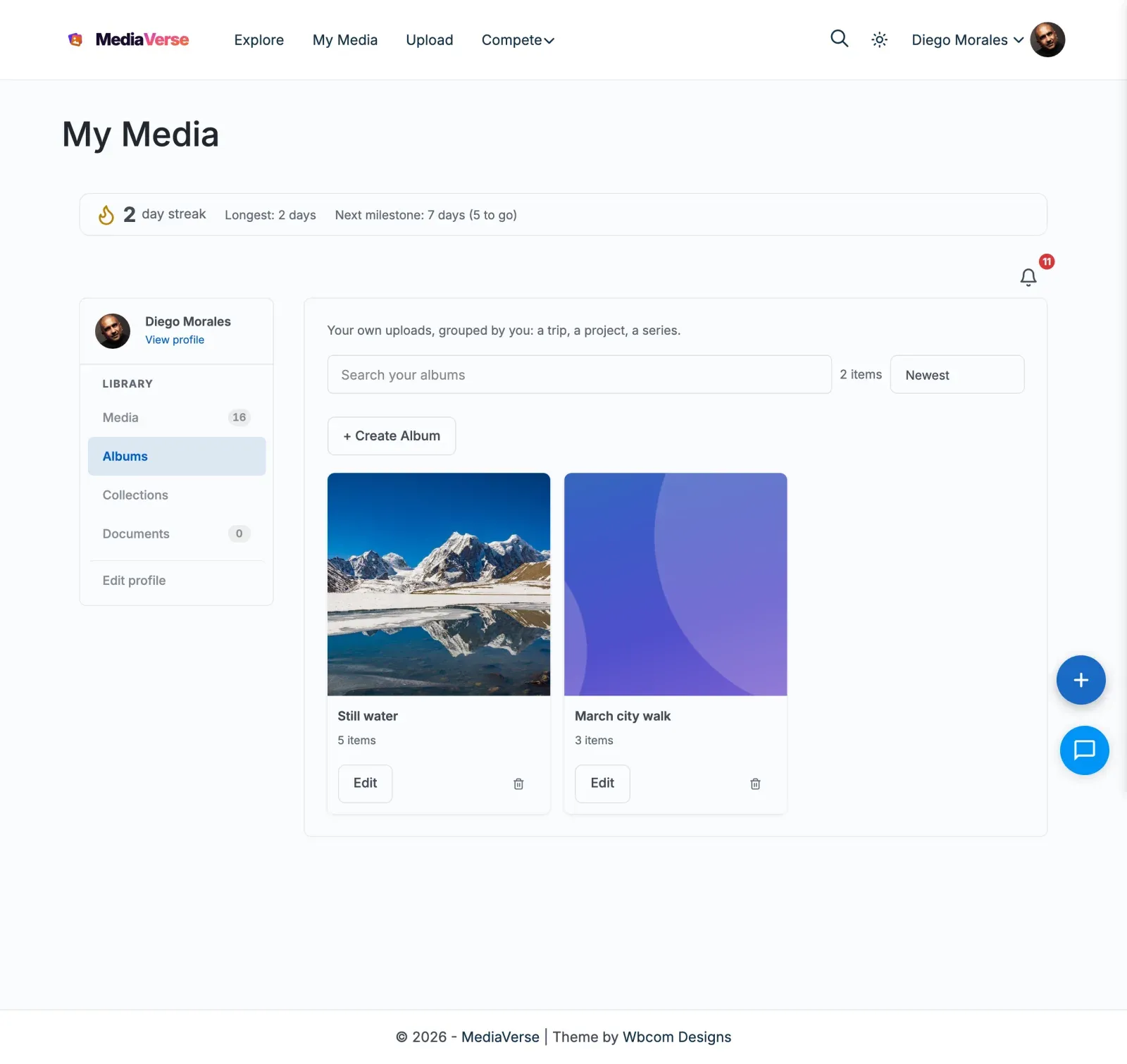
Group your own uploads into an album - tell a story, document a trip, or build a portfolio you can share with one link.
What You Can Do
Section titled “What You Can Do”- Create albums to organize related photos and videos together
- Add photos from your existing media library to any album
- Set a cover photo that represents the album
- Set one privacy for a whole album: every photo in it follows the album
- Share albums with friends or keep them private
- Embed any album on a page using a block or shortcode
How It Works (for Users)
Section titled “How It Works (for Users)”- Go to your media dashboard, open Albums and click Create Album
- Give your album a title and optional description
- Choose a privacy level: Public, Members, Friends (only when BuddyPress friends is active), or Only me
- Under Select Media, click thumbnails to pick photos from your uploads - select as many as you like. Click Set Cover on a photo to make it the cover
- Click Create - your album is live and appears on your profile
- To change it later, open Edit Album, adjust the details or the media, and click Save. The window opens with the album’s current photos already selected. On the album page, Add Media adds more photos
- To share your album, copy the album link from the album page and send it to anyone
For Site Owners
Section titled “For Site Owners”- Albums are enabled by default once MediaVerse is activated
- To embed a specific album on a page, use the Album Viewer block in the block editor - select the album from the block sidebar
- Or use the shortcode
[mvs_album id="123"]where123is the album’s post ID - Users manage their own albums from their media dashboard
- Admins can view and delete any album from MediaVerse > Albums in wp-admin. Media categories and tags are not listed there; manage categories under MediaVerse > Categories
- In the Album Settings box, Album type is a choice: Standard album or Playlist (audio only). A custom type set through the API stays selectable.
- WordPress’s password and private options are hidden for albums and collections. Who can see an album is its privacy in Album Settings.
Album Privacy
Section titled “Album Privacy”One rule: a photo in an album shows with the album’s privacy. A photo in no album shows with its own.
- Make an album Private and every photo in it stops appearing in Explore and in other members’ feeds. Make it Public again and they come back.
- The album decides even when it is more open than a photo’s own setting. Before you make an album more public, MediaVerse tells you how many photos in it are set to be more private, and asks you to confirm.
- Adding an item that is more private than the album: the prompt names the items and the button reads ‘Show them as “
”’. - Changing an album to a stricter privacy asks first, for example: ‘Changing this album to “Only me” makes its 3 item(s) show as “Only me” while they are in it.’ Album privacy still wins while an item is in the album.
- On the /album/ and /collection/ pages, private and members-only albums and collections are listed only to people allowed to see them.
- Each photo remembers its own privacy. Take it out of the album, or delete the album, and the photo goes back to the privacy you set for it.
- A photo belongs to one album. Picking a photo that is already in another album moves it; the album screen shows which album each photo is in (“In: Holiday”) and says “Moves from Holiday” once you pick it.
- While a photo is in an album, its privacy setting on the Edit screen is shown but locked, with a note naming the album. Choose the album in the upload screen and the privacy choice is replaced by “Follows album …”.
- Badges show the privacy that applies, marked “(album)”.
Updating to 2.6.0 changes nothing you can see: each photo’s current privacy is recorded as its own, and the album rule applies the next time you change that album or its photos.
Site owners who want album and photo privacy to stay fully independent (the behaviour before 2.3.0) can return false from the mvs_album_inherit_privacy filter.
If a user can see the album but not a specific media item (because the item’s privacy is more restrictive still), that item is hidden from the album view.
Displaying an Album
Section titled “Displaying an Album”Gutenberg Block: Add the Album Viewer block, then select an album from the block settings.
Shortcode:
[mvs_album id="123"][mvs_album id="123" columns="4" show_title="true" show_description="true"]| Attribute | Default | Description |
|---|---|---|
id |
(required) | Album post ID |
columns |
3 |
Grid columns to display |
show_title |
true |
Show the album title above the grid |
show_description |
true |
Show the album description |
REST API Endpoints for Albums
Section titled “REST API Endpoints for Albums”| Method | Endpoint | Description |
|---|---|---|
GET |
/mvs/v1/albums |
List albums with media_count; add with_items=1 for each album’s media ids (the single album route always has them) |
POST |
/mvs/v1/albums |
Create album |
GET |
/mvs/v1/albums/{id} |
Get album |
PUT |
/mvs/v1/albums/{id} |
Update album |
DELETE |
/mvs/v1/albums/{id} |
Delete album |
GET |
/mvs/v1/albums/{id}/items |
List album media |
POST |
/mvs/v1/albums/{id}/items |
Add media to album |
DELETE |
/mvs/v1/albums/{id}/items/{media_id} |
Remove media from album |
PUT |
/mvs/v1/albums/{id}/reorder |
Change the order of the media in an album |
PUT |
/mvs/v1/albums/{id}/cover |
Set the album cover |
Creating an Album via API
Section titled “Creating an Album via API”curl -X POST https://yoursite.com/wp-json/mvs/v1/albums \ -H "X-WP-Nonce: YOUR_NONCE" \ -H "Content-Type: application/json" \ -d '{ "title": "Summer 2025", "description": "Photos from our trip", "privacy": "public" }'Adding Media to Albums via API
Section titled “Adding Media to Albums via API”curl -X POST https://yoursite.com/wp-json/mvs/v1/albums/ALBUM_ID/items \ -H "X-WP-Nonce: YOUR_NONCE" \ -H "Content-Type: application/json" \ -d '{"media_ids": [101, 102, 103]}'This fires the mvs_album_items_added action, which triggers BuddyPress activity updates if BuddyPress is active.
Audio playlists (API only)
Section titled “Audio playlists (API only)”An album can be an audio playlist: send "type": "playlist" when creating it. A playlist accepts only audio files (other files are skipped when added) and its album page plays the tracks in order.
Playlists are created through the REST API, for the mobile app and custom integrations. The member’s “New album” form on the site has no type choice on purpose: most communities only need photo albums, and one simple form keeps it that way.
curl -X POST https://yoursite.com/wp-json/mvs/v1/albums \ -H "X-WP-Nonce: YOUR_NONCE" \ -H "Content-Type: application/json" \ -d '{"title": "Rehearsal takes", "type": "playlist"}'BuddyPress Activity
Section titled “BuddyPress Activity”When media is added to an album and BuddyPress is active, the mvs_album_items_added action updates the upload activity item to reference the album. This replaces the generic “uploaded media” activity with “uploaded media to [Album Name]”.