

Cloud Storage
MediaVerse overviewFree + ProGet MediaVerse →
PRO - Requires MediaVerse Pro. This feature is not in the free plugin.
Stop storing media on your web server - offload your public photos and videos to Amazon S3, BunnyCDN, Cloudflare R2 or DigitalOcean Spaces for faster delivery, lower server load, and global CDN performance.
Pluggable Storage Architecture
Section titled “Pluggable Storage Architecture”MediaVerse separates where media records live (always in your WordPress database) from where files are stored (this server, S3, BunnyCDN, Cloudflare R2 or DigitalOcean Spaces). Every upload goes through one storage driver, which means:
- Switch drivers anytime - Change from local to S3 in one setting. Existing files continue to serve from their original location; new uploads go to the new driver.
- Build your own driver - Developers can register custom drivers (for example Google Cloud Storage or Wasabi). See Custom Storage Drivers.
- Private media stays protected - Private and members-only media is kept on your server and served through MediaVerse with a permission check, never from a public CDN.
- No lock-in - Media metadata stays in your WordPress database regardless of storage driver. Switch providers without losing any data.
Why Use Cloud Storage
Section titled “Why Use Cloud Storage”- Your WordPress server no longer stores or serves media files - reducing disk usage and bandwidth costs
- Files are served from edge locations closest to each visitor, so images load faster worldwide
- Every cloud driver scales to millions of files without any WordPress configuration changes
- Private media stays on your server and is checked against the viewer’s permission on every request
How Media Serving Works in 1.4.0
Section titled “How Media Serving Works in 1.4.0”Location-based serving
Section titled “Location-based serving”Each media item is served from where it is actually stored, based on its storage location and privacy setting at the time of the request. The active storage driver setting only controls where new uploads go - it does not affect files that were uploaded previously.
This means:
- Switching the active driver (for example, from local to S3) does not break any existing media. Files already on S3 keep serving from S3. Files on local disk keep serving through the plugin’s
/serveroute. - Enabling a cloud integration for the first time does not affect older uploads - they continue working as before.
- Public media stored on cloud serves directly from the CDN (no WordPress request involved). Local media serves through the plugin’s
/serveproxy route.
Private media stays local
Section titled “Private media stays local”Only public media is eligible for cloud storage. Media with any other privacy setting (members-only, friends-only, private, or group) is always stored on the local server disk. This applies to the original file, all thumbnails, and all generated image variants (WebP, AVIF).
There is effectively one storage location per media item at any time: either cloud (for public media) or local (for everything else).
Per-request access check for private media
Section titled “Per-request access check for private media”Every request to the /serve route for non-public media re-verifies the requesting user’s view permission (can_view). A signed URL does not act as a transferable bearer token for private media. If the viewer no longer has access, the request returns 403 - even with a valid, unexpired signed URL. Public media uses bearer-style URLs (cacheable and shareable) because they carry no access restriction.
Cloudflare R2 requires a public domain
Section titled “Cloudflare R2 requires a public domain”If you use Cloudflare R2 and have not configured a public domain (r2.dev subdomain or custom domain) on your bucket, MediaVerse will not emit the raw *.r2.cloudflarestorage.com API URL. That endpoint is never publicly readable. Instead, the plugin falls back to serving the file from the local copy via /serve.
To enable true CDN serving from R2, configure a public domain for your bucket in the Cloudflare R2 dashboard (either the r2.dev subdomain or your own custom domain), then enter that hostname in the Public Domain field in Storage settings.
“Serve public cloud media directly” setting retired
Section titled ““Serve public cloud media directly” setting retired”The Serve public cloud media directly checkbox (mvs_cloud_direct_public_urls) has been removed from the settings UI in 1.4.0. Direct CDN serving for public cloud media is now automatic. You do not need to enable any toggle. The underlying option is retained in the database for back-compatibility, but it has no effect on serving behavior.
If you had this checkbox enabled before upgrading, no action is needed - behavior is the same or better.
Setting Up Amazon S3
Section titled “Setting Up Amazon S3”- Log into your AWS Console and create an S3 bucket
- Create an IAM user with the required permissions (see IAM Policy below) and save the access key and secret key
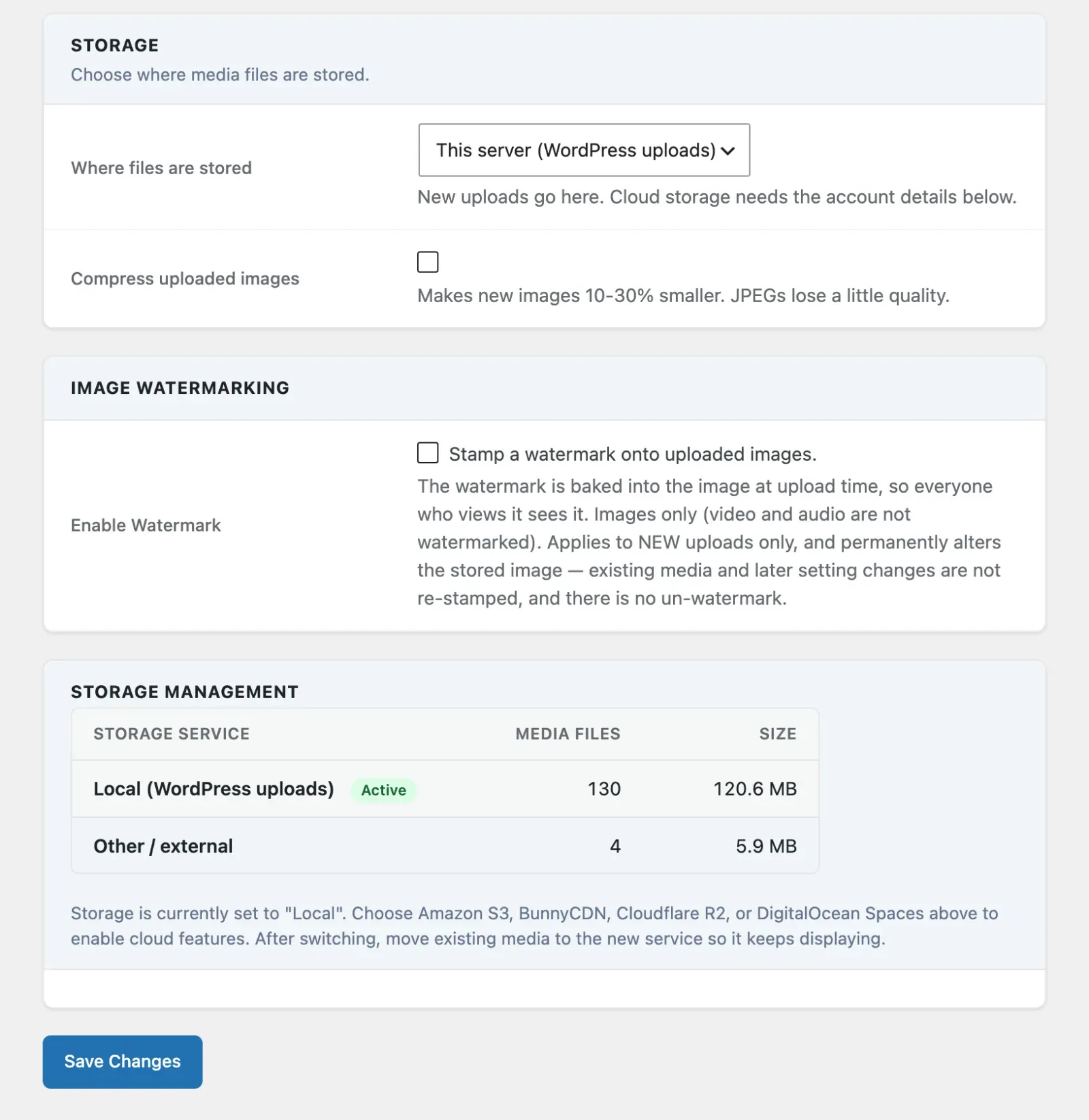
- In WordPress, go to MediaVerse > Settings > Storage
- Set Where files are stored to Amazon S3
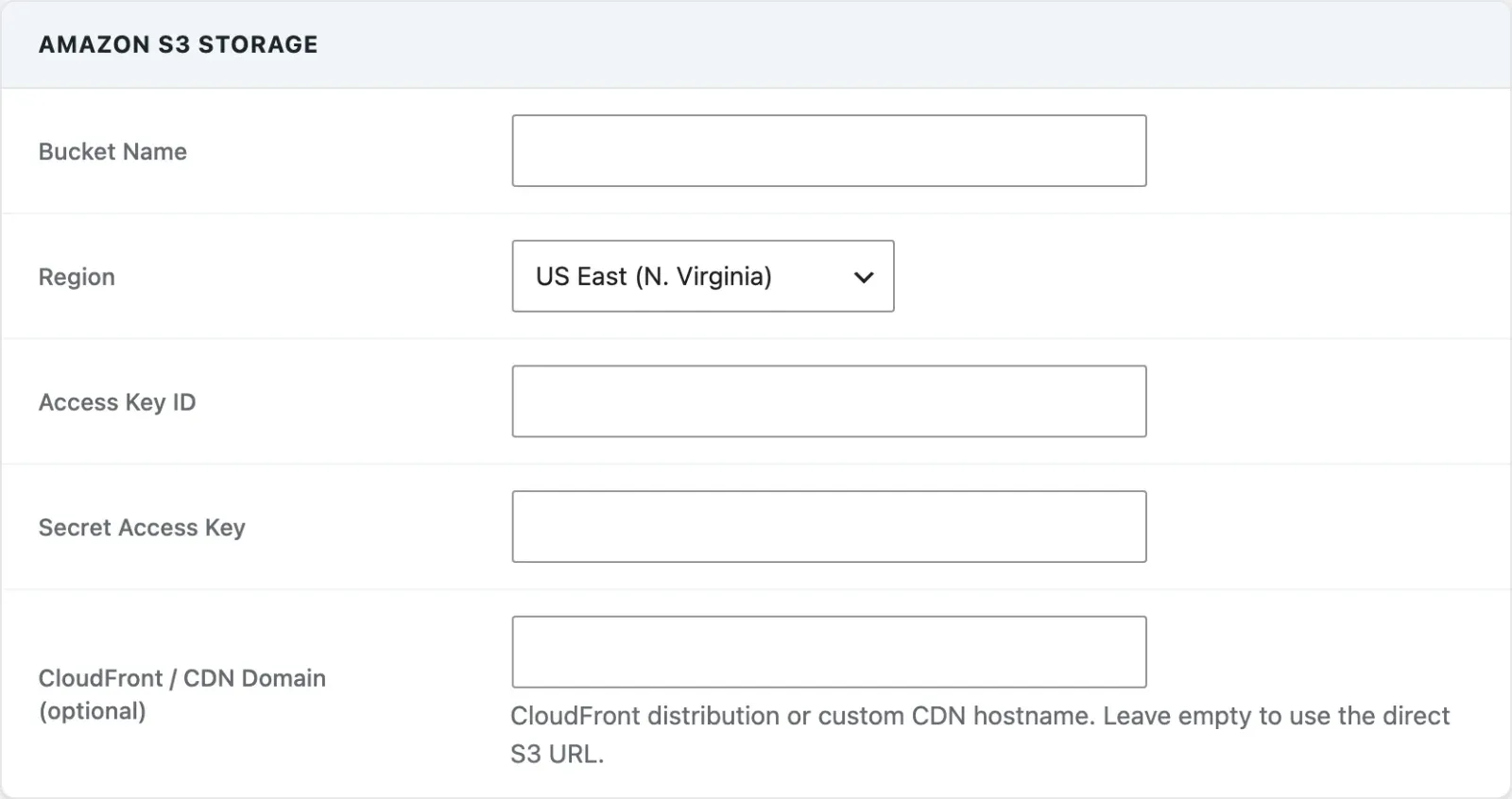
- Enter your Bucket Name, Region, Access Key ID, and Secret Access Key
- If you use CloudFront or a custom domain, enter the hostname in the CloudFront / CDN Domain (optional) field
- Click Save Changes, then click Test S3 Connection - MediaVerse Pro uploads a small test file and deletes it again to confirm the credentials work
- All new public uploads now go to S3
Setting Up BunnyCDN
Section titled “Setting Up BunnyCDN”- Log into your BunnyCDN dashboard and create a Storage Zone
- Note your storage zone name, the zone’s read+write password (from FTP & API Access), its region, and your pull zone hostname
- In WordPress, go to MediaVerse > Settings > Storage
- Set Where files are stored to BunnyCDN
- Enter your Storage Zone Name, Storage Zone Password, Storage Region, and Pull Zone Hostname
- Click Save Changes, then click Test BunnyCDN Connection to verify
- All new public uploads now go to BunnyCDN
Choosing a Storage Driver
Section titled “Choosing a Storage Driver”Go to MediaVerse > Settings > Storage and set Where files are stored. The value is stored in the mvs_storage_driver option. The first choice, This server (WordPress uploads), needs no Pro.
| Value | Driver |
|---|---|
local |
Default WordPress uploads directory (no Pro required) |
s3 |
Amazon S3 |
bunnycdn |
BunnyCDN |
r2 |
Cloudflare R2 |
dospaces |
DigitalOcean Spaces |
Only one driver is active at a time. Switching drivers does not move existing files by itself - previously uploaded files remain at their original URLs and continue to serve from their original location. To move them, use the Storage Management panel described below.
Amazon S3
Section titled “Amazon S3”Settings
Section titled “Settings”| Option | Option Key | Description |
|---|---|---|
| Bucket Name | mvs_pro_s3_bucket |
The name of your S3 bucket |
| Region | mvs_pro_s3_region |
Pick your AWS region from the list. The first entry, US East (N. Virginia), us-east-1, is the default |
| Access Key ID | mvs_pro_s3_access_key |
Your AWS IAM access key ID |
| Secret Access Key | mvs_pro_s3_secret_key |
Your AWS IAM secret access key |
| CloudFront / CDN Domain (optional) | mvs_pro_s3_cdn_domain |
Optional CloudFront or custom domain for file URLs. Leave empty to use the direct S3 URL |
Storing Credentials in wp-config.php
Section titled “Storing Credentials in wp-config.php”Instead of saving credentials to the database, define them as constants in wp-config.php:
define( 'MVS_PRO_AWS_ACCESS_KEY', 'AKIAIOSFODNN7EXAMPLE' );define( 'MVS_PRO_AWS_SECRET_KEY', 'wJalrXUtnFEMI/K7MDENG/bPxRfiCYEXAMPLEKEY' );When these constants are defined, MediaVerse Pro uses them instead of the database values. The other drivers have matching constants:
| Driver | Constants |
|---|---|
| BunnyCDN | MVS_PRO_BUNNY_API_KEY |
| Cloudflare R2 | MVS_PRO_R2_ACCESS_KEY, MVS_PRO_R2_SECRET_KEY |
| DigitalOcean Spaces | MVS_PRO_DO_ACCESS_KEY, MVS_PRO_DO_SECRET_KEY |
Required IAM Policy
Section titled “Required IAM Policy”Your IAM user needs at minimum:
{ "Effect": "Allow", "Action": [ "s3:PutObject", "s3:GetObject", "s3:DeleteObject", "s3:ListBucket" ], "Resource": [ "arn:aws:s3:::your-bucket-name", "arn:aws:s3:::your-bucket-name/*" ]}CDN Domain
Section titled “CDN Domain”If you serve your bucket through CloudFront or a custom domain, enter the hostname (without trailing slash) in the CloudFront / CDN Domain (optional) field. MediaVerse Pro replaces the default S3 URL with this domain for all generated file URLs.
BunnyCDN
Section titled “BunnyCDN”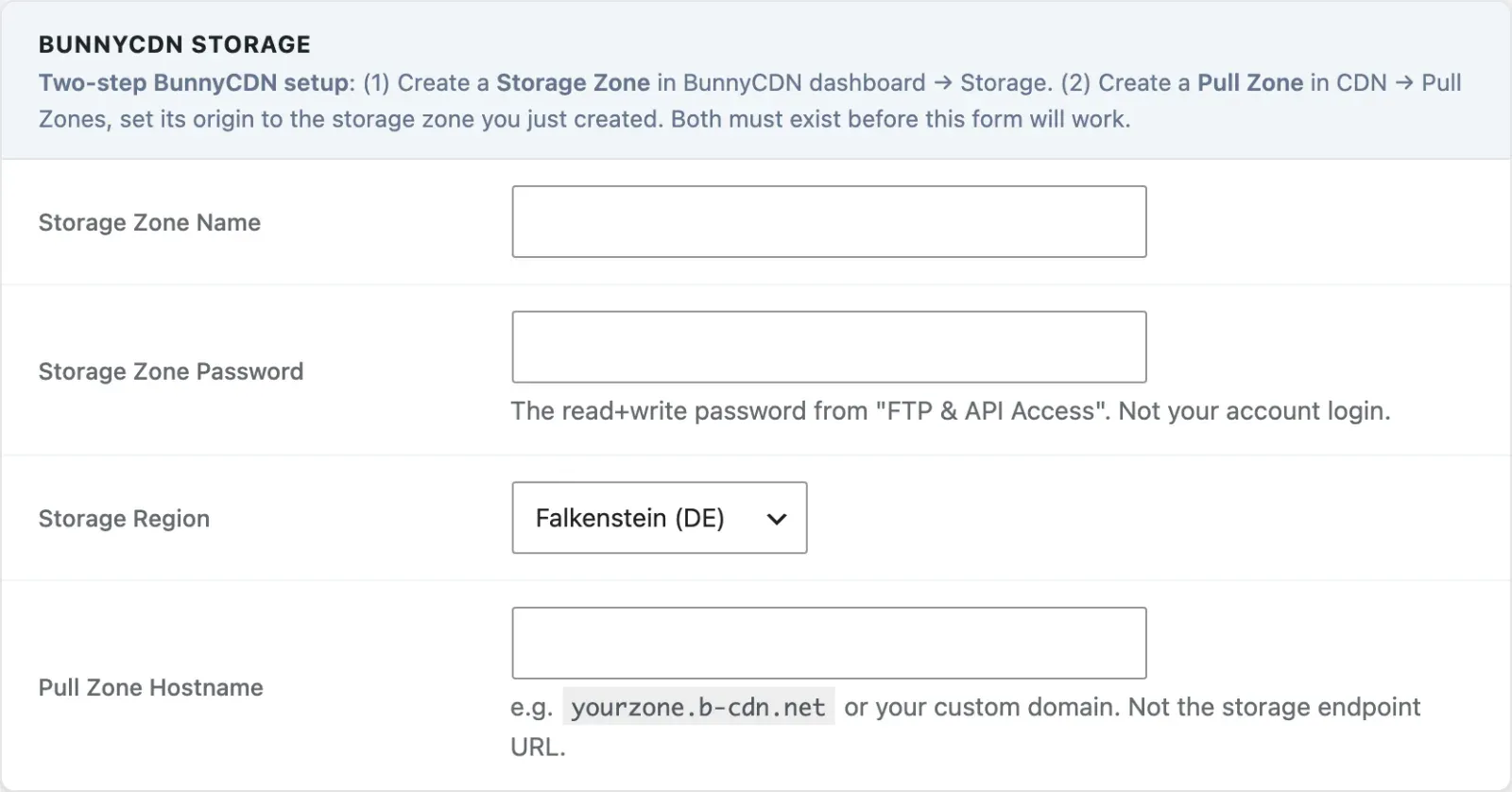
Settings
Section titled “Settings”| Option | Option Key | Description |
|---|---|---|
| Storage Zone Name | mvs_pro_bunny_zone |
Your BunnyCDN storage zone name |
| Storage Zone Password | mvs_pro_bunny_api_key |
The read+write password from “FTP & API Access” in the storage zone. Not your account login |
| Storage Region | mvs_pro_bunny_region |
Where the storage zone lives. Must match the zone, or BunnyCDN refuses the upload |
| Pull Zone Hostname | mvs_pro_bunny_cdn_hostname |
Your pull zone hostname, e.g. media.yoursite.b-cdn.net. Not the storage endpoint URL |
Both a Storage Zone and a Pull Zone (with the storage zone as its origin) must exist before the form will work.
Regions
Section titled “Regions”| Value | Location |
|---|---|
de |
Falkenstein, Germany (default) |
uk |
London, UK |
se |
Stockholm, Sweden |
ny |
New York, USA |
la |
Los Angeles, USA |
br |
Sao Paulo, Brazil |
jh |
Johannesburg, South Africa |
sg |
Singapore |
syd |
Sydney, Australia |
Cloudflare R2
Section titled “Cloudflare R2”Go to MediaVerse > Settings > Storage, set Where files are stored to Cloudflare R2, and fill in:
| Option | Option Key | Description |
|---|---|---|
| Account ID | mvs_pro_r2_account_id |
Your Cloudflare account ID. It forms the endpoint host {account-id}.r2.cloudflarestorage.com |
| Bucket Name | mvs_pro_r2_bucket |
The R2 bucket |
| Access Key ID | mvs_pro_r2_access_key |
From an R2 API token with Object Read & Write. Not your Cloudflare login |
| Secret Access Key | mvs_pro_r2_secret_key |
From the same token |
| Public Domain | mvs_pro_r2_cdn_domain |
A custom domain or *.r2.dev subdomain that serves public media. Recommended: without it, public media will not display |
Then click Test R2 Connection. A warning shows while R2 is active and no Public Domain is set.
DigitalOcean Spaces
Section titled “DigitalOcean Spaces”Go to MediaVerse > Settings > Storage, set Where files are stored to DigitalOcean Spaces, and fill in:
| Option | Option Key | Description |
|---|---|---|
| Space Name | mvs_pro_do_bucket |
The name of your Space |
| Datacenter Region | mvs_pro_do_region |
The region your Space lives in. Default nyc3 |
| Access Key | mvs_pro_do_access_key |
From API > Spaces Keys. Not your DigitalOcean login |
| Secret Key | mvs_pro_do_secret_key |
From the same key pair |
| CDN Endpoint | mvs_pro_do_cdn_domain |
Optional. A Spaces CDN endpoint or custom domain. Leave blank to serve from the origin endpoint |
Then click Test DigitalOcean Spaces Connection.
Moving Existing Media
Section titled “Moving Existing Media”When a cloud driver is active, the Storage tab shows a Storage Management panel with the number of files in the cloud, still on this server, and private (kept on this server).
- Move media to cloud - Migrate all uploads your existing public media in the background. Progress shows as it runs.
- Free up server space - Delete next 20 removes local copies of public media that are already in the cloud. Each file is checked in the cloud before it is removed. Private media always stays on the server. This cannot be undone.
Both actions need a cloud driver to be active. Media you already uploaded keeps showing after you switch drivers, and the Storage tab says so. Removing server copies asks you to confirm first.
Testing the Connection
Section titled “Testing the Connection”After saving settings, click the Test … Connection button for your driver in the Storage settings panel. MediaVerse Pro uploads a small test file, then deletes it. The result (success or error message) appears inline without a page reload.
If the test fails, verify your credentials, bucket name, and that the IAM or API key has sufficient permissions.
File Path Structure
Section titled “File Path Structure”Files are stored under the same path structure used for local uploads:
wpmediaverse/YYYY/MM/filename.extFor S3 this becomes s3://your-bucket/wpmediaverse/YYYY/MM/filename.ext. For BunnyCDN it becomes a path within your storage zone. Documents are the exception: document files always stay on your server, whichever driver is active.
Signed URLs with Cloud Storage
Section titled “Signed URLs with Cloud Storage”When media privacy is not public, MediaVerse generates signed URLs through the /serve proxy route on your server. The proxy re-verifies view permission on every request - signed URLs for non-public media do not grant transferable access. Private media is not delivered straight from the cloud.
Developer: Filtering Public Cloud URLs
Section titled “Developer: Filtering Public Cloud URLs”The public-cloud serving behavior can be adjusted using three filters. Full parameter details are in the Developer Guide: Hooks and Filters.
| Filter | What it controls |
|---|---|
mvs_serve_public_cloud_direct |
Return false to force all media back through the /serve proxy instead of emitting direct CDN URLs |
mvs_public_cloud_thumbnail_url |
Rewrite or replace the direct CDN URL for a public cloud-hosted thumbnail |
mvs_public_cloud_file_url |
Rewrite or replace the direct CDN URL for a public cloud-hosted original file |