

Document Library
MediaVerse overviewFree + ProGet MediaVerse →
PRO - Requires MediaVerse Pro. This feature is not in the free plugin.
Give every member a private drive for their files. Folders, sharing, search, trash and a viewer that shows a contract as a contract - not as its words in a plain column.
What Users See
Section titled “What Users See”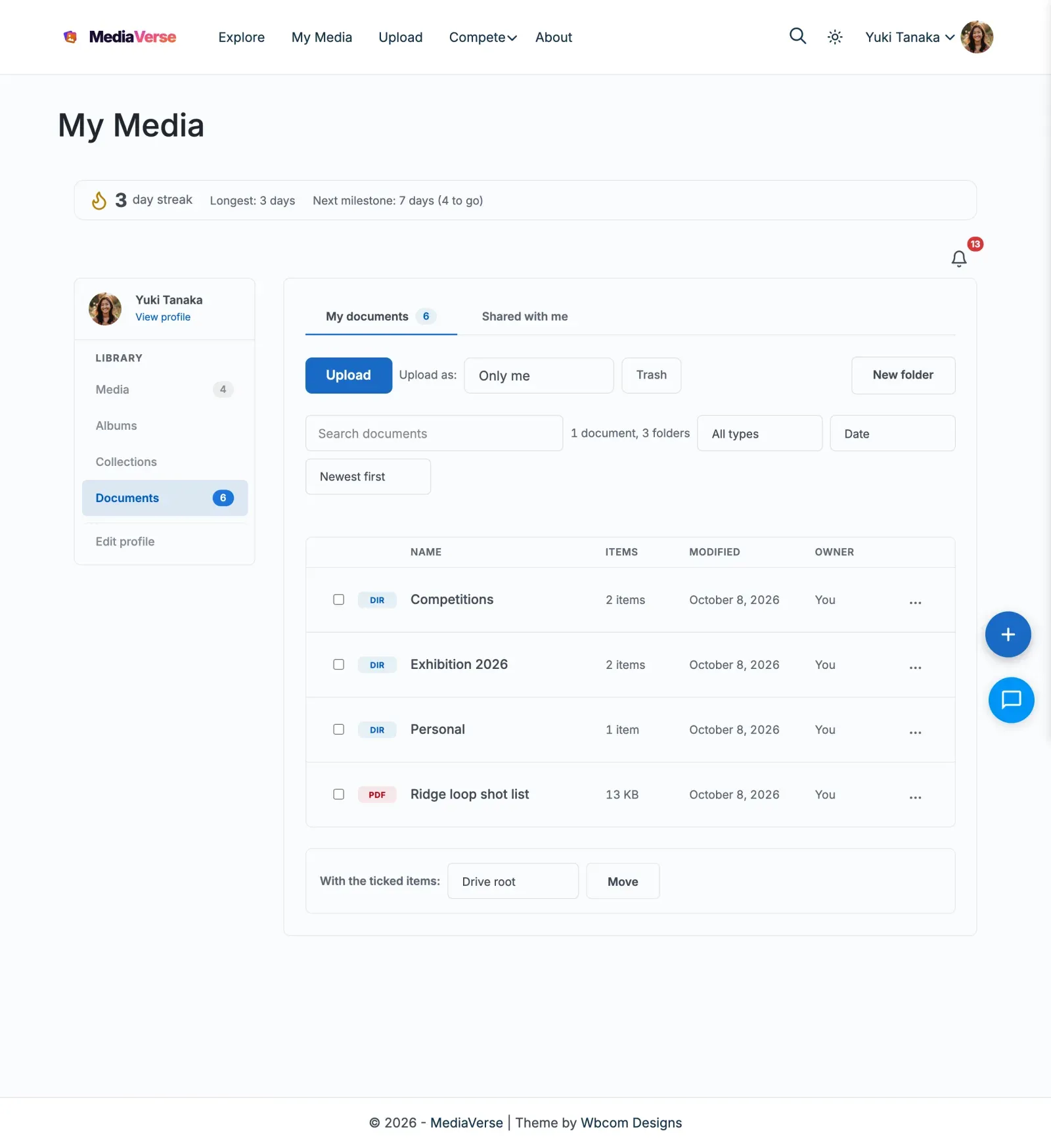
Each member gets a Documents section on their My Media page: their own drive, with folders they create and name, an upload button, and a list showing name, size, when it changed and who owns it.
Opening a document uses the right view for its type. A PDF opens inline in a built-in viewer (pdf.js), laid out the way the file really looks. Plain text, Markdown and CSV render as formatted HTML. Word, Excel, PowerPoint, OpenDocument and RTF files show a download card - MediaVerse embeds what the browser can render and hands you the file for the rest, rather than converting one format into another.
Beside their own drive members get:
- Shared with me - documents other members have given them access to, with a Location column saying where each one lives
- Trash - a place things go, and come back from. Removing a document is not permanent by accident
- Search inside the drive - across the text of the documents, not just their titles. It finds your file however many matches the site has, and you can search inside a single folder
What You Can Do
Section titled “What You Can Do”- Create folders and nest them, rename them, move them, and move documents between them
- Select several documents and folders and move them in one go
- Set privacy per document: Only me, All site members or Anyone. On a space drive there is also Everyone on this drive
- Set privacy on a folder and have everything inside it follow
- Share a document with a specific member, choose whether they can view or edit, and withdraw that access later. Sharing with a whole role is not available; use the All site members privacy level instead
- Create a link that opens without signing in, when the site allows it. A link never gives more access than the person who made it has
- Download any document straight from its row
Changing who can see a document, or linking it into a space, needs the right to share it. Having view access alone is not enough.
Documents attached to posts
Section titled “Documents attached to posts”When a document is attached to a BuddyNext post, everyone who can read that post can open the document. They get view-only access. Developers can change this with the mvs_document_readable_via_post filter.
Folder Privacy
Section titled “Folder Privacy”A folder’s privacy cascades to what is inside it, and it only ever tightens. Setting a folder to Only me makes its documents private. Setting it back to Members does not re-open the documents inside - a document you deliberately made private stays private when the folder around it is loosened.
On a large folder the cascade runs in the background rather than in the request, so a folder holding tens of thousands of documents does not stall the page. The folder’s own privacy changes first and immediately, so the window while the rest catches up fails closed rather than open.
Folders and the Trash
Section titled “Folders and the Trash”Trashing a folder takes everything inside it to the trash with it: its subfolders and every document in them. Until the folder is restored, nobody can open, download or find those files, including people they were shared with.
Restoring the folder brings back exactly what it took. A document somebody trashed on its own before the folder went to the trash stays in the trash, so restoring a folder never undoes a separate decision about a file inside it. For the same reason, a document that went to the trash with its folder is not listed on its own in the trash view: it comes back with the folder.
Names are free while a folder is in the trash. You can make a new folder called Contracts straight after trashing the old one. If the old one is restored later and the name is taken, it comes back as Contracts (restored).
The trash empties itself. A folder is deleted permanently, with everything in it, 30 days after it was trashed. Folders that were already in the trash when your site updated to 2.6.0 get their 30 days from the update, not from the day they were trashed. Change the period, or keep the trash forever, with the mvs_folder_trash_retention_days filter (return 0 to never purge):
add_filter( 'mvs_folder_trash_retention_days', fn() => 90 );There is no setting for this on purpose: one sensible default, and a filter for sites that need something else.
Who can change a folder
Section titled “Who can change a folder”On a member’s own drive, the member does everything. On a space drive, folders are shared structure:
| Action | Space owner, moderators, site admins | Other space members |
|---|---|---|
| Create a folder | Yes | Yes |
| Rename, move, change privacy, trash | Any folder | Only folders they created that hold nothing anyone else added |
| Restore from the trash | Any folder | Only folders they trashed themselves |
| Delete permanently | Any trashed folder | Only folders they trashed themselves |
Adding files to any folder of the space stays open to every member who can upload there.
Accepted File Types
Section titled “Accepted File Types”Documents are a separate library from media, with their own accepted types and its own size limit. Out of the box: PDF, Word, Excel, PowerPoint, the OpenDocument equivalents, RTF, plain text, Markdown and CSV.
A file is identified by what it actually is, never by its extension. A .docx renamed to .zip is refused, and so is a .zip renamed to .docx.
Document Previews
Section titled “Document Previews”Opening a document uses the right tier for its type. MediaVerse embeds what the browser can show and hands you the file for everything else - it never converts one format into another.
- PDF opens inline in a built-in viewer (pdf.js), page by page.
- Text, Markdown and CSV render as server-generated HTML.
- Word, Excel, PowerPoint, OpenDocument and RTF show a download card - a titled row with the file’s type and size and a Download button.
Downloads always work, whatever the type.
One File, Several Spaces
Section titled “One File, Several Spaces”A file can be linked into more than one space without being uploaded again. MediaVerse has no screen for this; BuddyNext’s Files tab offers it, and apps can use the API. The file stays on its owner’s drive; the space gets a link to it, and that space’s members can open it.
- Who may link: anyone who can write to the target space (member, moderator or owner) and can edit the file - which in practice means its owner. Linking is the same level of permission as uploading into that space.
- Who may remove a link: the space’s moderator or owner, or the file’s owner.
- What a link is not: removing a link never deletes the file. It stays on its owner’s drive, and the other spaces it is linked into keep their copy of the link.
Space search finds files linked into a space, not only the ones uploaded there.
When a Space Is Deleted
Section titled “When a Space Is Deleted”Deleting a space trashes its drive - the documents and folders that live in that space - the same soft delete a member performs, so nothing is destroyed and everything can be restored. Files that members merely linked in from their own drives are left alone; they belong to those members, not to the space.
A large drive is cleaned in batches across several requests rather than in one, so deleting a space with thousands of files does not time out.
Orphaned Files
Section titled “Orphaned Files”Earlier versions could leave a document file on disk after its record was gone. The MediaVerse > Documents admin screen has a card, below the list, that looks for these: “Check for orphaned files” is a dry run that reports what it found and deletes nothing, and the delete step is a separate, deliberate action.
The same thing is available on the command line, which is the better choice on a big site:
wp mvs-pro documents reclaim-orphans --dry-runwp mvs-pro documents reclaim-orphans --scope=<segment>/2025/03 --dry-runwp mvs-pro documents reclaim-orphans --yesAlways run the dry run first and read what it lists. A file it names is one no document row points at any more; if that is not what you expect, stop and investigate rather than deleting.
For Site Owners
Section titled “For Site Owners”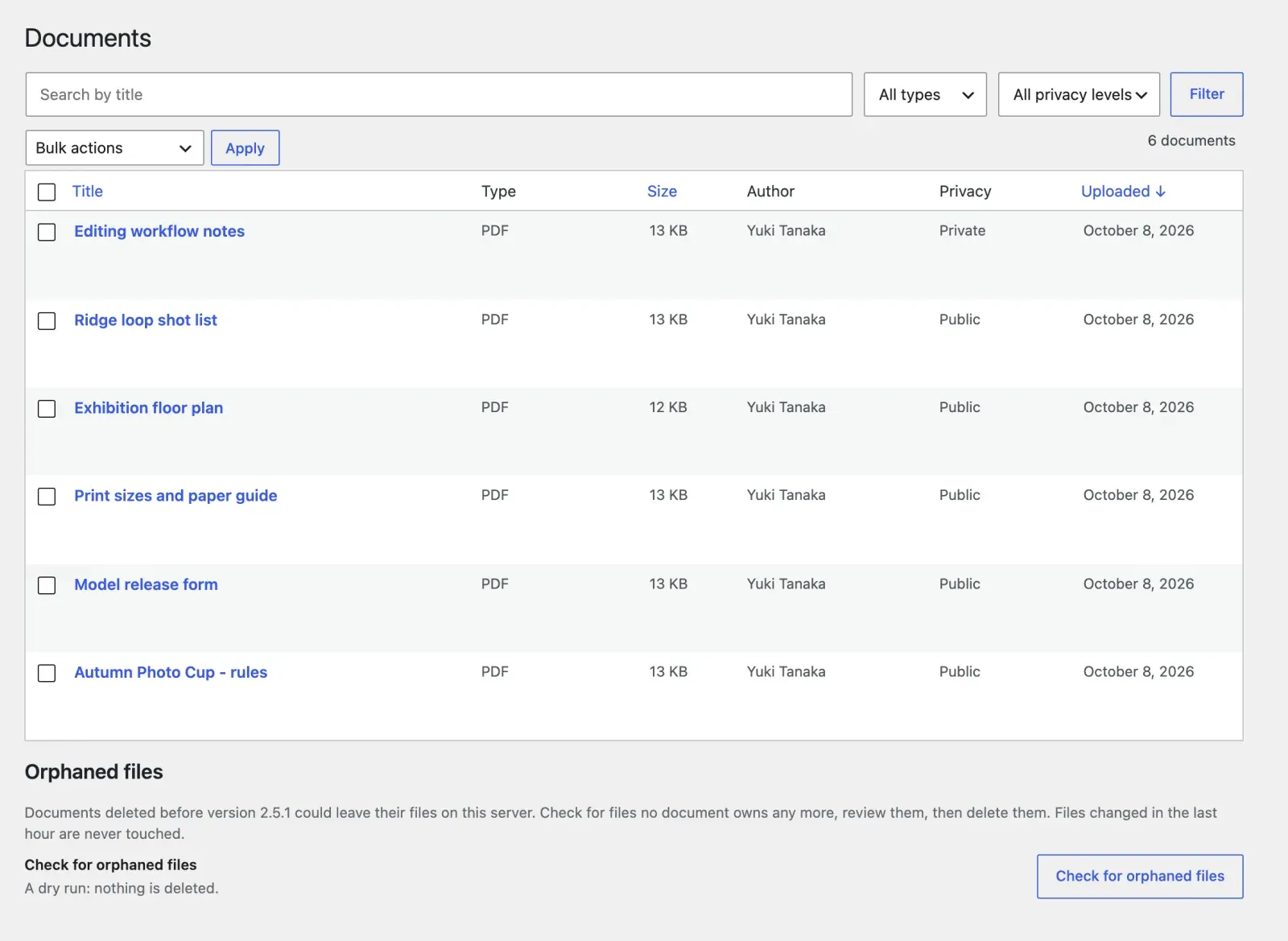
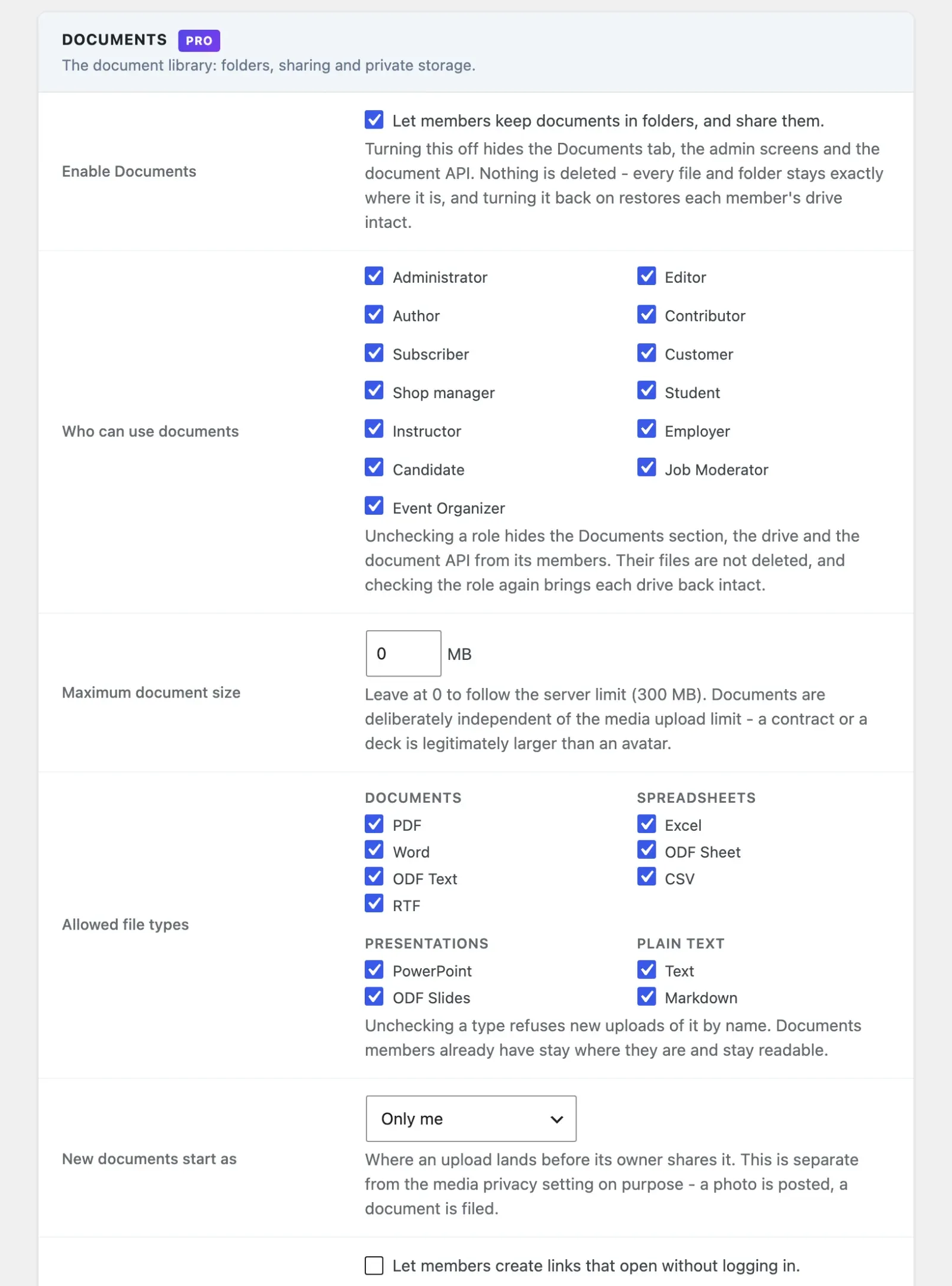
Settings live at MediaVerse > Settings > Documents:
| Setting | What it does |
|---|---|
| Enable Documents | Turns the whole feature on or off. Default: on. Off hides the Documents tab, the admin screens and the document API; nothing is deleted |
| Who can use documents | Which roles get a document library at all. Every role has it to begin with, including roles other plugins add |
| Maximum document size | Upload ceiling in MB. Default 0, which follows the server’s own limit |
| Allowed file types | Which document types this site takes. All types are on to begin with |
| New documents start as | What a newly uploaded document starts as. Default: Only me |
| Share links that work without logging in | Whether members can create links that open without signing in. Default: off. Turning it off also closes links already handed out |
| Search inside documents | Whether uploads are text-extracted in the background so drive search can find them. Default: on. PDFs are not text-extracted, so a PDF is found by its title or tags only |
Turning documents off for a role hides the surfaces without deleting a single file. Turning it back on brings every drive back exactly as it was.
The admin screen at MediaVerse > Documents lists every document on the site, with Edit, View on site, Trash and Delete permanently, plus a panel showing the extracted text, where the document sits on its owner’s drive, and who can open it.
Licensing
Section titled “Licensing”Documents is the one feature that needs an active Pro licence, and only for changes.
On a site whose licence has lapsed:
- Every document stays where it is. Members can open, download, search and share what they already have
- Adding, renaming, moving, binning and sharing are paused, and the controls for them are hidden rather than shown-and-refused
- Withdrawing access someone already has keeps working, so a member is never stuck with a document shared to the wrong person
- Site administrators keep full access, so the owner can still tidy up
Activating the licence restores everything immediately. Nothing is migrated, converted or lost.
Every other Pro feature is unaffected by licence state - the licence buys updates.
Blocks
Section titled “Blocks”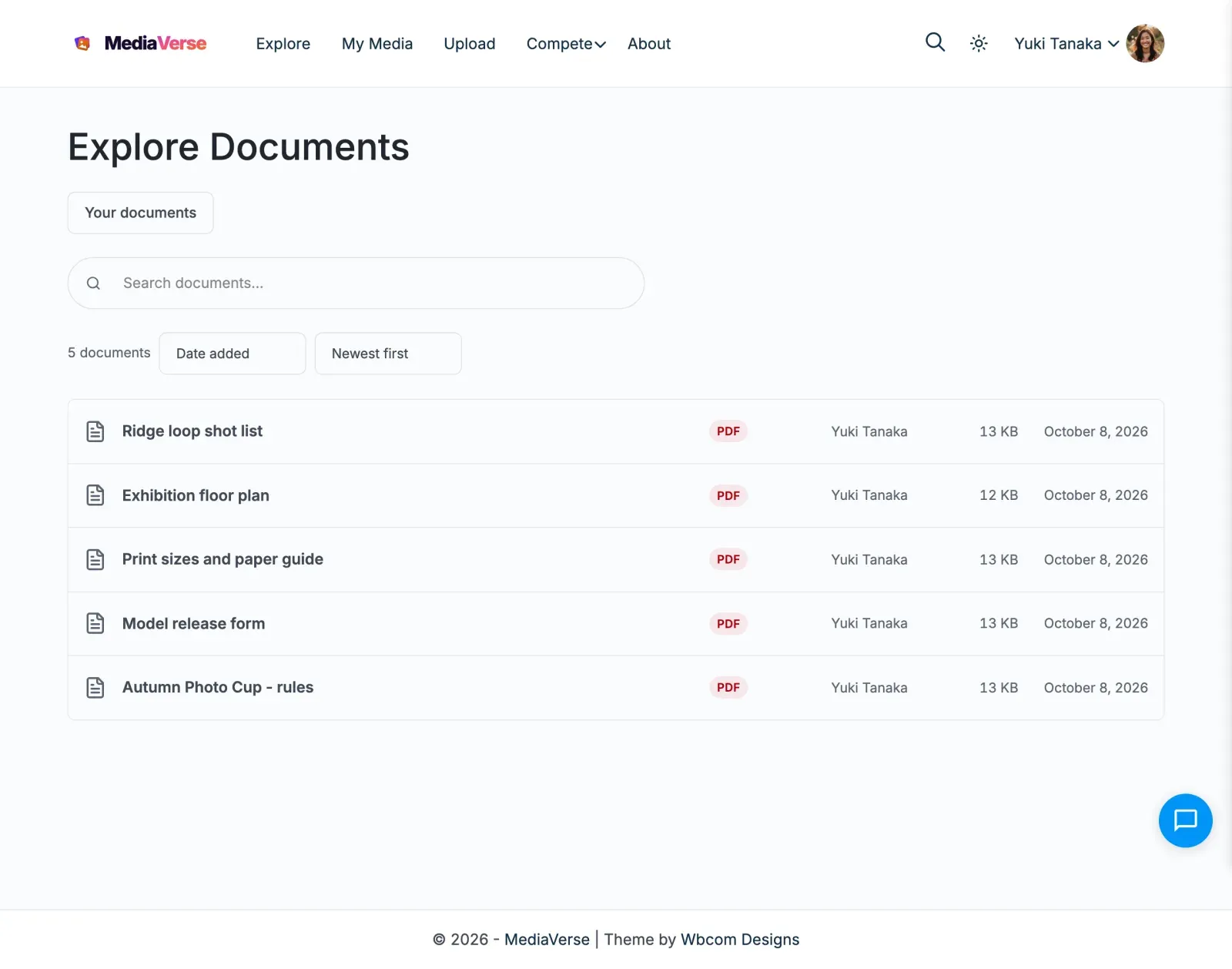
Two blocks put documents on any page or post. Both decide access for the person reading the page, on every view, so a visitor never sees a document they could not open elsewhere.
| Block | What it shows | Settings |
|---|---|---|
Document (mvs/pro-document-embed) |
One document, with its preview and a Download button | Document - pick it in the block sidebar. Download only - show the Download button without the preview. |
Document List (mvs/pro-document-list) |
The documents in one folder, or a filtered set, as rows | Folder - which folder (none = all the documents the viewer may see). Type - limit to one document type. Limit - how many rows, 1 to 50 (default 20). |
A Document block with nothing picked tells editors to pick one and shows nothing to visitors.
A Document List with nothing the viewer may open shows nothing. The list is the
[mvs_documents] shortcode underneath, so [mvs_documents folder="12" type="pdf" per_page="10"]
gives the same result in a classic editor.
REST API Endpoints for Documents
Section titled “REST API Endpoints for Documents”| Method | Endpoint | Description |
|---|---|---|
GET |
/mvs-pro/v1/documents |
List documents on a drive |
POST |
/mvs-pro/v1/documents/upload |
Upload a document |
GET |
/mvs-pro/v1/documents/search |
Search inside a drive |
GET |
/mvs-pro/v1/documents/{id} |
Get one document |
POST |
/mvs-pro/v1/documents/{id} |
Update title, privacy, folder |
DELETE |
/mvs-pro/v1/documents/{id} |
Trash a document |
POST |
/mvs-pro/v1/documents/{id}/restore |
Restore from trash |
POST |
/mvs-pro/v1/documents/{id}/replace |
Replace the file, keeping the document |
POST |
/mvs-pro/v1/documents/bulk |
Move, trash or restore a selection |
GET |
/mvs-pro/v1/documents/{id}/download |
Download the file |
GET |
/mvs-pro/v1/documents/{id}/preview |
Render the document |
GET |
/mvs-pro/v1/me/shared |
Documents shared with me |
POST/DELETE |
/mvs-pro/v1/documents/{id}/spaces and .../spaces/{space_id} |
Link a document into a space, or remove the link |
POST |
/mvs-pro/v1/documents/link |
Link a document into a space from a pasted URL, slug or id |
GET |
/mvs-pro/v1/drives |
Drives this member can reach |
GET/POST |
/mvs-pro/v1/folders |
List or create folders |
POST/DELETE |
/mvs-pro/v1/folders/{id} |
Rename, move or trash a folder. DELETE ...?force=true permanently deletes a folder that is already in the trash |
POST |
/mvs-pro/v1/folders/{id}/restore |
Restore a folder and what it took to the trash |
GET/POST |
/mvs-pro/v1/documents/{id}/permissions |
Read or grant access |
POST |
/mvs-pro/v1/documents/{id}/permissions/link |
Mint a share link |
DELETE |
/mvs-pro/v1/permissions/{id} |
Withdraw access |
Every route works with an Application Password alone - no cookies, no nonce - so a mobile app can drive the whole feature.
Folder responses tell the client what the viewer may do, so an app never has to work out the rules itself: every folder carries can_manage (may rename, move, trash, restore or delete it), and the folder list returns the header X-MVS-Can-Create-Folder: 1|0. A trashed folder also carries trashed_by, trashed_at, purge_at (null while the trash is kept forever) and item_count.
Hooks and Filters
Section titled “Hooks and Filters”| Hook | Type | What it decides |
|---|---|---|
mvs_user_can_use_documents |
filter | Whether one user gets a document library, whatever their role. The seam for membership tiers |
mvs_document_max_size |
filter | Upload ceiling, overriding the setting |
mvs_document_allowed_types |
filter | Accepted types, overriding the setting |
mvs_document_default_privacy |
filter | What a new document starts as |
mvs_document_anon_links |
filter | Whether anonymous share links may be minted |
mvs_document_readable_via_post |
filter | Whether a viewer who can read a post may open (view only) a document attached to it |
mvs_document_row_actions |
filter | Add row actions to the admin document list |
mvs_document_admin_panels |
filter | Add panels to the admin document editor |
mvs_document_uploaded |
action | Fires after a document is stored |
mvs_folder_trash_retention_days |
filter | Days a trashed folder is kept before it is deleted permanently. Default 30, 0 keeps it forever |
mvs_folder_before_purge |
action | Fires once before a folder and its contents are permanently deleted, with the folder id and the document ids. Log or back up here |
mvs_document_folder_deleted |
action | Fires after a folder and its contents were permanently deleted |
A setting always wins over the screen it came from: if your site already sets one of these filters, it keeps winning after you upgrade, so upgrading into the settings screen never silently reconfigures a site.