

Voting, Comments, and Suggestions
Turn your roadmap into a two-way feedback channel: let visitors vote on what they want, discuss items, and submit their own ideas.
Voting
Section titled “Voting”Turning it on
Section titled “Turning it on”Go to Roadmap > Settings and enable Enable Voting. Under Who Can Vote, choose Anyone (including guests) or Logged in users only.
How it works
Section titled “How it works”- Each item shows a vote button and its current vote count.
- One vote per user per item; clicking again removes the vote.
- After voting, the button shows a clear “Voted” state (a checkmark and pill) that stays visible even on themes that heavily restyle buttons.
- Guest votes are tracked by IP address. A guest’s “already voted” state is recognized consistently between the board and the single item page, and stops being recognized if guest voting is later turned off.
- Vote counts reflect the number of people who voted - not a net score that a downvote could reduce.
Hiding voting on one board
Section titled “Hiding voting on one board”[roadmap show_voting="hide"]This only hides voting on that particular shortcode instance. It can’t turn voting on if it’s disabled in Settings.
Single item pages
Section titled “Single item pages”Every roadmap item has its own page (yoursite.com/roadmap/item-slug/) with a large vote button, the current count, the full description, and comments. Guest and logged-in voting both work the same way here as on the board.
Comments
Section titled “Comments”Turning it on
Section titled “Turning it on”Go to Roadmap > Settings and enable Enable Comments. Comments use WordPress’s native comment system, so standard moderation, threading, and spam handling (including Akismet, if active) all apply.
Turning comments off in Settings closes them everywhere, including the single item page.
Moderating
Section titled “Moderating”Manage roadmap item comments the same way you manage any WordPress comment: Comments in the admin sidebar to approve, reply, or mark as spam.
Feature suggestions
Section titled “Feature suggestions”Let logged-in members submit their own feature ideas, which become draft roadmap items pending your review.
Turning it on
Section titled “Turning it on”Go to Roadmap > Settings and enable User Suggestions. Configure:
- Auto-approve user suggestions - off by default. When on, suggestions publish immediately with the status set in Default Status for Suggestions, bypassing manual review.
- Default Status for Suggestions - the status a suggestion gets when auto-approved.
Guest suggestions require the Pro addon; on Free, submitting an idea requires being logged in.
The suggestion form
Section titled “The suggestion form”When User Suggestions is on, a “Suggest a feature” button appears directly on the [roadmap] board. Clicking it opens a form (title, description, and an optional category) without leaving the page - there’s no separate shortcode to place.
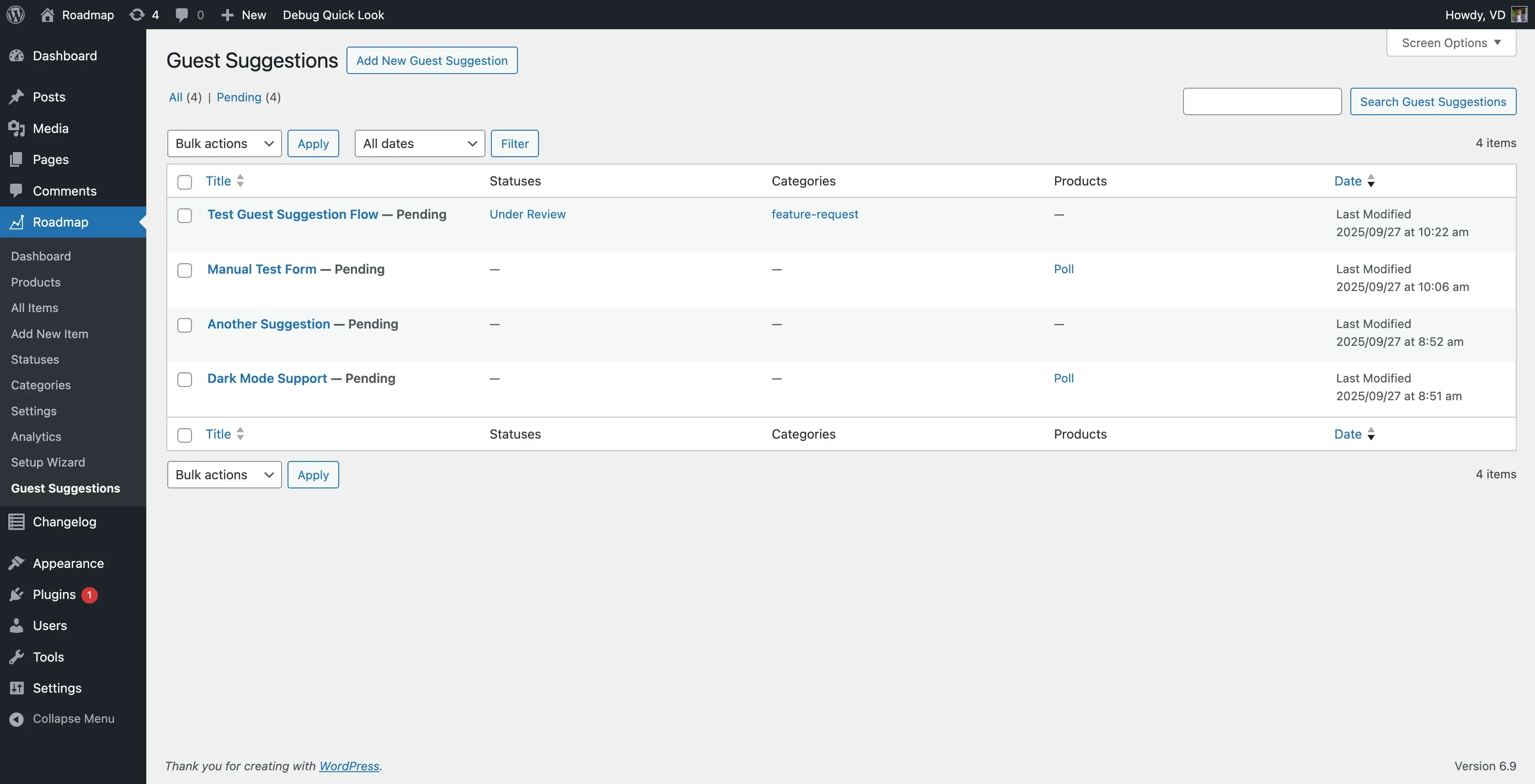
Reviewing suggestions
Section titled “Reviewing suggestions”- Go to Roadmap > All Items.
- Filter by the suggestion default status (Under Review, unless you’ve changed it).
- Review each submission, then publish, edit, or trash it.
A pending-submissions admin notice appears when there’s something to review; dismissing it stays dismissed until a new suggestion arrives.
Notification emails for this activity
Section titled “Notification emails for this activity”Configure who gets emailed, and for which of these three events, on the Notifications settings page. Separately, voters and commenters on an item get emailed (with an unsubscribe link) when that item’s status changes.
Anti-spam, automatically
Section titled “Anti-spam, automatically”Votes and suggestions are rate-limited (per logged-in user, or per IP address for guests), and the suggestion form carries a hidden honeypot field to catch bots. None of this requires configuration - it’s always on.
Troubleshooting
Section titled “Troubleshooting”Vote button doesn’t respond
- Confirm Enable Voting is on in Settings.
- If a guest is trying to vote, confirm Who Can Vote allows guests.
- Check the browser console for JavaScript errors, and rule out a plugin conflict by disabling other plugins temporarily.
Comments missing
- Confirm Enable Comments is on in Settings.
- Check Settings > Discussion in WordPress itself allows comments.
Suggestion form not appearing
- Confirm User Suggestions is enabled in Settings and the board uses
[roadmap]; the button is part of the board, not a separate shortcode. - Confirm the visitor is logged in (Free requires login to suggest).
Next steps
Section titled “Next steps”| Goal | Guide |
|---|---|
| Document a release | Changelog |
| Configure email recipients | Notifications |