

Tax, Fees & Coupons
Eventonomy overviewFree + ProGet Eventonomy →
Pro - Tax, booking fees, and coupon codes require Eventonomy Pro.
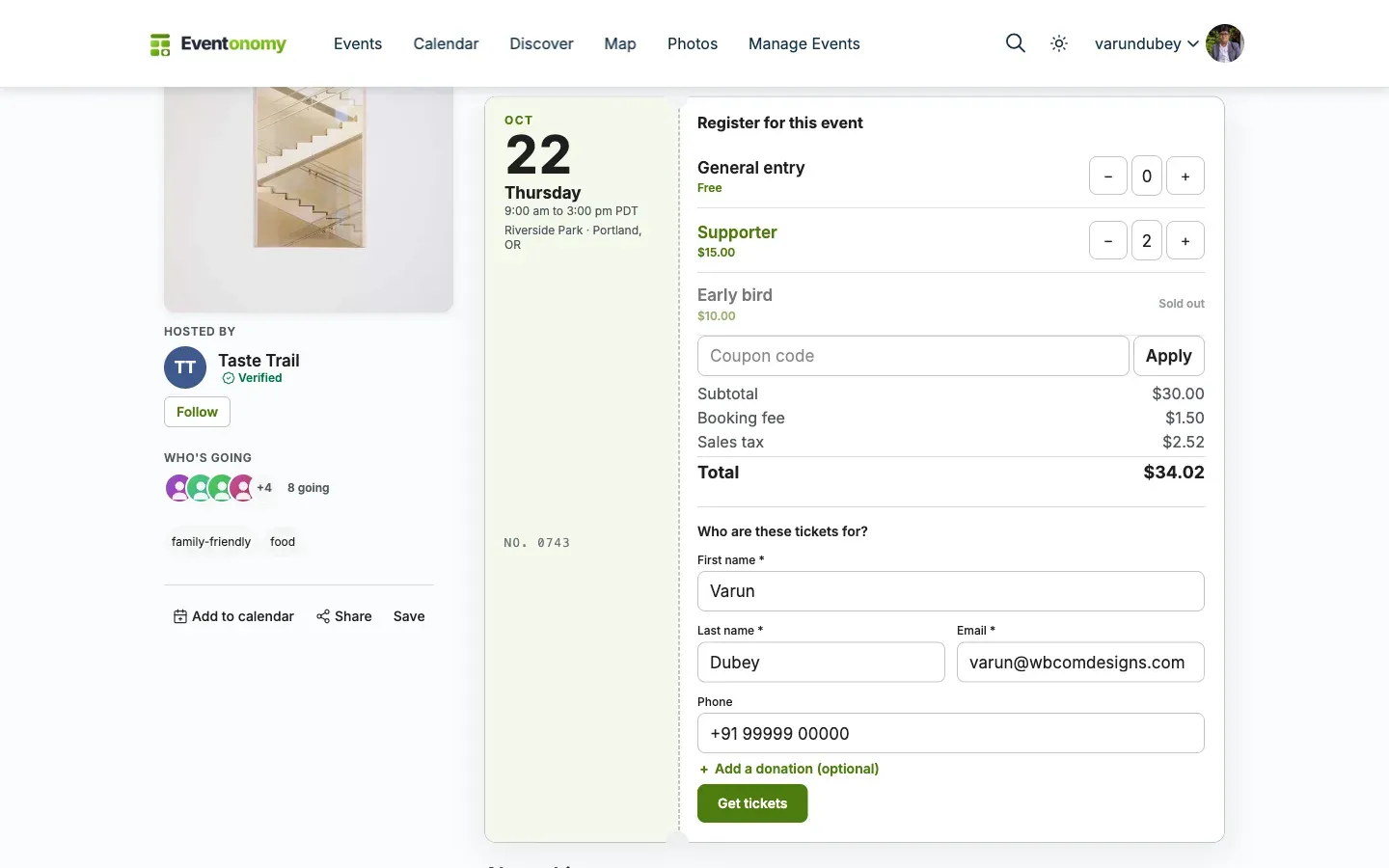
Eventonomy Pro lets you add a tax rate, a booking fee, and discount coupon codes to every paid order. All three are applied at checkout and shown in the order summary before the attendee pays.
What You Will Learn
Section titled “What You Will Learn”- How to configure a tax rate (inclusive or exclusive)
- How to configure a booking fee (flat or percentage)
- How to create and manage coupon codes
- In what order these are applied at checkout
Tax Settings
Section titled “Tax Settings”Go to Eventonomy → Settings → Payments → Tax & Fees (Pro).
| Setting | Default | Description |
|---|---|---|
| Apply tax to orders | Off | Turn on to apply tax to all paid orders. |
| Tax rate (%) | 0 |
Percentage rate, e.g. 20 for 20%. |
| Tax label | “Tax” | Label shown to attendees in the order summary. Change it to “GST”, “VAT”, etc. |
| Ticket prices already include tax (inclusive) | Off | When on, ticket prices are treated as already including tax (tax is extracted from the price). When off, tax is added on top. |
Note: This rate applies to every paid order on the site. There is no per-event or per-ticket-type setting; developers can vary the rate by event with a hook (see the end of this page).
Booking Fee Settings
Section titled “Booking Fee Settings”A booking fee is a service charge added to every paid order. It can be a flat amount or a percentage of the order subtotal.
| Setting | Default | Description |
|---|---|---|
| Add a booking / service fee | Off | Turn on to add a fee to all paid orders. |
| Fee label | “Service fee” | Label shown to attendees. |
| Fee type | Percentage of subtotal | Percentage of subtotal = a percentage of the ticket subtotal. Fixed amount = a flat amount per order. |
| Fee amount | 0 |
The percentage or flat amount, per the type above. |
| Who pays the fee? | Buyer pays | Buyer pays (added to the total) adds the fee to what the attendee is charged. Organizer absorbs (recorded only) records the fee on the order but does not add it to the charge, and tax is then calculated on the ticket subtotal alone. |
Coupon Codes
Section titled “Coupon Codes”Coupon codes give attendees a percentage or flat-amount discount at checkout.
Creating a Coupon
Section titled “Creating a Coupon”- Go to Eventonomy → Settings → Payments and find the Coupons card.
- Click Manage coupons. This opens the Coupons screen, a searchable list of every code with its status (Active, Inactive, Expired, Limit reached).
- Click Add coupon.
- Fill in the coupon fields (see table below). Generate code makes a random code for you.
- Click Add coupon again to save.
Coupon Fields
Section titled “Coupon Fields”| Field | Description |
|---|---|
| Code | The code attendees enter at checkout. Saved in UPPERCASE (e.g. SUMMER20). |
| Discount type | Percentage of subtotal (max 100%) or Fixed amount off the subtotal. |
| Amount | The discount value. |
| Usage limit | How many times this code can be used in total. Enter 0 for unlimited. |
| Starts | Optional first day the code works, from 12:00 am. Leave blank to start now. |
| Expires | Optional last day the code works. It stops at the end of that day (11:59 pm, site time). Leave blank for no expiry. |
| Minimum subtotal | The attendee’s ticket subtotal must be at or above this amount for the code to apply. Enter 0 for no minimum. |
| Only for event | Optional. Start typing an event name and pick it; the code then works on that event only. Leave empty and the code works on every event. |
| Only for ticket type | Optional. After choosing an event, pick one of its ticket types; the code then needs that ticket in the order and discounts that ticket’s lines only. |
| Active | Toggle to enable or disable the coupon without deleting it. |
How the “used” Counter Works
Section titled “How the “used” Counter Works”You can see the used count next to each coupon in the list. It is not editable: editing or resaving a coupon does not reset it. When it changes depends on whether the coupon has a usage limit, and that difference is deliberate.
- A coupon with a usage limit claims its use the moment the order is created, before the buyer is sent to the gateway. Two people trying to spend the last use of the same code at the same time cannot both succeed: one gets the discount, the other is told the code has reached its limit. If the buyer abandons checkout and never pays, the held use is given back automatically once the order has sat unpaid for an hour, so an abandoned cart does not burn a code permanently.
- A coupon with no limit (
0) has nothing to protect, so it is simply counted when the order becomes paid.
Either way, the use is released again if the order is later refunded or cancelled, so a freed-up use returns to the pool.
Using a Coupon at Checkout
Section titled “Using a Coupon at Checkout”Attendees enter the code in the coupon field in the RSVP block at checkout. The discount is applied immediately and the order summary updates with the discounted total before payment.
How the Order Total is Calculated
Section titled “How the Order Total is Calculated”The order total follows this sequence at checkout:
- Subtotal - the sum of (ticket price × quantity) for all line items, priced from the ticket record on the server and with any active early-bird tier already applied.
- Coupon discount - deducted from the subtotal (capped at the subtotal; the total cannot go below zero).
- Booking fee - a percentage of the discounted subtotal, or the flat amount.
- Tax - applied to the discounted subtotal plus the fee when the buyer pays the fee, or to the discounted subtotal alone when the organizer absorbs it. Tax is added on top when tax-exclusive, or extracted from that amount when tax-inclusive.
- Total - the final amount charged.
Every amount is recalculated on the server when the order is charged, so a tampered price or discount in the browser cannot change what is actually taken. The order summary at checkout shows each line so attendees can verify the calculation.
Donations, and tax that depends on the event
Section titled “Donations, and tax that depends on the event”- Donations are left out of the booking fee and the tax by default, so a donor pays exactly what they typed. Also charge the fee on donations and Also tax donations under Tax & Fees turn either back on. Developers: filter
evnm_pro_donation_tax_fee(array( 'fee' => bool, 'tax' => bool ), donation amount). - Tax per event or venue (for example by the venue’s state) is a developer hook, not a setting: filter
evnm_pro_tax_ratereceives the site-wide rate andarray( 'event_id' => int, 'order' => array )and returns the rate in percent. Tax is worked out once, before any payment gateway, so the same rate is used for the checkout preview, the charge and the order record, whichever gateway is used.
add_filter( 'evnm_pro_tax_rate', function ( $rate, $context ) { $event = evnm( \Eventonomy\Contracts\EventRepositoryInterface::class )->get( (int) $context['event_id'] ); $state = $event['venue']['region'] ?? ''; // Your own mapping from place to rate. return my_state_tax_rate( $state ) ?? $rate;}, 10, 2 );What’s Next?
Section titled “What’s Next?”Understand what happens when an order needs to be cancelled or refunded.