

Earnings & Payouts
Eventonomy overviewFree + ProGet Eventonomy →
Pro - The earnings ledger and payouts require Eventonomy Pro.
When you run a multi-organizer site, Eventonomy Pro can take a platform fee on every paid order and track each organizer’s net earnings, so you always know who is owed what. The ledger records the money precisely; you then pay each organizer either by connecting their Stripe account so payouts are sent automatically (see Stripe Connect Payouts) or by settling out-of-band (bank transfer, etc.) and recording it here.
What You Will Learn
Section titled “What You Will Learn”- How to switch earnings on and set your platform fee
- How the fee and the organizer’s net are booked on each order
- Where organizers see their earnings
- How an organizer requests a payout
- How to record a payout
- What happens when an order is refunded after the organizer was already paid
Switching Earnings On and Setting the Fee
Section titled “Switching Earnings On and Setting the Fee”Go to Eventonomy → Settings → Payments and find the Vendor earnings & platform fee (Pro) card.
| Setting | What it does |
|---|---|
| Track organizer earnings and take a platform fee | The master switch. While it is off, nothing is booked at all: orders paid during that time never appear in the ledger and organizers get no Earnings tab. |
| Platform fee type | Percentage of each order or Flat amount per order. |
| Fee (%) | The percentage, shown when the type is percentage (for example, 10). |
| Flat fee | The fixed amount per order, shown when the type is flat. |
The fee applies to the full order total, including any donation. A flat fee never exceeds the order total. Whatever you set applies to every paid order booked from that point forward; orders already booked keep the numbers they were booked with.
How Earnings Are Booked
Section titled “How Earnings Are Booked”Every time an order becomes paid while earnings are switched on, Eventonomy books one ledger entry:
- Gross - the order total.
- Platform fee - the percentage of gross, or the flat amount.
- Organizer net -
gross − platform fee.
For example, a $2,500 order at a 10% rate books gross $2,500 / platform fee $250 / net $2,250. Booking is idempotent (a re-fired payment event never double-counts), and an order that is later refunded or cancelled reverses its entry.
Where Organizers See Their Earnings
Section titled “Where Organizers See Their Earnings”Organizers have two views, neither of which needs wp-admin access:
- Per event - the frontend Manage Attendees → Sales panel shows Your net earnings and Platform fee alongside Revenue, Paid orders, and Attendees. See Attendees & Orders.
- Across all their events - an Earnings tab on their My Events dashboard with what they have earned, been paid, and are still owed, a per-event breakdown, their payout history, and a Download statement CSV. The tab appears only for members who have at least one event, and only while earnings are switched on. If an organizer has earned in more than one currency, the tab shows a separate set of totals for each currency (see Working in more than one currency).
Organizers Requesting a Payout
Section titled “Organizers Requesting a Payout”An organizer does not have to wait for you to notice their balance. On the Earnings tab of their My Events dashboard, each currency shows Earned (net), Outstanding and Paid out, and, when money is outstanding, a Request payout button.
- The organizer clicks Request payout for the currency they want.
- The button is replaced by a Payout requested badge and the note “Sent on {date}. You will get an email when it is paid.”
- You are emailed “{organizer} requested a payout of {amount}”, with an Open Payouts button. The Command Center’s Needs attention panel also shows “organizers are waiting for a payout” while any request is open.
Rules that apply to a request:
- A request is for the organizer’s own balance only, in one currency. An organizer owed in two currencies can have two open requests.
- Asking again while a request is open changes nothing, so a double click or two open tabs never create two requests.
- A request covers only the payable part of the balance: what is outstanding less any refunds owed back (see Refunds After a Payout). When those refunds cover the whole balance, there is no button and the dashboard says “Refunds owed back are taken from this balance first, so nothing can be paid out yet.”
- A request needs a positive payable balance. If the balance is below the site’s minimum, the dashboard says “You can request a payout once your balance reaches {amount}” instead of showing the button. The minimum defaults to zero. A developer sets it per currency with the
evnm_pro_payout_request_minimumfilter. - A request never moves money. It only tells you who is waiting.
Approving and Paying a Request
Section titled “Approving and Paying a Request”Requests appear on the Payouts screen (Eventonomy → Payouts). The row carries a Payout requested badge with the date, and requested rows are listed at the top, oldest first.
- Review the row: the organizer, the currency, the Owed amount (what Confirm payout will record, after refunds owed back are taken off) and how it will settle (Stripe · ready, Stripe · pending or Manual).
- Click Mark paid. The row checks Stripe and says what Confirm will do: send a Stripe transfer, or record a payout made outside the site. Add an optional Reference (for example a bank transfer number), then click Confirm payout.
- The payout is recorded, the organizer’s balance for that currency drops to zero, their request is cleared, and they are emailed “You have been paid”.
Paying from this screen is the same action as paying without a request, so a connected, payout-ready organizer is paid by Stripe transfer and anyone else is settled by your own bank transfer, recorded here. There is no separate reject button: a request you do not want to pay simply stays open until you pay it or the balance changes. The Payouts screen requires the evnm_manage_settings capability (Administrators by default).
Recording a Payout
Section titled “Recording a Payout”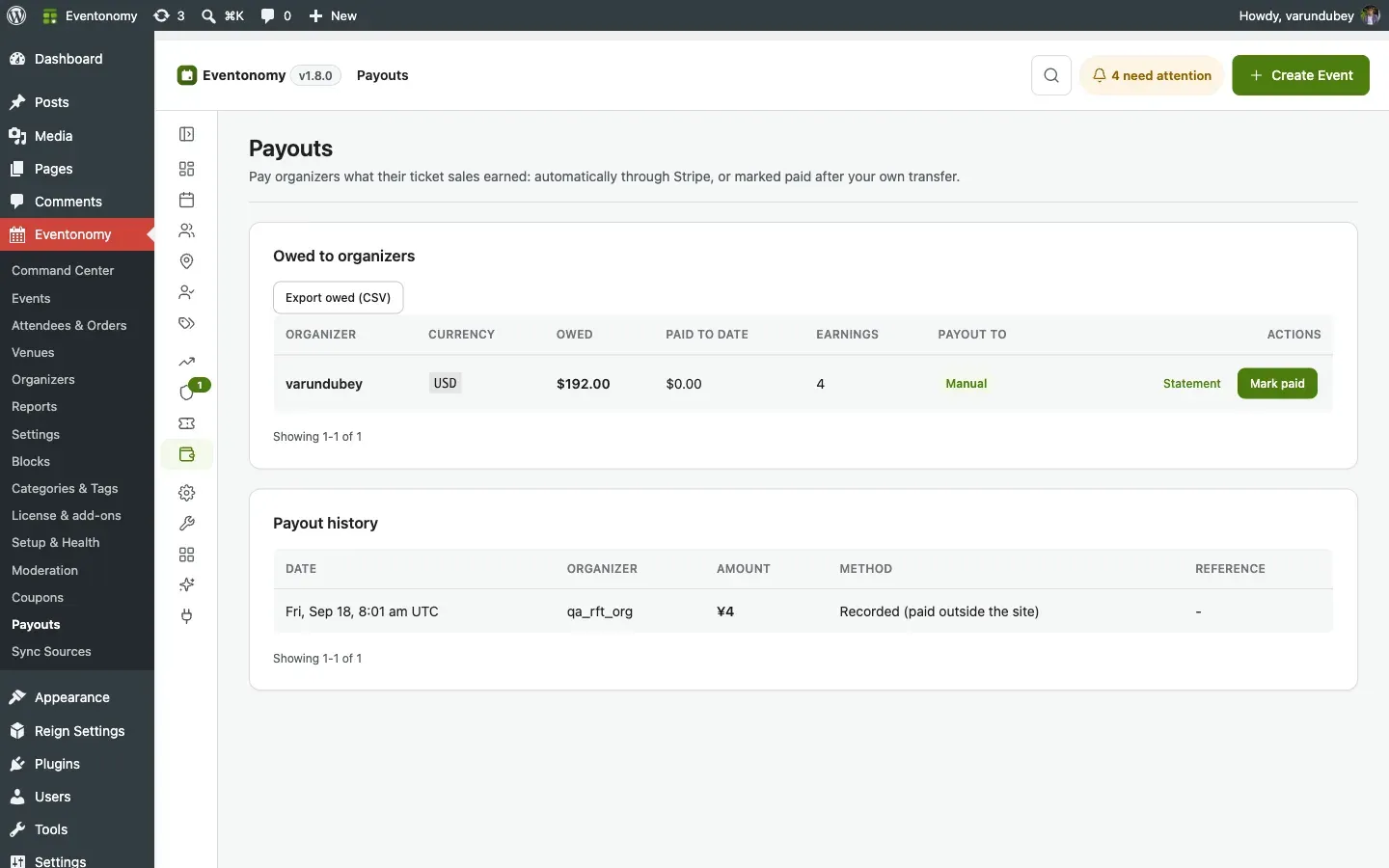
Go to Eventonomy -> Payouts to see every organizer with an outstanding balance. There is one row per organizer per currency, so an amount always shows in a single currency with its own symbol - never a mix. Each row has a Currency column, and its Payout to column shows how it will settle - Stripe · ready (sent automatically to their connected account), Stripe · pending, or Manual. Click Mark paid to settle that row.
The Owed column is the amount Confirm payout will record. When an organizer owes money back for refunds, the row shows the sum, for example “$300.00 earned less $50.00 owed back for refunds”, and Owed is the difference. The Export owed (CSV) file uses the same figure.
You are never required to use Stripe. To pay by hand, use Export owed (CSV) to download the full list of who is owed (name, email, amount, currency, and payout method), pay each organizer however you like - bank transfer, PayPal, and so on - then come back and Mark paid. You can also pay from WP-CLI:
wp eventonomy-pro payout <organizer_id>With no flag the command pays out every currency the organizer is owed in, recording one payout for each. To pay just one currency, add --currency:
wp eventonomy-pro payout <organizer_id> --currency=JPYEither way, the organizer’s booked earnings in that currency flip to paid and their outstanding balance for it drops to zero. For a connected, payout-ready organizer the money is transferred to their Stripe account; otherwise you settle it through your own bank transfer and this simply records that it happened. See Stripe Connect Payouts for the automatic path. The command reports the organizer’s booked net, how much was paid out, and any refund debt applied (see below).
Refunds After a Payout
Section titled “Refunds After a Payout”If an order is refunded after its organizer has already been paid out, the organizer has money in hand for a sale that no longer stands. Eventonomy does not silently drop it: the net amount is recorded as a debt and automatically netted against that organizer’s next payout (oldest debt first, with partial settlement and any remainder carried forward).
The organizer’s Earnings tab shows the amount as Owed back (refunds). The Payouts screen subtracts it from Owed before you confirm.
So the next wp eventonomy-pro payout run pays out the organizer’s new booked net minus any outstanding refund debt, and reports exactly what was applied and what remains. A refund of an unpaid (still-booked) earning simply reverses cleanly with no debt.
Working in More Than One Currency
Section titled “Working in More Than One Currency”Your store currency is a single setting. If you change it - a rebrand, a move to a new market, or correcting a setup mistake - the earnings you booked before the change stay recorded in the old currency, and everything after uses the new one. An organizer can therefore be owed in more than one currency at once.
Eventonomy keeps each currency separate end to end, so a total is never arithmetic across currencies:
- Balances are tracked per currency. The Payouts screen, the owed CSV, and the organizer’s Earnings tab all show one figure per currency, each in its own symbol and its own number of decimal places.
- A payout is always one currency. Marking a row paid, or running the CLI with
--currency, settles only that currency’s earnings. Running the CLI with no flag settles every currency the organizer is owed in, one payout each. - Refund debts net within their own currency. A refund of a JPY sale is only ever recovered from a JPY payout, never from a USD one.
If you have never changed your store currency, everything is simply in that one currency and none of this is visible.
What’s Next?
Section titled “What’s Next?”Review how refunds reverse an order.