

RSVPs
Eventonomy overviewFree + ProGet Eventonomy →
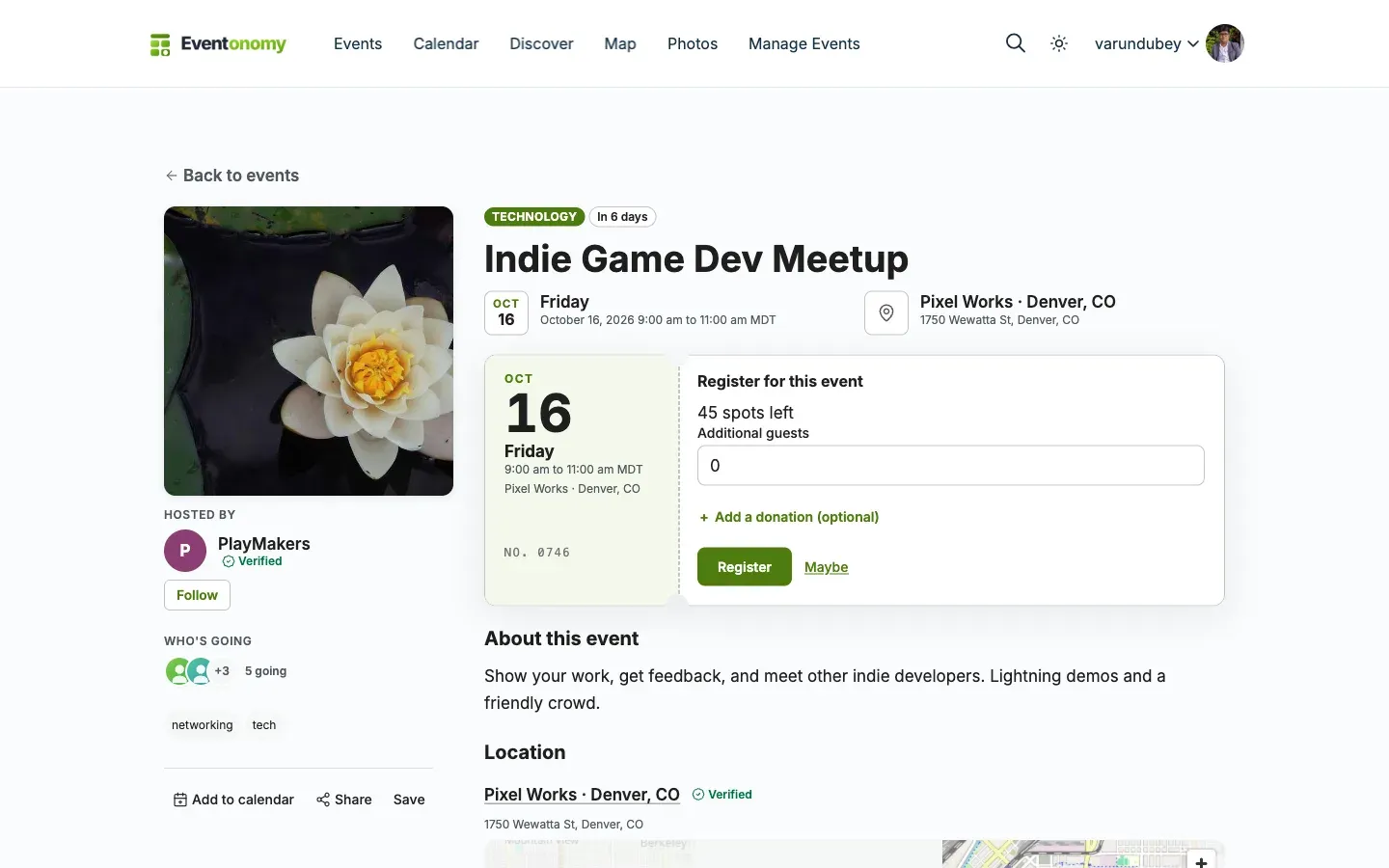
The RSVP system lets attendees register for events with a single click. It supports logged-in members and guests (no account needed), optional party sizes, capacity limits, waitlists, and a secure magic-link flow so guests can manage their RSVP without creating an account.
What You Will Learn
Section titled “What You Will Learn”- How to enable RSVPs on an event
- The four RSVP statuses
- How capacity and waitlists work
- How guest RSVPs and magic links work
- How to configure custom registration questions
Enabling RSVPs
Section titled “Enabling RSVPs”RSVPs are enabled site-wide at Eventonomy → Settings → Registration. Each event then chooses how people register in the event editor:
- People register here - the RSVP panel appears on the event page.
- Registration is on another site - the page shows a Register button pointing at the address you supply, and no RSVP panel.
- No registration needed - no RSVP panel and no spots remaining.
Which of these a new event opens on is the site owner’s choice: set New events start as at Settings → Registration. It is a starting value, not a rule - the organizer can change it on any event, and existing events are never touched. If RSVPs are switched off site-wide, new events start as No registration needed.
The mode is enforced server-side, so an event set to another site or no registration refuses RSVPs and orders even if a request is crafted by hand. Full walkthrough: Create your first event.
Everything below applies to events set to People register here.
When RSVP is on, the eventonomy/rsvp block on the single-event page shows the registration form.
Note: The same
eventonomy/rsvpblock also handles paid ticket checkout (Pro); there is no separate checkout block. If an event has a paid ticket but no payment gateway is configured, the block shows an honest “Online ticket sales are not available for this event yet” notice instead of a dead Order button. See Tickets & Checkout.
RSVP Statuses
Section titled “RSVP Statuses”| Status | What it means |
|---|---|
| Going | Attendee is confirmed. Counts toward capacity. |
| Maybe | Attendee is tentative. Does not count toward capacity. |
| No | Attendee has declined. Does not count toward capacity. |
| Waitlist | Capacity is full; attendee is queued. On a free RSVP event they are promoted automatically when a spot opens. On an event with tickets, you admit them yourself. |
Changing an RSVP from Going to No frees a spot and promotes the oldest Waitlist RSVP to Going automatically. This applies to free RSVP events only; a ticketed event’s waitlist is never promoted automatically (see Waitlist for Sold-Out Paid Events).
Capacity and Waitlists
Section titled “Capacity and Waitlists”Setting Capacity
Section titled “Setting Capacity”Set a site-wide default capacity at Settings → Registration by ticking Limit attendees on new events and entering the number of attendees per event. Leave it unticked for no limit. Override per event in the event editor’s Capacity field.
When capacity is reached:
- If Waitlist when full is on, further Going RSVPs are placed on the waitlist automatically.
- If it is off, the RSVP is refused with a “This event is full” message.
The Register Button
Section titled “The Register Button”The RSVP block shows one primary button. It reads Register, and Join waitlist once the event is full and Waitlist when full is on, so the visitor knows what the click does before they make it. Maybe is a small text link beside it. No is not offered to a new visitor; someone who is already registered changes their answer, including Can’t go, from the manage panel.
After the visitor responds, the panel shows their live status (going, maybe or on the waitlist, with their queue position) without reloading the page. A guest who reloads the page, or comes back later in the same browser, still sees that status, so someone on the waitlist is never shown as registered. A paid event’s waitlist shows no queue position, because the first person to pay gets a freed seat. A member who is already going to a full event sees “Going” selected under Change your response, not “Join waitlist”.
Capacity is always resolved on the server from the event, so a full event cannot be oversold by a crafted request. Two people racing for the last seat can never both get it: one is confirmed, the other is waitlisted or refused.
Hiding Events That Are Full
Section titled “Hiding Events That Are Full”Turn on Hide sold-out events from listings (Settings → Registration) to drop events that are at capacity out of the events list and upcoming blocks. Page counts may still include them. The event page itself stays reachable, so anyone holding a link still sees it.
Showing Remaining Spots
Section titled “Showing Remaining Spots”Enable Show remaining spots (Settings → Registration) to display “5 spots left” on event cards, the single-event page, and the RSVP block. This is hidden when capacity is unlimited.
Guest RSVPs
Section titled “Guest RSVPs”Guests without a WordPress account can RSVP by supplying their name and email. After submitting, they receive a magic link by email that lets them view or change their RSVP.
Their RSVP confirmation email also carries a private View or change your RSVP link straight to the same manage page, so a guest can get back to their registration without hunting for a separate email. Because that link is a guest’s only way back to their RSVP, it is added automatically whenever Email attendees when their RSVP is confirmed or cancelled (Settings → Messaging) is on - it is not tied to the Manage RSVP by secure link toggle, so a setting left off can never leave a guest with no recovery path. The confirmation screen also offers an Email me a link button, so a guest whose email never arrives can resend one without reloading. All of this appears only for guests; members manage their RSVPs from their dashboard instead, so their confirmation email carries no link. Developers can suppress the guest link in code with the evnm_guest_manage_link_enabled filter (default true).
Enabling Guest RSVPs
Section titled “Enabling Guest RSVPs”At Settings → Registration, choose an answer to Do attendees need an account?
- Create an account automatically (the default): a logged-out visitor sees a “Create an account at this address so I can manage my registration later” checkbox, ticked by default. Unticking it is honoured, and the visitor is registered as a guest.
- Guest, no account: no account is ever created from a registration, and the checkbox is not shown.
- Must log in: visitors who are not logged in see a login prompt instead of the form.
When an account is created, an email that already has an account is matched to it instead of creating a second one. On Guest, no account, or with the box unticked, the registration stays a guest registration, managed through the secure link in the email. See RSVP Settings.
How the Magic Link Works
Section titled “How the Magic Link Works”- Guest submits their name, email, and RSVP status.
- Eventonomy emails a signed link (valid for 7 days by default) to the guest’s email address.
- The guest clicks the link and lands on a manage-RSVP page where they can update their status or cancel.
- The link can be re-requested from the RSVP block at any time.
Secrets (the magic token) are never exposed in REST API responses or admin tables.
Party Size (Guests)
Section titled “Party Size (Guests)”Attendees can bring additional guests when they RSVP. Each guest counts toward the event capacity.
Guests apply to free RSVPs only. On an event with tickets, a buyer cannot add guests to a booking; each extra person buys a seat, or you add them as an attendee. This keeps a ticketed event from being oversold.
Set the maximum number of additional guests at Settings → Registration by ticking Limit additional guests per RSVP and entering the number. Leave it unticked for no limit.
RSVP Deadline
Section titled “RSVP Deadline”Set a deadline at Settings → Registration by ticking Close registration before the event starts and entering the Hours before start. When the deadline passes, the RSVP form closes and a “Registration closed” message appears. Leave it unticked for no deadline.
Custom Registration Questions
Section titled “Custom Registration Questions”When Custom questions is on (Settings → Registration), attendees can be asked extra questions when they RSVP. There are two levels, and both have to line up:
- The site owner writes the questions. One shared bank at Settings →
Questions holds the wording, the answer type and the options. Keeping the
wording in one place is what makes answers comparable and exportable across
events. Answer types:
- Short text - a single-line input.
- Paragraph - a multi-line textarea.
- Email, Phone, Number and Date - single-line inputs for those values.
- Choice (dropdown) - a list of options you define (one per line).
- Choice (buttons) - the same options as radio buttons, one can be picked.
- Multiple choice - the same options as checkboxes, several can be picked.
- Yes/no checkbox - a yes/no toggle.
- The organizer picks which of them their event asks. The event editor shows “Questions to ask when people register” with a checkbox per question. A new event starts with everything ticked, so this is opt-out - untick anything the event does not need. The picker only appears when the event is set to People register here, since there is no form to ask them on otherwise.
So the RSVP form shows the questions this event asks, not everything in the bank. If a question you added is missing from an event’s form, check the event’s picker before assuming the feature is broken.
Events created before the per-event picker existed have no stored selection and so keep asking the whole bank - updating never silently stops a site collecting answers. The first time such an event is opened and saved, its selection is recorded explicitly.
Mark any question as Required to prevent submission without an answer. Required applies only where the question is actually asked: an event that unticks a required question is unaffected by it. See Questions settings for how to add and remove questions.
What’s Next?
Section titled “What’s Next?”Add paid tickets to your events and configure checkout.
Using a different word than “Going”
Section titled “Using a different word than “Going””Eventonomy says “Going” everywhere a person has registered, online events included, the same word Luma, Meetup and Facebook use. To call it something else (for example “Attending”), add a translation override for the eventonomy text domain with a tool such as Loco Translate, even on an English site. That changes every place the word appears: buttons, counts, the who’s-going list, the ticket stamp, the dashboard and emails. The evnm_rsvp_labels filter only rewords the registration panel’s heading and messages.