

Single Event Block
Eventonomy overviewFree + ProGet Eventonomy →
The Single Event block (eventonomy/single-event) displays one event in full: the cover, date and place, the registration ticket, the description, upcoming dates for a series, the location with a map, and the host. It comes in two layouts, Ticket and Classic.
When to Use It
Section titled “When to Use It”Add it to your single-event template so every event page renders the same way. This is the main block behind your individual event pages; pair it with the RSVP block below it so visitors can respond right away.
How to Add It
Section titled “How to Add It”Block Editor:
- Open your single-event template in the Block Editor (or Site Editor, depending on your theme).
- Click + and search for Eventonomy Single Event.
- Insert the block.
On a single-event template, the block automatically detects and displays the current event; you don’t need to configure anything.
Shortcode:
[eventonomy_event id="42"]Use the shortcode form (with a specific event ID) if you want to embed one particular event on a regular page, such as featuring one event on your home page.
Settings
Section titled “Settings”| Setting | Attribute | Type | Default | Description |
|---|---|---|---|---|
| Event ID | eventId |
number | 0 | Which event to show. On a single-event template this is detected automatically; only set an ID if you want to hard-code a specific event on a non-template page. |
| Layout | layout |
string | (inherit) | Force a layout for this placement only, ignoring the per-event and site settings. One of ticket or classic. Leave empty to inherit. A retired value (online, poster, compact, agenda) or an unknown one is ignored, and the next level decides. |
Layouts
Section titled “Layouts”The single event page comes in two shapes, both in Free. They are built from the same sections, so a fix to one section lands on both, and both handle online, recurring, sold-out, cancelled and ended events.
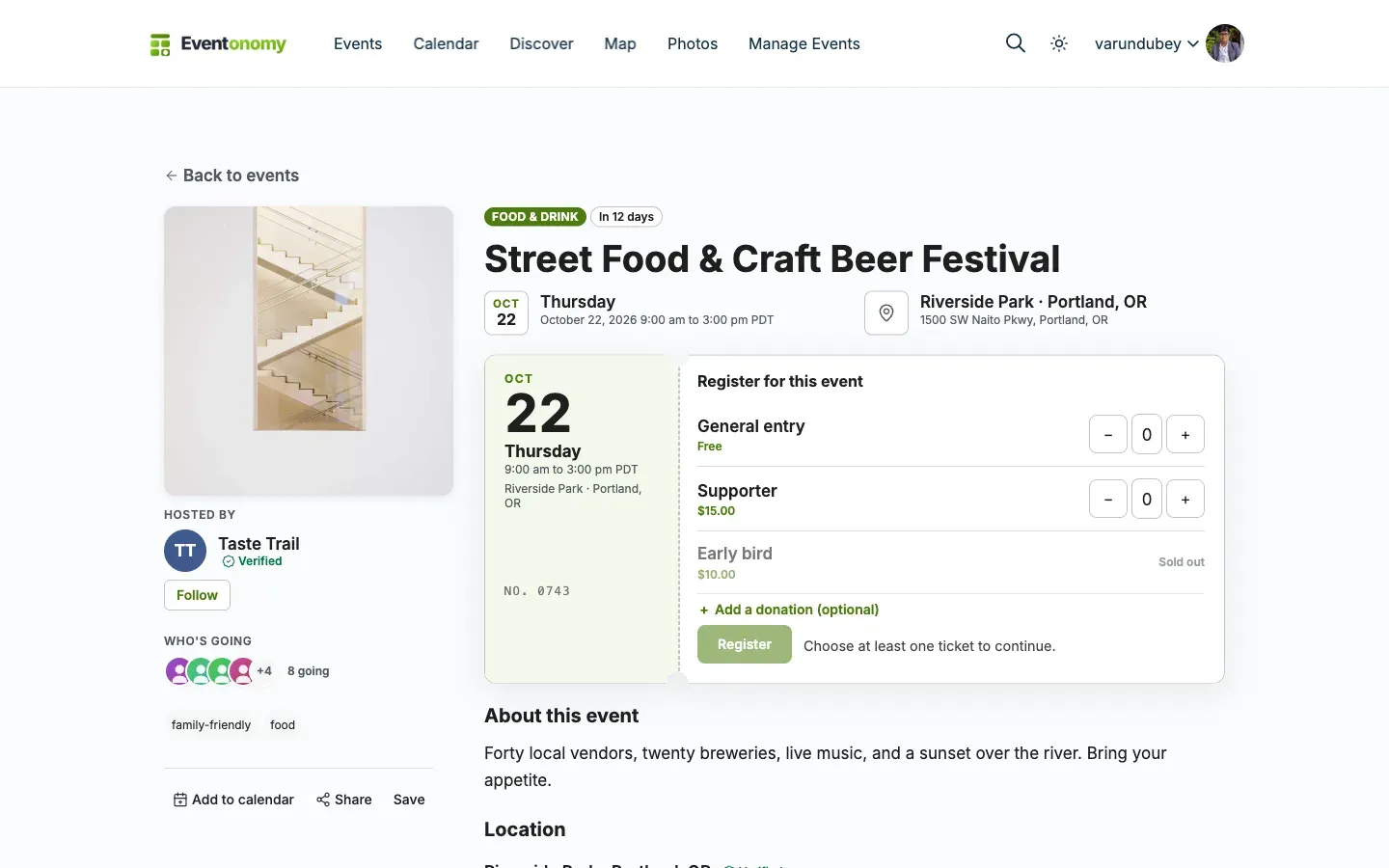
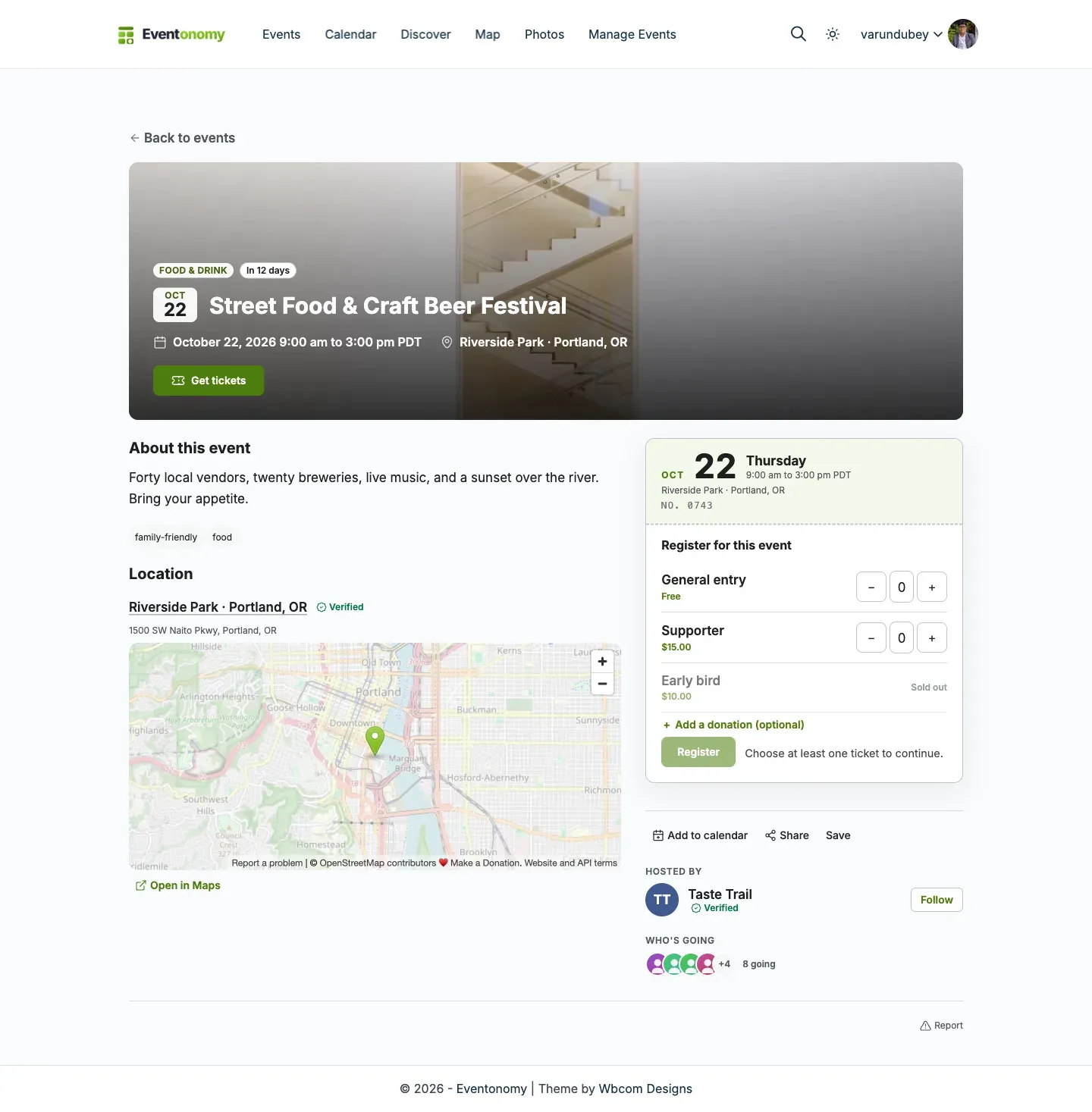
| Layout | Best for | Shape |
|---|---|---|
| Ticket | New sites (the default for new installs) | A square cover, the host and who’s going on the left; the title, date and place above a ticket you register on; the dates and location beside it on wide pages. |
| Classic | Sites that like a big cover across the top (existing sites keep it) | The cover with the title and main button across the top, then the description, dates and location on the left and the ticket, sharing and host on the right. |
The ticket. Registration is drawn as a ticket: a stub with the date, time, place and the event number, a tear line, and the register panel. A stamp across it shows your answer or the event’s state (You’re going, On the waitlist, Sold out, Cancelled, Ended) and changes as soon as you register. Once you are going, the ticket shows your check-in code (Pro) and the buttons to change your answer.
No wasted space on any theme. Themes give the block very different widths, from a narrow content column to full width. The page follows the width it is given, not the screen:
| Width the block gets | Ticket | Classic |
|---|---|---|
| 1280px and up | three columns (identity, ticket and story, dates and location) | two columns |
| 960 to 1279px | two columns, dates and location under the story | two columns |
| 680 to 959px | one column, with the cover beside the host as a header row | one column |
| under 680px | stacked, with a bar at the bottom showing the price and the main button | stacked, same bar |
The left or right column stays in view as you scroll beside a long description, unless it is taller than the window. A recurring event shows its upcoming dates as a strip you can scroll sideways, and when the host has other events coming up, a “More from” row closes the page.
Choosing a layout
Section titled “Choosing a layout”You can set it at three levels. The most specific one wins:
- This placement - the
layoutattribute on the block (see Settings above). Useful when you drop a single-event block onto a landing page and want it to look different there. - This event - the Layout picker in the event editor, under Display. Overrides the site default for that event only.
- The whole site - Settings -> Appearance -> Single event layout.
If nothing is set, Eventonomy uses Classic. Two safety rules apply:
- A layout that is no longer offered (Online, Poster, Compact or Agenda from earlier versions) is ignored, so the next level decides. Your pages keep working.
For developers
Section titled “For developers”Each layout is a template you can override from your theme, and each is composed from parts
you can override individually. See
Recipe: Override a Template and the
evnm_single_event_layouts filter in
Hooks and Filters.
What Visitors Can Do
Section titled “What Visitors Can Do”Visitors read the full event details (hero image, date and venue, organizer, description) and can add the event to their own calendar via the add-to-calendar link.
A few parts of the page adapt to the event and your settings:
- Who’s going - a small stack of recent attendee avatars with the going count appears near the registration area (setting: Show who’s going, on by default). Names appear only as hover/screen-reader labels; emails are never shown, and guests count toward the number but are never pictured.
- Location map - with Show a location map on, events that have coordinates get an embedded OpenStreetMap plus an “Open in Maps” link; an address without coordinates gets just the link.
- Online events - virtual events show an “Online event” badge instead of a venue. The join link is shown only to confirmed registrants: a prominent Join event button from 1 hour before the start until the event ends (developers can shift the lead time with the
evnm_join_button_lead_secondsfilter), and a quiet link before that window. Visitors who haven’t registered never see the join URL, and registrants never see the meeting URL itself: each gets a personal link that checks their registration is still active, then opens the meeting, so a cancelled or refunded attendee’s link stops working. To stop someone passing the meeting on once inside, use your meeting platform’s waiting room or sign-in. - Online-only events show no door details. An event that is online with no venue or address shows no check-in QR code and no “show this at the door” wording on the event page, My Events, the order receipt or the confirmation email. Hybrid and in-person events keep them.
- The main button reads Get tickets on a ticketed event and Register otherwise, and takes the visitor straight to the form. On a members-only event it signs members in first. The page also scrolls to land just below your sticky header, including headers that only stick after scrolling.
- Report an event - a logged-in member can flag the event from its page. A Report control near the actions opens a short form with a reason (spam or a duplicate, a scam or fake event, wrong details, offensive content, or something else) and an optional note. On submit it shows “Thanks, your report was sent.” The site admin and the event’s organizer are each emailed the report - the event title and a link, the reason, the note and the reporter’s name - so either can review it and take the event down the usual way if it breaks the rules. Guests see a link to sign in first. Reports are also listed on the Reported tab of the Moderation inbox in wp-admin. Reporting is capped at five per hour per member to curb abuse.