

Managing Pastes
Once a paste is created, you can edit it, fork it, download it, view it as raw text, or delete it.
Editing a Paste
Section titled “Editing a Paste”Only the paste owner (and moderators) can edit a paste.
To edit: Navigate to the paste page and click Edit, or go directly to /paste/{hash}/edit/.
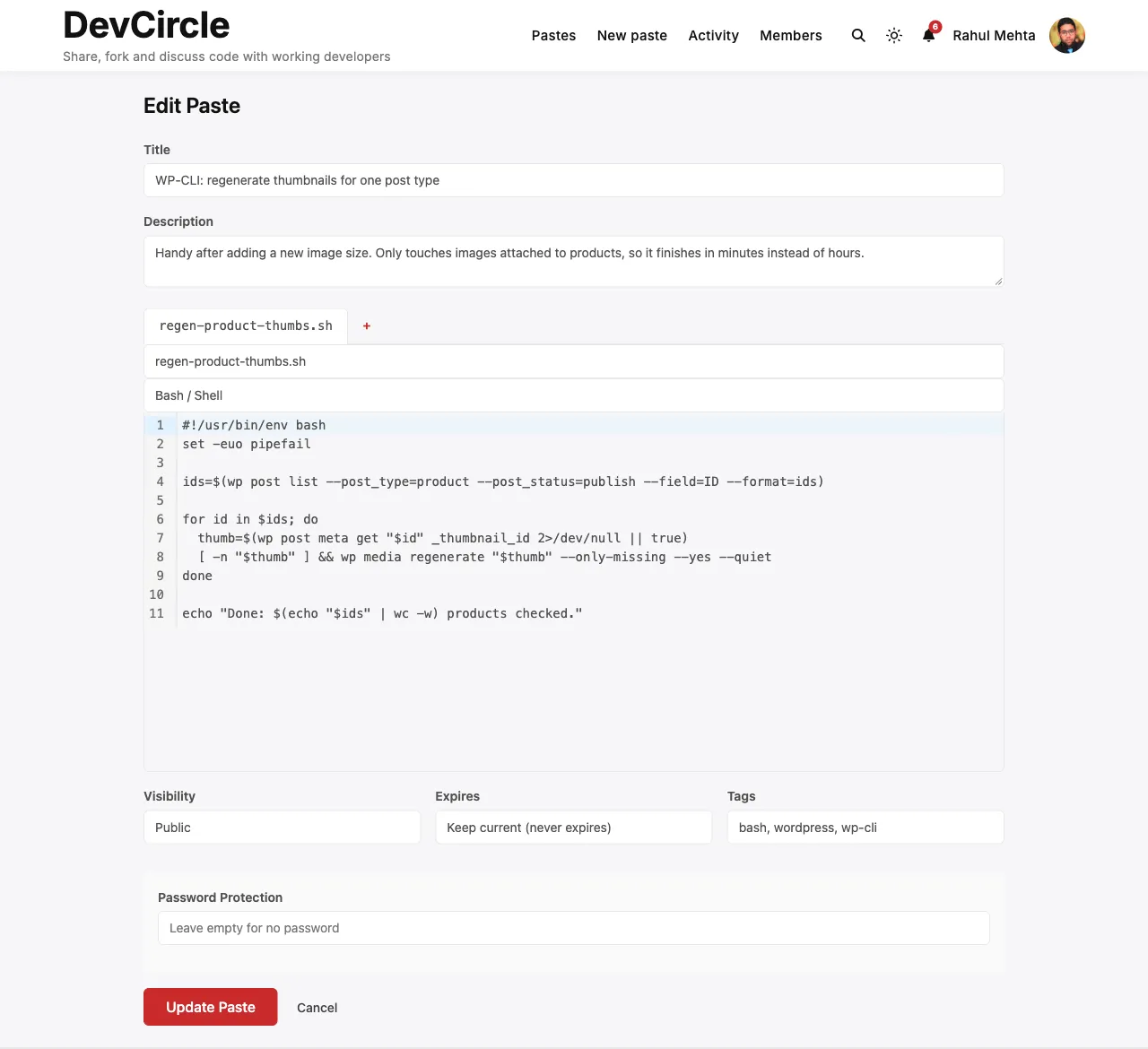
The edit form is identical to the create form. Changes you make:
- Update the paste title, description, visibility, or tags
- Expiration: the menu starts on Keep current. Pick a new duration to restart the countdown from now, or Never to remove the expiry
- Password: type a new password to set or change it; leave the field empty to keep the current one. When the paste has a password, a Remove password box appears
- Edit file content or filename: every file you change generates a new revision (previous version is preserved in revision history)
- Add new files: new file tabs can be added up to the max files limit
- Remove files: select a file tab and click Remove file (at least one must remain)
After saving, the paste version number increments. Changed files get a new entry in the revisions table. Unchanged files are not affected.
A change note (up to 500 characters) can be attached to a revision through the REST API (change_note when updating a single file); it then appears in the revision history. The edit form does not have a change note field.
Viewing Revisions
Section titled “Viewing Revisions”Every time a paste is edited, per-file revision records are created. View the full history at:
/paste/{hash}/revisions/The revision history shows each version with timestamp, author, and change note.
To compare two versions:
/paste/{hash}/diff/1...2Replace 1 and 2 with the version numbers to compare. See Revision History for more.
Forking a Paste
Section titled “Forking a Paste”Forking clones a paste (all its files) into your own account. The fork is a new, independent paste - changes to the fork don’t affect the original.
To fork: Click the Fork button on a paste page.
Who can fork:
- Other members can fork only public pastes that have no password and no burn-after-read.
- Authors can fork any of their own pastes. The copy keeps the original’s visibility, password, and burn setting.
- The Fork button is hidden when a fork is not allowed.
The forked paste:
- Has
parent_idset to the original paste’s ID - Increments the original paste’s
fork_count - Fires a BuddyPress notification to the original paste owner (if notifications enabled)
- Belongs to you - you can edit, delete, and manage it independently
Requires Paste Forking to be enabled in Settings → General, and the snipshare/fork-paste ability.
Downloading a Paste
Section titled “Downloading a Paste”Download buttons are available on the paste view page.
| Paste type | Download format |
|---|---|
| Single-file paste | Original file with its natural filename |
| Multi-file paste | ZIP archive named after the paste title |
Direct download URLs:
/paste/{hash}/download/Multi-file ZIP downloads require the PHP ZipArchive extension. See Requirements for details.
Raw View
Section titled “Raw View”View the raw, unformatted text content of a paste at:
/paste/{hash}/raw/For multi-file pastes, files are concatenated with // filename.ext separators.
To view a specific file only:
/paste/{hash}/raw/{filename}Raw and download URLs respect access control. Visitors who may not read the paste get a 403 (password-protected) or a not-found response (private). Burn-after-read pastes refuse raw and download (403) until the reader reveals them on the paste page, and hide both links afterwards.
Deleting a Paste
Section titled “Deleting a Paste”To delete: Click the Delete button on your paste. This moves the paste to the trash (status = trashed). Trashed pastes are no longer accessible to visitors. The author and moderators can still read them.
Administrators can view and permanently delete trashed pastes from SnipShare → All Pastes in the admin.
Trashed, expired, and burned pastes are permanently deleted after 30 days, at most 200 per hourly run. Developers can change the period with the snipshare_retention_days filter.
Moderators (users with the snipshare/moderate ability) can trash any paste regardless of ownership.
Password-Protected Pastes
Section titled “Password-Protected Pastes”When visiting a password-protected paste, you see a password prompt. Enter the correct password to unlock the paste.
- The unlock is per browser and lasts 1 hour. Logged-in users are unlocked through their login session. Guests get a random
snipshare_visitorcookie (HttpOnly, SameSite=Lax, 1 day). - Wrong passwords are throttled: after 5 failed attempts in 15 minutes from the same IP address for the same paste, further attempts are refused until the window ends.
- The author and moderators never need the password.
- Shortcodes, embeds, and oEmbed never unlock a paste. They show a placeholder with an Open paste or View paste link.