

Admin Pastes
The All Pastes admin page gives administrators a full view of every paste on the site - including those created by any user, and those in any status.
Navigate to SnipShare → All Pastes in the WordPress admin.
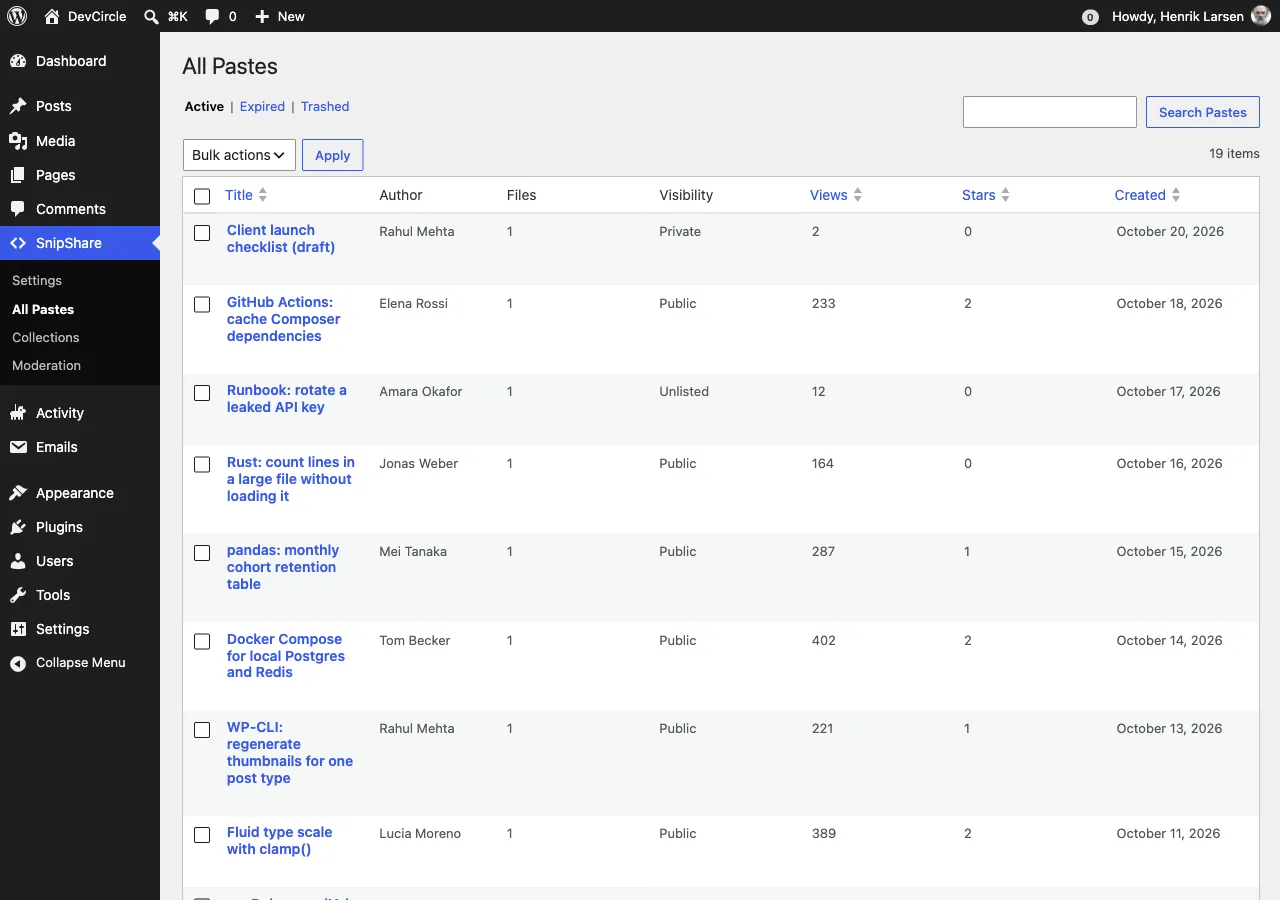
What You Can See
Section titled “What You Can See”The admin pastes list shows all pastes from all users. Unlike the public archive which only shows public pastes, this screen includes:
- Active pastes (public, unlisted, and private)
- Expired pastes
- Trashed pastes
Status Filters
Section titled “Status Filters”Use the status tabs at the top of the list to filter by paste status:
| Tab | Shows |
|---|---|
| Active | Currently live pastes |
| Expired | Pastes that have passed their expiry date |
| Trashed | Pastes moved to trash |
Column Overview
Section titled “Column Overview”| Column | Description |
|---|---|
| Title | Paste title with a link to the single paste view (opens frontend) |
| Author | WordPress user who created the paste |
| Files | Number of files in the paste |
| Visibility | Public / Unlisted / Private |
| Views | Total view count |
| Stars | Total star count |
| Created | Creation date and time |
Title, Views, Stars and Created are sortable: click the column header.
Search
Section titled “Search”Use the search box to find pastes by title. The search is a partial match - searching “auth” would match “Authentication Helper” and “OAuth examples”.
Bulk Actions
Section titled “Bulk Actions”Select multiple pastes using the checkboxes and apply:
| Action | Effect |
|---|---|
| Trash | Moves selected pastes to trashed status |
| Delete Permanently | Permanently deletes selected pastes and all associated files, revisions, tags, and stars |
Permanent deletion cannot be undone. Use carefully.
Per-Row Actions
Section titled “Per-Row Actions”Hover over a paste row to see:
- View: opens the paste on the frontend
- Trash: moves to trash
- Delete Permanently: permanently deletes (only shown for trashed pastes)
- This page is visible only to users with the
snipshare/moderateability (editors and administrators by default) - Trashed pastes are not accessible via the public frontend - their URLs return 404
- Expiration is handled automatically by the hourly cron job (
snipshare_expire_pastes); expired pastes appear in the Expired tab. Expired pastes are unreadable at the exact expiry time, before the cron runs. Trashed, expired, and burned pastes are permanently deleted after 30 days (filtersnipshare_retention_days), at most 200 per run