

Appearance Settings
The Appearance tab controls how pastes are displayed to visitors - syntax highlighting theme, listing layout, pagination, and custom CSS.
Navigate to SnipShare → Settings → Appearance.
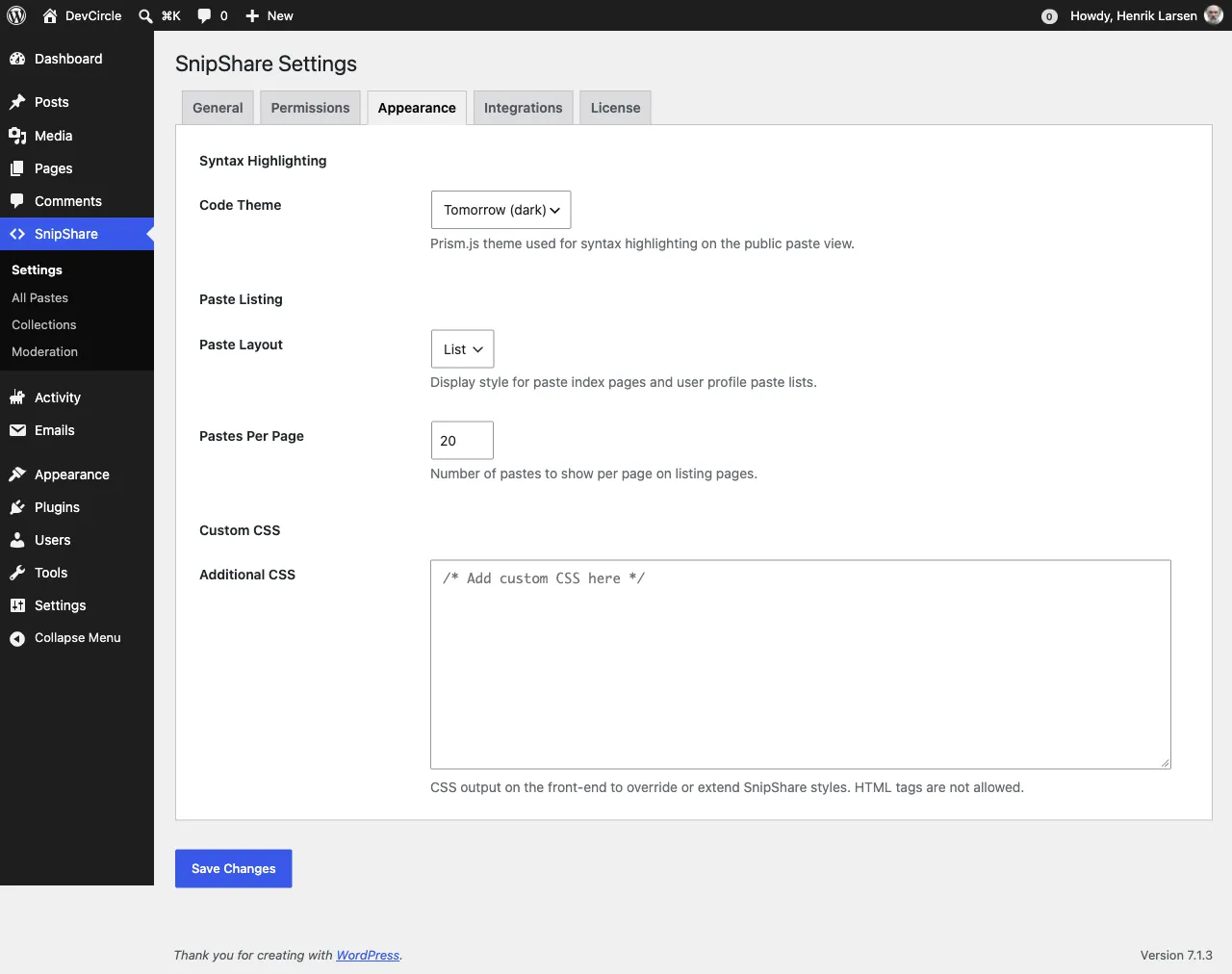
Syntax Highlighting
Section titled “Syntax Highlighting”Code Theme
Section titled “Code Theme”Selects the Prism.js theme used for syntax highlighting on all public paste view pages.
| Theme Value | Name | Style |
|---|---|---|
tomorrow |
Tomorrow | Dark background, high contrast - default |
okaidia |
Okaidia | Dark, warm tones |
twilight |
Twilight | Dark, muted blue |
dark |
Dark | Dark, minimal |
coy |
Coy | Light, subtle shadows |
solarizedlight |
Solarized Light | Light, earthy tones |
Setting key: prism_theme - Default: tomorrow
The selected theme applies globally to all paste view pages. Individual users cannot override it.
Paste Listing
Section titled “Paste Listing”Paste Layout
Section titled “Paste Layout”Controls the display style for every paste list: the archive, tag pages, profile Pastes and Starred tabs, collection pages and the BuddyPress profile tabs. Grid falls back to one column on narrow screens.
| Value | Description |
|---|---|
| List | Single-column list with title, language badge, meta, and a code preview snippet |
| Grid | Multi-column card grid - useful for sites with shorter pastes |
Setting key: paste_layout - Default: list
Pastes Per Page
Section titled “Pastes Per Page”Number of pastes to show per page on listing pages. Applies to:
/pastes/archive/pastes/tag/{slug}/tag archive/pastes/user/{username}/profile pages/pastes/collection/{user}/{slug}/collection views
Setting key: pastes_per_page - Default: 20 - Range: 1–100
Custom CSS
Section titled “Custom CSS”Additional CSS
Section titled “Additional CSS”A free-form CSS textarea. Content is output inside a <style> tag on the front end - it applies to all SnipShare pages.
Use this for minor overrides without creating a child theme:
/* Example: widen the paste container */.snipshare-wrap {    max-width: 1200px;}
/* Example: change the archive background */.snipshare-archive {    background: #f9f9f9;}
Setting key: custom_css - Default: empty
HTML tags are stripped from this field for security. Only valid CSS is safe to enter here.