

Creating Pastes
Pastes are the core of SnipShare. A paste is a named, versioned collection of one or more code files - similar to GitHub Gist.
Getting to the Create Form
Section titled “Getting to the Create Form”Three ways to reach the create page:
- Navigate to
/pastes/create/directly - Click + New Paste on the pastes archive page
- Click + Add Snip on your BuddyPress profile (when integration is enabled)
You must be logged in to create a paste.
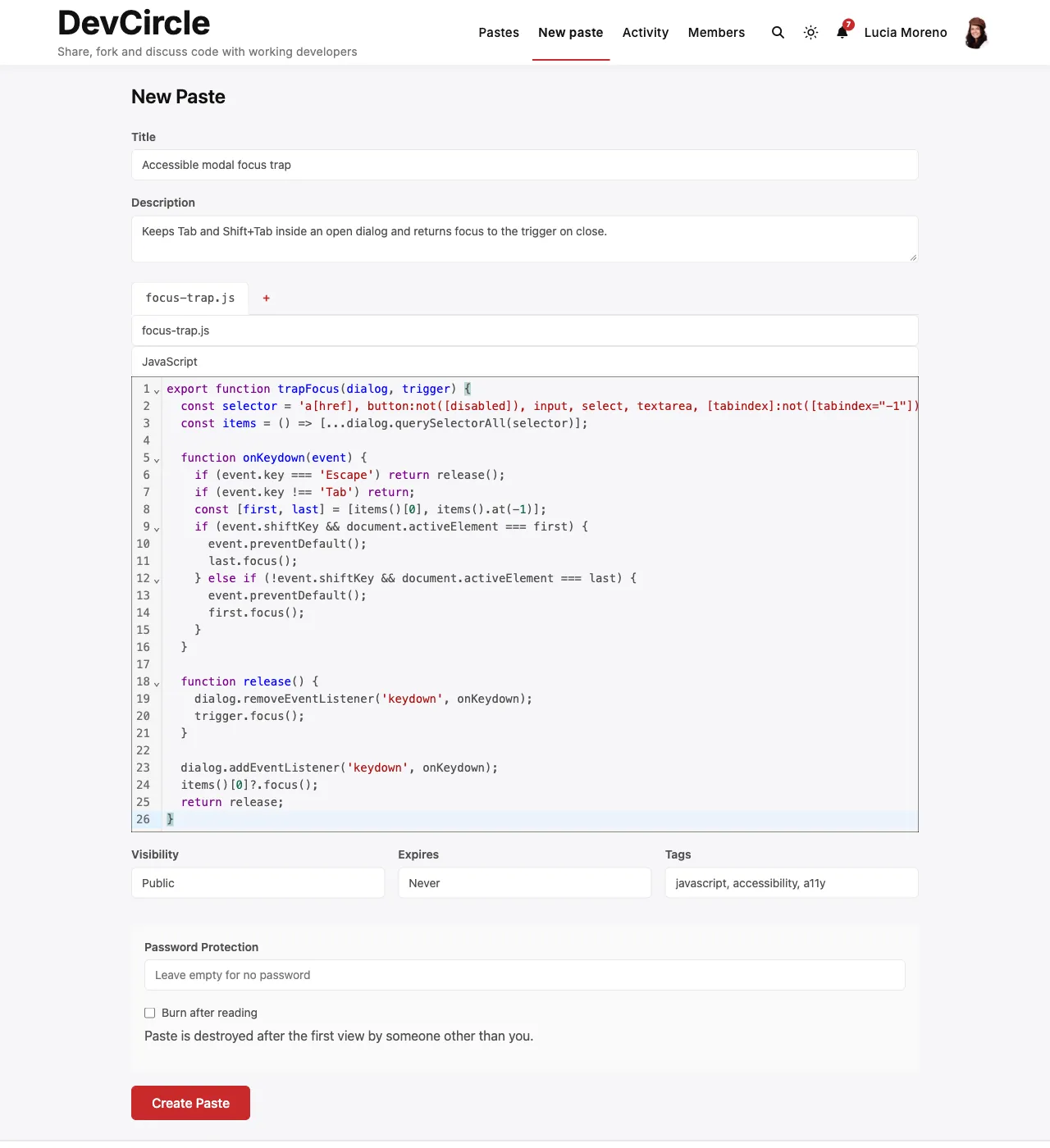
Filling in the Form
Section titled “Filling in the Form”A descriptive name for your paste. Optional but strongly recommended - it’s what appears in the archive and search results. Maximum 255 characters.
Description
Section titled “Description”A brief explanation of what the code does or why it exists. Shown below the title in listings. Optional.
Files (Code Editor)
Section titled “Files (Code Editor)”Each paste has at least one file tab. The file tab shows:
- Filename: e.g.,
index.php,styles.css. Used for the download filename and raw URL. - Language: Select from about 40 options for syntax highlighting. Common choices: PHP, JavaScript, TypeScript, Python, CSS, HTML, SQL, Bash, JSON, YAML, Markdown, plaintext.
- Content: The CodeMirror 6 editor. Supports:
- Syntax highlighting per selected language (every language in the menu except Elixir and HCL / Terraform, which the editor shows as plain text; the saved paste is highlighted for all of them)
- Line numbers (if enabled in Settings)
- Light/dark/auto theme (per Settings)
- Standard keyboard shortcuts (Tab for indent, Ctrl+Z for undo)
Adding More Files
Section titled “Adding More Files”Click the + tab to add another file (up to the limit set in Settings → General). Each file has its own filename, language, and editor; click a tab to switch to it. Multi-file pastes are like GitHub Gists - all files are part of the same paste and share the same URL.
To remove a file, select its tab and click Remove file. The paste must always have at least one file.
Paste Options
Section titled “Paste Options”Visibility
Section titled “Visibility”| Option | Who can see it |
|---|---|
| Public | Everyone; appears in the archive and tag listings |
| Unlisted | Only people with the direct share link; does not appear in any listing |
| Private | Only the paste owner and moderators. Everyone else sees “not found” |
The author and moderators (users with the snipshare/moderate ability, administrators and editors by default) can read every paste, including private, password-protected, trashed, and expired ones.
Expiration
Section titled “Expiration”Set an automatic expiry time. The paste becomes unreadable at the exact expiry time, and its status changes to expired on the next hourly cleanup. Expired pastes are permanently deleted after 30 days.
Options: Never, 1 Hour, 1 Day, 1 Week, 1 Month
Requires Paste Expiration to be enabled in Settings → General.
Password Protection
Section titled “Password Protection”Enter a password to lock the paste. Visitors must enter the correct password to view the content. Unlocking lasts 1 hour per browser. Embeds and oEmbed never unlock a paste; they show a placeholder with a link to the paste page.
Requires Password Protection to be enabled in Settings → General.
Burn After Read
Section titled “Burn After Read”When checked, the paste is permanently deleted after the first person reveals it. Use for one-time secrets or temporary code snippets.
Opening the link shows a Reveal paste screen. The paste is shown and deleted only when the reader clicks Reveal, so link previews from Slack, WhatsApp, or email scanners cannot burn it. Moderators never trigger the burn.
After reveal, the content and revisions are deleted immediately. The revealed page tells the reader to copy the content and hides Raw, Download, and Share. Reloading shows “burned after reading”.
Burn pastes never appear in archives, tag lists, collections, embeds, or activity feeds. Only the author sees them on their own profile.
Requires Burn After Read to be enabled in Settings → General.
Comma-separated tags. Tags are used for categorisation and discovery - e.g., /pastes/tag/php/. New tags are created automatically. Existing tags have their count incremented.
Requires Tags to be enabled in Settings → General.
After Creating
Section titled “After Creating”After submitting, you’re taken to the single paste view.
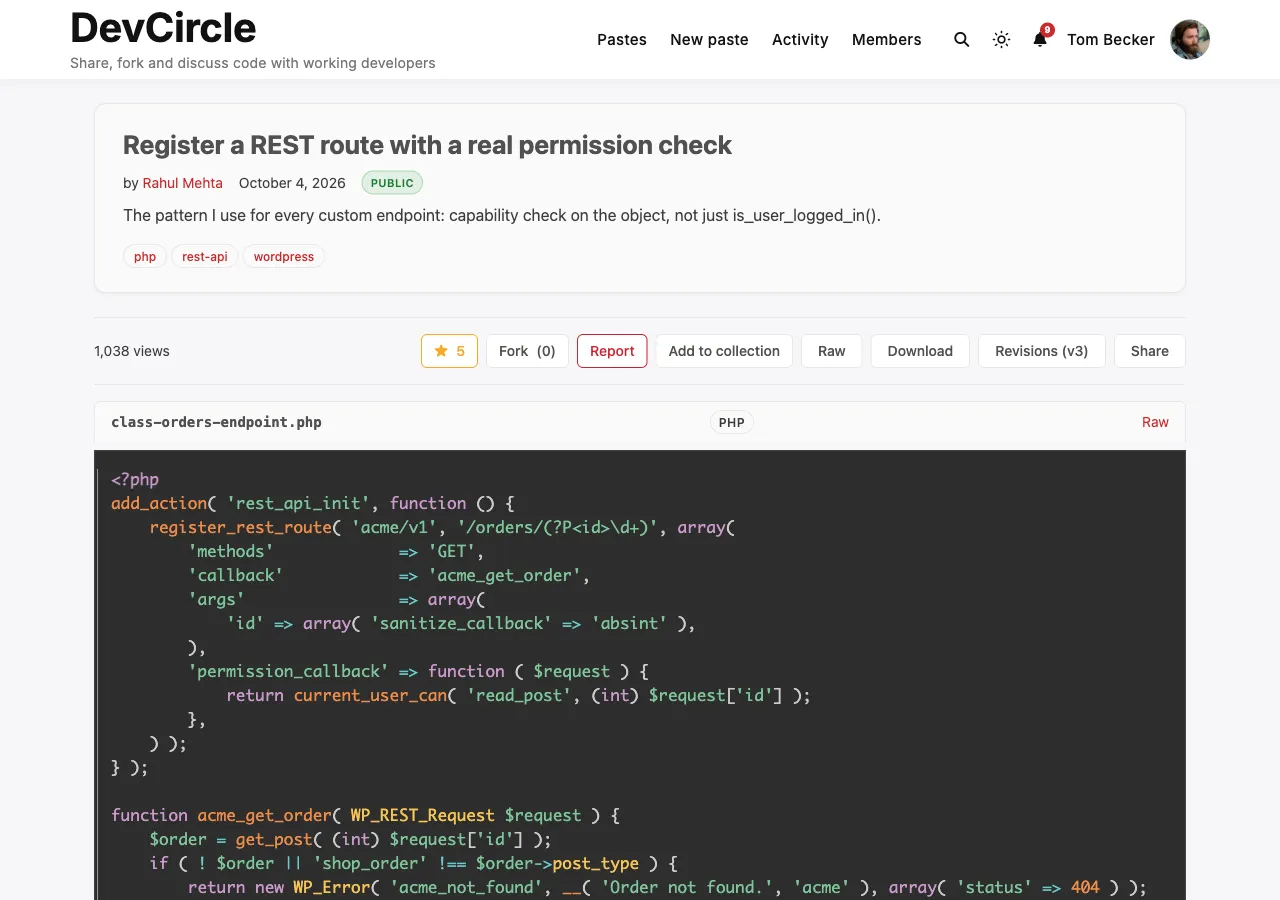
From here you can:
- Copy the URL to share
- View raw at
/paste/{hash}/raw/ - Download the files at
/paste/{hash}/download/ - Fork: clone into your own account (hidden when forking is not allowed, see Managing Pastes)
- Star: save to your starred list
- Edit: opens the edit form, creates revisions
- Report: flag for moderation (if content reporting is enabled)
Limits
Section titled “Limits”| Limit | Default | Where to change |
|---|---|---|
| Max paste size | 100 KB total | Settings → General |
| Max files per paste | 10 | Settings → General |
| Max pastes per user | Unlimited | Settings → General |
| Rate limit | 20 per hour | Settings → Permissions |