

Frequently Asked Questions
Do I need BuddyPress to use SnipShare?
Section titled “Do I need BuddyPress to use SnipShare?”No. SnipShare works as a standalone plugin on any WordPress site. BuddyPress is optional - when active, it unlocks additional community features: pastes in activity feeds, a Pastes tab on member profiles, and paste-starred notifications.
Can visitors view pastes without logging in?
Section titled “Can visitors view pastes without logging in?”Yes. Public pastes are visible to everyone, including non-logged-in visitors. Unlisted pastes are visible to anyone with the direct link. Private and password-protected pastes require authentication or the correct password.
Can I disable paste creation for guests?
Section titled “Can I disable paste creation for guests?”Yes. Paste creation always requires a logged-in account. Anonymous paste creation is not supported.
Does it work on multisite?
Section titled “Does it work on multisite?”SnipShare is designed for single-site installs. Multisite is not officially tested or supported in v1.0.
Creating Pastes
Section titled “Creating Pastes”How many files can a paste have?
Section titled “How many files can a paste have?”Up to 10 by default. You can increase or decrease this limit in SnipShare → Settings → General → Max Files Per Paste (range: 1–50).
What languages are supported for syntax highlighting?
Section titled “What languages are supported for syntax highlighting?”20+ languages including PHP, JavaScript, TypeScript, Python, HTML, CSS, SQL, Bash, JSON, YAML, Markdown, Go, Ruby, Rust, C, C++, Java, Swift, Kotlin, and plaintext. The full list is in the language selector dropdown when creating a paste.
Is there a size limit on pastes?
Section titled “Is there a size limit on pastes?”Yes. The default maximum combined content size is 100 KB per paste. You can adjust this in Settings → General → Max Paste Size. The minimum is 1 KB; there is no maximum enforced by the plugin (server memory limits apply).
What is “Burn After Read”?
Section titled “What is “Burn After Read”?”When enabled on a paste, the paste is permanently deleted (status set to expired) after the first person views it. This is designed for one-time secrets or temporary code snippets. The paste owner is the first viewer - their own view triggers the deletion.
Requires Burn After Read to be enabled in Settings → General.
What happens when a paste expires?
Section titled “What happens when a paste expires?”Expired pastes are no longer accessible via their public URL - visitors see a “paste not found” message. The paste record still exists in the database with status expired and is visible to administrators in the admin pastes list. Expired pastes are not automatically deleted.
Can I create a paste without a title?
Section titled “Can I create a paste without a title?”Yes. The title is optional. Untitled pastes appear in listings as “Untitled Paste” and are fully functional.
Editing & Versions
Section titled “Editing & Versions”Does editing a paste change its URL?
Section titled “Does editing a paste change its URL?”No. The paste URL (its share_hash) never changes regardless of how many times you edit it.
How do revisions work?
Section titled “How do revisions work?”Every time you save an edit, SnipShare creates a revision record for each changed file, incrementing the paste version number. You can view the full history at /paste/{hash}/revisions/ and compare any two versions with a side-by-side diff at /paste/{hash}/diff/{v1}...{v2}.
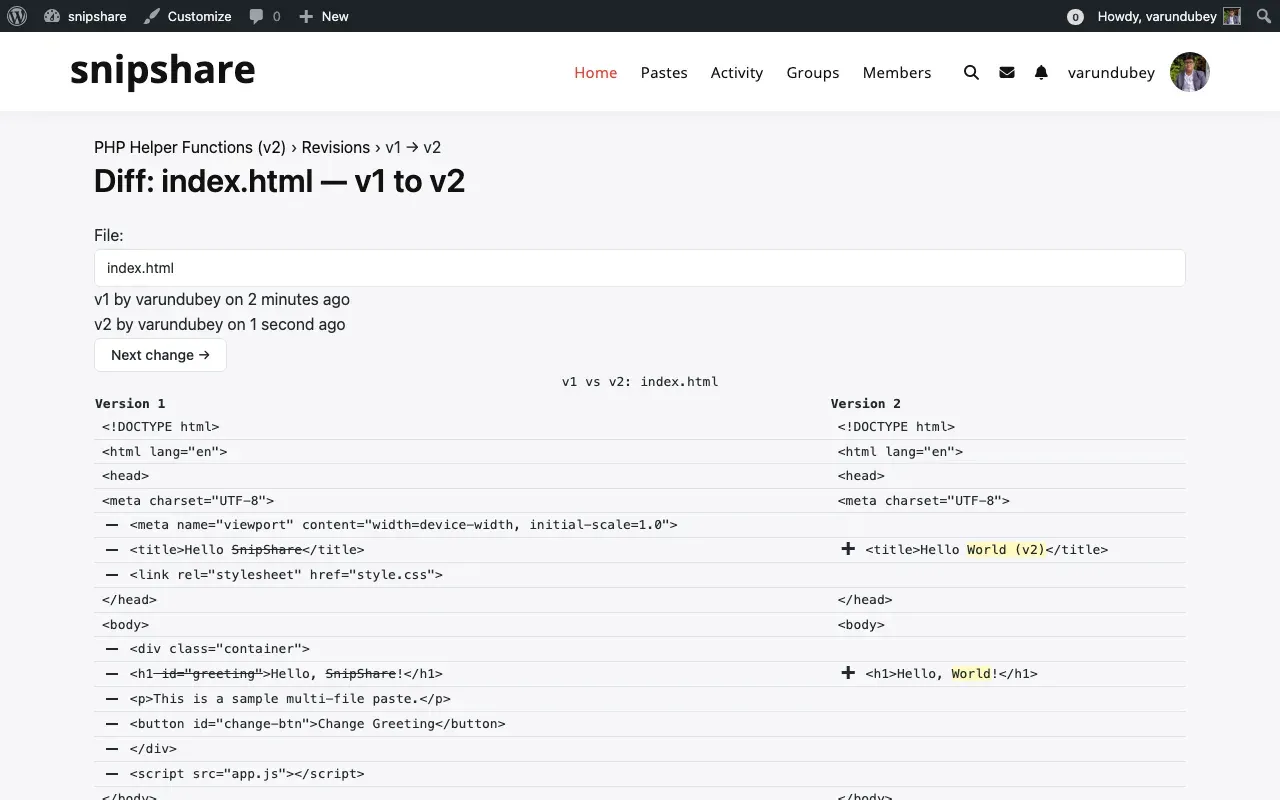
Can I revert to a previous version?
Section titled “Can I revert to a previous version?”Not directly from the UI in v1.0. You can view any historical version and manually copy the content. A one-click revert feature is planned for a future release.
What is the difference between Fork and Edit?
Section titled “What is the difference between Fork and Edit?”- Edit: modifies your own paste and creates a revision history
- Fork: clones someone else’s public paste into your own account as a new paste. You own the fork; it has its own URL and revision history. A link to the original is shown on the forked paste.
Sharing & Embedding
Section titled “Sharing & Embedding”Can I embed a paste in another website?
Section titled “Can I embed a paste in another website?”Yes. SnipShare supports oEmbed - paste the URL of any public paste into an oEmbed-enabled site (WordPress, Notion, etc.) and it renders as an inline code viewer. See the oEmbed documentation.
Can I embed a paste on a WordPress page?
Section titled “Can I embed a paste on a WordPress page?”Yes. Use the [snipshare id="{hash}"] shortcode or paste the URL directly into the block editor - it resolves via oEmbed automatically. See the Shortcode Reference.
Is there a raw text view?
Section titled “Is there a raw text view?”Yes. Every paste has a raw text URL:
- All files:
/paste/{hash}/raw/ - Single file:
/paste/{hash}/raw/{filename}
Raw URLs return plain text with no HTML - useful for curl, scripts, or direct download.
Can I download paste files?
Section titled “Can I download paste files?”Yes. Click Download on any paste to download a ZIP of all files, or download individual files from the raw URL. Multi-file ZIPs require the PHP ZipArchive extension on your server.
Administration
Section titled “Administration”How do I limit who can create pastes?
Section titled “How do I limit who can create pastes?”By default, all logged-in users (subscribers and above) can create pastes. You can restrict this by adjusting the snipshare_create_paste ability via the WordPress Abilities API, or by implementing a PHP filter. See Permissions Settings and Hooks & Filters.
How does content reporting work?
Section titled “How does content reporting work?”Any logged-in user can report a paste using the Report button on the single paste view. Reports include a reason (spam, inappropriate, malicious, copyright, other) and optional details. Admins review reports in SnipShare → Moderation.
Can I bulk-delete pastes?
Section titled “Can I bulk-delete pastes?”Yes. In SnipShare → All Pastes, use the checkboxes and the Bulk Actions → Trash dropdown to move multiple pastes to trash at once.
Will uninstalling delete all data?
Section titled “Will uninstalling delete all data?”Yes. Deleting the plugin from Plugins → Delete drops all 9 custom database tables and removes all plugin options. This is irreversible - export your data before uninstalling if needed. Deactivating (without deleting) preserves all data.
BuddyPress Integration
Section titled “BuddyPress Integration”What does the BuddyPress integration add?
Section titled “What does the BuddyPress integration add?”Three features (each individually toggleable in Settings → Integrations):
- Activity Stream: new public pastes are automatically posted to the sitewide BuddyPress activity feed
- Member Profile Tab: a “Pastes” tab on every member’s profile showing their pastes and starred pastes
- Notifications: paste owners receive a BP notification when someone stars their paste
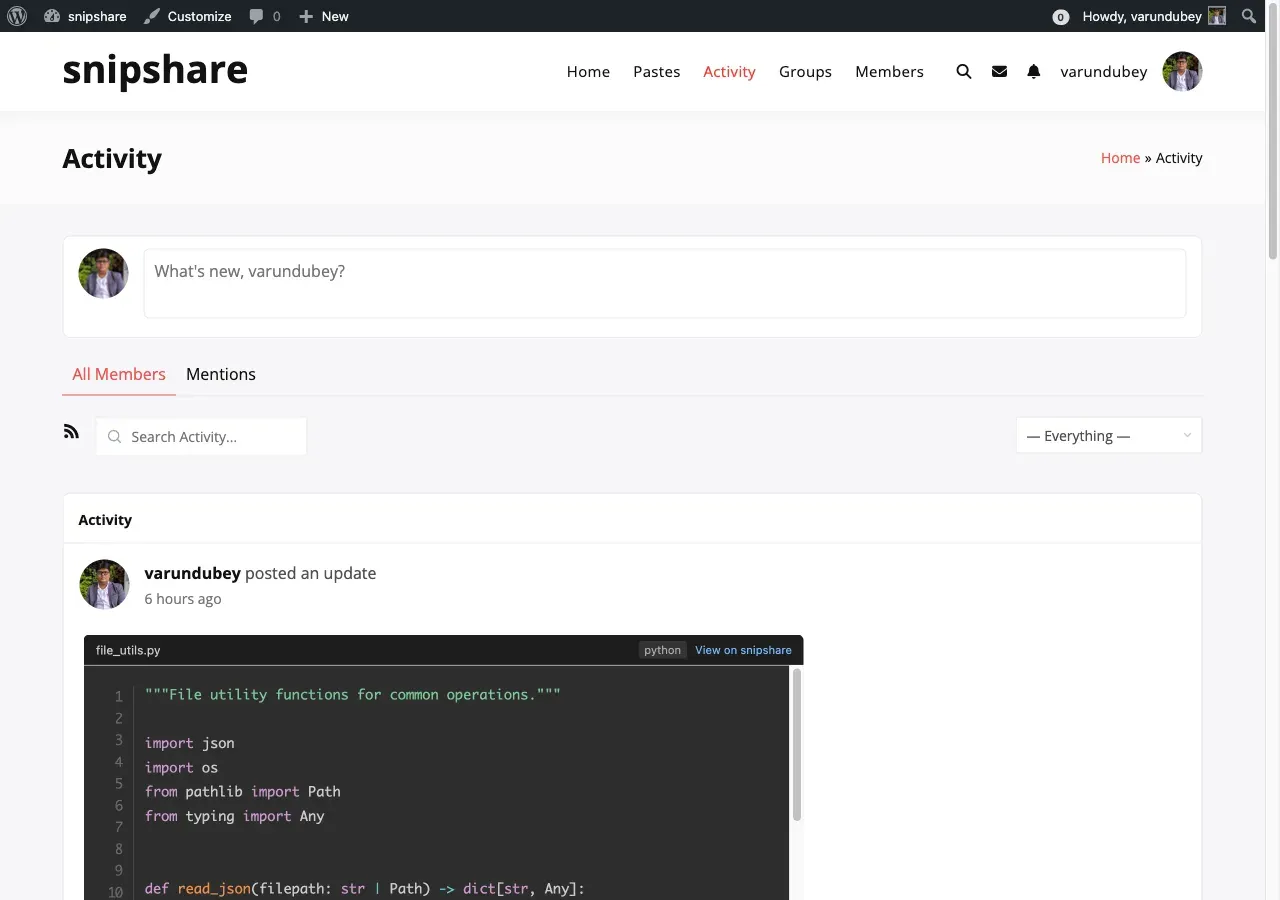
Do pastes show in group activity feeds?
Section titled “Do pastes show in group activity feeds?”No. In v1.0, paste activity is posted to the sitewide stream and the member’s profile activity tab only, not to specific group feeds.
License & Updates
Section titled “License & Updates”Where do I get my license key?
Section titled “Where do I get my license key?”Log in to your account at wbcomdesigns.com, go to My Account → Purchases, find your SnipShare order, and copy the license key. Enter it in SnipShare → Settings → License and click Activate.
What happens if I don’t activate my license?
Section titled “What happens if I don’t activate my license?”The plugin works fully without an active license. The license key is only required for automatic updates delivered via the WordPress dashboard. Without it, you can still update manually by downloading the latest version from wbcomdesigns.com.
Can I use SnipShare on multiple sites?
Section titled “Can I use SnipShare on multiple sites?”That depends on your license type. Check your purchase details at wbcomdesigns.com for the number of site activations included.