

Settings & Administration
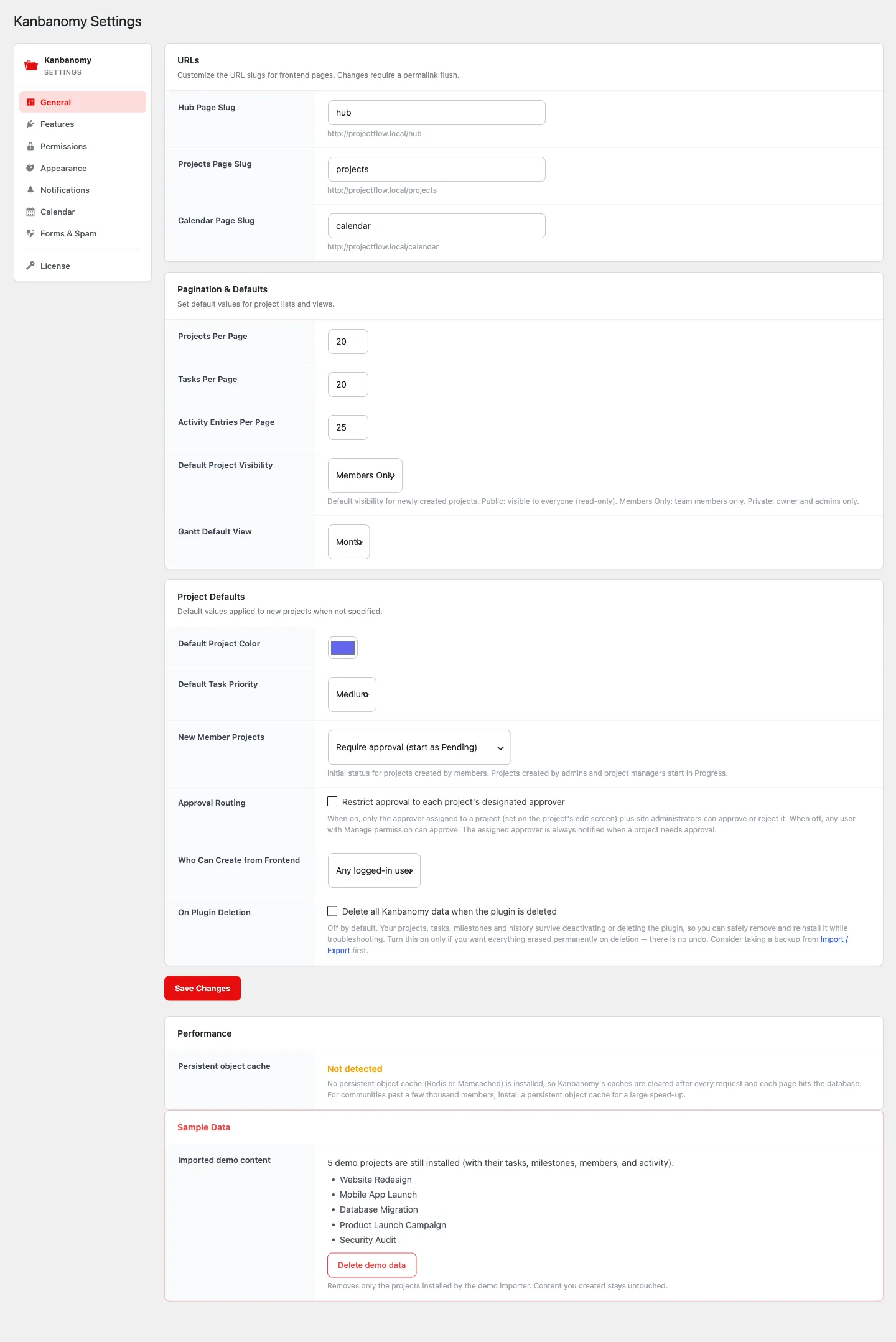
All configuration lives under Kanbanomy > Settings. It has seven tabs: General, Features, Access, Notifications, Connections, AI and License.
Who can change what. Project Managers (the Manage permission) can save General, Features, Notifications, Connections and AI. Three areas stay with site administrators and are hidden from everyone else:
- the Access tab;
- the Branding, Colors and Maintenance cards on General;
- the License tab.
Each tab has one Save Changes button, and saving one tab never changes another.
Old links such as ?tab=permissions, ?tab=spam, ?tab=appearance or ?tab=calendar still work. They open the tab that now holds those settings.
General
Section titled “General”URLs. The web addresses of the Hub, Projects and Calendar pages. A change applies on the next page load. Links you already shared with the old address stop working.
Lists and views.
| Setting | What it changes |
|---|---|
| Projects Per Page | The Projects page and Kanbanomy > All Projects |
| Tasks Per Page | A project’s task list, each Board column, and the task list in wp-admin |
| Activity Entries Per Page | A project’s Activity tab |
| Default Project Visibility | New projects only (existing projects keep theirs) |
| Gantt Default View | The zoom a project’s Gantt tab and the portfolio timeline open on (Day, Week, Month or Year) |
Blocks placed on a page keep their own number from the block settings.
Live updates. When this is on, open Boards, task lists and the Hub show other people’s changes without a reload.
Project Defaults. These apply when a new project or task is created without a value of its own:
- Default Project Color;
- Currency, with a visible Symbol position (before or after the amount);
- Default Task Priority.
If you leave Currency on its default, budgets show as your site language writes them.
Calendar Export (ICS). Lets people download project dates and milestones as an .ics file. The export is one way: calendar apps do not push edits back. The card holds four settings:
- Enable export;
- Include tasks;
- Milestone reminder;
- Site-wide export.
Turning export off also turns off everyone’s private calendar subscribe link. See Calendar subscribe link.
Branding (administrators). Menu name and Menu icon rename the Kanbanomy entry in the admin menu. Emails and the front end keep the Kanbanomy name.
Colors (administrators). Primary, Secondary, Success, Warning and Error. These colours are used for buttons, badges and status labels on the front end and in the admin. They are design tokens, so they work in light and dark mode.
Maintenance (administrators, at the bottom of General):
- When the plugin is deleted. Off by default, which keeps your data when the plugin is deleted. Turn it on only if you want everything erased, and export a backup first.
- Performance. Shows whether a persistent object cache (such as Redis) is active. It also shows how far the Search index has got, for example “Indexed 4,200 of 10,000 projects and tasks”.
- Sample Data. Load a realistic demo set of projects, or remove it again.
Features
Section titled “Features”Features. Turn a feature off and it disappears everywhere: menus, project tabs, the Hub, blocks and the REST API. Its data is kept, and it all comes back when you turn the feature on. A bookmark to a switched-off page opens this tab with a note saying which feature is off.
Project page tabs shown by default. Chooses which tabs a project page shows. A project can show or hide a tab for itself in its own Settings tab, and every other project follows this list. Project pages also have an Advanced section (collapsed) that switches a site feature on or off for one project. A feature that is off for the whole site cannot be turned on there.
Access (administrators)
Section titled “Access (administrators)”Creating and approving projects:
- Who can create projects on the front end. Choose from Anyone with Submit permission, People with Manage permission or Site administrators only.
- Projects created by members start as. Either live, or pending until someone approves.
- Approval routing. When this is on, only the approver set on each project can approve it. See Approvals & Forms.
- Invited team members get the role and Invited clients get the role. These set the WordPress role given to people you invite. Roles that can manage the site, its users or its plugins are never offered.
Role Permissions. A matrix that maps each WordPress role to the three Kanbanomy permissions:
- Manage: run projects, approve work and configure the plugin;
- Submit: create projects and send forms;
- View: read the projects a person belongs to.
Administrators always keep all three.
Project request forms. Site-wide rules for every request form:
- Spam trap (a hidden field that bots fill in);
- Submissions per visitor per hour;
- Guest submissions, which is off by default.
A form can set its own hourly limit in the Form Builder. Leave the form’s limit empty to use the site limit; 0 means no limit.
Notifications
Section titled “Notifications”Email. The in-app bell always works. These settings control the emails:
- Email notifications is the master email switch.
- Send new project requests to is the address for new requests. Leave it empty to use the site admin email.
- Email “From” Name is the sender name on every email.
What people are told about. One switch per event. Each switch covers both the bell and the email, so turning an event off means nobody hears about it. People can also mute events for themselves under Notifications on the Hub. Milestone due in 3 days controls the milestone reminders.
Daily Digest. One morning email per person, covering late work, work due today, new assignments and mentions. Send Digest To picks who receives it and Send At picks the hour. Nobody gets an empty digest, and each person can change their own choice on the Hub. If Slack is connected, the due-tomorrow message is sent at the same hour.
Cleanup:
- Delete read notifications after (days).
- Keep project history for (days). This is how long the Activity log is kept. The default is 90 days;
0keeps it forever.
See Notifications.
Connections
Section titled “Connections”Slack. Connect a channel through an incoming webhook, choose which events it posts, and read the delivery log. Each project can use its own channel or stay out of Slack. See Slack messages.
BuddyPress. This card shows when BuddyPress Groups is active. It explains how a group admin links a project to a group. See BuddyPress groups.
For outgoing HTTP calls, use Kanbanomy > Webhooks.
This tab shows:
- whether WordPress has an AI provider ready (set one up under Settings > Connectors);
- the data notice;
- the on/off switch;
- which roles may use the assistant;
- this month’s usage.
The assistant uses the AI client built into WordPress 7.0. See AI assistant.
License (administrators)
Section titled “License (administrators)”Enter and activate your licence key for automatic updates and support. Every feature works whatever the licence state, because the key is not a feature gate. See Getting Started.
Limits set by code, not by a screen
Section titled “Limits set by code, not by a screen”Some numbers are deliberately not on a screen. A developer can change them with a filter:
| Filter | What it changes |
|---|---|
kanbanomy_projects_per_page, kanbanomy_tasks_per_page, kanbanomy_activity_per_page |
Override the page sizes above |
kanbanomy_gantt_default_view |
Override the Gantt default view |
kanbanomy_default_project_color, kanbanomy_default_task_priority |
Override the project defaults |
kanbanomy_digest_hour |
Override the digest hour |
kanbanomy_currencies |
Add a currency |
kanbanomy_feature_request_url |
Point Request a feature elsewhere |
There is no REST endpoint for site settings. Settings are changed in wp-admin only.
Admin screens outside Settings
Section titled “Admin screens outside Settings”| Screen | Purpose |
|---|---|
| Dashboard | Stats, upcoming milestones, quick links to the front end, the Get started checklist, and the What’s new card after an update. |
| All Projects | The project list with search, status filters and progress bars; Add New to create one. |
| Project edit | Tabs per project: Overview, Tasks, Milestones, Board, Activity, Team and Settings. An empty Board offers to add the standard columns. |
| Labels | Create and color the labels used to tag tasks. |
| Forms | Build submission/intake forms. |
| Approvals | The unified queue of pending projects, submissions, and change requests. |
| Reports | Portfolio overview and per-member workload. |
| Custom Fields | Define extra fields for projects and tasks. |
| Templates | Save and reuse project structures. |
What’s new and Request a feature
Section titled “What’s new and Request a feature”After you update Kanbanomy (a new install shows none), the Dashboard shows a What’s new in X.Y.Z card with the headline additions of that release. See all changes opens the full list for the release, and Dismiss hides the card for you until the next update; other admins and managers still see it once.
- Only administrators and Project Managers see the card, and only on the Kanbanomy Dashboard.
- A new install shows no card. The first card appears after your first update.
- The list comes from the changelog shipped inside the plugin. Nothing is downloaded when the Dashboard loads.
Request a feature (in the card and in the Help menu on every Kanbanomy admin screen) opens the Wbcom Designs support page in a new tab, with your Kanbanomy version in the address so we know which release you are on. Nothing is sent until you click it.
Developers can point the link elsewhere with the kanbanomy_feature_request_url filter.
Large-site notes
Section titled “Large-site notes”Kanbanomy is built to stay responsive on big installs:
- User and member pickers search rather than dumping every account into a dropdown, so they stay fast on large sites (measured at 10,000 accounts).
- Lists (projects, tasks, reports, the calendar) are paginated and use aggregate counts, not full-table loads.
- Hot shared reads are cached when a persistent object cache is present (see Performance under General > Maintenance).
For the engineering detail behind these guarantees, see docs/standards/ in the plugin.