

Automations
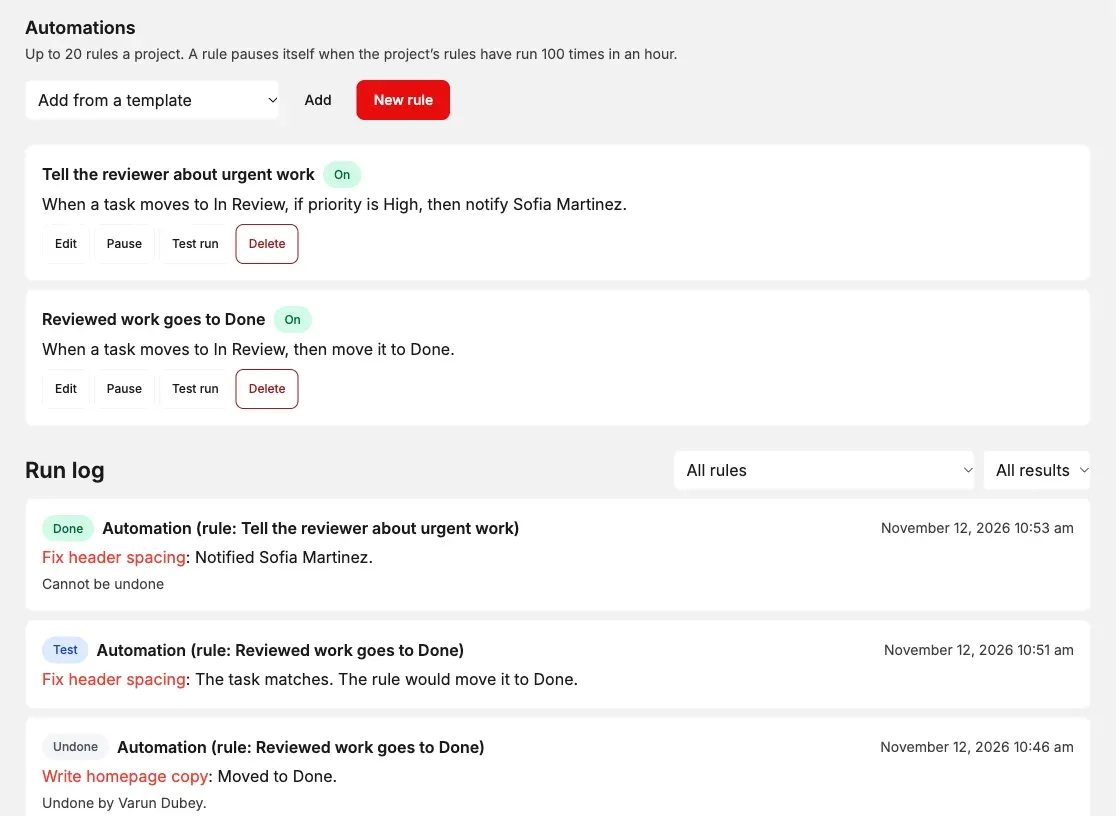
An automation rule does a step for you: “when a task moves to In Review, tell the reviewer”, or “when a task is created, add its checklist”. Each rule reads as one sentence, runs in the background, and every run is listed with what it changed.
Automations are toggle-gated. Turn them off under Kanbanomy > Settings (or for one project on its Settings tab) and the tab, the admin page and the API disappear. Rules you already made are kept.
Who can make rules
Section titled “Who can make rules”- Project owners make rules for their own projects, on the project’s Automations tab.
- Kanbanomy managers (and admins) make rules on any project, plus templates and site rules under Kanbanomy > Automations.
- Members and clients never see the tab, the rules or the run log.
Make a rule
Section titled “Make a rule”- Open the project and choose the Automations tab (in wp-admin: All Projects, edit the project, Automations tab).
- Select New rule and give it a name.
- Under When, choose what starts it.
- Under If (optional), add up to three conditions. All of them must match.
- Under Then, choose what it does.
- Check the sentence at the bottom of the form, then select Save rule.
| Trigger | Options |
|---|---|
| A task moves to a column | The column. |
| A task is created | - |
| A task becomes overdue | Checked once a day, for tasks that went past their due date the day before. |
| A client answers an approval | Any answer, Approved or Changes requested. |
| Someone comments on a task | Optionally, only comments by a client. |
| A person is added to the project | - |
| A project request is approved | Site rules only (see below). |
Priority is, has the label, is assigned to, has nobody assigned, is Internal, is not Internal, is due within a number of days, has no due date, and title contains. Conditions apply to task triggers only.
| Action | Can be undone |
|---|---|
| Assign a person | Yes |
| Move it to a column | Yes |
| Set the due date (days from today) | Yes |
| Add checklist items | Yes |
| Notify people (a person, the assignees, the watchers, the project owners or the project’s clients), with an optional message | No |
| Send to a webhook set up under Kanbanomy > Webhooks | No |
A trigger without a task (a person is added, a request is approved) only offers Notify people and Send to a webhook.
Clients and Internal work
Section titled “Clients and Internal work”A rule can notify clients, but never about a task marked Internal and never about a Team only comment. Those clients are left out of the notice, even if the rule names them.
Who did it
Section titled “Who did it”What a rule changes shows as Automation (rule: name) in the Activity log, in notices and in emails, so nobody mistakes it for a person.
Test a rule
Section titled “Test a rule”Select Test run on a rule, search for a task of the project and select Run the test. The test changes nothing: it tells you whether the task matches and what the rule would do. Test runs are listed in the run log as Test.
The run log
Section titled “The run log”Below the rules, the Run log lists every run, newest first, 20 to a page. Filter it by rule or by result:
- Done - the rule acted. The line says what it changed.
- Skipped - the rule did not act, and the line says why.
- Failed - the rule could not act, for example because the task or the webhook was deleted.
- Undone - someone undid the run. The line says who.
- Test - a test run.
Runs older than the Activity log’s retention are removed with it.
Undo a run
Section titled “Undo a run”Select Undo on a run to put the task back as it was before the rule ran. Undo works when:
- the action can be undone (assign, move, set the due date, add checklist items), and
- nobody changed the task since the rule ran. If someone did, change the task by hand.
Notices and webhook calls cannot be taken back, so their runs say Cannot be undone. Putting a task back does not start a rule again.
Limits that keep rules safe
Section titled “Limits that keep rules safe”- A rule does not start another rule. If rule A moves a task into the column that starts rule B, rule B does not run and the run log shows it as Skipped: Caused by automation. Loops cannot happen.
- Up to 20 rules a project.
- 100 runs an hour a project. When a project’s rules reach it, the rule that would run next pauses itself, shows Paused: too many runs in an hour, and the project owners get one notice. Select Resume once you have checked the rule.
- Rules run in the background, so saving a task is never slower.
Developers can change the two numbers with the filters kanbanomy_automation_max_rules and kanbanomy_automation_hourly_limit.
Rule templates and site rules
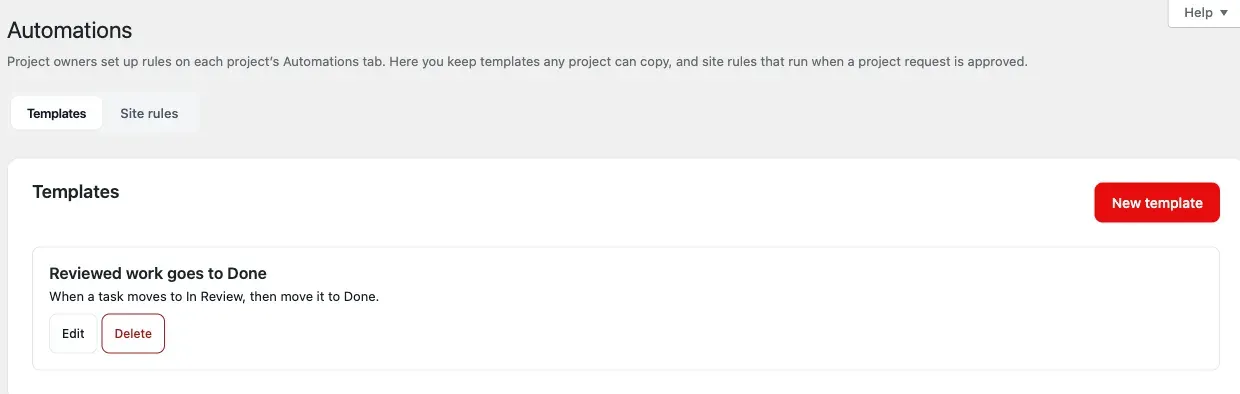
Section titled “Rule templates and site rules”Under Kanbanomy > Automations:
- Rule templates - rules any project can copy. On a project’s Automations tab, choose a template in Add from a template and select Add. The copy belongs to the project; changing the template later does not change it.
- Site rules - rules that run when a project request is approved, for example to tell the new project’s owners or post to a webhook. The run log on the same tab lists their runs.
Notices
Section titled “Notices”Each person can turn automation notices on or off under Hub > Notifications (Automation notices). The site default is under Kanbanomy > Settings > Notifications.
REST API
Section titled “REST API”Every rule is also reachable through the REST API (kanbanomy/v1), with the same permissions as the screens:
GET,POST /projects/{id}/automations,GET /projects/{id}/automation-options,GET /projects/{id}/automation-runsGET,PUT,DELETE /automations/{id},POST /automations/{id}/testPOST /automation-runs/{id}/undo,GET /automation-runs(site rules)GET,POST /automation-templates,POST /automation-templates/{id}/use
A person who may not manage the project gets 404 Project not found.