

Add a client
A client follows a project from their own page, the Hub, without seeing the rest of your site. They can read the work you share and comment on it, your Internal tasks stay hidden, and the project budget stays hidden until you choose to show it.
1. Invite the client
Section titled “1. Invite the client”- Open the project and go to the Team tab.
- Click Add or invite people.
- Under Invite by email, enter the client’s Email address.
- Set Invite as to Client - sees shared tasks and can comment on them.
- Click Send invite.
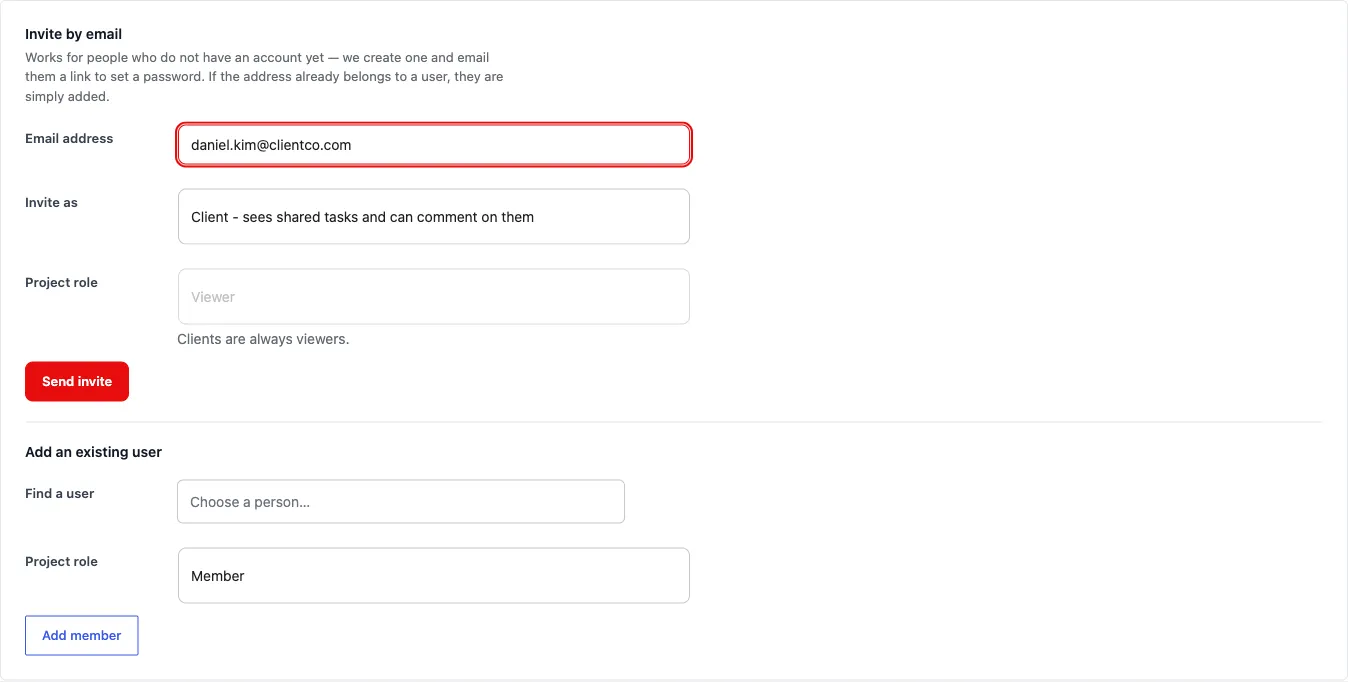
A client is always a Viewer on the project. When you pick Client, the Project role box switches to Viewer and locks, with the note “Clients are always viewers.” Pick Teammate again and the box unlocks. The invite form on the project page works the same way.
For a new address, Kanbanomy creates an account with the Client site role and sends one email: “{your site} shared “{project}” with you”. The email has one link. The client chooses a password and is signed in and taken straight to their project. A client who already has an account gets added to the project the same way. You can also add an existing user from Add an existing user and choose the Viewer role.
2. What the client sees
Section titled “2. What the client sees”Clients land on the Hub. It shows a greeting, their projects with status, dates and open-task count, and a list of milestones.
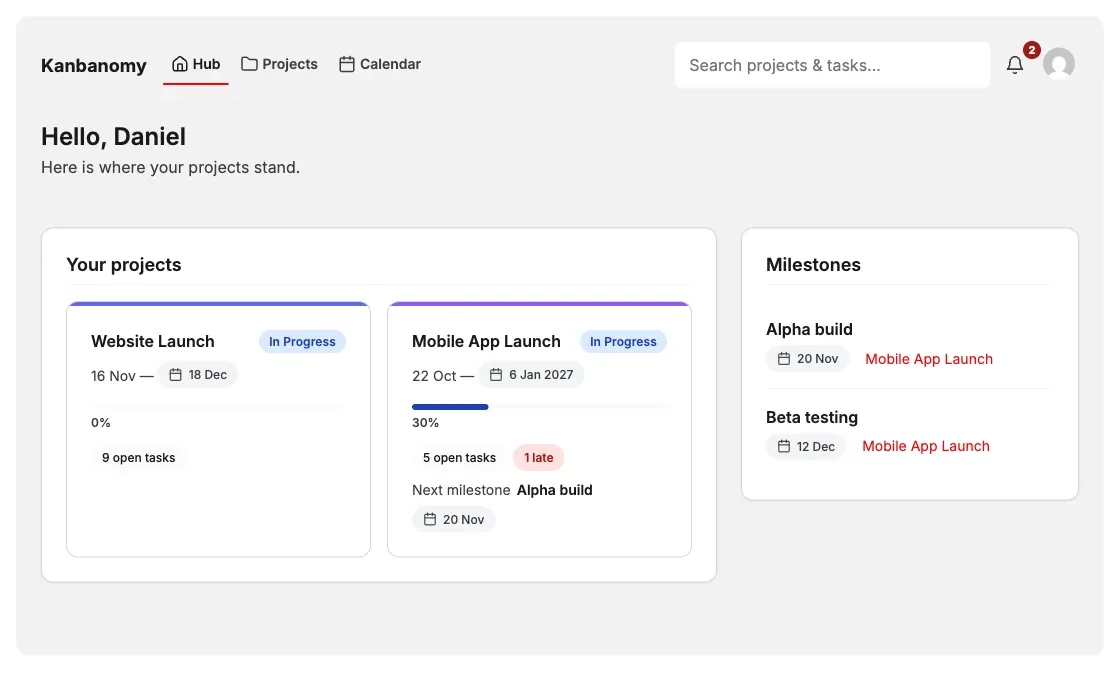
Inside a project a client sees the Overview, Tasks, Gantt, Calendar and Milestones tabs. They do not see the Board, the Activity log or the Team tab.
A client can comment on any task they can see: open the task and use the comment box. They can edit or delete their own comments, never anyone else’s. Their comments email the task’s assignees and watchers. In a comment a client can @mention people on your team, never another client. They cannot comment on Internal tasks, because they cannot see them.
If a client opens /wp-admin/, they are sent to the Hub. For the full list of what a client can and cannot see, read Client Portal.
3. Hide work with Internal tasks
Section titled “3. Hide work with Internal tasks”Your team can @mention a client only on a task the client can see. On an Internal task the client is not offered in the @mention list and is never told about it.
Tasks are visible to clients unless you mark them Internal.
- Open the task from the project’s Tasks tab.
- In the task panel, under Clients, tick Internal (hidden from clients).
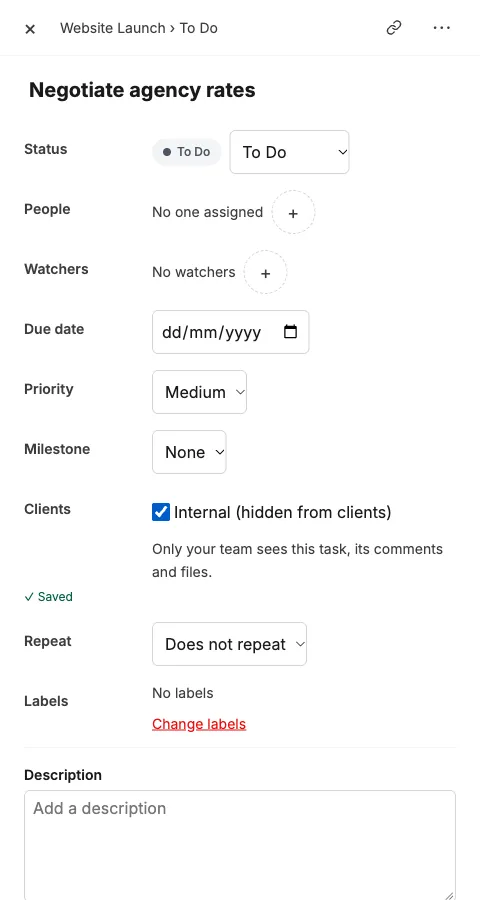
An Internal task disappears for clients from the project’s task list and from the open-task counts on the Hub. Your team sees an Internal badge next to its title. To mark several tasks at once, use the bulk action Mark: Internal (hidden from clients) on the Tasks tab. See Client Portal for the other places the setting applies.
4. Set the budget and decide whether the client sees it
Section titled “4. Set the budget and decide whether the client sees it”The budget is hidden from clients by default. The priority is always visible.
- Open the project and go to the Settings tab.
- Enter the amount in Budget. Leave it empty for no budget.
- Under Client can see, tick Budget if the client should see it.
- Click Save Project Settings.
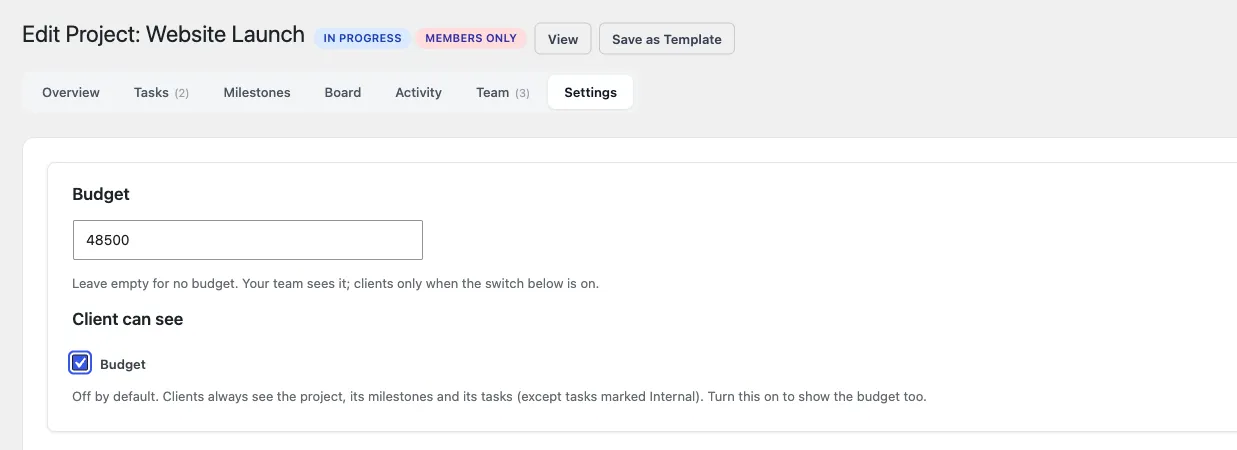
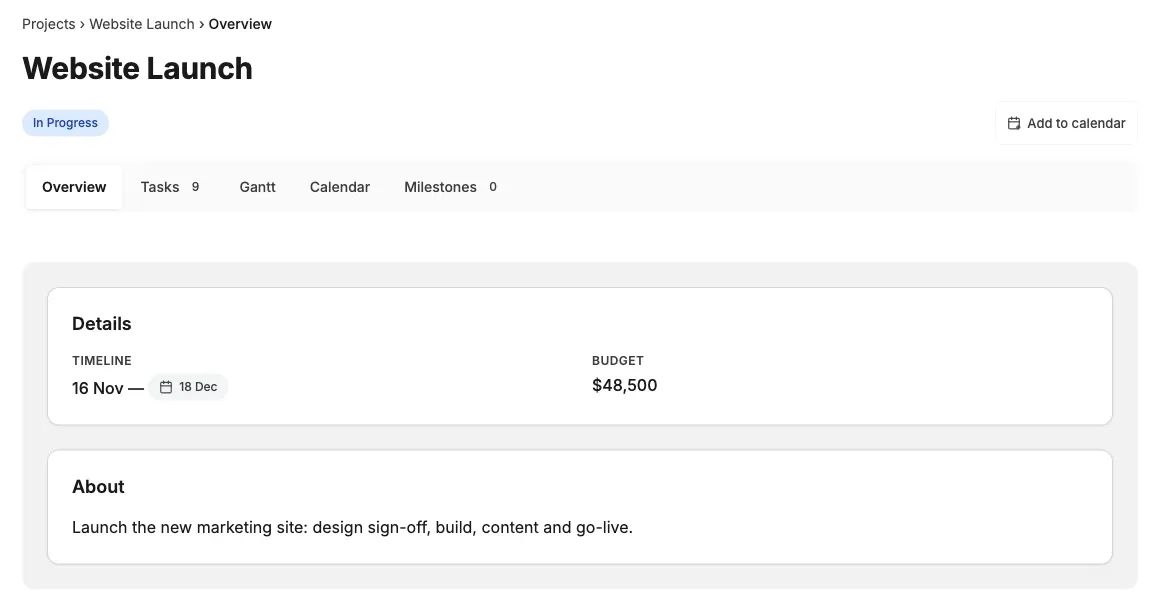
Your team sees the budget in the project’s Details box, formatted for your site’s language (for example $48,500). With the switch on, the client’s project Overview shows it too. With it off, the Budget line is not there for clients.
You can also set the budget from the project page: open Edit project, fill in Budget and save. Developers can send budget to the projects REST endpoint. A submission form field set to save into the budget still works.
Only the project owner or a Kanbanomy manager can change the budget or this switch.
5. Check what your client sees
Section titled “5. Check what your client sees”Open a private browser window, log in as the client, and look at the Hub and the project. This is the quickest way to be sure an Internal task or the budget is hidden the way you meant.
Common problems
Section titled “Common problems”- The client sees a task I wanted hidden. Open the task and check that Internal (hidden from clients) is ticked. Tasks are visible by default.
- The client cannot see their project. Check that they are on the project’s Team tab as a Viewer.
- The budget switch is on but nothing shows. The project has no budget yet. Enter one in step 4.