

Team & Invitations
Kanbanomy lets you build a team around each project, invite people who are not yet on your site, and share a single project with a client without exposing the rest of your site.
Project members and roles
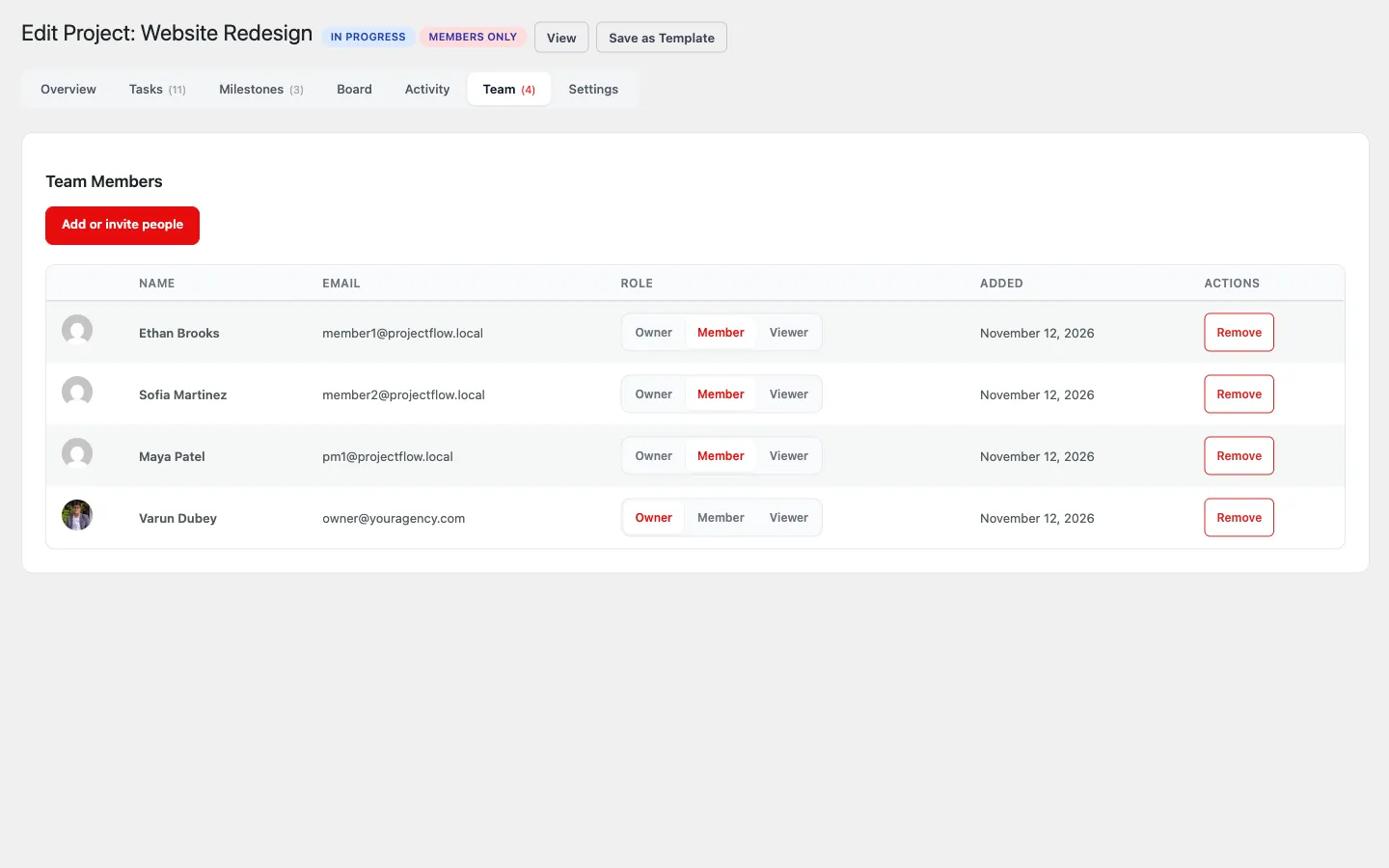
Section titled “Project members and roles”Add members from a project’s Team tab. Each member has a project role:
- Owner - full control of the project.
- Member - can create and edit tasks, comment, and update their work.
- Viewer - reads the project and comments on the tasks they can see. Cannot change tasks.
Roles here are a per-project classification of what someone can do inside a project. Who can manage, submit, and view across the whole plugin is controlled separately by the capability matrix under Settings to Access.
The member picker searches your users as you type and returns a bounded list; on a test site with 10,000 accounts a search took 82 ms. Task assignees are limited to the project’s own members.
Inviting people who are not on your site yet
Section titled “Inviting people who are not on your site yet”You do not need someone to already have a WordPress account to add them to a project.
- On the Team tab, enter the person’s email address and choose their project role.
- If the email does not match an existing account, Kanbanomy creates the account and emails a set-password link.
- Once they set a password, they are signed in and land on the project they were invited to, with access to exactly the project(s) they were added to.
This is how you bring in a teammate or a client who has never used the portal before.
The Client role
Section titled “The Client role”For sharing a single project with a customer, add them as a member and they get a site-wide Client classification: they can read the one project you shared and comment on its shared tasks, and nothing else. They cannot manage or submit anywhere. The Hub is their portal - there are no extra screens to configure. See Client Portal for what a client sees, internal tasks and the budget switch.
Activity log
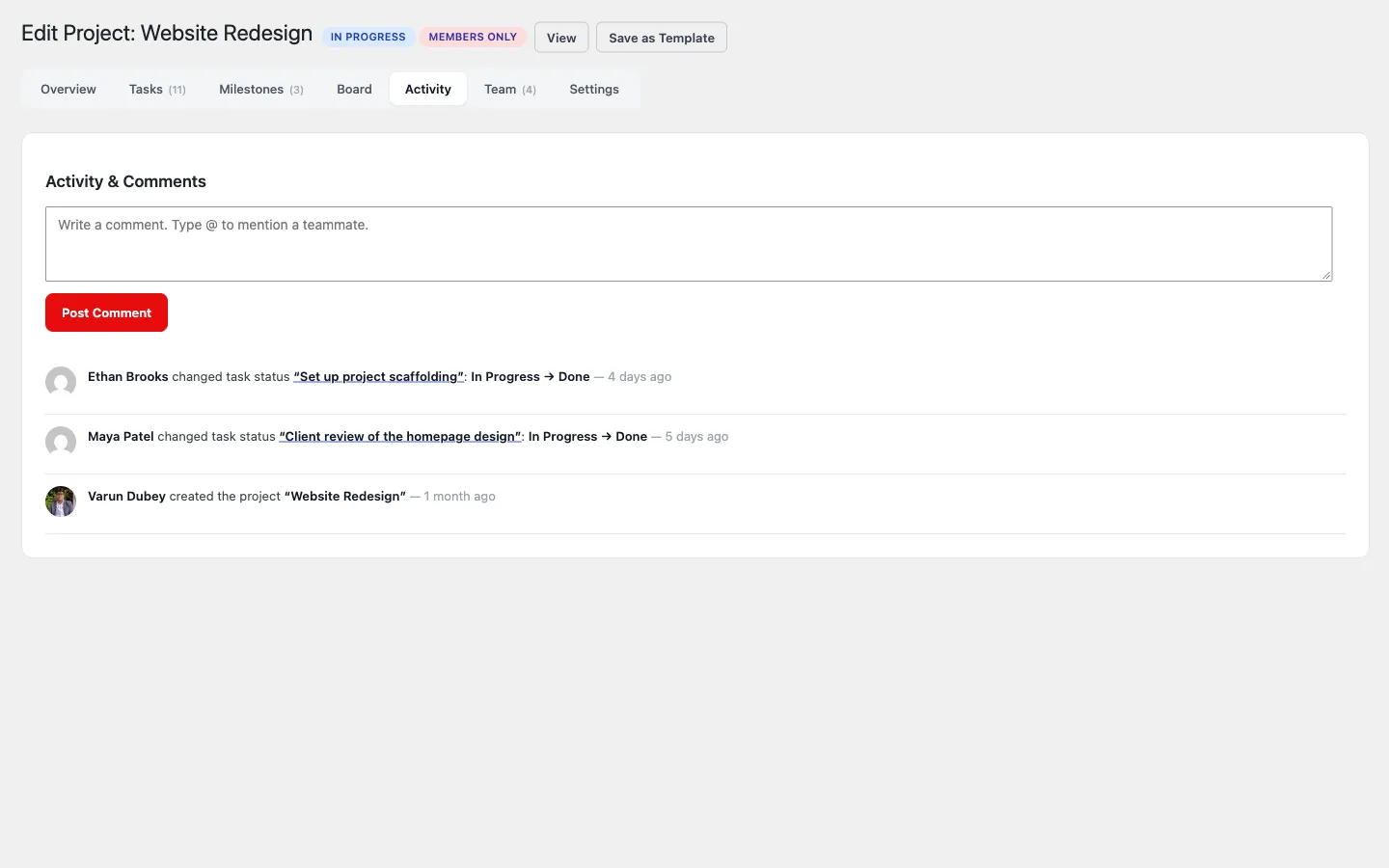
Section titled “Activity log”Every project keeps an activity log - who created, changed, assigned, commented, or completed what, with the affected task or milestone named (for example, changed task status ‘Performance optimization’ To Do to In Progress). Titles are snapshotted at write time, so the log stays accurate even after renames or deletes. Old entries prune automatically (default 90 days, configurable).
Comments and @mentions
Section titled “Comments and @mentions”Task comments and discussion replies both support mentions. Type @ at the start of a word and a list of the project’s team opens: keep typing to search, use the arrow keys and Enter (or tap a name), and @username is added to your comment. Press Esc to keep typing without mentioning anyone.
- A posted comment shows each mention as the person’s display name, highlighted (hover it to see the
@username). Emails and notifications use the display name too. The comment still stores@username, so renaming someone never breaks an old mention. - Only people on the project are listed, so you cannot mention someone outside it.
- Clients are listed but cannot be picked. A client is never notified about a mention, in the app or by email.
- The mentioned person gets an in-app notification and, if email notifications are on, an email. Editing a comment to add a mention notifies only the newly mentioned person.
See Notifications.