

Invite your team
You add people to a project from its Team tab. You can invite someone by email, even if they have no account on your site yet, or add a person who already has one.
Each person has a role on each project:
| Role | What they can do on that project |
|---|---|
| Owner | Full control of the project, including its team and settings. |
| Member | Create and edit tasks, comment, and update their own work. |
| Viewer | Read only. This is the role clients get. See Add a client. |
The project creator is the first Owner. A project can have more than one.
These roles apply to one project at a time. Who can manage, submit or view across the whole plugin is a separate setting, under Kanbanomy > Settings > Access. The site roles Kanbanomy installs are Project Manager, Kanbanomy Member and Client.
Invite someone by email
Section titled “Invite someone by email”- Open the project and go to the Team tab.
- Click Add or invite people.
- Under Invite by email, enter the Email address.
- Leave Invite as on Teammate - can work on the project.
- Pick the Project role: Owner, Member or Viewer.
- Click Send invite.
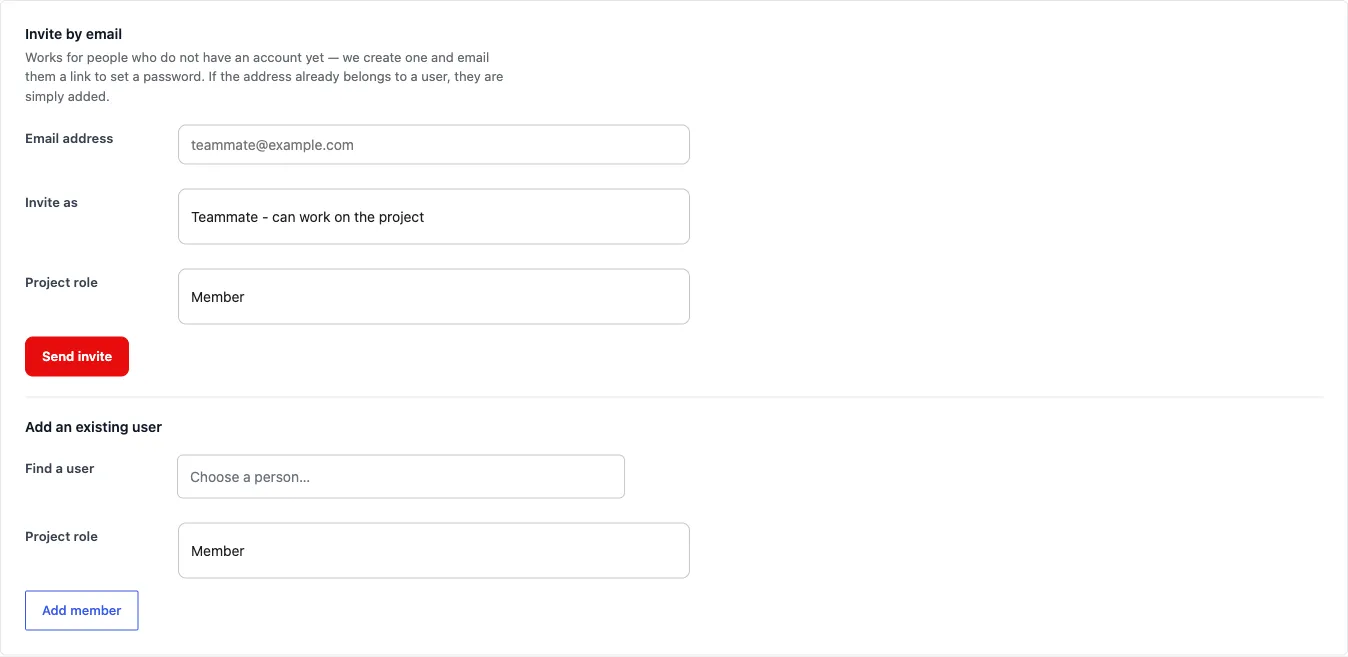
What happens next depends on the address:
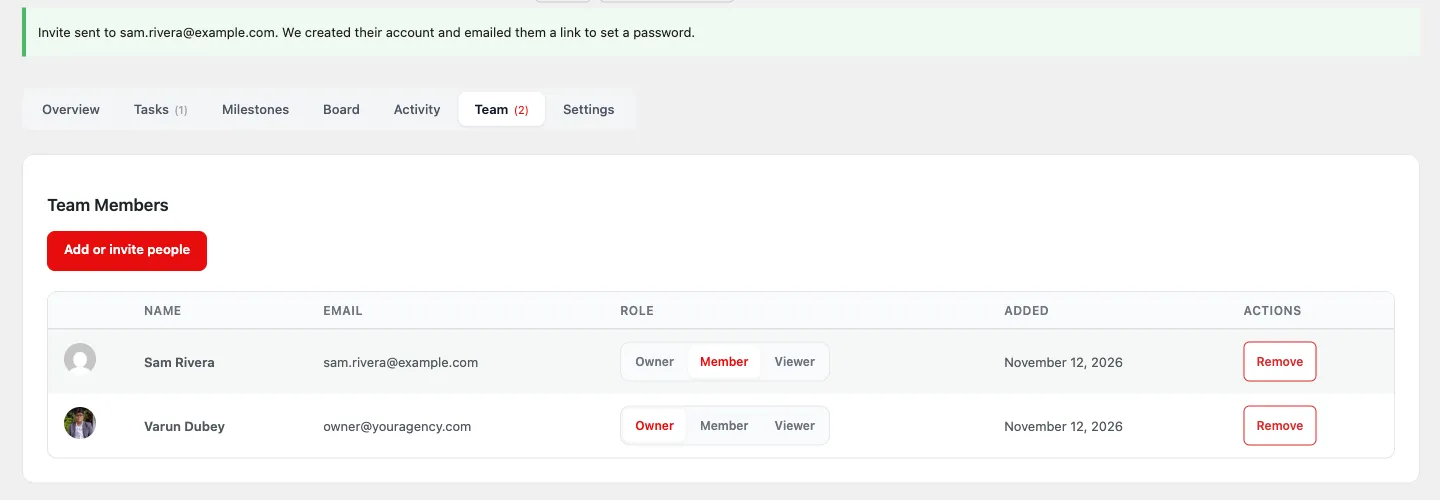
- New address. Kanbanomy creates an account with the Kanbanomy Member site role, adds the person to the project, and emails them. The message has a link to set a password and a link to open the project. After setting the password they are signed in and taken straight to the project. You see “Invite sent to … We created their account and emailed them a link to set a password.”
- Address that already belongs to a user. That user is simply added to the project.
Project owners can do the same from the front of the site: on the project page, open the Team tab and use Add or invite people. It has the same Invite by email and Add an existing user forms.
The new account’s display name is made from the start of the email address, for example sam.rivera becomes “Sam Rivera”. The person can change it in their profile.
Add someone who already has an account
Section titled “Add someone who already has an account”- On the Team tab, click Add or invite people.
- Under Add an existing user, click Find a user and start typing the person’s name or email. Pick the person from the list.
- Choose a Project role.
- Click Add member. You see “Member added successfully.”
The search shows a short list as you type, so it stays quick on sites with thousands of users.
Change a role or remove someone
Section titled “Change a role or remove someone”In the team table, click Owner, Member or Viewer in the person’s Role column to change their role. Remove takes them off the project. It does not delete their account.
Where your team works
Section titled “Where your team works”Teammates work from the front of your site, not wp-admin. Their personal page is the Hub at /hub/. It lists their projects and tasks. Once they are on the team, they also appear in the People picker on tasks, so you can assign work to them.
Common problems
Section titled “Common problems”- The invitee did not get the email. Kanbanomy sends invitations through WordPress’s normal mail. The “Invite sent” message means the account was created and the email was handed to WordPress. If your host does not deliver site mail, install an SMTP plugin. In the meantime the person can use Lost your password? on the login page to set a password.
- I cannot assign a task to someone. Only people on the project’s team appear in the assignee picker. Add them on the Team tab first.
Next step
Section titled “Next step”Add a client. For @mentions, the activity log and notifications, read Team & Invitations.