

Import existing work
Bring a Trello board or an Asana project across in one go, or load tasks and projects from any spreadsheet. Go to Kanbanomy > Import / Export and open the Import tab.
- Trello board - lists, cards, labels, checklists, comments and people come across into a new project.
- Asana project - sections, tasks, subtasks, tags, dates and assignees come across into a new project.
- Spreadsheet (CSV) - tasks into a project you already have, or whole projects, from any CSV file.
Nothing is created until you have checked a preview, nobody gets an email while the import runs, and you can undo an import for 7 days.
Before you import
Section titled “Before you import”- Get the file out of the old tool.
- Trello: open the board, choose Menu > Print, export and share > Export as JSON. This works on Trello’s free plan.
- Asana: open the project, choose the project menu > Export/Print > CSV.
- Add your team to the site first if you want their cards assigned. People are matched to site users by email, then username, then name. Anyone not matched is left unassigned and listed; no accounts are created. See Invite your team.
- For a spreadsheet of tasks, create the project first. See Create your first project.
1. Choose the source and upload
Section titled “1. Choose the source and upload”Under Where is your work now? choose Trello board, Asana project or Spreadsheet (CSV), choose the file, and click Upload and preview.
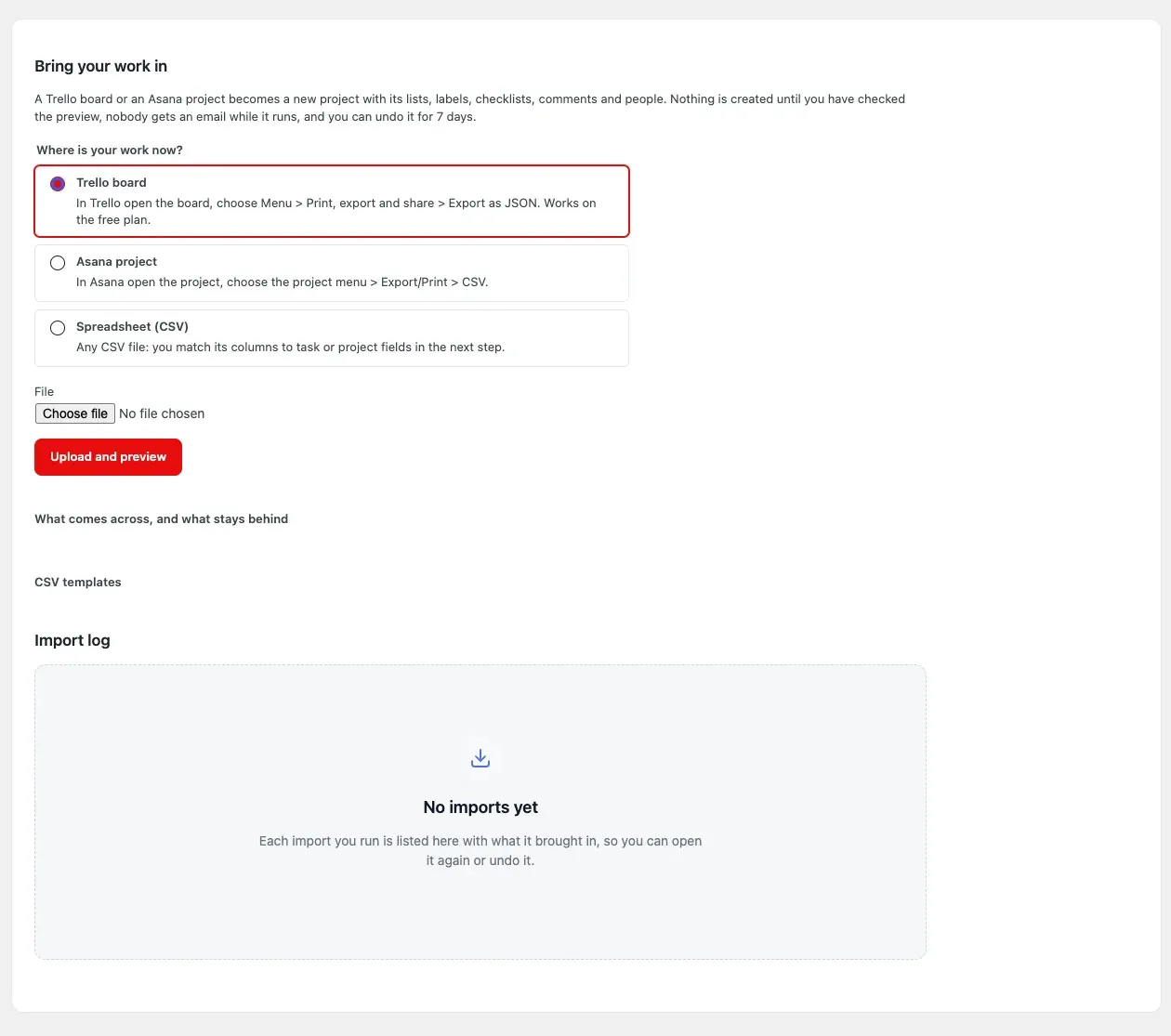
A Trello file can be up to 50 MB, an Asana or CSV file up to 20 MB. Open What comes across, and what stays behind on the same screen for the full list.
2. Check the preview (Trello and Asana)
Section titled “2. Check the preview (Trello and Asana)”Kanbanomy reads the file and shows what it holds before anything is created: cards or tasks, subtasks, columns, labels, checklist items, comments and people. Under Left out it counts what will not come across, such as archived Trello cards and files stored on Trello.
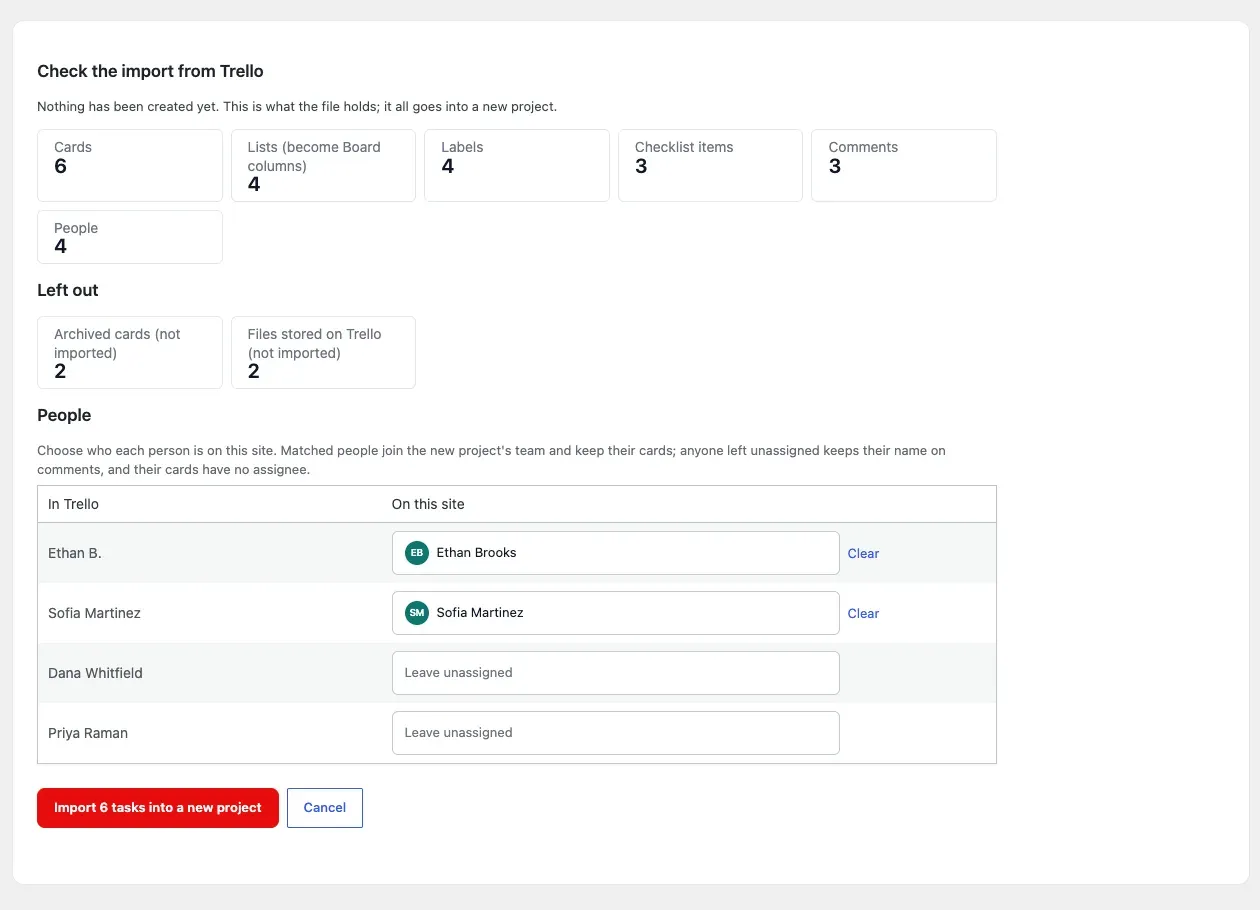
Under People, each person from the old tool is shown next to the site user they matched. Click a person to choose someone else, or Clear to leave their cards unassigned. Matched people join the new project’s team; their comments keep their name and original date.
Click Import N tasks into a new project.
3. Map the columns (spreadsheet)
Section titled “3. Map the columns (spreadsheet)”For a CSV file, Kanbanomy shows each column of your file, a drop-down to say which field it fills, and the first rows as a sample. Title is the only required field. Choose – Skip – to ignore a column. For a CSV exported from Asana, Trello or Monday.com, pick the matching Migration preset on the upload form and the columns are mapped for you.
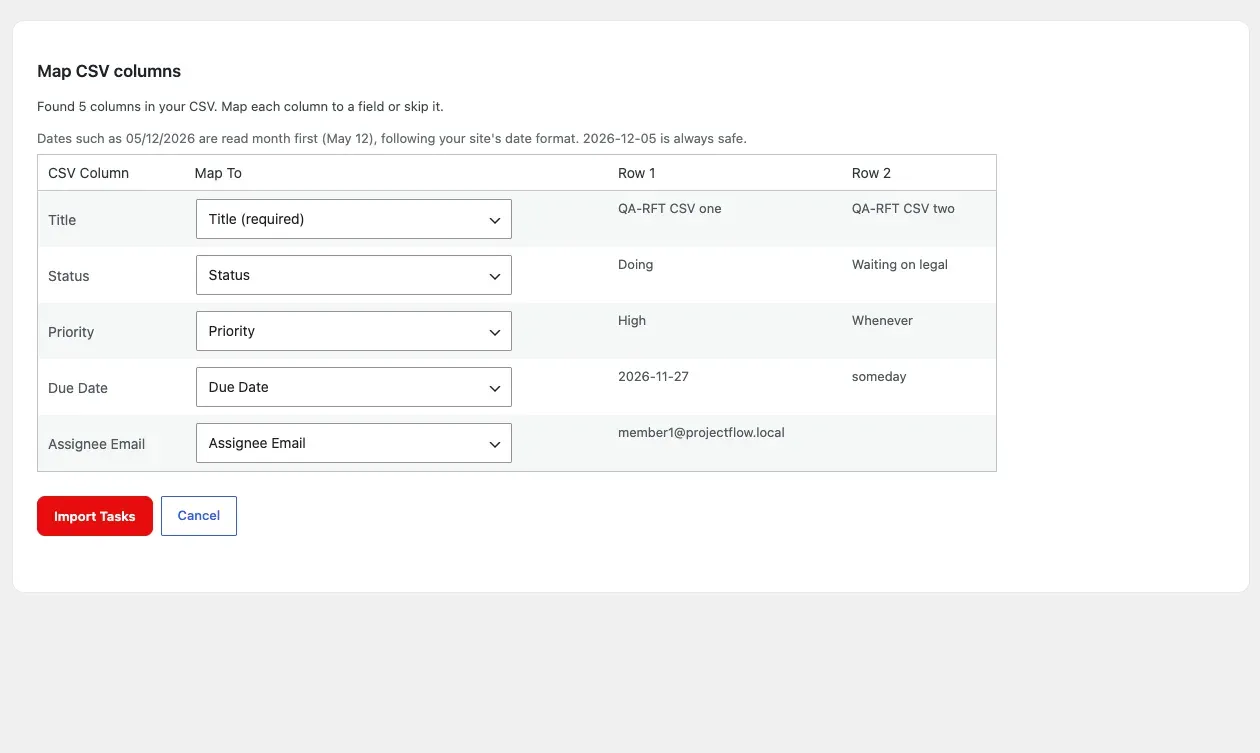
Click Import Tasks (or Import Projects).
4. Watch it run, then read the results
Section titled “4. Watch it run, then read the results”The import runs in the background with a progress bar. You can close the page and come back from the Import log at the bottom of the Import tab. When it finishes you get one notification in the bell.
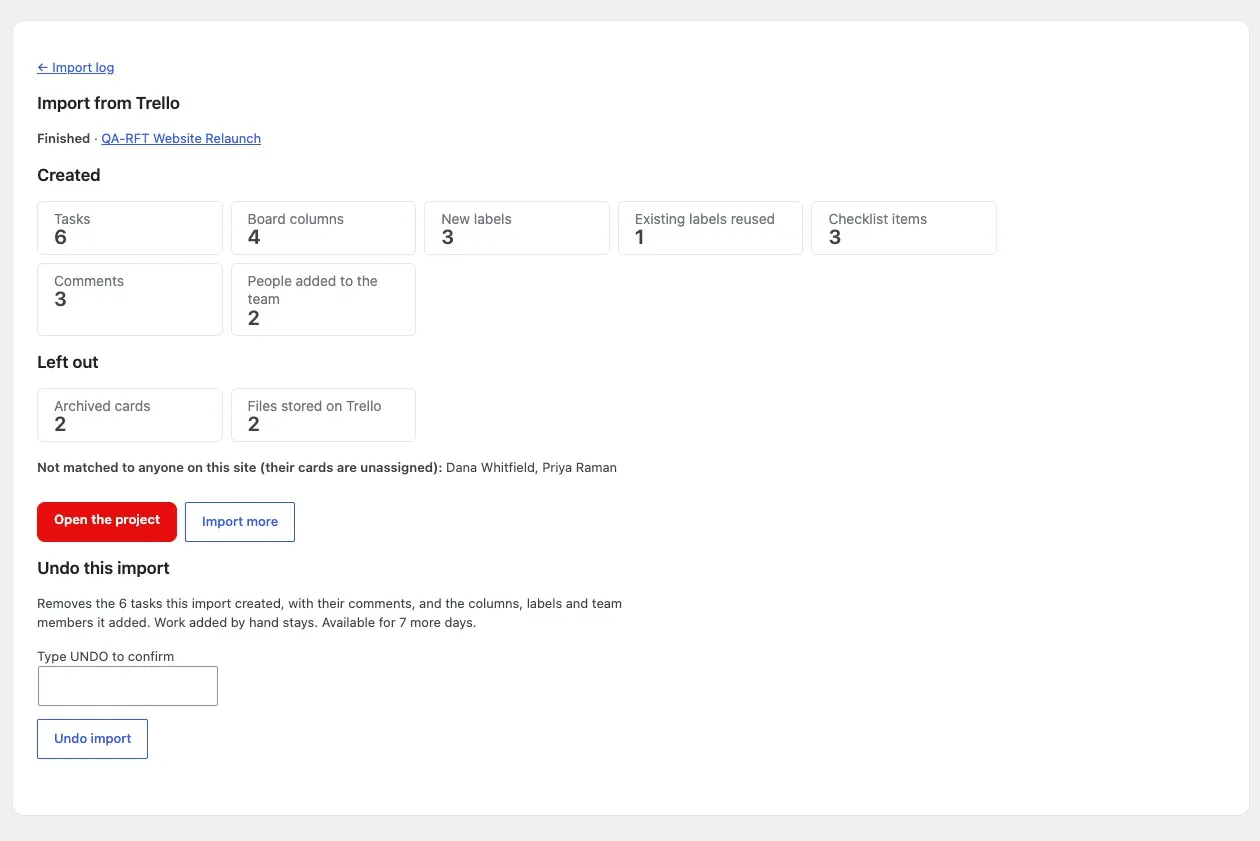
The results list what was created, what was left out, who was not matched, and any value Kanbanomy could not read:
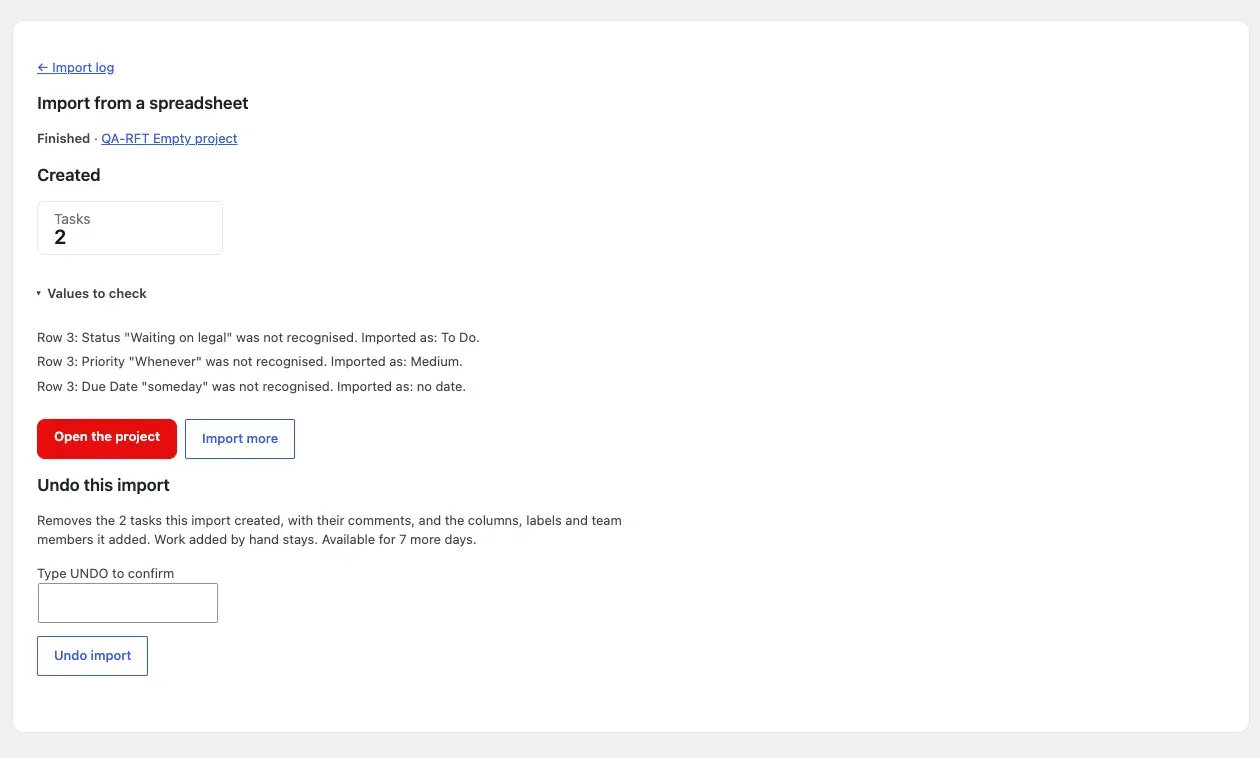
- Rows that could not be read - an empty row or a row with no title.
- Values to check - the row was imported, but one value was not recognised. The note gives the row, the value and what Kanbanomy used instead, for example: Priority “Whenever” was not recognised. Imported as: Medium.
Click Open the project to see the work.
Undo an import
Section titled “Undo an import”Open the import from the Import log, type UNDO and click Undo import. Undo removes exactly what that import created: its tasks with their comments, and the columns, labels and team members it added. Work added by hand since stays, and so does the project if it holds any. If imported tasks were changed after the import, the undo box says how many before you confirm.
Undo is available for 7 days after the import.
What comes across
Section titled “What comes across”| From | Comes across | Stays behind |
|---|---|---|
| Trello | Open lists as Board columns, open cards as tasks with description, due and start date, labels, members, every checklist (named “Checklist: item” when a card has more than one) and comments with their original date. Links attached to a card are kept in its description. A card marked complete is Done. | Archived cards and lists, files stored on Trello, custom fields, covers and Power-Ups. |
| Asana | Sections as Board columns, tasks with notes, dates, assignee, tags (as labels) and subtasks. A task with a Completed At date is Done, in the Done column. | Comments and files (Asana does not put them in its CSV), custom fields. |
| Spreadsheet | Tasks: title, description, status, priority, dates, one assignee who is already on the project team, estimated hours and Internal. Projects: title, description, status, visibility, dates, colour and progress. | Anything else in the file. |
How values are read
Section titled “How values are read”Kanbanomy reads the words other tools export, ignoring capitals and extra spaces. Anything it cannot read is listed under Values to check, never dropped silently.
| Field | Kanbanomy reads | If it cannot read the value |
|---|---|---|
| Status (tasks) | The four statuses by name or slug (To Do, In Progress, In Review, Done), plus common words from other tools: Backlog, Not started, Doing, Working on it, Stuck, Blocked, Needs review, QA, Testing, Complete, Completed, Closed and more. | The task becomes To Do. |
| Priority (tasks) | Low, Medium, High, Critical, plus Urgent, Highest, Blocker and ASAP (Critical), Normal (Medium), Major (High), Lowest and Minor (Low). | The task becomes Medium. |
| Due Date, Start Date, End Date | 2026-11-27 (with or without a time), 27/11/2026, 11/30/2026, 27.11.2026, and written dates such as Nov 27, 2026 or 27 November 2026. Trello’s dates are read in your site’s timezone. |
The date is left empty. |
| Assignee (spreadsheet) | One person, by email, username or display name, who is already on the project’s team. | The task is imported without an assignee. |
| Internal | yes, true, 1 or internal. |
The task is visible to clients. |
| Status (projects) | A project status by name or slug, such as Approved, In Progress or Completed. | The project becomes In Progress. |
| Visibility (projects) | Public, Private or Members Only. | The project uses your site’s default visibility (Kanbanomy > Settings). |
Dates where the day and month could swap. A date such as 05/12/2026 could be 5 December or 12 May. Kanbanomy follows your site’s date format under Settings > General: if the day comes before the month there (for example d/m/Y), it reads 5 December, otherwise 12 May. A number over 12 settles it either way, and a date with dots (05.12.2026) is always read day first. 2026-12-05 is always safe. The mapping screen tells you which way your site reads them.
Common problems
Section titled “Common problems”- “That file is not a Trello board export.” Export the board as JSON from Trello (step 1), not as CSV or a printout.
- “That file is not an Asana project export.” The file needs Asana’s Name and Section/Column columns. Export again from the project menu.
- “Map one column to “Title” before importing.“ Set one column to Title (required).
- The file is too large. Split the board or project, or ask your host to raise the limit (developers: the
kanbanomy_import_max_bytesfilter). - Large Trello boards. Trello’s JSON export holds up to 1,000 recent actions, so very old comments on a busy board may not be in the file.
- Server on nginx. Uploaded files sit in
wp-content/uploads/kanbanomy-private/only until the import is done. Apache protects that folder automatically; on nginx add a deny rule for it, as for attachments. - Imported into the wrong place. Undo the import from the Import log within 7 days.
Next step
Section titled “Next step”You now have a project, a team, a client and your existing work in Kanbanomy. Point your team at the Hub, and look through the Features overview.