

Create your first project
A project holds the tasks, milestones and people for one piece of work. This guide creates one and adds a first task.
1. Add the project
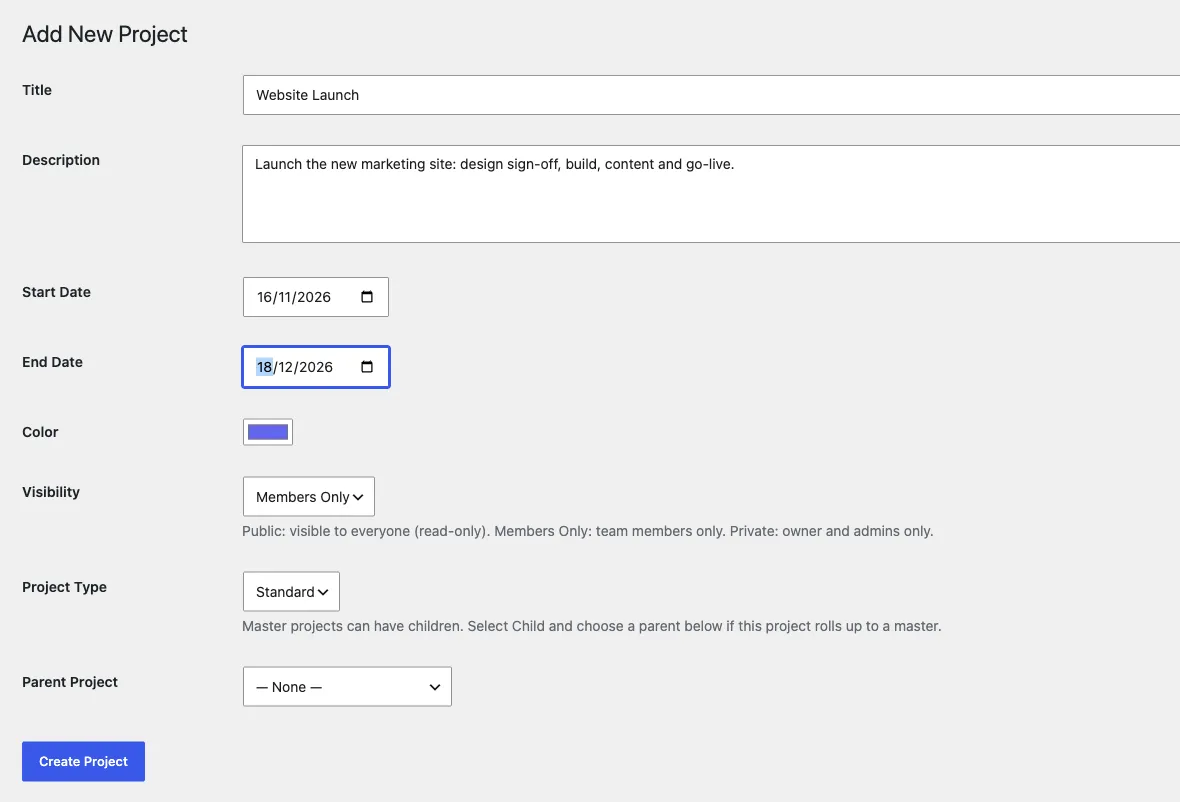
Section titled “1. Add the project”Go to Kanbanomy > Add New and fill in:
- Title - the only required field.
- Description - shown to everyone who can open the project.
- Start Date and End Date - optional. They place the project on the calendar and the Gantt chart.
- Color - helps you spot the project in lists and on the calendar.
- Visibility - who can open the project:
- Public: visible to everyone, read-only.
- Members Only: only the people on the project’s team. This is the default.
- Private: only the owner and administrators.
- Project Type - leave it on Standard. Master and Child are for rolling several projects up into one.
Click Create Project.
2. Look around the project screen
Section titled “2. Look around the project screen”Kanbanomy opens the new project’s edit screen. You are listed as its Owner. The tabs are:
| Tab | What it is for |
|---|---|
| Overview | Title, description, status, visibility and project type. |
| Tasks | The task list. |
| Milestones | Dated checkpoints. |
| Board | The same tasks as a board. |
| Activity | A log of who changed what. |
| Team | The people on the project. See Invite your team. |
| Settings | Per-project switches, including what a client can see. |
A project you create yourself starts In Progress, ready for work. The other statuses are Pending, Approved, Rejected, Completed and Archived. Change the status on the Overview tab when it changes, and save.
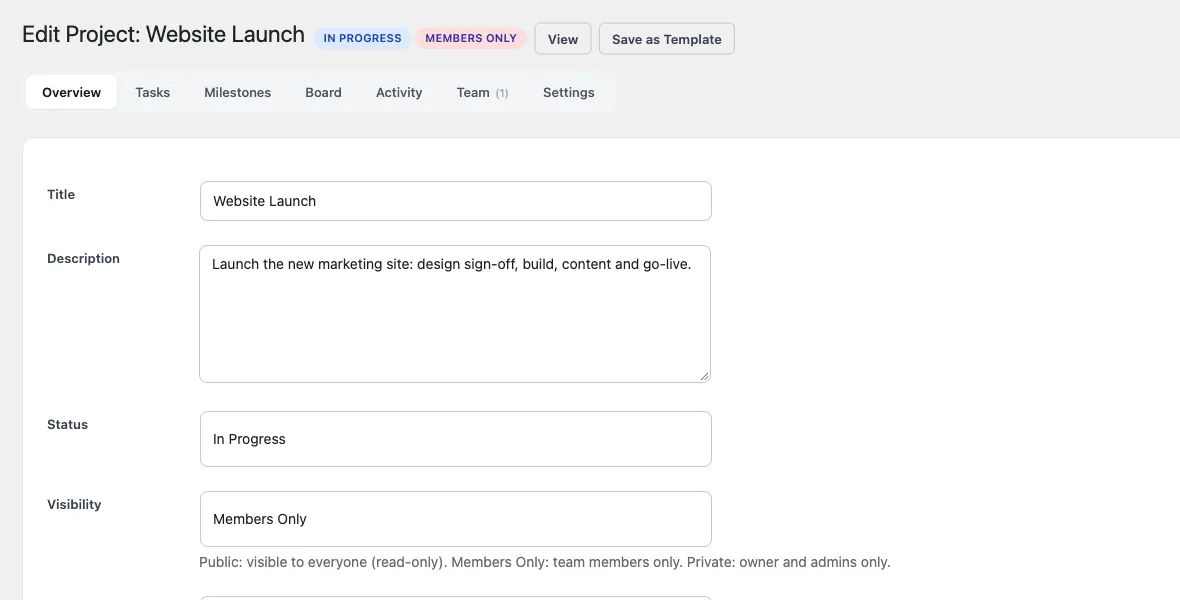
View at the top of the screen opens the project’s page on your site, at /projects/ followed by the project’s name. Save as Template turns the project’s structure into a template you can reuse.
3. Add your first task
Section titled “3. Add your first task”- Open the Tasks tab.
- Click Add task, type a title and press Enter.
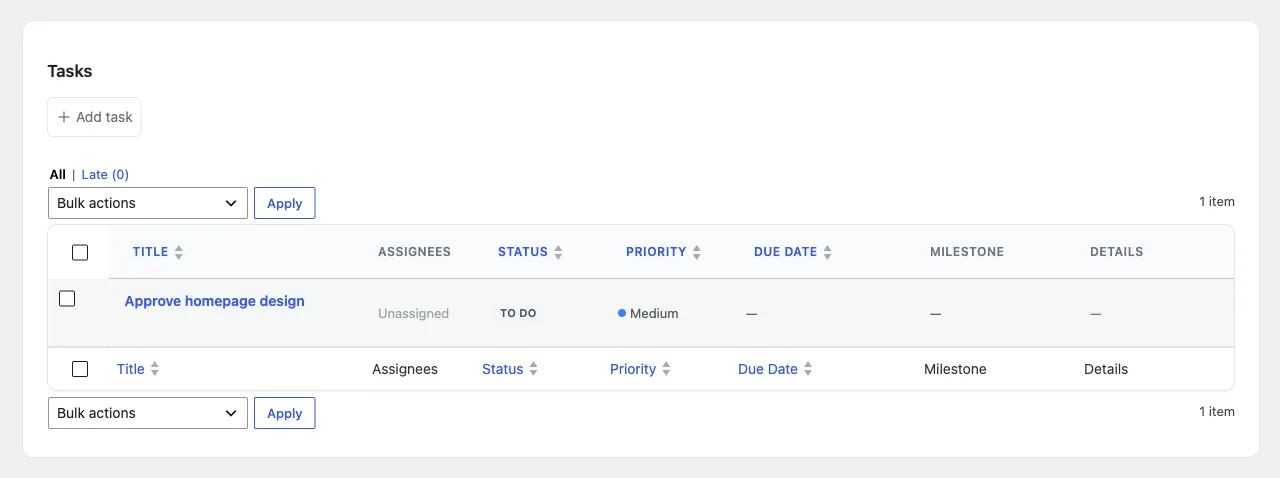
The task appears in the list as To Do, with Medium priority and nobody assigned. Click the task title to open its panel, where you can set the status, people, due date, priority, milestone, description and checklist. Each field saves as you change it.
You can only assign a task to people who are on the project’s team, so add your team first if you want to assign work.
Common problems
Section titled “Common problems”- I cannot find a Planning or Active status. Kanbanomy’s project statuses are Pending, Approved, Rejected, In Progress, Completed and Archived. New projects already start In Progress.
- The date boxes show day/month/year. The date fields follow your browser’s language. The dates are saved correctly whichever order your browser shows.
Next step
Section titled “Next step”Invite your team. To learn what each tab does in depth, read Projects & Tasks and Board, Timeline & Calendar.