

Track time
Log the hours your team spends on each task, mark which hours you bill, and compare them with the estimate. Time is for your team only: clients never see a timer, an entry or an hour total.
Time tracking is toggle-gated. Turn it off under Settings > Features, or per project on the project’s Settings tab.
Start and stop the timer
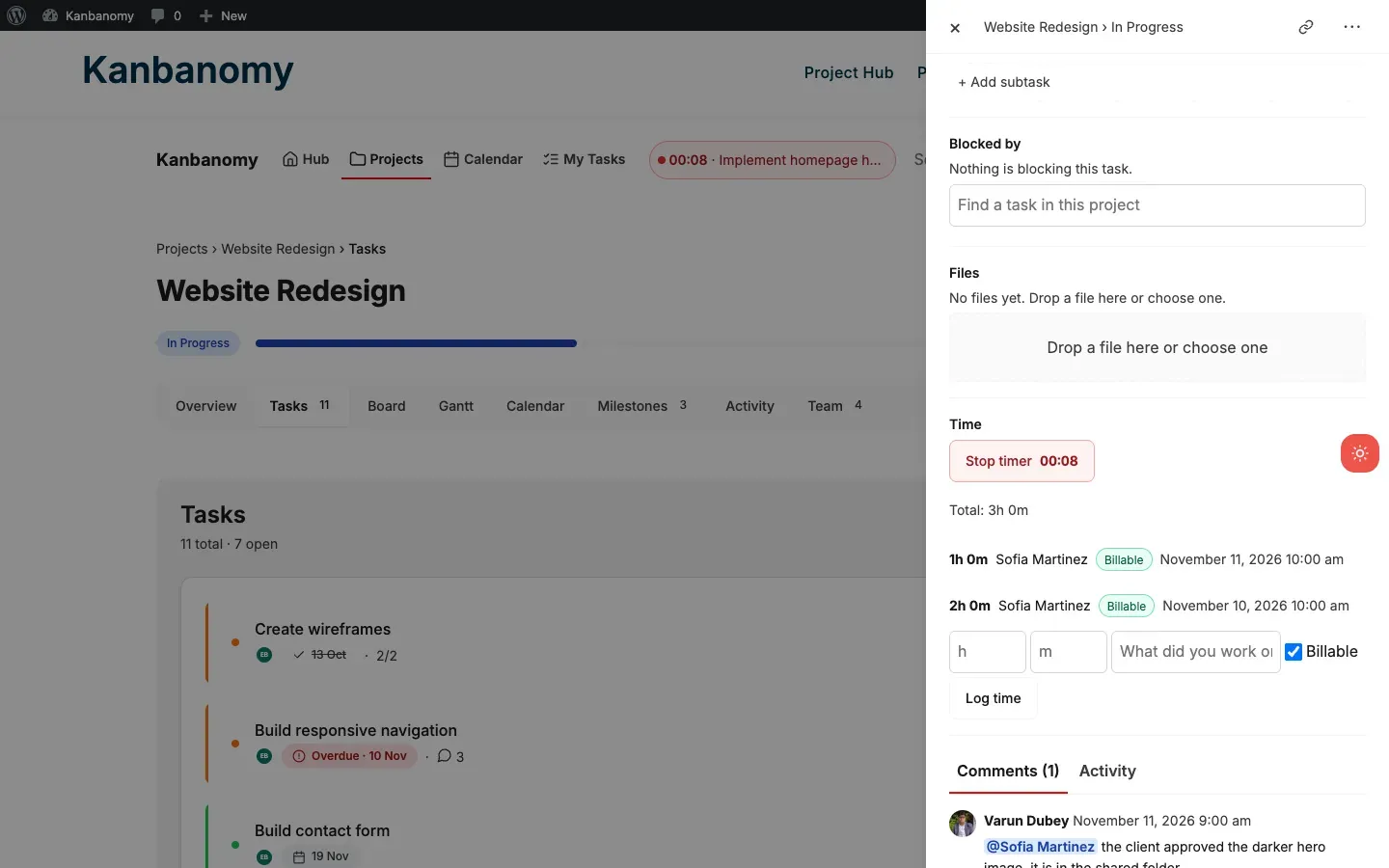
Section titled “Start and stop the timer”- Open any task. The task panel opens from every list, Board, calendar, Gantt chart and search result.
- In the Time section, press Start timer.
- A running chip appears in the top strip, for example 00:42 · Build contact form. It follows you to the Hub, Projects, Calendar and My Tasks, and keeps counting if you close the tab or the browser.
- Click the chip to open the task again, then press Stop timer. One time entry is written with the time that ran.
Things to know:
- One timer per person. Starting a timer on another task stops the first one and logs its time.
- Two tabs, one entry. Pressing Stop in two tabs logs the time once; the other tab simply shows the timer as stopped.
- Forgotten timers stop at 12 hours. If a timer is still running after 12 hours, Kanbanomy stops it, logs 12 hours and sends you a notice. The entry reads “Auto-stopped after 12 hours, check this entry”. Delete it and log the right time if you stopped working earlier.
- The timer uses the server’s clock, so a computer with the wrong time still shows the right elapsed time.
Log time by hand
Section titled “Log time by hand”Under the timer, enter hours and minutes and an optional note, then press Log time. To remove one of your own entries, press × next to it and confirm.
Billable and non-billable time
Section titled “Billable and non-billable time”Every entry is Billable or Non-billable.
- New time follows the project’s default. Change it on the project’s Settings tab in wp-admin (Logged time > New time is billable) or in the front-end Edit project form. The default is on, because most agency hours are billed. Only the project owner or a manager can change it.
- Untick Billable before you log an entry, or click the Billable / Non-billable chip on one of your own entries to switch it.
- Time logged before you updated to 1.3.0 counts as billable, so your report totals do not change.
The project Time card
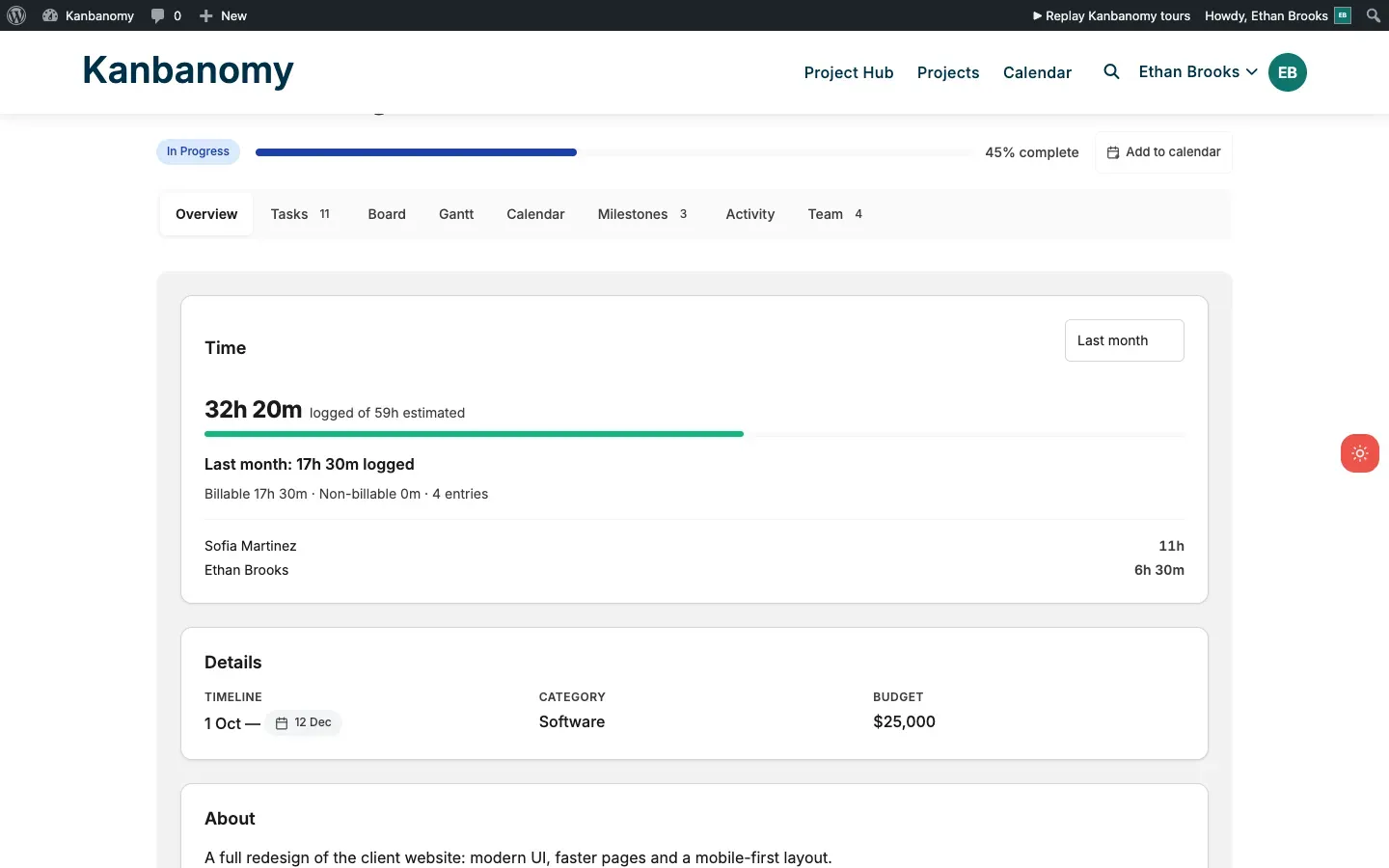
Section titled “The project Time card”Team members see a Time card on the project’s Overview tab:
- The time logged to date against the sum of the task estimates, with a bar that turns red past the estimate.
- A range picker (All time, This week, Last week, This month, Last month) for the hours logged in that range, split into billable and non-billable, with a line per person.
Project cards on the Hub and on All Projects show a thin bar with the hours logged against the estimate, for your team only.
Where else time shows
Section titled “Where else time shows”- Reports in wp-admin: logged against estimated hours by project and by person, with billable and non-billable columns, a Billable only filter and CSV export. See Reports & Workload.
- Hub: each member’s Logged This Week.
- REST API:
GET /kanbanomy/v1/timer,POST /kanbanomy/v1/tasks/{id}/timer/start,POST /kanbanomy/v1/timer/stop, and abillableflag on time entries. See the Developer guide.