

Student Account Hub
Learnomy overviewFree + ProGet Learnomy →
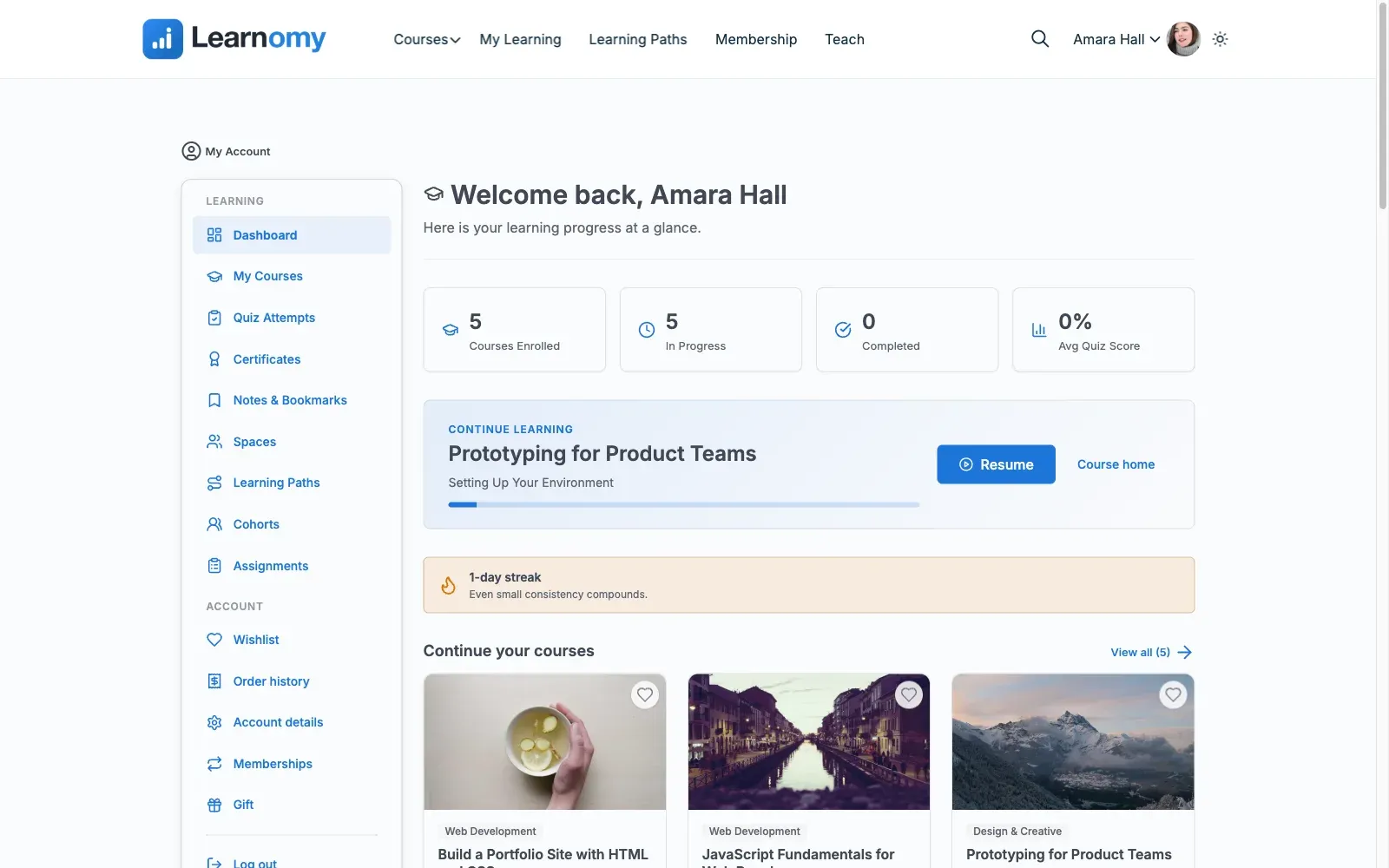
The student account hub is the central home for a learner once they are logged in. It brings together a dashboard summary, a full course library, certificates, billing, and account settings under one persistent navigation menu.
Overview
Section titled “Overview”The hub lives at /account/. Every page inside it shares the same two-column layout: a vertical account navigation on the left and the page content on the right. The account navigation appears on all account pages so students can move between sections without going back to the main site. The navigation is grouped into a Learning block and an Account block so the list stays scannable as more sections are added.
Learning:
| Section | URL | What it shows |
|---|---|---|
| Dashboard | /account/ |
Stats summary, recent activity, course previews, certificate widget |
| My Courses | /account/courses/ |
Full enrolled course library with tab filters |
| Quiz Attempts | /account/quiz-results/ |
Every quiz attempt with score and pass/fail. Opening an attempt shows the full question review - grouped by section or category on large quizzes, with filter chips to show only incorrect or pending answers - and a Download PDF button exports the review as a printable document (site admins can export any student’s attempt from the same screen when helping with support). |
| Certificates | /account/certificates/ |
All earned certificates with download and share actions |
Pro adds more Learning entries when the matching module is active: Notes & Bookmarks, Spaces, Learning Paths, Cohorts, Assignments, and Grades (/account/grades/ - weighted gradebook breakdown).
Account:
| Section | URL | What it shows |
|---|---|---|
| Order history / Billing | /account/billing/ |
Active subscriptions, time-limited access, and order history |
| Account details | /account/details/ |
Profile, email, password, notification preferences |
| Memberships | /account/membership/ |
Current plan and plan management (when memberships are enabled) |
Dashboard
Section titled “Dashboard”The dashboard at /account/ is the first page a student sees after logging in.
Header
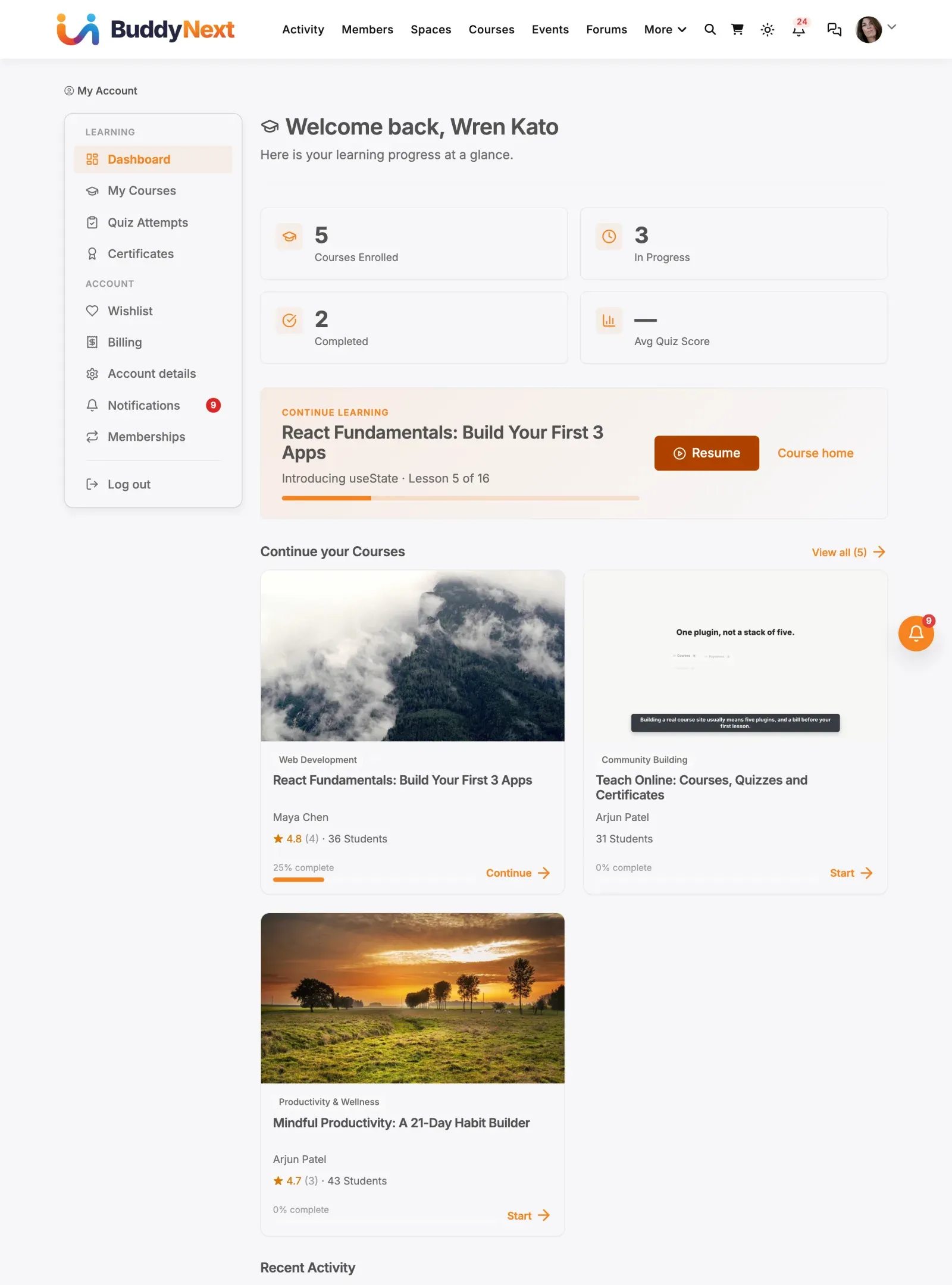
Section titled “Header”The header greets the student by name and shows a brief summary line.

Stats row
Section titled “Stats row”Four stat cards give a quick snapshot:
- Courses Enrolled - total enrollments across all states.
- In Progress - courses the student has started but not finished.
- Completed - courses marked as completed.
- Avg Quiz Score - the student’s average grade across all scored quiz attempts, displayed as a percentage.

Continue Learning
Section titled “Continue Learning”When a student has an in-progress course, a “Continue Learning” card appears below the stats row with a direct link to pick up where they left off.
Courses preview
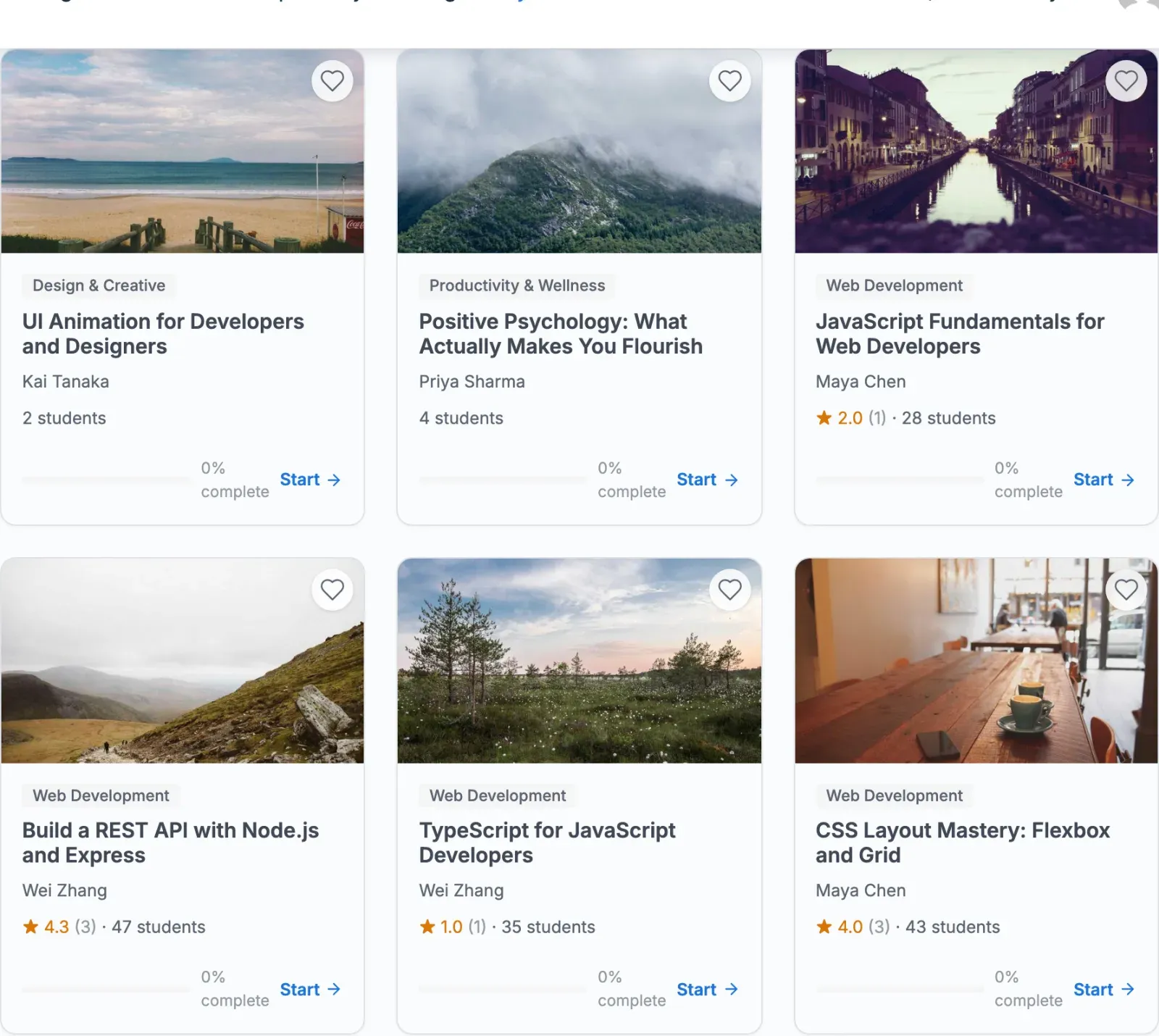
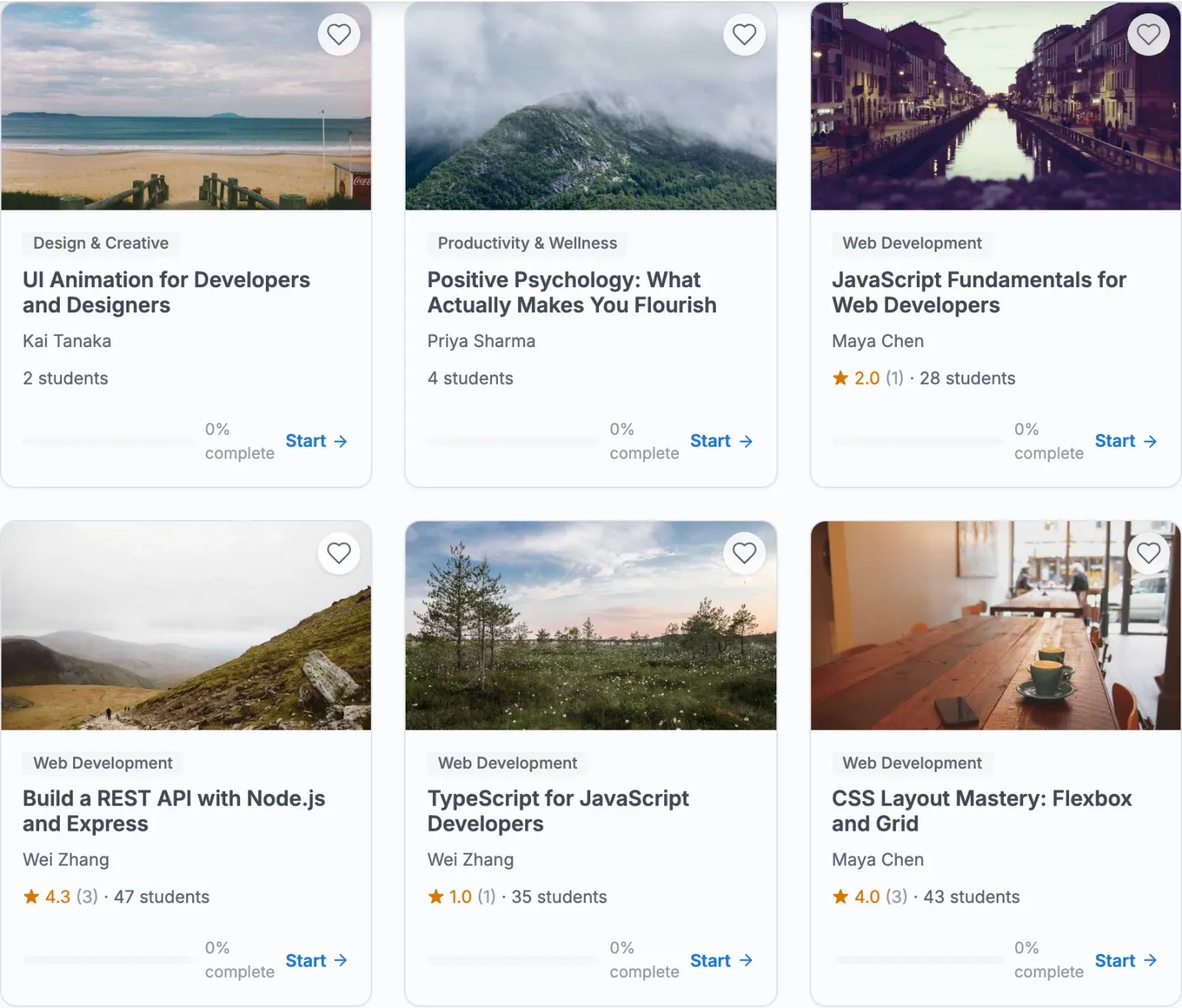
Section titled “Courses preview”A grid of the student’s enrolled courses is shown below the continue-learning card, giving quick access to the courses they are working through.
Recent activity
Section titled “Recent activity”A feed of recent course and lesson activity, including completions and quiz attempts.
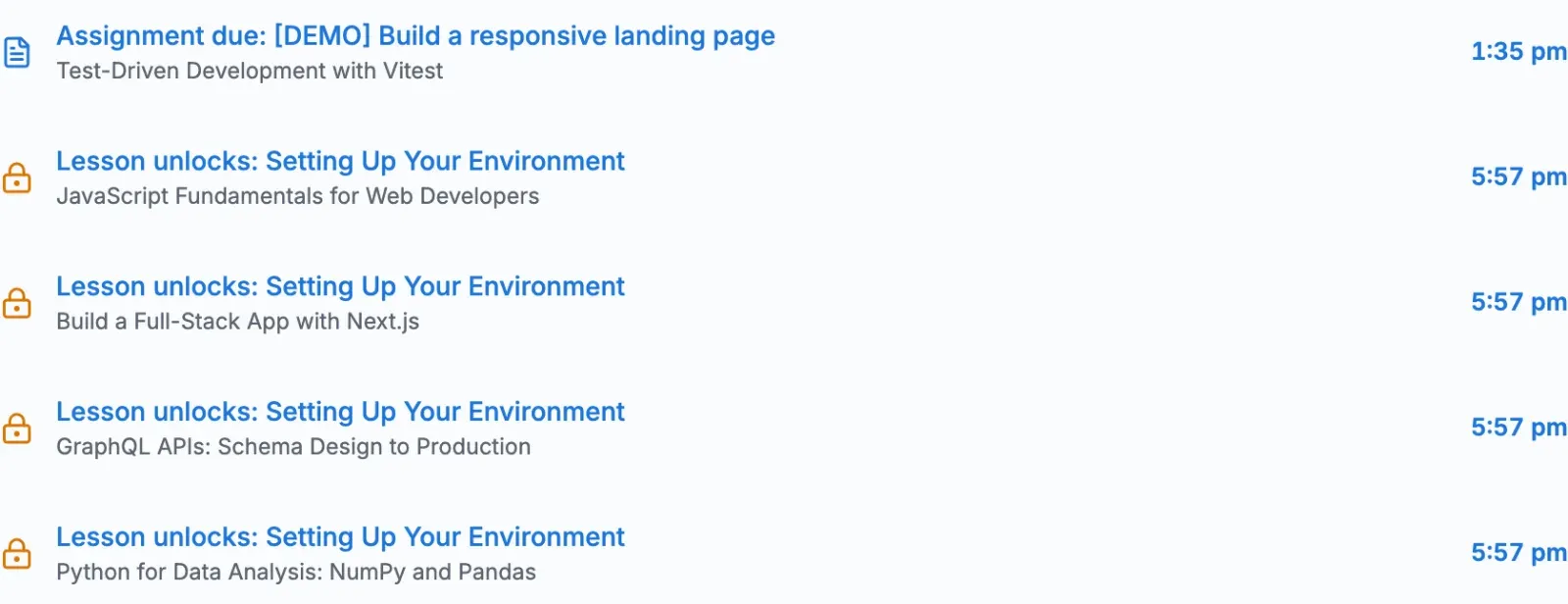
If the student has no enrollments yet, each widget shows an empty state with a link to the course catalog.
My Courses
Section titled “My Courses”The full course list is at /account/courses/.
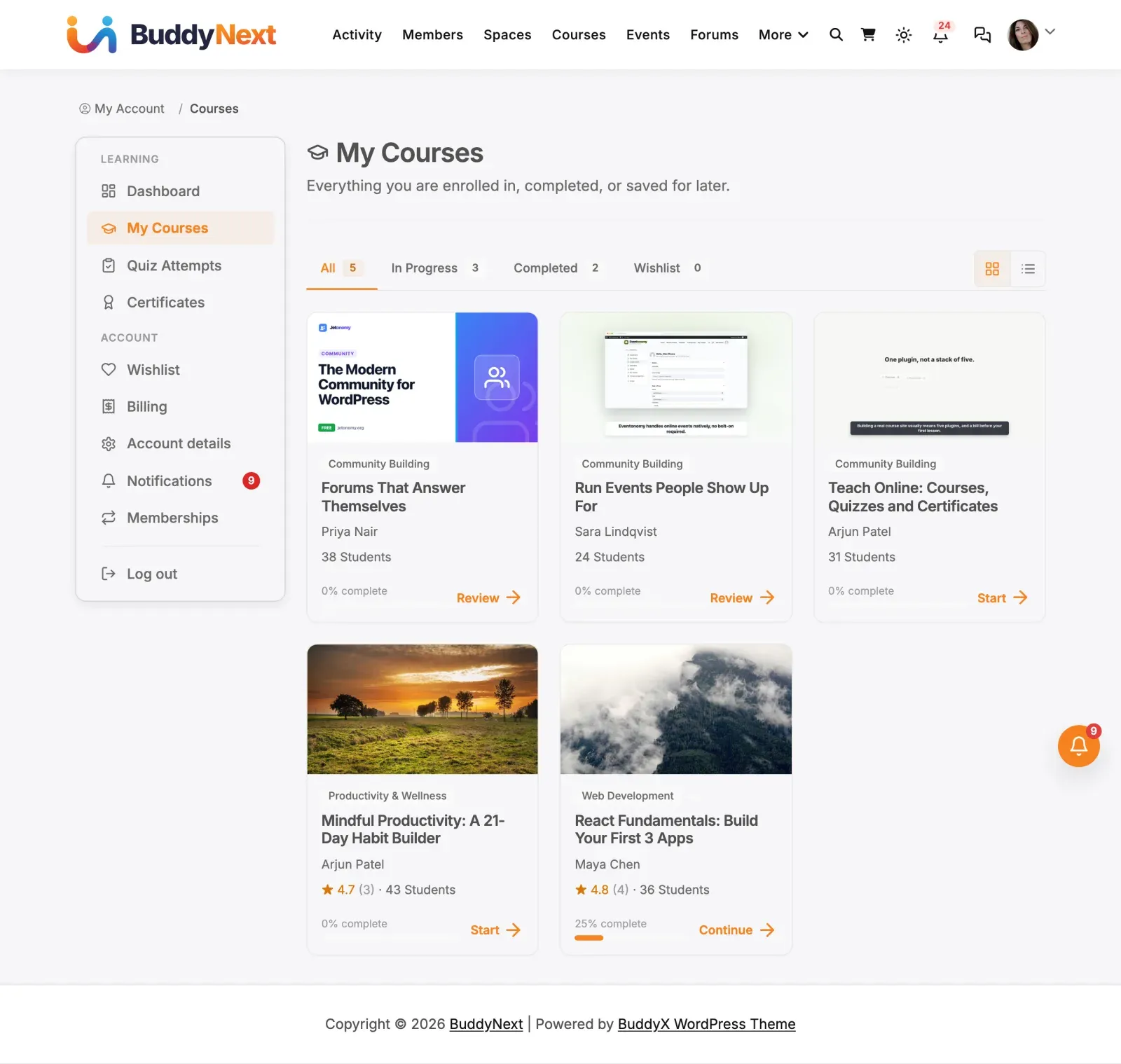
The tab bar at the top filters the list:
- All - every enrollment regardless of state.
- In Progress - courses started but not finished.
- Completed - courses the student has finished.
- Wishlist - courses saved to the wishlist but not yet enrolled.
Each tab shows its count next to the label.

The list loads 40 courses per tab. When more exist, a Load more button appears at the bottom of the tab panel to fetch the next page via REST without reloading the page.
Grid and list view
Section titled “Grid and list view”Two icon buttons at the right of the tab bar, labelled Grid view and List view, switch how the courses are laid out. The choice applies to every tab. It is remembered in the student’s browser and is the same setting the course catalog uses, so picking list view in one place shows list view in the other. If the browser blocks storage (for example in a private window), the choice lasts only until the page is reloaded. The number of columns follows the site-wide Catalog columns setting.
Course cards
Section titled “Course cards”Each enrolled course is shown as a card with the course title, progress (if in progress), and quick-access actions.
The footer of an enrolled card shows the progress bar with its “% complete” caption on one line above the bar, and a Start, Continue or Review link beside it. Continue and Start open the lesson the student left off at; Review (a finished course) opens the course page.


Account details
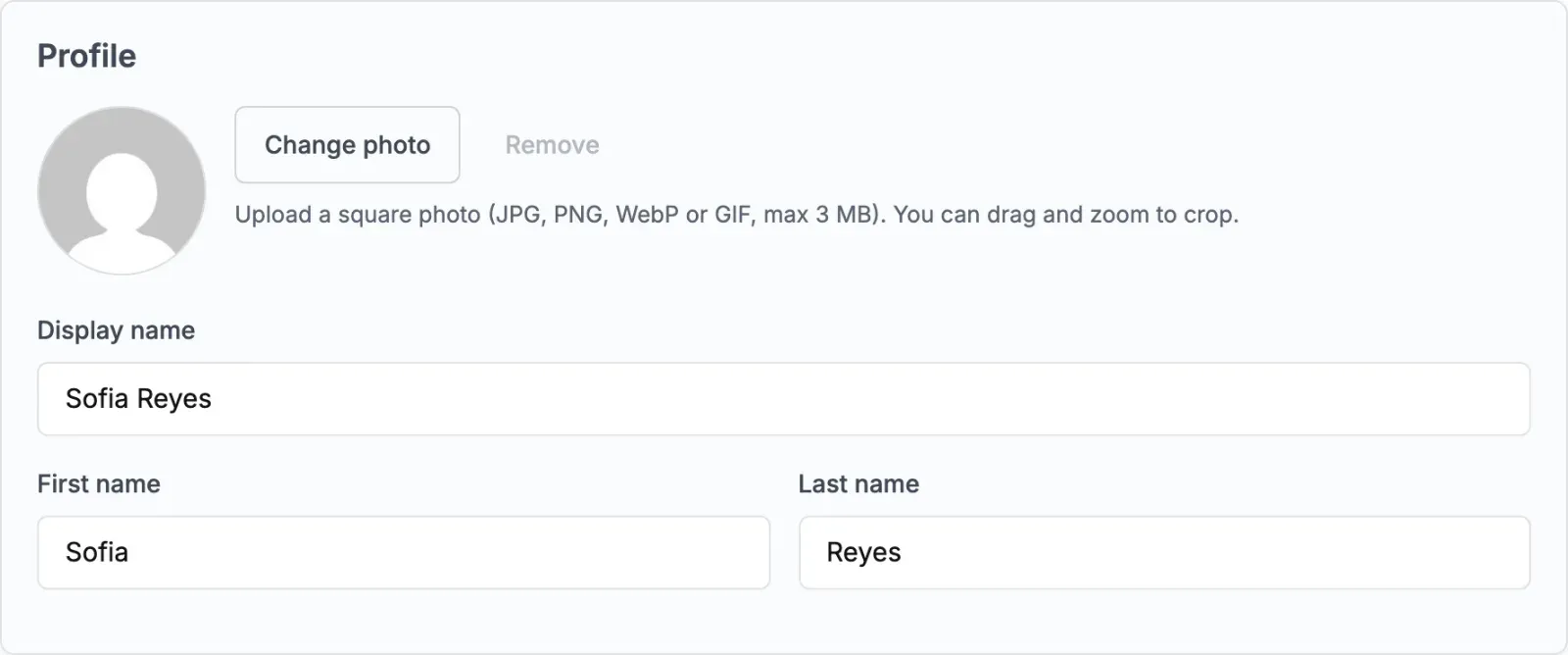
Section titled “Account details”The account details page at /account/details/ lets students update their profile and notification preferences.
Profile section
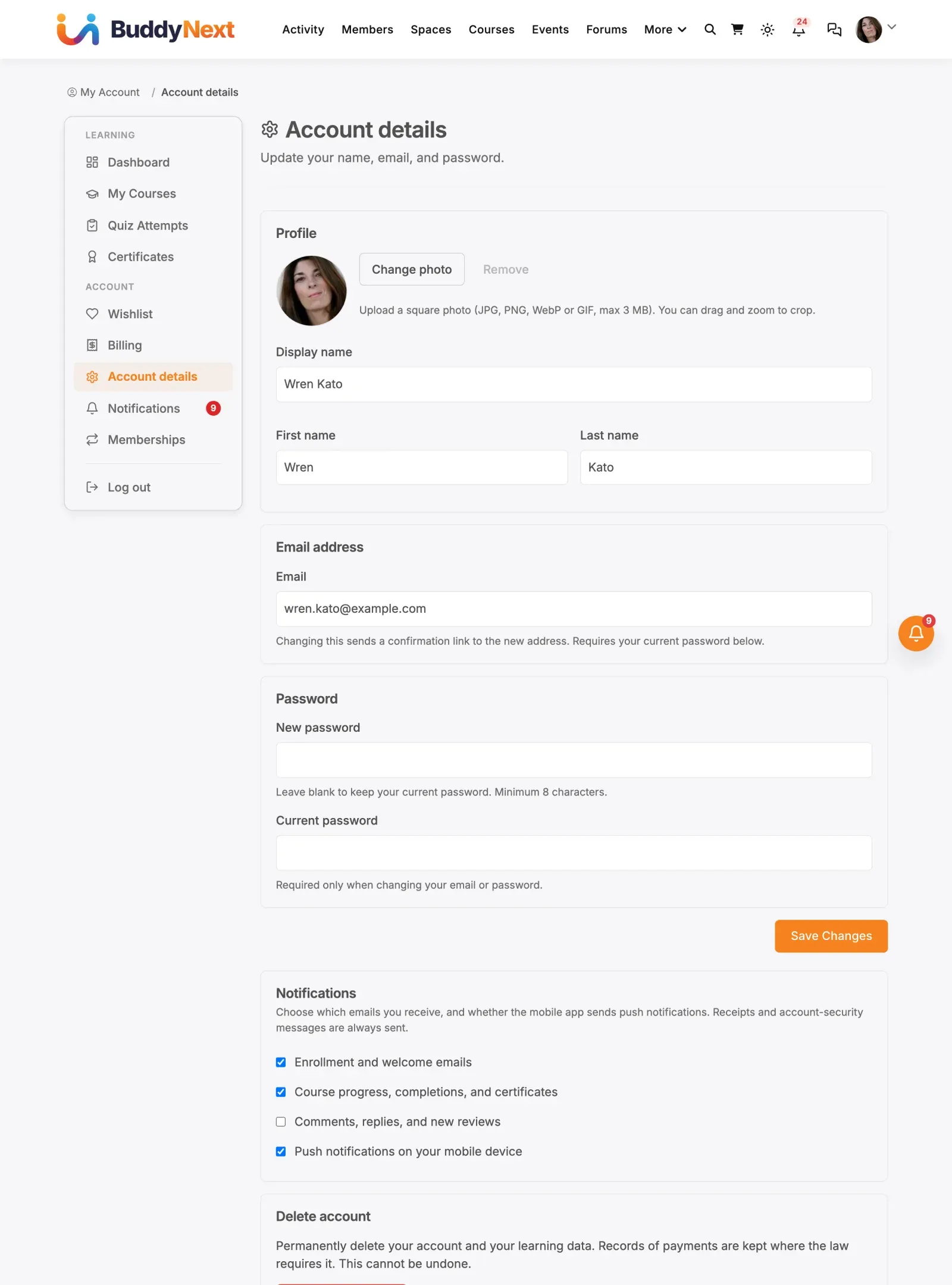
Section titled “Profile section”Students can change their Display name, First name, and Last name.
They can also set a profile photo. The profile section shows the current avatar with an upload control: pick an image and Learnomy crops it to a square and stores it as the account avatar, which then replaces the Gravatar across dashboards, the lesson player, certificates, and instructor profiles. A remove option clears the custom photo and falls back to the Gravatar. Uploaded photos are saved immediately through the account API, separate from the Save button on the rest of the form.
Email section
Section titled “Email section”To change the email address, the student types the new address and enters their current password. Learnomy sends a confirmation link to the new address. The email does not change until the student opens that link. While a confirmation is pending, a notice shows the pending address.

Password section
Section titled “Password section”To change the password, the student enters a new password (minimum 8 characters) and confirms with their current password. Leaving the new password blank keeps the existing password unchanged.
Notification preferences
Section titled “Notification preferences”Below the profile form, students choose which emails they receive and whether the mobile app sends push notifications. Four toggles are available:
- Enrollment and welcome emails
- Course progress, completions, and certificates
- Comments, replies, and new reviews
- Push notifications on your mobile device
The first three control email categories; the fourth is a single switch for mobile push notifications. Transactional emails (receipts and account-security messages) are always sent and do not appear in this list.
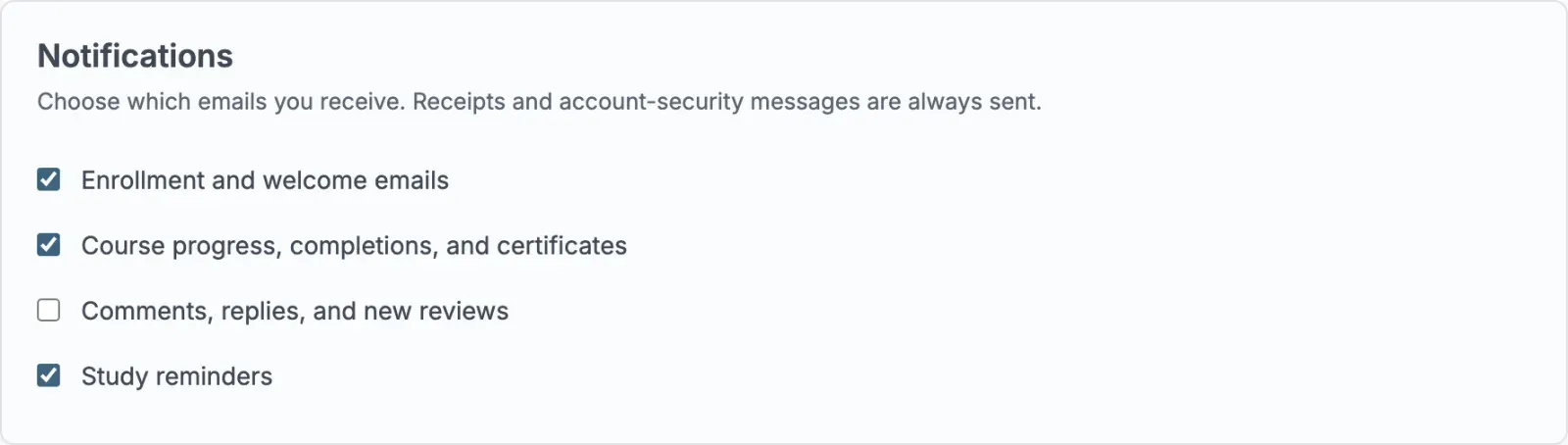
Each toggle saves immediately when changed. Unchecking a category stops that type of email. Checking it turns it back on.
Deleting the account
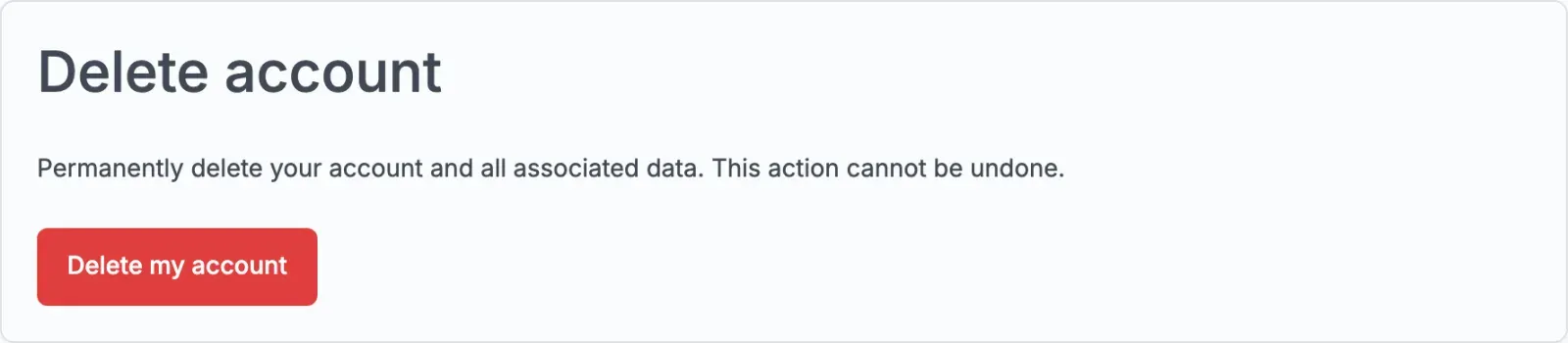
Section titled “Deleting the account”At the bottom of Account details, Delete my account opens a confirmation that asks for the student’s current password. With the right password the account and its learning data are permanently deleted; records of payments are kept where the law requires it. A wrong password deletes nothing and says so.
Page titles
Section titled “Page titles”Every account page has its own browser and search-results title instead of just showing your site name - for example, /account/certificates/ carries the title “My Certificates”, /account/billing/ carries “Billing”, and /account/details/ carries “Account details”. This applies to every Learning and Account section listed above, including the Pro modules (Notes & Bookmarks, Spaces, Learning Paths, Cohorts, Assignments).
For developers
Section titled “For developers”Any add-on that registers its own account route can title it through the learnomy_route_title filter, which Learnomy calls whenever a route has no built-in title:
add_filter( 'learnomy_route_title', function( $title, $route, $data ) { if ( 'account-my-custom-section' === $route ) { return __( 'My Custom Section', 'my-textdomain' ); } return $title;}, 10, 3 );A route with no matching case and no filtered title still falls back to a readable label derived from the route name, so a custom account page never shows a bare site name.
- The account navigation is the same across all account pages. Students can switch between Dashboard, My Courses, Certificates, Billing, and Account details without navigating away.
- The Dashboard stats derive from live enrollment and quiz data. They update immediately after a student completes a lesson or submits a quiz.
- A new registration banner appears on the dashboard the first time a user with no prior student role visits
/account/. It clears once they navigate away.