

Outgoing Webhooks
Learnomy overviewFree + ProGet Learnomy →
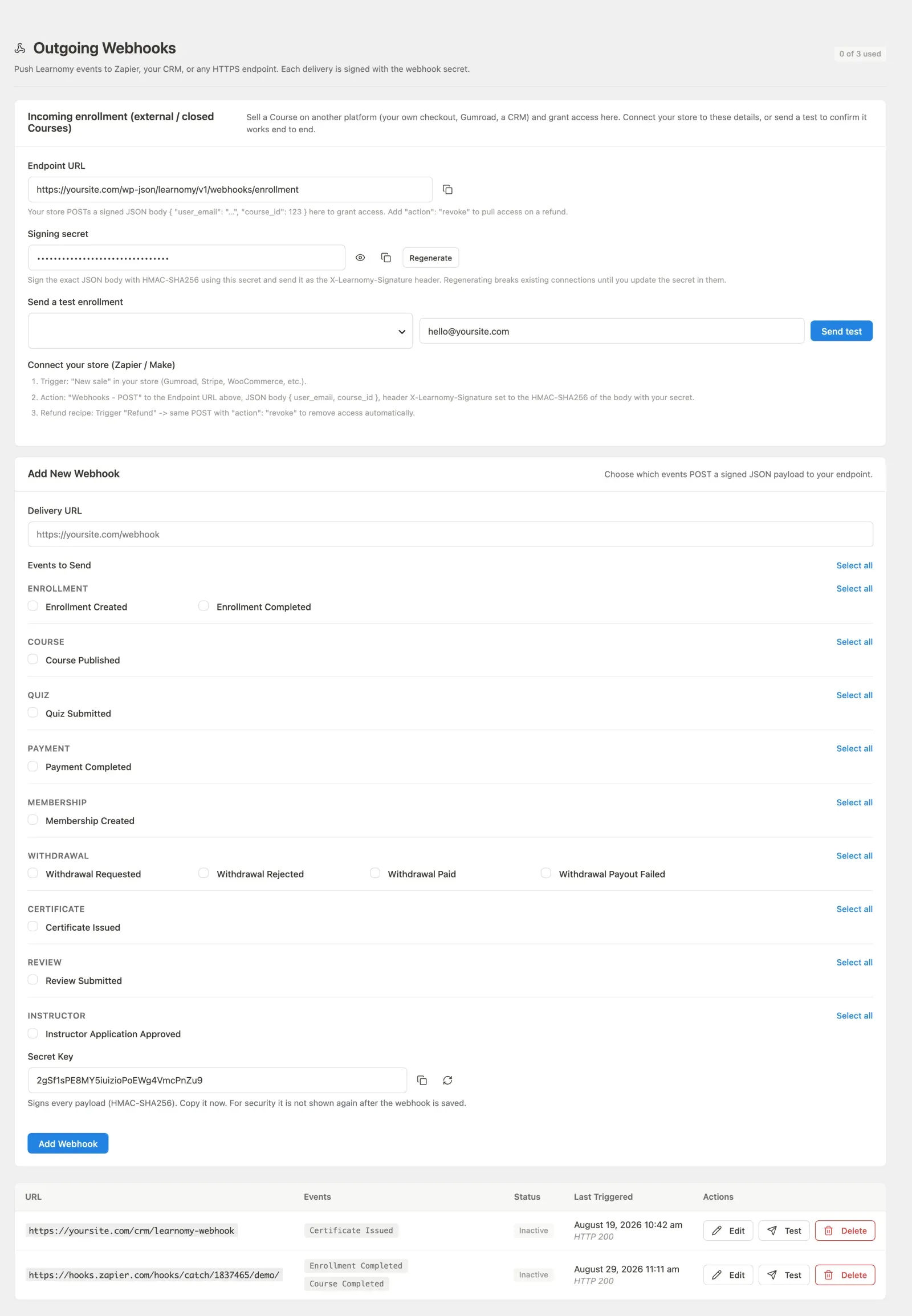
Outgoing webhooks let Learnomy POST a signed JSON payload to an external URL every time a chosen event occurs. Use them to connect Learnomy to Zapier, your CRM, a custom backend, or any HTTPS endpoint.
Overview
Section titled “Overview”Webhooks are managed from LMS Settings > Webhooks in the admin sidebar. Each webhook has a delivery URL, a set of subscribed events, a secret key for signature verification, and a status. The Free plan supports up to 3 webhooks. Learnomy Pro removes this limit.
Adding a Webhook
Section titled “Adding a Webhook”-
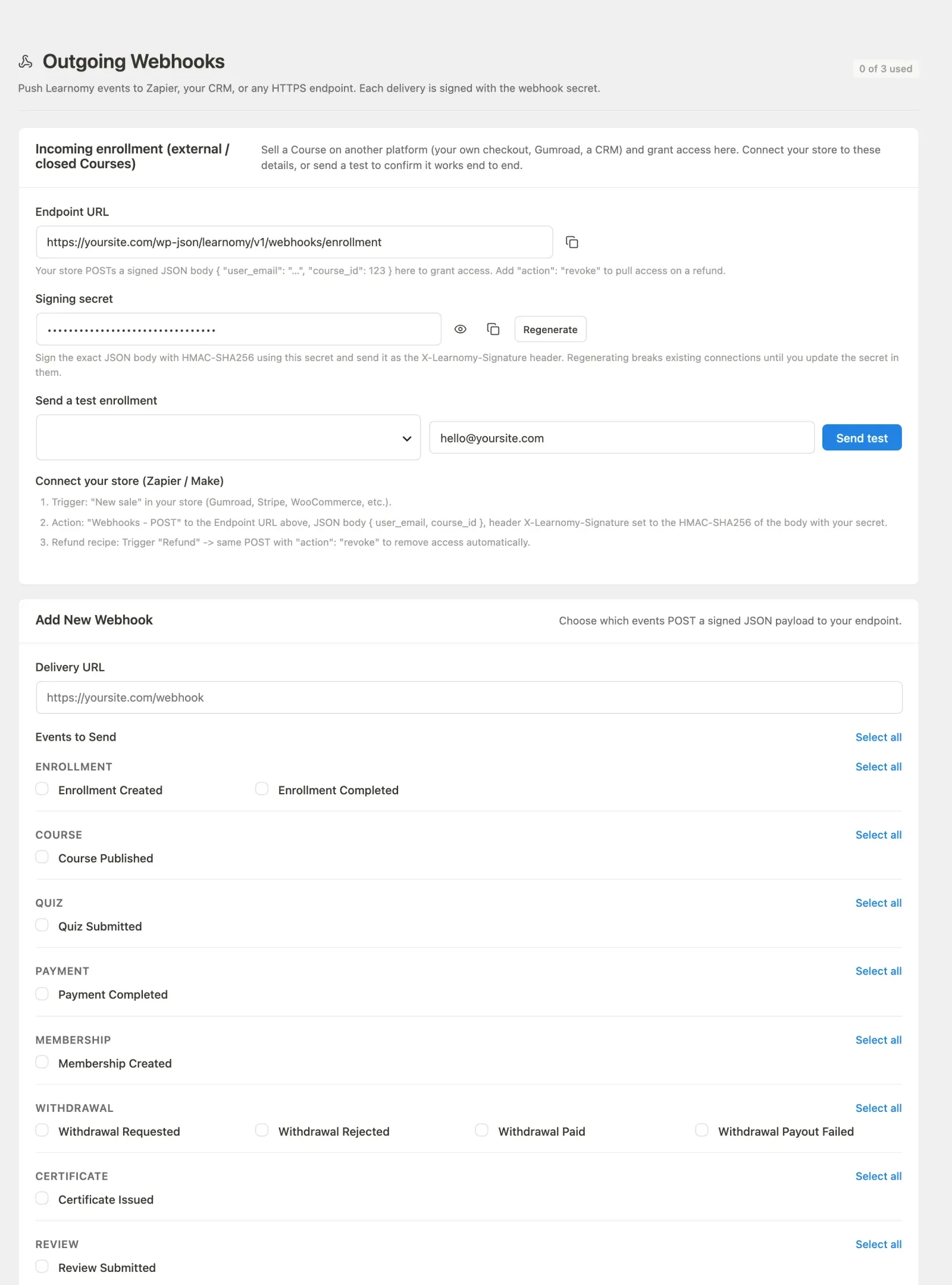
Go to LMS Settings > Webhooks in the admin sidebar.
-
The page header shows how many of your webhook slots are in use.

-
Fill in the Add New Webhook form.
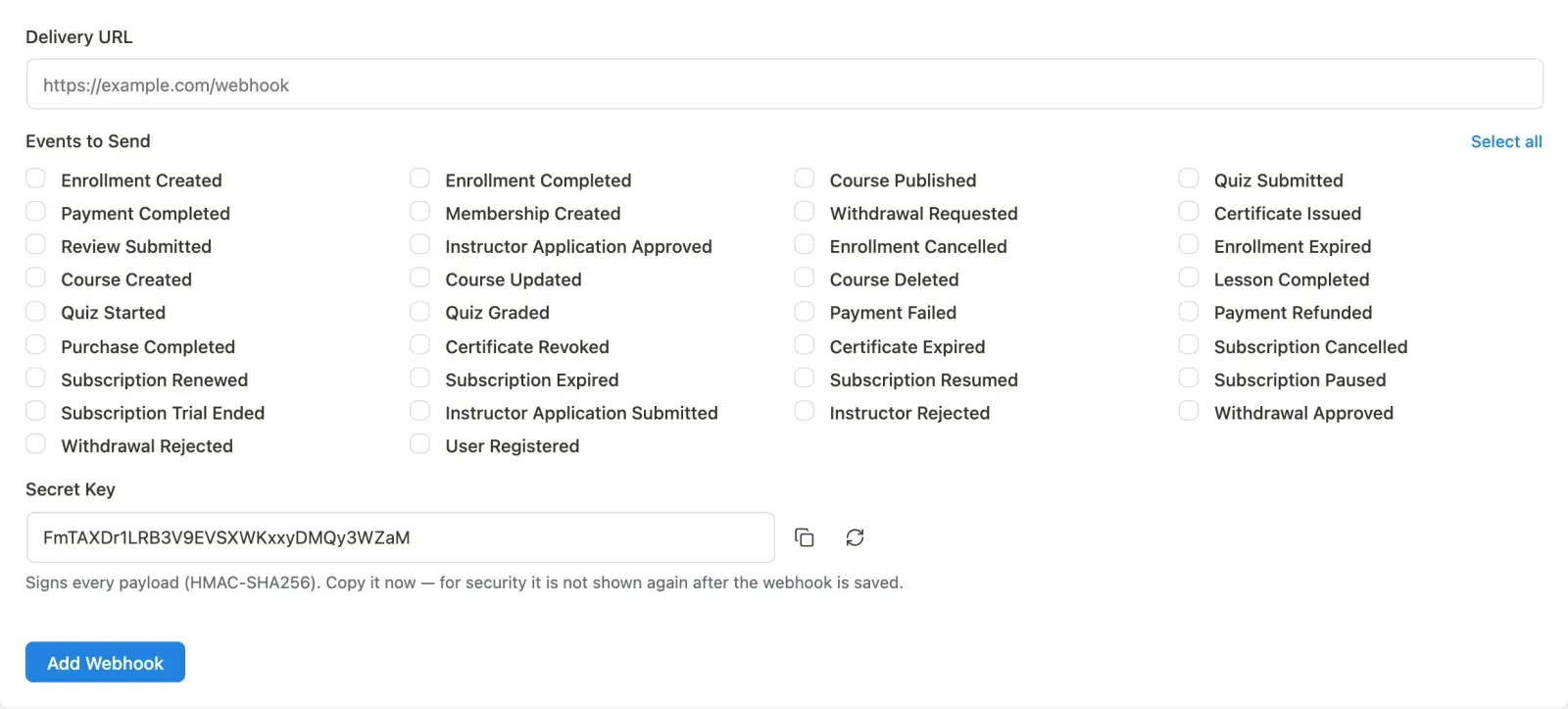
- Delivery URL: The HTTPS endpoint that will receive the POST. Must be a valid URL.
- Events to Send: Check every event type you want this webhook to fire on. Use Select all to check every option at once.
- Secret Key: A random 32-character key is pre-filled. Copy it now. For security, it is not shown again after you save. You can also click the regenerate button to get a new key, or copy the current value using the copy button.
-
Click Add Webhook.
The webhook appears in the table below the form immediately.
Available Events
Section titled “Available Events”Events come from Learnomy’s canonical event catalogue. The checkboxes in the form list every event that can fire an outgoing webhook. Pro’s Webhooks Pro extension adds additional lifecycle events via the learnomy_pro_webhooks_event_slugs filter. Every event and the exact fields its payload carries are listed in Webhook Events and Payloads.
Viewing and Editing Webhooks
Section titled “Viewing and Editing Webhooks”The webhooks table shows all configured webhooks.
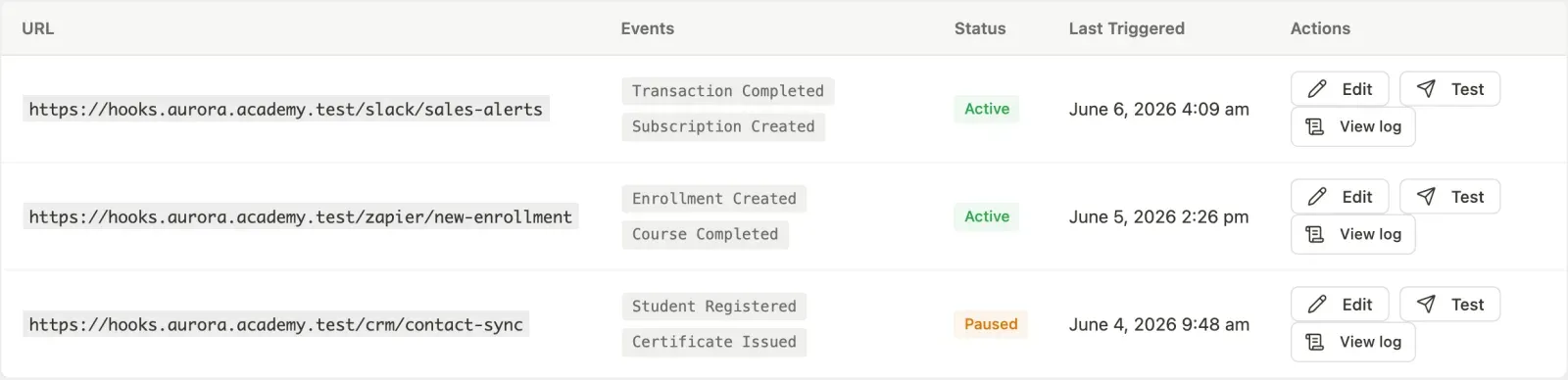
| Column | What it shows |
|---|---|
| URL | The delivery endpoint (truncated to 60 characters; hover for the full URL) |
| Events | Badge-style list of subscribed event types |
| Status | Active, Paused, Disabled, or Failed |
| Last Triggered | Date and time of the most recent delivery attempt, or “Never” |
| Actions | Edit, Test, and Delete buttons |
Edit: Opens the Add Webhook form pre-filled with the webhook’s current URL and events. You can update the URL and events, then save. Note: editing does not change the secret key; the stored secret is preserved.
Test: Sends a test payload to the endpoint immediately. Use this to confirm your endpoint is reachable and that the signature verification in your receiver is working before waiting for a real event.
Delete: Permanently removes the webhook and stops all future deliveries to that URL. A confirmation prompt appears before the delete completes.
The Free 3-Endpoint Limit
Section titled “The Free 3-Endpoint Limit”Free installations can configure up to 3 outgoing webhooks. When you have reached the limit, the Add New Webhook form is replaced by a notice pointing to Learnomy Pro.
Pro feature. Available in Learnomy Pro. Learnomy Pro removes the 3-webhook cap so you can configure as many outgoing webhooks as needed. See the “What’s in Pro” page under LMS Settings.
Turn the extension on first. Webhooks Pro ships switched off, like almost every Pro extension. Go to LMS Settings > Modules, find Webhooks Pro, and enable it. Until you do, its menu items and settings do not appear at all, which reads as a missing feature rather than an unflipped switch.
When an endpoint keeps failing (Webhooks Pro)
Section titled “When an endpoint keeps failing (Webhooks Pro)”With Webhooks Pro on, Learnomy stops sending to an endpoint that is clearly down, so a dead address cannot fill the queue:
- An endpoint is paused when 10 delivery attempts in a row have failed and it has been failing for at least 15 minutes. A short outage or a burst of failures inside a few minutes does not pause it. One successful delivery resets the count.
- A paused webhook shows Failed in the table with the line “Events are paused for this endpoint. Fix it, then click Test.” Events raised while it is paused are not sent later.
- The site administrator gets one email, which names the endpoint’s host only (a webhook address often carries its own secret), and a notice appears on Learnomy’s admin screens with a link to Webhooks.
- To resume, fix the endpoint and click Test. A successful test turns the webhook back on and it starts from a clean count.
Deliveries are also rationed: one background run sends at most 5 deliveries, or 20 seconds’ worth, per minute, and puts the rest back on the queue. Developers can change the number with the learnomy_pro_webhook_deliveries_per_run filter. The address check remembers a host’s DNS answer for five minutes, so many queued deliveries to one host do one lookup.
Verifying Signatures
Section titled “Verifying Signatures”Every outgoing payload is signed with HMAC-SHA256 using the secret key you set when creating the webhook. Learnomy adds an X-Learnomy-Signature header to each request. In your receiver, compute HMAC-SHA256(secret, raw_body) and compare it to the header value to confirm the payload came from your site.
- A webhook with Failed status has encountered repeated delivery errors. Check your endpoint for downtime or errors, then use the Test button to confirm it is reachable again. A successful Test turns the webhook back on.
- Once saved, the secret key is not shown again or retrievable through the admin UI. If you lose it, delete the webhook and create a new one.
- Learnomy validates delivery URLs against a server-side allowlist to prevent SSRF attacks. Private IP addresses, localhost, and reserved ranges are rejected.
- Pro’s Webhook Delivery Log gives a per-webhook history of every outbound delivery, response code, and retry. See Webhook Delivery Log.