

Cohorts
Learnomy overviewFree + ProGet Learnomy →
Cohorts (Pro)
Section titled “Cohorts (Pro)”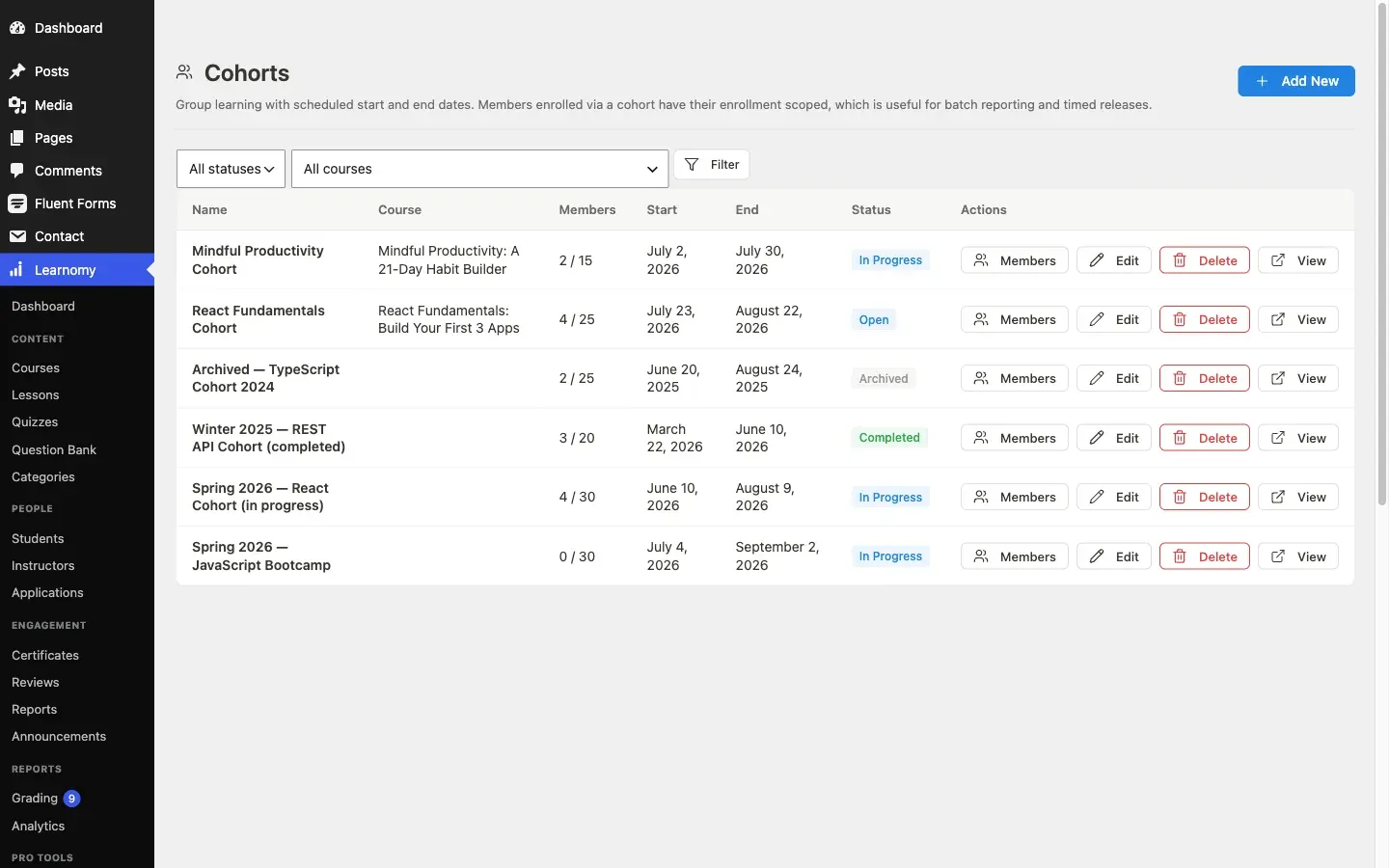
Pro feature. Available in Learnomy Pro.
Turn the extension on first. Cohorts ships switched off, like almost every Pro extension. Go to LMS Settings > Modules, find Cohorts, and enable it. Until you do, its menu items and settings do not appear at all, which reads as a missing feature rather than an unflipped switch.
Cohorts let you run the same course in scheduled batches. Each cohort is tied to one course, has a fixed start and end date, and caps the number of seats. Students added to a cohort are auto-enrolled in the course, and their enrollment row records which cohort they belong to so you can filter and report on them as a group.
Overview
Section titled “Overview”Go to Learnomy > Pro Tools > Cohorts to manage all cohorts. The page shows a table with each cohort’s name, linked course, member count, start date, end date, and status.
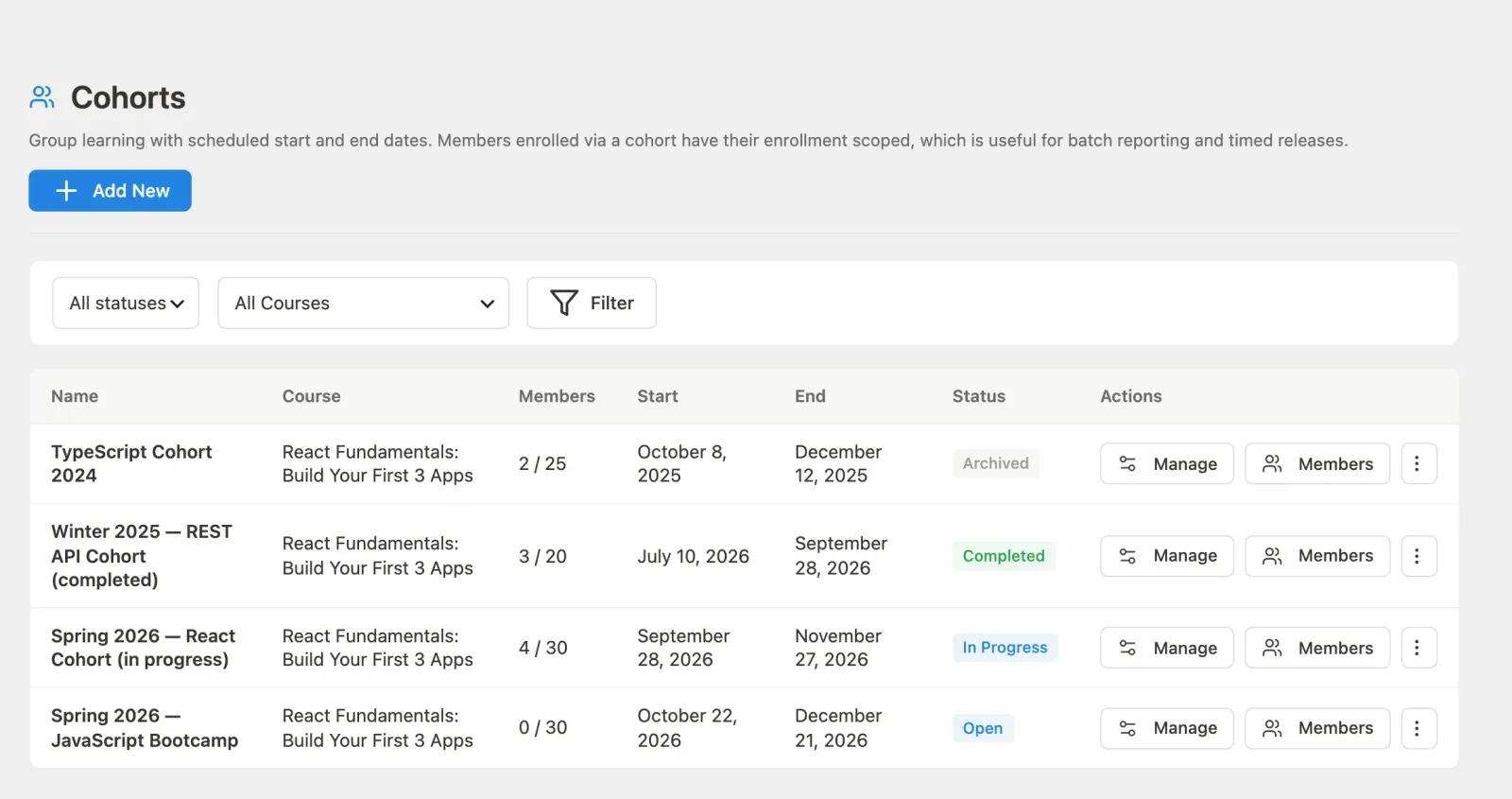
Cohort status can be one of: Draft, Open (accepting members), In progress, Completed, or Archived. Status transitions are manual in this release.
Creating a cohort
Section titled “Creating a cohort”-
Click Add new in the top-right corner. The create form slides into view above the table.

-
Fill in the fields:
- Cohort name (required) - a label for this batch, for example “Spring 2026 cohort”.
- Course (required) - select any published course from the dropdown.
- Start date and End date - optional calendar inputs. Leave blank if the cohort has no fixed schedule.
- Max students - defaults to 30. The wp-admin form accepts 1-999. (The REST API additionally accepts 0 for unlimited and does not enforce the 1-999 bound.)
- Status - set to Open (accepting members) when you are ready to add students. Newly created cohorts default to Draft.
-
Click Save cohort. The new cohort appears in the table immediately.
Adding and removing members
Section titled “Adding and removing members”-
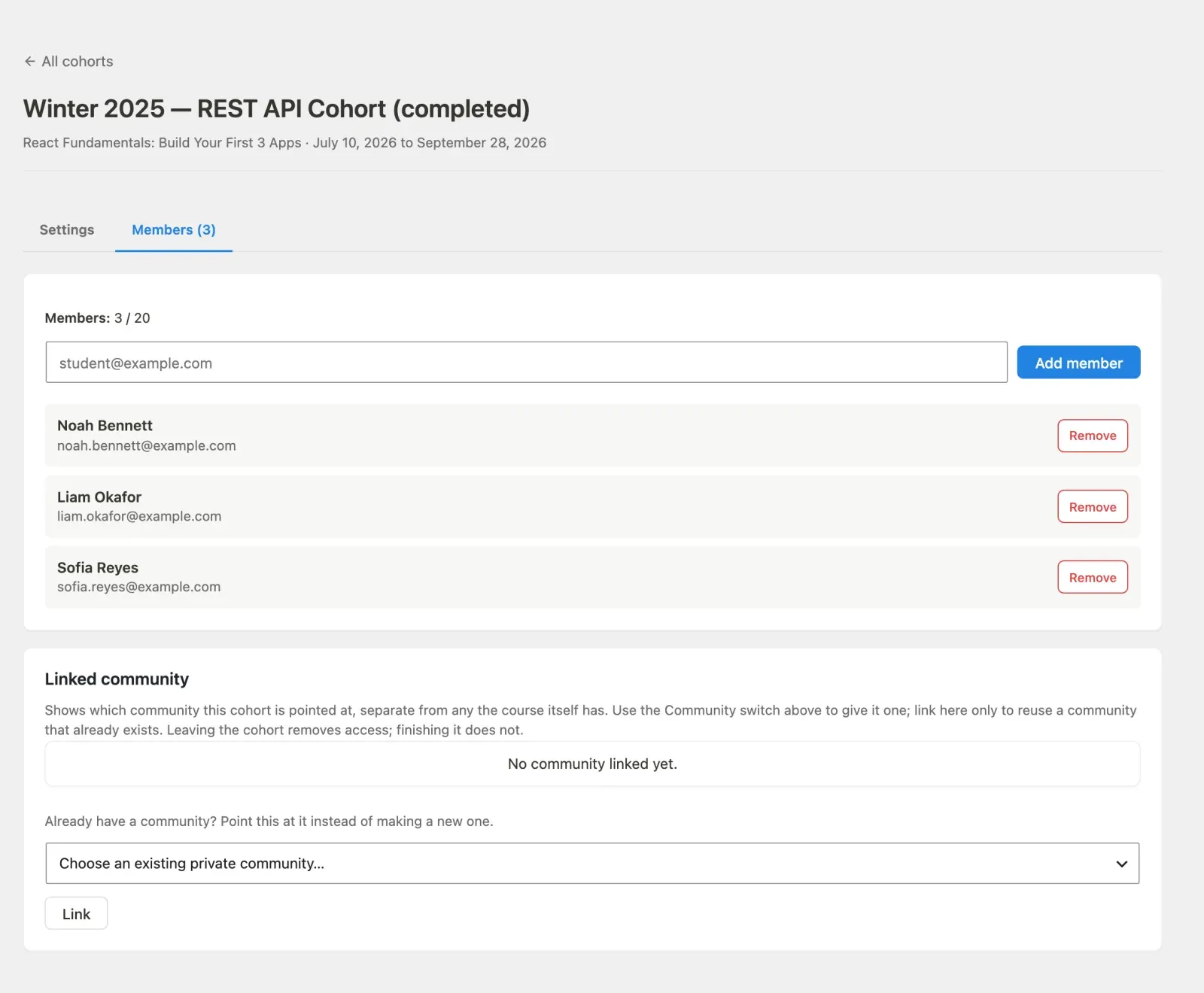
In the cohort table, click Members in the Actions column to open the members view for that cohort.
-
To add a student, type their email address into the Add member field and confirm. The student is added to the cohort and automatically enrolled in the cohort’s course. Their enrollment row records the cohort ID.

-
To remove a member, click Remove next to their row. This removes them from the cohort but does not unenroll them from the course.
Bulk CSV import is not available in this release. Add members one at a time using the email lookup.
Learning Spaces
Section titled “Learning Spaces”A Learning Space owner or manager does not manage cohorts. Cohorts are run by the academy: an administrator, the course owner, or the instructor named on the cohort. A space member who is granted a course that uses cohorts is placed in its open cohort automatically; if the course has more than one open cohort they choose one from My Account > Cohorts.
Editing a cohort
Section titled “Editing a cohort”Click Edit next to any cohort row. The same form reappears pre-filled with the current values. Update the fields and click Save cohort to apply changes.
Who can run a cohort
Section titled “Who can run a cohort”The instructor named on a cohort runs it, even when someone else owns the course. They can see the full member list and each member’s progress, add and remove members, and edit the cohort’s title, dates, capacity and status.
They cannot move the cohort to a different course, hand it to another instructor, or delete it. Moving it needs someone who manages both the course it is on and the course it is going to. Deleting it is for the course owner and administrators. Reassigning the instructor is for administrators.
To name an instructor, an administrator picks them in the Instructor field, which is on the Add New form as well as on an existing cohort’s settings in Learnomy > Cohorts. Type in the box above the list to narrow it by name. Only an administrator or an instructor can be named; a student cannot. Choose No one named to leave the cohort with the course owner. A cohort an administrator creates starts with nobody named; one an instructor creates is named to that instructor. If a named instructor’s account is deleted, the cohort goes back to nobody named.
The course owner and administrators can do all of the above. Other instructors, including a co-instructor who is not named on the cohort, cannot see it.
Deleting a cohort
Section titled “Deleting a cohort”Click the overflow menu (three-dot icon) in the Actions column and choose Delete. Deleting a cohort removes the cohort record and clears the cohort_id from any related enrollment rows. Students remain enrolled in the course.
Cohort progress
Section titled “Cohort progress”On Instructor Dashboard > Cohorts, click Progress on a cohort to see each member’s completion and an At risk badge, with an At-risk only filter. The same data is available from GET /learnomy-pro/v1/cohorts/{id}/progress, to whoever runs the cohort.
When a member is at risk
Section titled “When a member is at risk”A member is flagged when either of these is true:
- They have done nothing in the course for more than 10 days.
- Their progress is more than 25 points behind where the cohort’s schedule says they should be.
Both are counted from the later of the cohort’s start date and the day the member joined. So nobody is at risk before the cohort starts, a member added today is not at risk today, and someone who joins halfway through is measured from the day they joined, not from the start. A member who has completed the course is never at risk.
In a cohort that is In progress, at-risk members are also sent a reminder email, using the same rule.
Developers can change the thresholds per cohort with the learnomy_pro_cohort_at_risk_inactive_days and learnomy_pro_cohort_at_risk_grace filters.
The learner experience
Section titled “The learner experience”Students enrolled via a cohort see the course exactly as any other enrolled student would. There is no separate cohort-facing page in this release. If a student visits /cohorts/{id}/ they see the cohort name, linked course, dates, and capacity; enrolled members also see a Continue Learning button.
For developers
Section titled “For developers”GET /learnomy-pro/v1/cohorts lists only cohorts on courses the viewer may see. For a non-admin that is the courses they teach, plus any cohort they are named on.
- Status transitions are manual. When your cohort’s start date passes, switch the status from Open to In progress yourself.
- The enrollment gate fires when status is set to a mode other than Open. If your course settings require cohort membership, students who are not in an Open cohort cannot self-enroll.
- Member counts and all list queries are paginated at the database level, so cohorts with thousands of members load at the same speed as cohorts with ten.