

Checkout and Purchase Flow
Learnomy overviewFree + ProGet Learnomy →
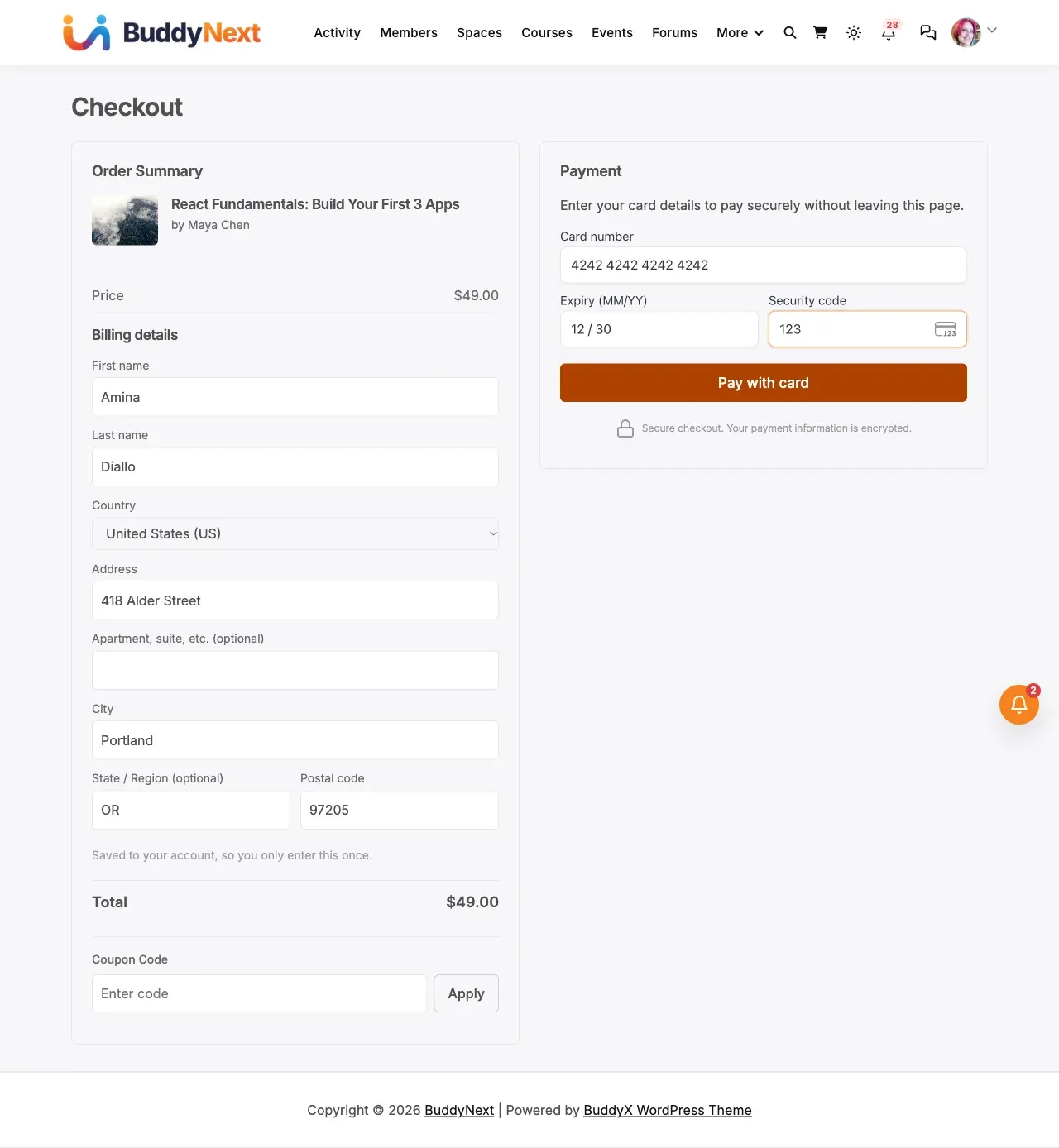
Learnomy gives buyers one on-page checkout that works with whichever gateway you have enabled. The buyer sees an order summary, enters a coupon if they have one, and pays without leaving the page for Stripe and the test gateway. After payment they land on a thank-you page; if they back out at the gateway they land on a cancelled page.
What you can do
Section titled “What you can do”- Sell a course or a membership plan through one unified checkout at
/enroll/?course_id=Nor/enroll/?plan_id=N. - Take card payments on-page with Stripe (the card form renders inside the checkout, no redirect), or send buyers to PayPal or WooCommerce.
- Show a clear order summary with the price, any sale discount, a coupon line, the tax line, and the total.
- Let buyers apply a coupon code and see the total recalculate before they pay.
- Skip the payment provider entirely when a coupon (or a fully discounted price) zeroes the total – the buyer is enrolled directly.
- Hide the payment-method selector when only one gateway is enabled, so a single method reads as a clean form instead of a one-option radio.
- Land every buyer on a thank-you page that confirms the order, or a cancelled page if they abandon the gateway.
How to use it
Section titled “How to use it”Step 1 – reach the checkout
Section titled “Step 1 – reach the checkout”A buyer reaches checkout by clicking Buy or Enroll on a course page or a membership plan card. That links to /enroll/?course_id=N (course) or /enroll/?plan_id=N (plan). Checkout requires the buyer to be logged in, unless you turn on guest checkout (below).
Step 2 – review the order summary
Section titled “Step 2 – review the order summary”The left side shows the item (thumbnail, title, instructor, and a Membership badge for plans) and, for paid items, a price breakdown: Price, any Sale discount, a Coupon line, the Tax line when tax is on, and the Total.
Step 3 – apply a coupon (optional)
Section titled “Step 3 – apply a coupon (optional)”The buyer enters a code and clicks Apply. A valid code adds a coupon line and updates the total; feedback reads immediately. If a coupon or a fully discounted price brings the total to zero, no gateway is used – Learnomy enrolls or subscribes the buyer directly, because payment providers reject a zero charge.
Step 4 – fill in billing details
Section titled “Step 4 – fill in billing details”Above the payment method, the buyer supplies a billing address: first and last name, company, country, two address lines, city, state, postcode, email, phone, and a tax registration number (GSTIN in India, VAT ID in the EU – one field covers both).
Six of those are required before a purchase can go through: first name, last name, country, address line 1, city, and postcode. The rest are optional.
If the buyer presses the pay button with any of them empty, the page shows “Add your billing details to continue.” above the form and a line reading “This field is required.” under each empty field. A line disappears as soon as its field is filled in. This is the same for every payment method and for guest checkout.
The address belongs to the buyer, not to the order. It is stored on their user account, so the fields come back pre-filled on their next purchase and they never retype it. Each order also keeps its own frozen copy taken at the moment of purchase, so editing the address later never rewrites an old receipt.
The same details are collected whichever gateway the buyer uses. Before this, the address came from Stripe’s own address widget, which meant a PayPal or WooCommerce buyer supplied no address at all, a company name and tax number could not be captured, and nothing was kept afterwards.
Site owners running WooCommerce get this for free in both directions: the fields
use WooCommerce’s own billing_* user-meta keys, so an address Woo already
collected pre-fills a Learnomy checkout and vice versa. WooCommerce is not
required – without it these are ordinary user meta.
Step 5 – pay
Section titled “Step 5 – pay”The right side shows the payment method:
- Stripe – the card fields render on the page, themed to your site. The buyer enters their details and clicks Complete Purchase without leaving the page.
- PayPal – the PayPal button renders in place; the buyer completes payment through PayPal.
- WooCommerce – the buyer is sent to the WooCommerce cart to finish.
- Test – a test-mode button simulates a successful payment with no real charge.
When only one gateway is enabled, the method selector is hidden and the single method is shown directly.
Step 6 – land on the result page
Section titled “Step 6 – land on the result page”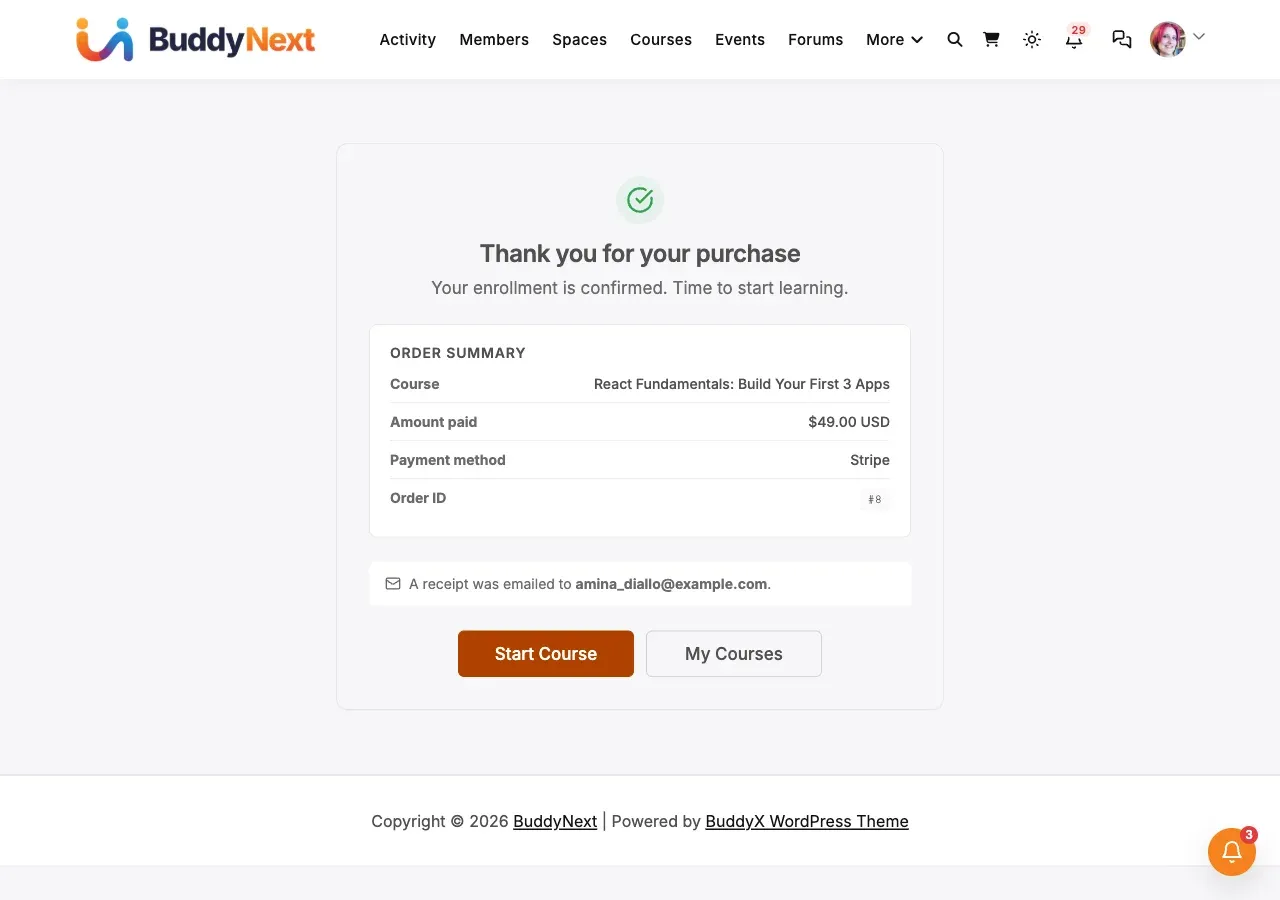
-
Thank-you (
enroll-thank-youroute) – confirms the purchase with an order summary and next-step buttons. If the webhook has not confirmed the payment yet, the page shows a “Setting up your enrollment” pending state that refreshes itself until the payment clears, then a failed state if it does not go through.Only the buyer sees a sale on this page. A logged-in member sees only their own purchases. A guest returning from Stripe, PayPal or the Test gateway sees theirs only through the unguessable payment reference in the page address, and only for the first hour after the purchase. For WooCommerce, a guest sees WooCommerce’s own order confirmation page, opened by the order key in its address, for the first 10 minutes by default (WooCommerce’s guest grace period); after that, a shared or old link asks for a login.
-
Cancelled (
enroll-cancelledroute) – shown when the buyer abandons the gateway. No charge is made and nothing is recorded; the page offers to try payment again or browse other courses or plans.
Settings and options
Section titled “Settings and options”The checkout adapts to what you have configured; there is no separate “checkout” settings page.
- Which gateways appear comes from the Payments settings – Stripe, PayPal, WooCommerce, and the Test gateway each have their own enable toggle. WooCommerce, when enabled, is the exclusive checkout route for every purchase type; otherwise the checkout shows whichever of Stripe, PayPal and Test are enabled. See Payment Gateways.
- The tax line appears when tax is enabled. See Tax (Flat Rate).
- Coupons are validated against your coupon rules. See Coupons.
- Free items show a “Free Enrollment” panel with an Enroll for Free button instead of a payment form.
- Guest checkout (LMS Settings > Payments > Guest checkout) lets a logged-out visitor buy or enroll with just an email. The account is created once the payment is confirmed, or straight away for a free course, and gets a set-password email. It works with every gateway, including WooCommerce, where the email and billing details carry over to the WooCommerce checkout. With it on, the Buy and Enroll buttons on the course page take a logged-out visitor straight to the checkout instead of a sign-up page. An email that already has an account is asked to log in instead, so nobody can put orders on someone else’s account. If you use a sign-up CAPTCHA or similar challenge plugin, it runs on guest checkout too, because a guest checkout can create an account. Each network can start up to 10 guest checkouts an hour; checking whether an email already has an account counts toward that limit, and a buyer over the limit is asked to try again in an hour or log in. Guest checkout creates accounts even when “Anyone can register” is off.
- Already enrolled buyers see an “Already Enrolled” message with a link to the course instead of a second checkout, and a repeated paid checkout for a course the buyer already owns is blocked.
For developers
Section titled “For developers”Stop selling a paid course without unpublishing it: return false from learnomy_course_is_purchasable (args: $purchasable, $course, $user_id). Existing subscribers keep renewing; checkout refuses new purchases, and the course page and catalog show “This course is not currently available for purchase.” instead of a Buy button.
To tell the buyer why, return a WP_Error instead of false, for example new WP_Error( 'full', 'No seats left. The next intake opens in March.' ). Its message is shown as plain text (any HTML is stripped) in place of the Buy button on the course page, in the Enrollment CTA block and its Elementor widget, and on the checkout page, and POST /checkout answers 400 with the same message. Catalog cards keep the short generic line. The filter is asked in one place, Course::purchase_refusal( $course, $user_id ), which returns null when the course can be bought, an empty string for a plain refusal, or the reason.
Behind a CDN or proxy, per-IP limits need it declared: learnomy_trusted_proxies (see Registration and Login Security). Guest checkout: learnomy_allow_guest_checkout (per course on or off), learnomy_guest_checkout_rate_limit (guest checkout attempts per IP per hour, default 10, 0 turns the limit off; a probe with an email that already has an account counts too), and learnomy_registration_challenge_verify (the sign-up CAPTCHA seam, which also runs on guest checkout). learnomy_guest_account_created fires once a guest’s account and transaction both exist.
Routes (built through the Route Registry, never hardcoded):
enroll– the checkout page (templates/checkout.php).enroll-thank-you– post-purchase landing (templates/checkout-thank-you.php).enroll-cancelled– gateway-abandon landing (templates/checkout-cancelled.php).
REST (Learnomy\API\Checkout_Controller, namespace learnomy/v1):
POST /checkout– unified checkout; resolves the gateway from the request and returns aclient_secret(Stripe on-page) or aredirect_url(PayPal / WooCommerce). Free / zeroed orders enroll directly.POST /checkout/subscribe– create a recurring subscription for a membership plan.POST /webhooks/{gateway}– public, signature-verified webhook ingestion (with a back-compat/checkout/webhooks/{gateway}alias).Checkout_Controller::thank_you_url( $gateway_id, $context )/::cancelled_url( $context )– the canonical return-URL builders. Pro reuses these rather than building return URLs itself.
Return-page actions:
learnomy_thank_you_rendered– fires after the thank-you page renders (transaction row, user id). Pro analytics use it for conversion pixels and drip triggers.learnomy_cancelled_rendered– fires after the cancelled page renders (course id, plan id). Used for abandoned-cart follow-up.