

Course Reviews
Learnomy overviewFree + ProGet Learnomy →
Course reviews let enrolled students rate and comment on the courses they have taken. Admins can moderate every review before it appears publicly, or enable auto-approval to publish reviews immediately.
Overview
Section titled “Overview”Reviews are managed from Learnomy > Reviews in the admin sidebar. The page shows every review submitted on your site, grouped by status tab. You can approve, reject, mark as spam, or delete reviews individually or in bulk.
Review moderation behavior is controlled by two settings in LMS Settings > Reviews: whether a review needs approval, and who can leave one.
Turning Reviews On or Off
Section titled “Turning Reviews On or Off”Reviews are switched on and off in one place: the Reviews module.
- Go to LMS Settings > Modules.
- Turn the Reviews module on or off.
When the module is off, the review form and the ratings on every course page disappear, and the Reviews settings section below is hidden. The Learnomy > Reviews moderation screen stays available so you can still clear anything already submitted.
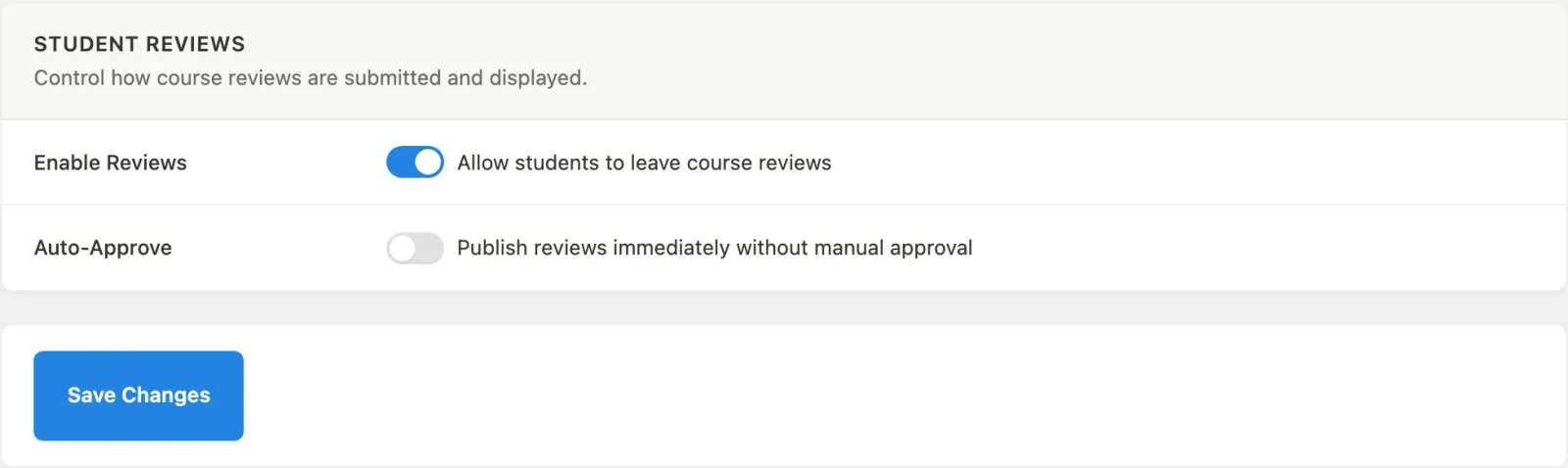
To change how submitted reviews are handled:
-
Go to LMS Settings in the admin sidebar.
-
Click Reviews in the left-hand settings navigation.
-
Check Auto-Approve if you want new reviews to go live immediately without a moderation step.
-
Turn on Who can review > Only students who have completed the course if a review should wait until the course is finished. With it off, which is the default, anyone enrolled can review from day one.
-
Click Save Changes.
A learner who cannot review yet simply does not see the review form. They still see everyone else’s reviews. Reviews posted before you turned the setting on stay where they are, and their authors still see their own.
Up to 2.1.0 a learner needed one completed lesson before a review was accepted, but the form was shown anyway and failed with “Could not post your review”. From 2.1.1 the form only appears when the review will be accepted, and if a review is refused the form says why.
Up to 1.9.5 there was also an Enable Reviews checkbox here, a second switch for the same decision the module already made. It is gone in 2.0.0. If you had it switched off, the upgrade switches the Reviews module off for you, so nothing reappears on your site.
Moderating Reviews
Section titled “Moderating Reviews”-
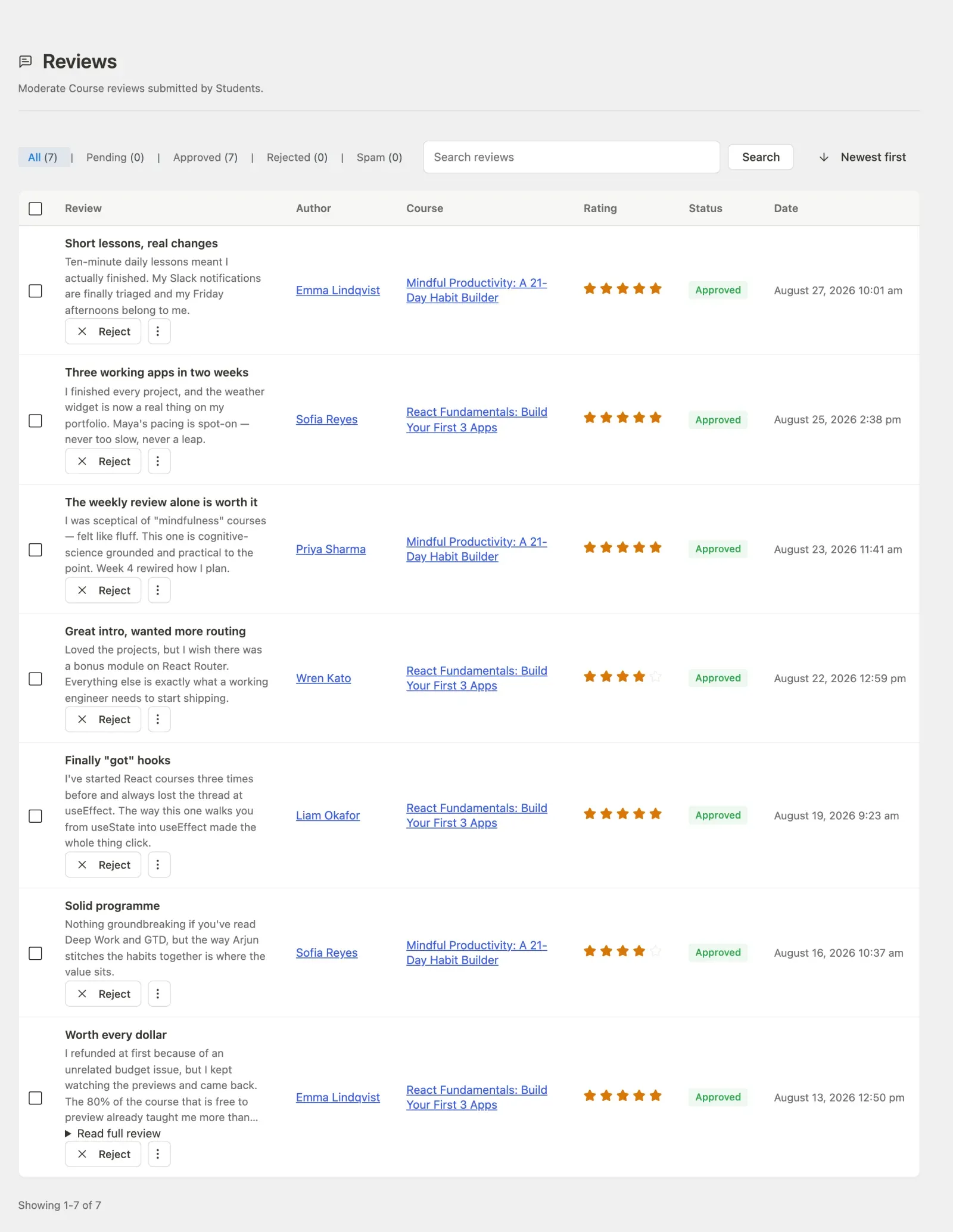
Go to Learnomy > Reviews in the admin sidebar.
-
The page header shows the Reviews title and a brief description.

-
Use the status tabs at the top of the table to filter by All, Pending, Approved, Rejected, or Spam. Each tab shows the count of reviews in that status.
-
The table lists each review with the following columns:
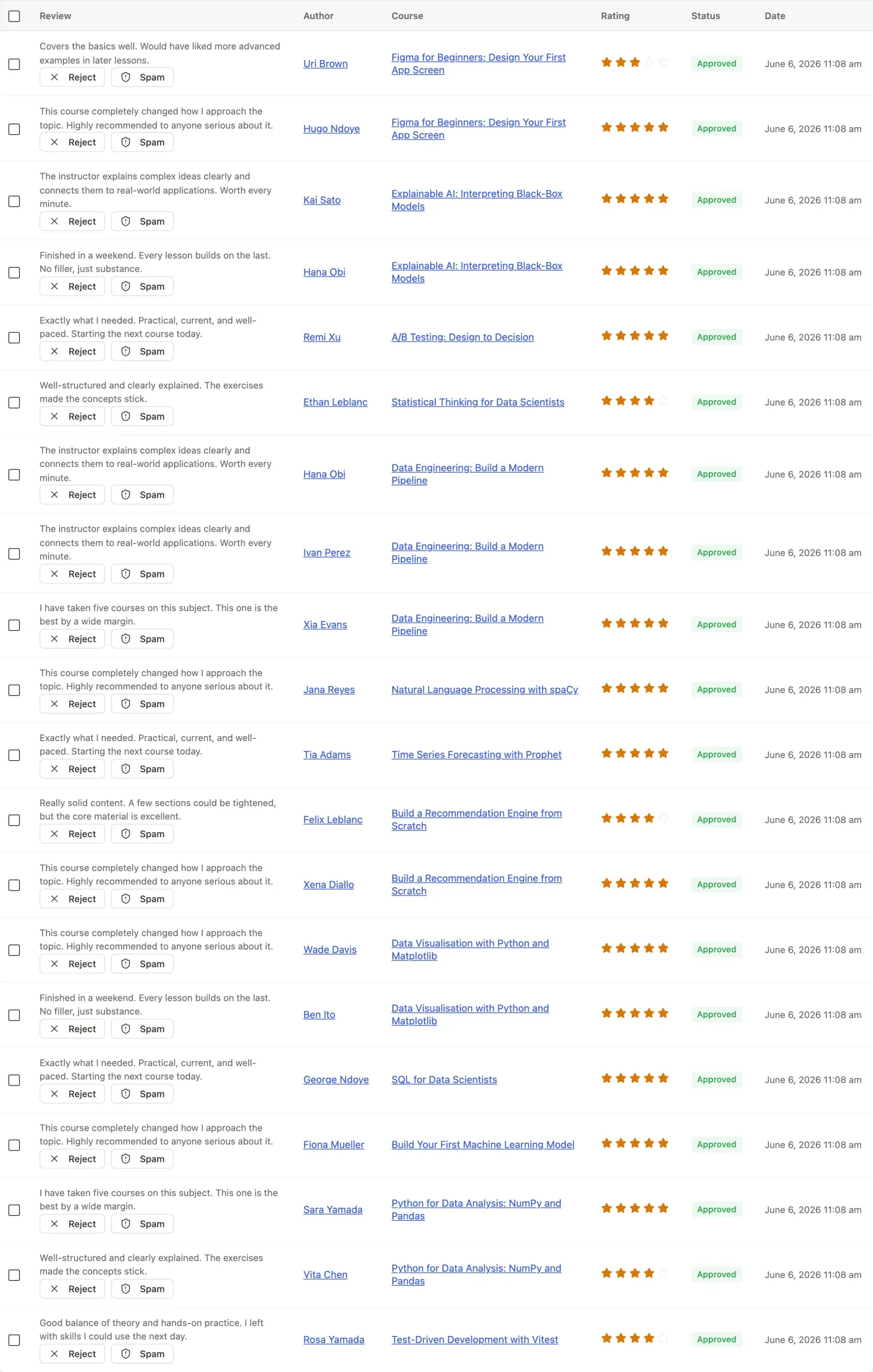
Column What it shows Review An excerpt of the review text, with row actions below Author The student who wrote the review Course The course being reviewed, linked to its editor Rating The star rating (1 to 5) Status The current moderation status pill Date When the review was submitted -
To take action on a review, use the row actions that appear under the review excerpt:

- Approve publishes the review and updates the course’s average rating. Only available when the review is not already approved.
- Reject hides the review from the public course page. Only available when the review is not already rejected.
- Spam marks the review as spam. Only available when it is not already marked spam.
- Mark Pending returns the review to the pending queue. Only available when the review is not already pending.
- Delete permanently removes the review.
Using Bulk Actions
Section titled “Using Bulk Actions”When you have multiple reviews to process:
- Check the box at the top of the table to select all visible reviews, or check individual rows.
- The bulk action bar slides in at the bottom of the screen showing how many reviews are selected.
- Choose an action from the dropdown: Approve, Reject, Mark as spam, Mark as pending, or Delete.
- Click Apply.
Searching Reviews
Section titled “Searching Reviews”Use the search box at the top right of the reviews table to filter by keyword. The search runs against the review title and body. Click Search to apply it and Clear (or remove the search term and search again) to reset.
You can also toggle the sort order between newest first and oldest first using the sort button next to the search field.
- When Auto-Approve is on, new reviews bypass the pending state entirely and go directly to approved. The Pending tab will show zero unless a review is manually moved back to pending.
- Approved reviews update the
avg_ratingandreview_countcolumns on the course record immediately. Rejecting or deleting an approved review recalculates both values. - Students can submit one review per course. Submitting a new review replaces any previous one.
- The Anonymized status appears for reviews where GDPR erasure has removed the author’s personal data but the review text has been kept.
- The Reviews list is paginated and supports search, so it stays usable even with thousands of reviews.
- What the reviewer sees follows the review’s status: an approved review shows as posted, a pending one says it is waiting for approval, and a rejected or spam one says only that it was not published.
- Every review change (new, approved, rejected, spam, edited, deleted) asks your page cache to refresh that course’s page. WP Rocket, W3 Total Cache, WP Super Cache, SiteGround Optimizer and LiteSpeed Cache are purged automatically. For another cache or a CDN, hook the
learnomy_purge_page_cacheaction, which receives the course page URL.