

User Journeys
Learnomy overviewFree + ProGet Learnomy →
User Journeys (Pro)
Section titled “User Journeys (Pro)”Pro feature. Available in Learnomy Pro.
Turn the extension on first. User Journey ships switched off, like almost every Pro extension. Go to LMS Settings > Modules, find User Journey, and enable it. Until you do, its menu items and settings do not appear at all, which reads as a missing feature rather than an unflipped switch.
User Journeys tracks each student’s skill development over time. Every time a student completes a course or passes a quiz, the system recalculates their skill score for that course category. The result is a per-student profile showing skill progress bars, earned achievements, and a chronological activity timeline. Administrators can review any student’s profile; students can view their own journey from their dashboard.
Overview
Section titled “Overview”Go to Learnomy > Pro Tools > User Journeys to see a list of all students who have activity on the site.
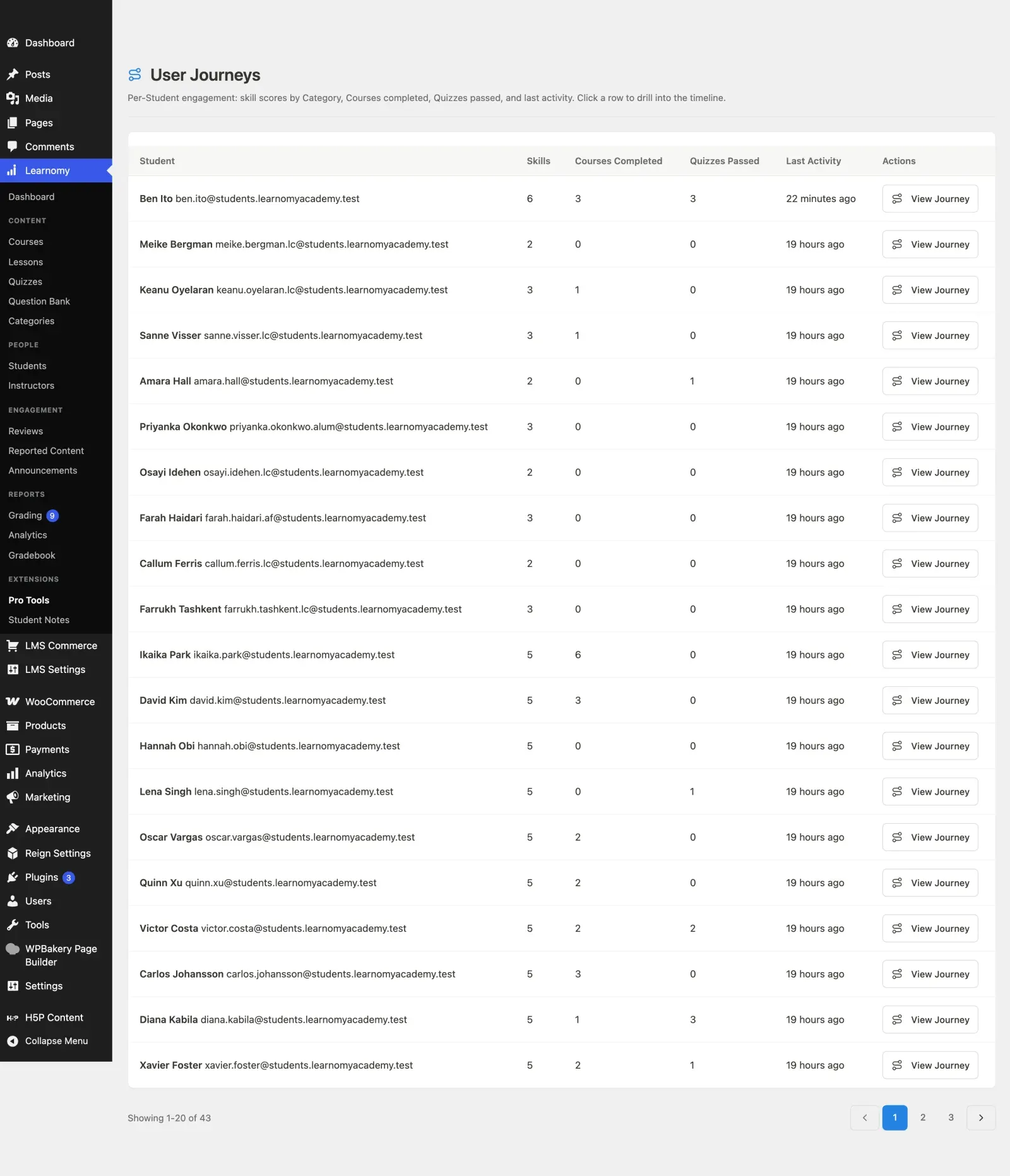
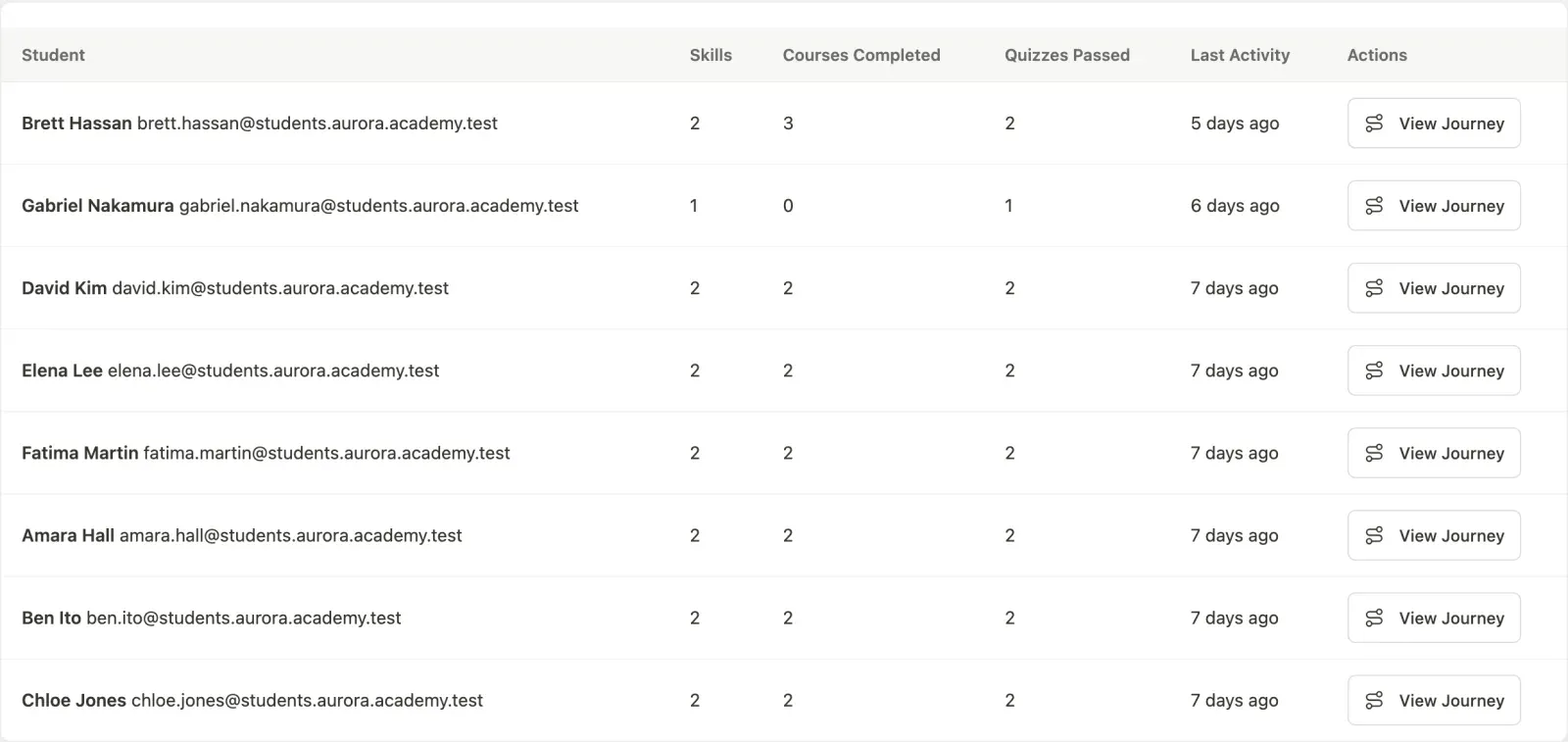
The table shows each student’s name, email address, number of distinct skills tracked, number of courses completed, number of quizzes passed, and their last activity date.
If no students have activity yet, the page shows “No journey data yet. Skill scores accumulate as students complete courses and pass quizzes.”
Viewing a student’s journey
Section titled “Viewing a student’s journey”-
Click View Journey in the row for any student. You land on the student journey detail page.
-
The detail page is divided into three sections:
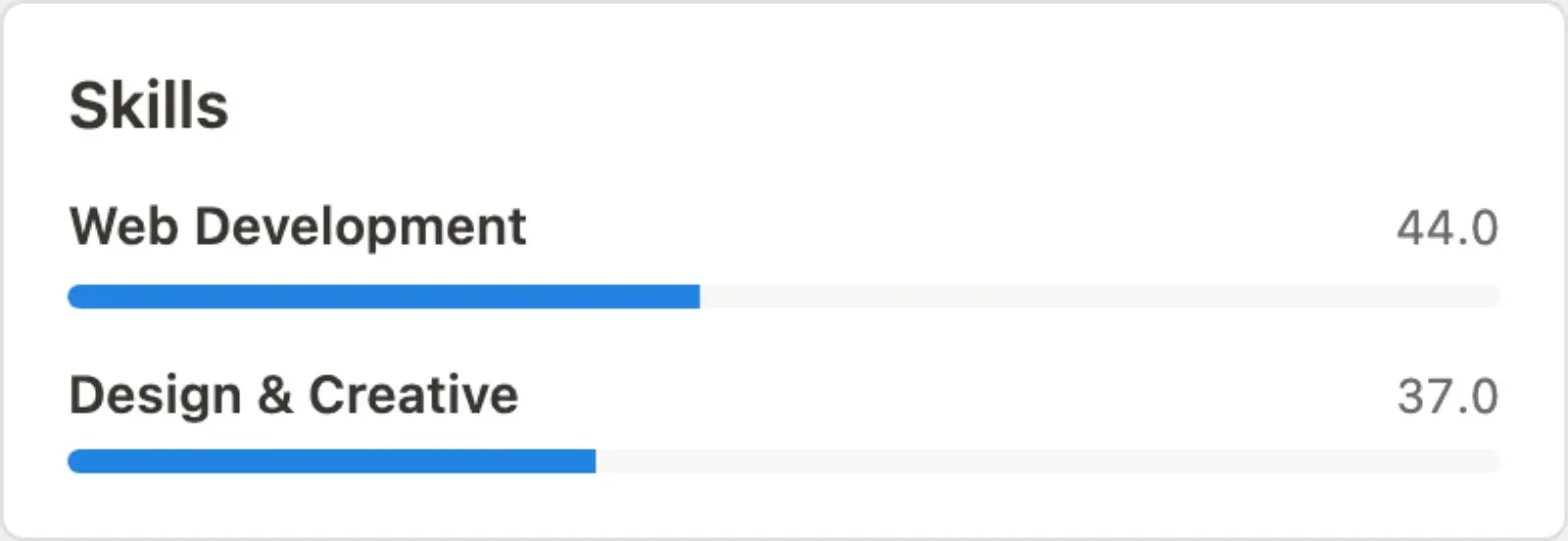
Skills - a list of skill categories with a progress bar for each, showing the student’s current score in that category.
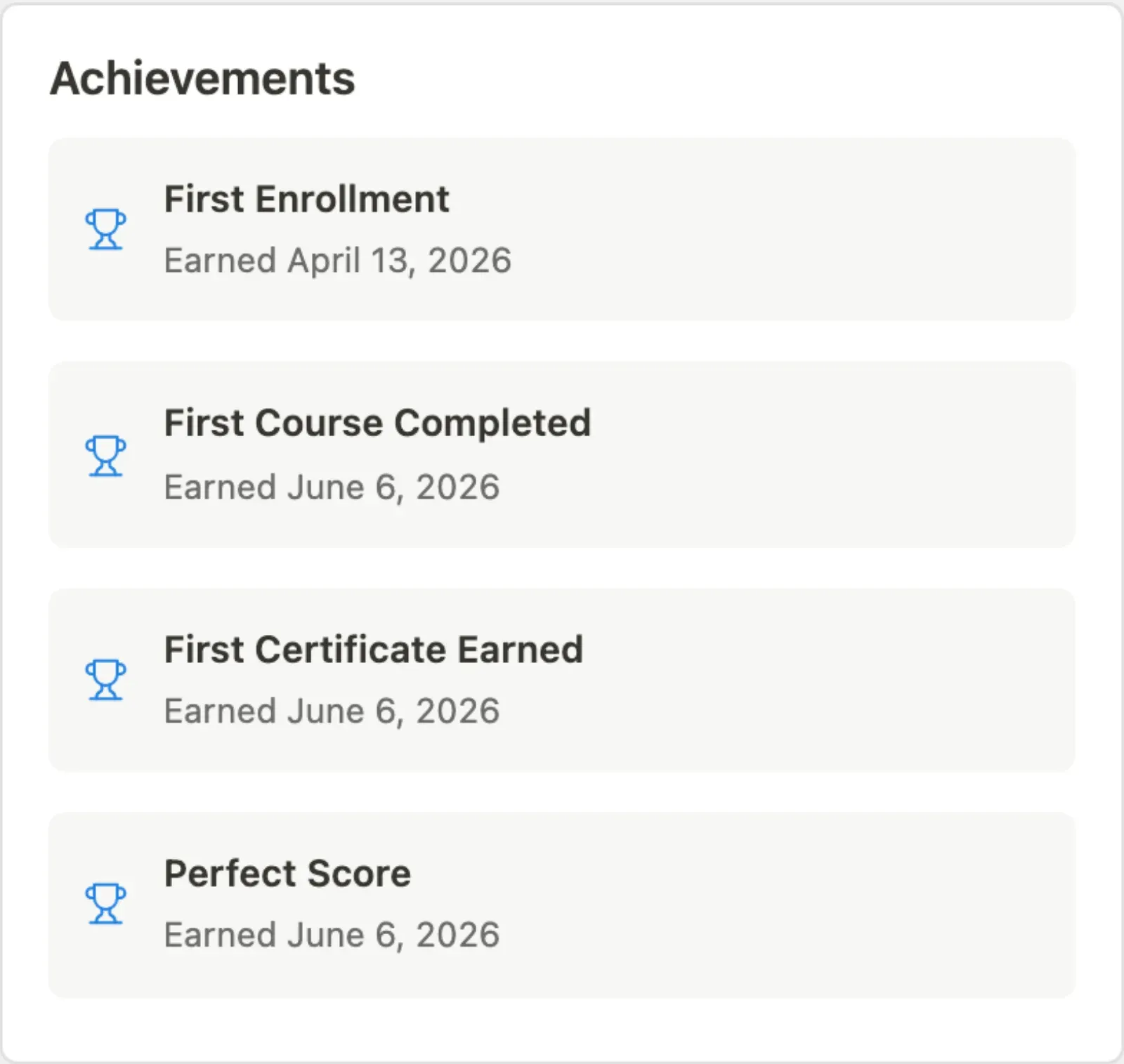
Achievements - a list of milestones the student has earned, such as first enrollment, first course completion, and first certificate.
Timeline - a chronological list of activity events: enrollments, course completions, quiz attempts, and certificates earned.
How skill scores are calculated
Section titled “How skill scores are calculated”Skill scores are tied to course categories. When a student completes a course, the system recalculates their score for that course’s category. When a student passes a quiz attached to a course, the score is recalculated again. The category name is used as the skill name in the student-facing view.
This happens automatically through two hooks:
learnomy_course_completed- recalculates the skill for the completed course’s category.learnomy_quiz_graded- recalculates the skill on quiz pass.
There is no manual skill assignment in this release. Scores are derived from completion and quiz performance only.
Creating and editing milestones
Section titled “Creating and editing milestones”Go to Learnomy > Pro Tools > Milestones. A milestone has a name, a description, a badge icon and one rule that decides when a learner earns it: completing a number of courses, completing courses or passing quizzes in a category, reaching a skill score, or completing one specific course.
To change a milestone, click Edit on its row. The form opens with the current values; change what you need and click Update milestone, or Cancel to leave it as it was. Built-in milestones can be switched on and off but not edited.
Editing never takes a badge away. If you raise a threshold or change the rule, learners who already earned the badge keep it, and the new rule applies to everyone who has not earned it yet. To remove a badge from one learner, revoke it from that learner’s journey page.
Milestones over the API
Section titled “Milestones over the API”An administrator can manage the same definitions over REST, under the same rules as the form:
| Request | What it does |
|---|---|
GET /learnomy-pro/v1/milestones |
Lists every milestone, paginated. |
GET /learnomy-pro/v1/milestones/{id} |
Returns one. |
POST /learnomy-pro/v1/milestones |
Creates one. Send name and rule_type, plus what the rule needs: threshold, category_id, course_id or skill_id. |
PATCH /learnomy-pro/v1/milestones/{id} |
Changes one. Send only what changes. is_active switches it on or off. |
DELETE /learnomy-pro/v1/milestones/{id} |
Deletes one. |
rule_type is one of courses_completed_total, courses_completed, quizzes_passed, skill_score or course_completed. A rule that could never come true (a quiz rule with no category, a skill rule with no skill) is refused with a 400. Built-in milestones can be switched on and off but not edited or deleted (403), exactly as on the form.
The student experience
Section titled “The student experience”Students see their journey from the My Journey tab on their account dashboard (/account/). The tab shows their skill scores, achievements, and recent activity timeline. No configuration is needed; the tab appears automatically when the User Journeys extension is active.
- Skill categories match your course categories. If your categories are “Marketing”, “Design”, and “Development”, those are the skill names students see.
- Achievements are calculated automatically from enrollment, completion, quiz, and certificate activity. Configurable skill thresholds and a skill-tree builder are planned for a future release.
- Finding students who have gone quiet does not need this extension. Learnomy itself flags them and emails them: set how many days count as inactive under LMS Settings > Emails, filter the admin students list by inactivity, and send a reminder from the instructor dashboard. See Emails and Announcements and Managing Students.
- Cohort journey comparison (side-by-side skill scores for a group) is planned for a future release.
- The REST API exposes full journey data at
GET /learnomy-pro/v1/users/{id}/journey,/skills,/timeline,/achievements, and/recommendations. The mobile app and third-party integrations can consume these endpoints directly.