

API and Performance
Learnomy overviewFree + ProGet Learnomy →
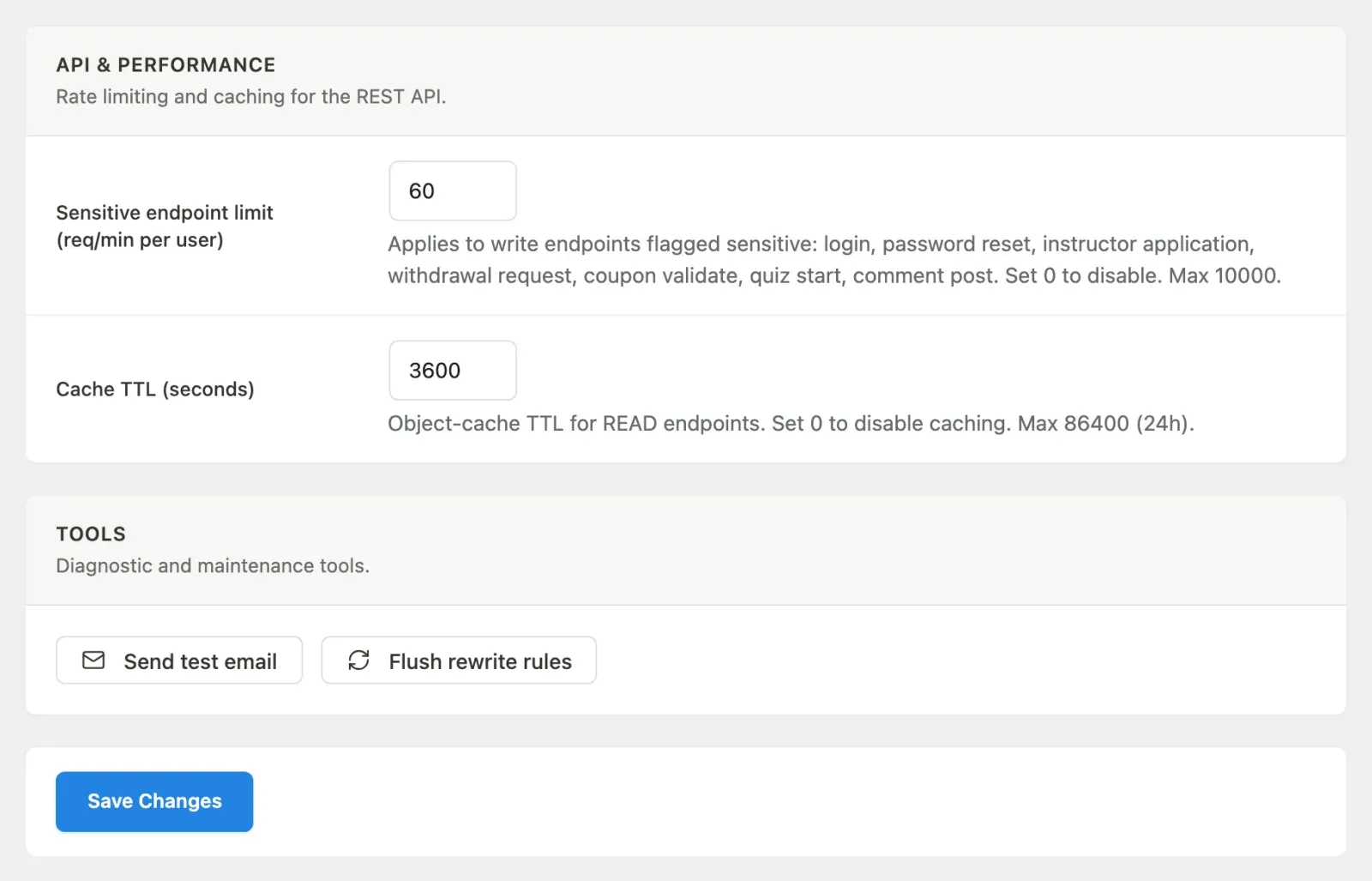
The API and Performance section controls rate limiting and caching for the REST API, the Progressive Web App (offline) mode, and two maintenance tools. It lives under the Advanced group in the Settings sidebar.
What you can do
Section titled “What you can do”- Set a per-user rate limit on sensitive endpoints (sign-in, sign-up, enrollment, and more).
- Set how long browsers and apps may reuse shared read responses, or turn that off.
- Turn the Progressive Web App (service worker and offline mode) on or off.
- Send a test email to confirm your mail configuration works.
- Flush WordPress rewrite rules without visiting Settings > Permalinks.
How to use it
Section titled “How to use it”Step 1 – open API and Performance
Section titled “Step 1 – open API and Performance”Go to LMS Settings and click API & Performance in the sidebar.
Step 2 – set the API limits
Section titled “Step 2 – set the API limits”In the API & Performance card:
- Sensitive endpoint limit (req/min per user) – the per-minute cap for these endpoints: sign-in and sign-up (counted per IP address), app passwords, enrollment, quiz start, progress sync, reviews, reports, course creation and withdrawal requests. Set to 0 to disable. Maximum 10000.
- Cache TTL (seconds) – how long browsers and apps may reuse shared read responses, such as the catalog and categories, before asking again (the
Cache-Control: max-ageof those responses). Personal data such as progress is always re-checked. Set to 0 to disable. Maximum 86400 (24 hours).
Step 3 – choose whether to enable the PWA
Section titled “Step 3 – choose whether to enable the PWA”In the Progressive Web App card, toggle Register the service worker and offline mode on Learnomy pages. Turn this off when Learnomy is only one section of a larger site (such as a community) where a site-wide service worker is unwanted.
Step 4 – save
Section titled “Step 4 – save”Click Save Changes to store the settings above.
Step 5 – use the Tools (optional)
Section titled “Step 5 – use the Tools (optional)”The Tools card has two buttons that run immediately:
- Send test email – dispatches a test notification to the admin email address. Use this to prove mail works before relying on notifications; see Emails and Announcements for why WordPress usually needs an SMTP plugin first.
- Flush rewrite rules – regenerates permalink rules without a visit to Settings > Permalinks.
Settings and options
Section titled “Settings and options”| Field | Option key | Notes |
|---|---|---|
| Sensitive endpoint limit | api_rate_limit |
Requests per minute per user. 0 disables. Max 10000. Default 60. |
| Cache TTL (seconds) | cache_ttl |
Browser max-age for shared read responses. 0 disables. Max 86400. Default 3600. |
The Tools buttons are one-off actions, not saved settings.
For developers
Section titled “For developers”\Learnomy\pwa_enabled()– resolves whether the PWA is active from thepwamodule plus the filter below. The PWA has no setting on this tab: it is switched at Learnomy > Modules. (Up to 1.9.5 there was also anenable_pwasetting here, which defaulted to on while the module defaulted to off – so the tab showed the PWA as enabled on sites that were serving no service worker. The setting is retired; an explicit off is carried over by switching the module off.)learnomy_enable_pwa– filter that overrides the PWA on/off state in code. When false, the service-worker registration,/learnomy-sw.js, the manifest, and the offline routes are not loaded.