

Layouts
Learnomy overviewFree + ProGet Learnomy →
The Layouts section is the one place to choose the structural layout for each major page type: the course catalog, the course page, the lesson player, the course quiz, and the standalone quiz. Switching a layout never changes the page URL.
What you can do
Section titled “What you can do”- Pick a layout variant for the course catalog, single course page, lesson, course quiz, and standalone quiz.
- Set how many course cards show per row on desktop for the catalog grid.
- Set how many courses each page of the catalog shows before it pages.
- Override the layout for one course, leaving every other course on the site default.
- Switch layouts freely without breaking any links – the URL stays the same.
- Keep tablet and mobile responsive automatically (the catalog grid drops to 2 then 1 column on smaller screens regardless of the desktop column count).
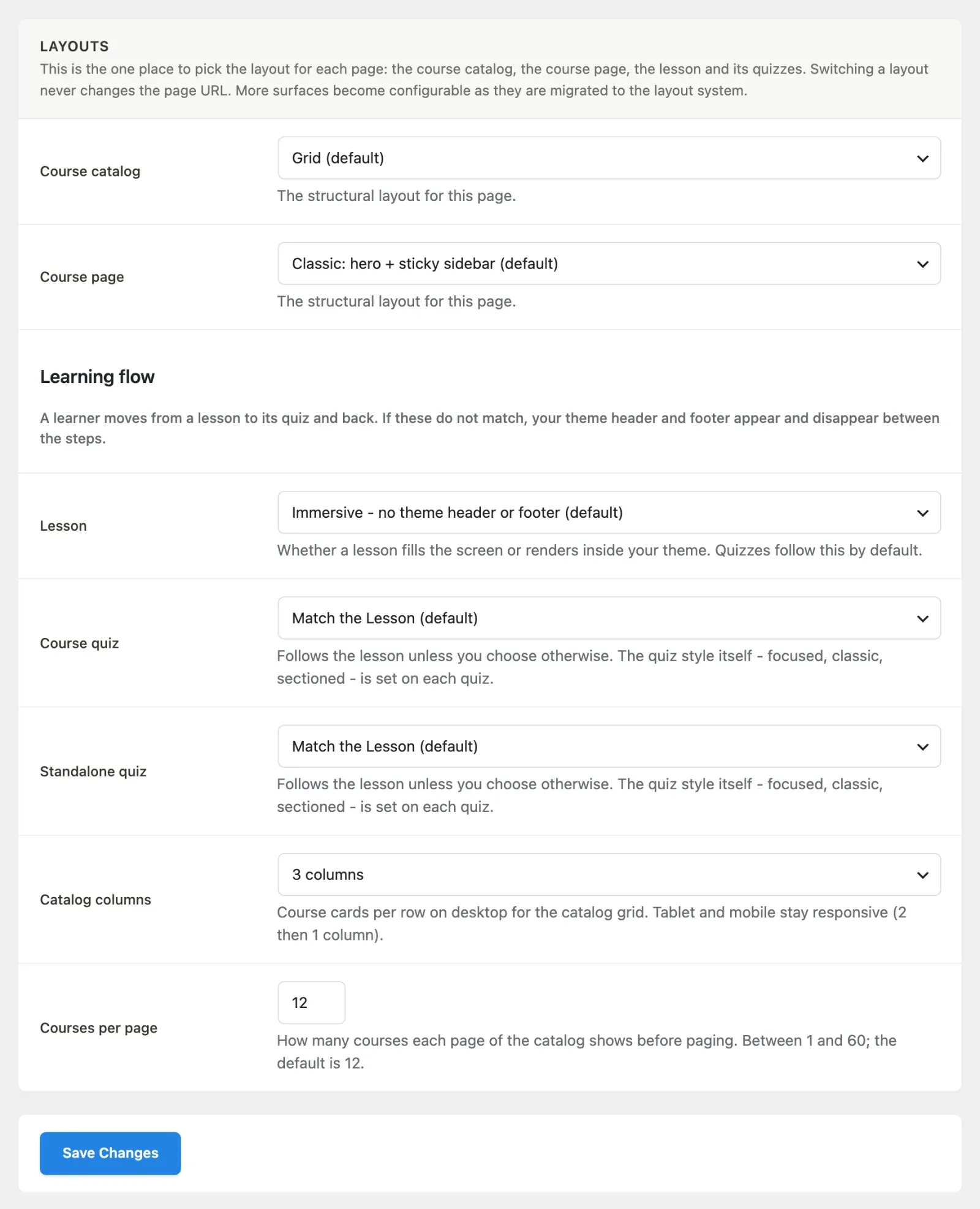
How to use it
Section titled “How to use it”Step 1 – open Layouts
Section titled “Step 1 – open Layouts”Go to LMS Settings and click Layouts in the sidebar.
Step 2 – pick a layout per surface
Section titled “Step 2 – pick a layout per surface”In the Layouts card, each row is one page surface with a dropdown of layout variants:
- Course catalog
- Course page
- Lesson
- Course quiz
- Standalone quiz
Choose the variant you want for each. The list of variants is provided by the layout system and grows as more surfaces are migrated to it.
Step 3 – set the catalog grid density
Section titled “Step 3 – set the catalog grid density”Use the Catalog columns dropdown to choose how many course cards appear per row on desktop (2, 3, 4, or 5). Tablet and mobile stay responsive and are not affected.
Step 4 – set the catalog page size
Section titled “Step 4 – set the catalog page size”Use Courses per page to choose how many courses each page of the catalog lists before paging. Any whole number from 1 to 60; the default is 12. This is the field name on a default install - like every entity noun in Learnomy it follows your Course label, so a site that renamed Course to Class sees “Classes per page”.
The setting applies to the main catalog and to the category archives, which have always read this value; before 1.9.4 there was no field anywhere to change it, so every site ran on the built-in 12.
Page size and column count are independent. Twelve courses at 3 columns is four rows; the same twelve at 4 columns is three. Choose a page size that divides evenly by your column count if you want a full last row.
Step 5 – save
Section titled “Step 5 – save”Click Save Changes. The new layouts render on the front end right away, with no URL change.
Step 6 – override one course, if it needs a different look
Section titled “Step 6 – override one course, if it needs a different look”The setting above applies to every course. A single course can opt out of it.
- Open the course in Learnomy > Courses and edit it.
- Open the Visibility & Media section of the course settings.
- Set Course template to the variant you want for this course.
- Update the course.
The select lists the same variants as the site setting, plus Use site default, which is what every course starts on. The site-wide name is shown in brackets so you can see what “default” currently means without leaving the screen.
Leaving a course on Use site default means it follows the Layouts setting forever, including when you change that setting later. Picking a variant pins that one course, and changing the site default afterwards no longer affects it. To un-pin it, set it back to Use site default.
A pinned course also outranks an Elementor Theme Builder template. If you run Elementor Theme Builder and set a template to apply to all courses, a course you pinned here keeps the Learnomy layout you pinned – because you chose it for that course specifically. Set it back to Use site default to hand the course to Elementor.
Settings and options
Section titled “Settings and options”Each surface stores its choice in the learnomy_settings option under that surface’s setting key (defined by the layout system), plus the grid density:
| Field | Option key | Notes |
|---|---|---|
| Course catalog | per-surface setting_key from \Learnomy\layouts() |
Variant value from that surface’s variant list. |
| Course page | per-surface setting_key |
Variant value. |
| Lesson | per-surface setting_key |
Variant value. |
| Course quiz | per-surface setting_key |
Variant value. |
| Standalone quiz | per-surface setting_key |
Variant value. |
| Catalog columns | catalog_columns |
Integer 2-5. Default 3. |
| Courses per page | catalog_per_page |
Integer 1-60. Default 12. Read by both the catalog and the category archives. |
| Course template (per course) | layout_variant in that course’s settings_json |
Empty string means “follow the site setting”, which is the default. Otherwise a variant id from the Course page variant list. Validated on save: an unknown value is stored as empty rather than kept, so a course can never point at a layout that is not there. |
For developers
Section titled “For developers”\Learnomy\layouts()– returns the registered surfaces, each with itssetting_key,default, andvariants.learnomy_layouts– filter to register new surfaces or add variants (Pro and third-party layouts hook here). A variant’sfilemay be a path relative totemplates/, or an absolute path when the template lives outside the Free plugin.- A variant may carry
hidden => true, meaning it resolves normally but is not offered in the Layouts dropdown or the per-course one. That is for a variant whose on/off decision is made somewhere else – Pro’s Elementor variant follows an Elementor display condition, so listing it here too would be a second switch for one decision. \Learnomy\selectable_layout_variants( $surface )– the variants an owner may choose from, which is every registered variant except the hidden ones.learnomy_layout_{surface}– filter applied to the resolved variant for a surface (for examplelearnomy_layout_archive), so code can override the chosen layout at render time.