

Theme Compatibility
Jetonomy overviewFree + ProGet Jetonomy →
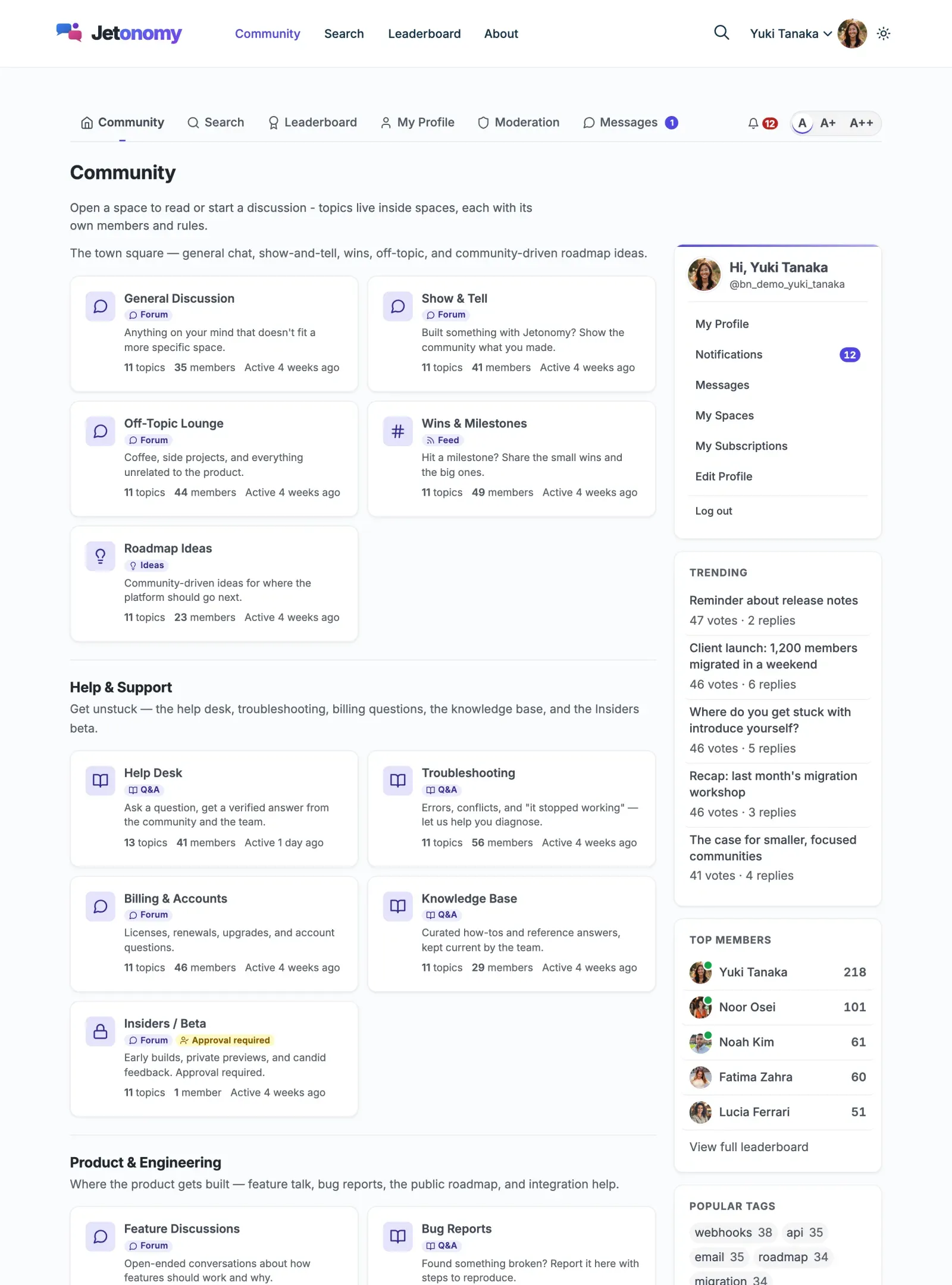
Jetonomy works with any WordPress theme. Its CSS inherits from your theme’s design tokens automatically, so the community looks native - not bolted on.
What You Will Learn
Section titled “What You Will Learn”- How Jetonomy adapts its visual style to your active theme
- What zero-config means with BuddyX
- How to override community templates from your theme
- How to control design tokens for fine-grained customization
How Theme Adaptation Works
Section titled “How Theme Adaptation Works”Jetonomy reads WordPress theme.json values through CSS custom properties. Every --jt-* token in Jetonomy’s CSS resolves first to a WordPress preset token (--wp--preset--color--primary, --wp--preset--font-family--body, etc.), with a hardcoded fallback last:
--jt-accent: var(--brand, var(--wp--preset--color--primary, #3B82F6));--jt-text: var(--text-1, var(--wp--preset--color--contrast, #1a1a1a));--jt-font: var(--font-body, var(--wp--preset--font-family--body, inherit));--jt-radius: var(--r-md, var(--wp--custom--border-radius, 8px));If your theme defines these standard WP preset tokens, Jetonomy adopts the theme’s colors, typography, and spacing without you writing any CSS.
Best With BuddyX
Section titled “Best With BuddyX”BuddyX is Jetonomy’s reference theme. With BuddyX active, Jetonomy requires zero configuration - colors, fonts, border radius, hover states, and dark mode all match the theme perfectly out of the box.
Tip: If you are building a new community site from scratch, start with BuddyX. You can always switch themes later - Jetonomy will adapt.
BuddyX Pro, Reign, and the Theme Bridge (1.3.0+)
Section titled “BuddyX Pro, Reign, and the Theme Bridge (1.3.0+)”Starting in 1.3.0, Jetonomy ships a dedicated bridge for the three Kirki-based themes most of our customers run: BuddyX, BuddyX Pro, and Reign.
What the bridge does
- Reads the theme’s Kirki mods on every render (accent color, dark mode state, container width).
- Injects
--jt-accentdirectly so the community picks up the exact color the customer chose in the Customizer - not a hardcoded fallback. - Toggles
.jt-darkon the page<body>viabody_classwhenever the theme is in dark mode, so the community’s dark overrides activate automatically without requiring custom CSS. - No configuration screen. If the theme is active, the bridge runs. If you switch to a non-Kirki theme, the bridge silently bows out and the standard
theme.jsonpath takes over.
Where it lives
includes/integrations/class-theme-integration.php - guarded by class_exists( 'Kirki' ) and a per-theme check against the theme template slug.
Why this matters
On BuddyX/BuddyX Pro/Reign, flipping the theme’s dark-mode toggle in the Customizer now flips the entire community sidebar, nav, post cards, and reply editor in the same render. No custom-CSS bridge required.
If you build a custom Kirki theme and want to hook into the same bridge, the integration is extensible via the jetonomy_theme_light_tokens and jetonomy_theme_dark_tokens filters. Each receives a map of --jt-* token => hex color (light mode and dark mode respectively) - return your own token maps and Jetonomy will inject them. Return an empty array to disable that mode’s override.
Popular Page-Builder Themes (1.5.0+)
Section titled “Popular Page-Builder Themes (1.5.0+)”Starting in 1.5.0, Jetonomy extends automatic brand-color adoption to four widely-used page-builder themes. When any of these themes is active, the forum picks up its accent in both light and dark mode with no custom CSS required.
| Theme | Brand token adopted |
|---|---|
| Astra | --ast-global-color-0 |
| Kadence | --global-palette1 |
| GeneratePress | --wp--preset--color--accent |
| Blocksy | --theme-palette-color-1 |
Light and dark mode. The adoption works through a CSS var() chain: --jt-accent resolves to the active theme’s brand token first. When the theme flips its own token for dark mode, the forum follows automatically - no separate dark-mode override needed.
Our own themes are also covered. BuddyX, BuddyX Pro, and Reign have been supported since 1.3.0 via the Kirki bridge described above. They define their own token names (--bx-color-accent for BuddyX and BuddyX Pro, --reign-colors-theme for Reign) and work the same way with no configuration required.
Themes with no recognizable brand token. Stock block themes that expose numbered palette slugs (such as accent-1 or palette3) are deliberately not auto-adopted - an accidentally adopted low-contrast color is worse than a clean default. For these themes, Jetonomy falls back to its own neutral accent. The site owner can override it under Jetonomy → Settings → Appearance → Color Palette.
For the full technical specification of the var() chain, the complete verified token map, and the checklist for adding a new theme, see docs/standards/host-theme-color-adoption.md in the plugin repo.
Using Other Themes
Section titled “Using Other Themes”Jetonomy works with any well-built WordPress theme. Compatibility level depends on how fully the theme uses theme.json:
| Theme Type | Expected Result |
|---|---|
| Modern block theme (theme.json) | Excellent - tokens inherit fully |
| Classic theme with CSS variables | Good - accent and font tokens pick up if variable names match |
| Classic theme without CSS variables | Functional - Jetonomy falls back to its own neutral defaults |
For classic themes, you can override the --jt-accent token in your theme’s style.css or via Jetonomy → Settings → Appearance → Custom CSS.
Dark Mode
Section titled “Dark Mode”Jetonomy supports dark mode natively. If your theme sets data-theme="dark" or a .dark class on the <html> or <body> element, Jetonomy’s dark overrides activate automatically via the .jt-dark .jt-app CSS selector.
BuddyX and BuddyNext set data-theme="dark" - so dark mode follows automatically. For other themes, add a small bridge if their dark mode uses a different selector:
/* In your theme's style.css - bridge for custom dark mode selector */.my-theme-dark .jt-app { --jt-bg: #121212; --jt-text: #f0f0f0; }Template Overrides
Section titled “Template Overrides”Jetonomy’s frontend is powered by PHP templates. Every template can be overridden in your theme without touching plugin files.
Create a jetonomy/ folder inside your theme and copy any template file from wp-content/plugins/jetonomy/templates/ into it. Jetonomy’s template loader checks the theme directory first.
Override directory structure:
your-theme/└── jetonomy/ ├── views/ │ ├── community-home.php │ ├── space.php │ ├── single-post.php │ └── user-profile.php └── partials/ ├── header.php └── reply-card.phpNote: When you override a template, you own it. Future Jetonomy updates will not touch your override. Check the plugin’s template changelog after each update to merge any changes manually.
Customizing Design Tokens Without Template Overrides
Section titled “Customizing Design Tokens Without Template Overrides”For small visual adjustments, use the Custom CSS field in Jetonomy → Settings → Appearance. You can re-define any --jt-* token at the .jt-app scope:
.jt-app { --jt-accent: #e11d48; --jt-radius: 4px;}This approach is update-safe and does not require template overrides.
Available --jt-* Tokens
Section titled “Available --jt-* Tokens”| Category | Tokens |
|---|---|
| Typography | --jt-font, --jt-font-heading, --jt-font-mono |
| Accent | --jt-accent, --jt-accent-hover, --jt-accent-light, --jt-accent-muted |
| Text | --jt-text, --jt-text-secondary, --jt-text-tertiary |
| Background | --jt-bg, --jt-bg-subtle, --jt-bg-muted, --jt-bg-hover |
| Border | --jt-border, --jt-border-strong |
| Semantic | --jt-success, --jt-warn, --jt-danger and their -light variants |
| Radius | --jt-radius, --jt-radius-sm, --jt-radius-lg, --jt-radius-full |
Troubleshooting
Section titled “Troubleshooting”Community pages (/community/, spaces, topics, profiles) are not WordPress pages. Jetonomy renders them itself: your theme’s normal header, then the community, then your theme’s normal footer. It does not load the theme’s page template or sidebar, so a community page has exactly one site header by design.
Each entry below was reproduced on the supported themes (Reign, BuddyX, BuddyX Pro).
The site header stretches edge-to-edge, or the footer widgets disappear, on community pages only
Section titled “The site header stretches edge-to-edge, or the footer widgets disappear, on community pages only”Symptom: on /community/ the logo and menu jump to the far edges of the screen while every other page keeps them centred, or the footer widget row is gone on community pages.
Likely causes
- Container Width is set to Full Width or Custom, or Theme Sidebar is set to Hide on community pages, on Jetonomy 2.0.0 or earlier. Those versions applied the override to every theme container on the page, including the header and footer ones.
Check in order
- Open Jetonomy → Settings → Appearance → Layout.
- Note whether Container Width or Theme Sidebar is set to anything other than Theme Default.
- Check your Jetonomy version under Plugins.
Fix
- Update to Jetonomy 2.0.1 or later. The Layout overrides now apply only to the wrappers around the community, so the header, the footer, and the footer widgets keep the theme’s layout.
- If you cannot update yet, set both options back to Theme Default.
Verify: open a topic. The logo and menu line up with the rest of your site, the community content uses the width you picked, and the footer widgets show.
Content is squeezed next to a sidebar on a page that shows a Jetonomy block or shortcode
Section titled “Content is squeezed next to a sidebar on a page that shows a Jetonomy block or shortcode”Symptom: a normal WordPress page that holds a Jetonomy block (Forum Feed, Navigation, Space List, and so on) or shortcode shows the content in a narrow column with the theme’s sidebar beside it.
Likely causes
- That page is a regular WordPress page, so the theme’s page layout applies to it, including its default right sidebar. The Jetonomy Layout settings do not reach it, because they only apply on community routes.
Check in order
- Edit the page and look at the theme’s layout control for that page.
Fix
- BuddyX and BuddyX Pro: in the page editor, open Page → Template and choose Page No Sidebar.
- Reign: in the page editor, open the Reign Custom Settings box and set Content Layout to Full Width (or Full Width (No Subheader) to also drop the page title bar).
Verify: reload the page. The block uses the full content width and the sidebar is gone.
I changed my “Community” page (template, layout, or content) and nothing changed
Section titled “I changed my “Community” page (template, layout, or content) and nothing changed”Symptom: you edited a WordPress page called Community, or the page set as your homepage, and /community/ (or the homepage) still looks exactly the same.
Likely causes
- Jetonomy owns every URL under your community slug. A WordPress page with the same slug as the community (for example a page named
communitywhile the slug iscommunity) is never shown, so its template and content have no effect. - With Show the community home on the site front page on, the community replaces the homepage entirely, so the homepage’s page template and content are not used either.
Check in order
- Open Jetonomy → Settings → General and note the community slug and whether the community is shown on the front page.
- Compare the slug with the page you edited.
Fix
- Change the community’s width and sidebar from Jetonomy → Settings → Appearance → Layout, not from a page template.
- If you want your own content on that page, give the page a different slug, and link to the community from it or place Jetonomy blocks on it.
Verify: the Layout change shows on /community/ after a reload.
It looks like there are two headers or two menus
Section titled “It looks like there are two headers or two menus”Symptom: a second bar of links (Community, Search, Leaderboard, My Profile) appears under your site header, or the header is very tall and lists every page on the site.
Likely causes
- The bar under the header is Jetonomy’s community navigation. It is part of the community, not a second copy of your site header.
- A header that lists every page on the site means the theme has no menu assigned to its main menu location, so it falls back to listing all pages. This happens most often right after switching themes, because menu assignments are stored per theme.
Check in order
- Compare the extra bar with the site header. If it holds Community, Search, and Leaderboard links, it is the community navigation.
- Open Appearance → Menus → Manage Locations and check that the theme’s main menu location has a menu.
Fix
- Assign a menu to the theme’s main menu location.
- To remove the community navigation bar (for example because you added the same links to your theme menu), return
falsefrom thejetonomy_show_community_navfilter:
add_filter( 'jetonomy_show_community_nav', '__return_false' );Verify: the header shows only your menu, and the community page shows one navigation bar or none, as you chose.
Still stuck - collect this for support
Section titled “Still stuck - collect this for support”- WordPress and PHP versions (Tools → Site Health → Info).
- Jetonomy and Jetonomy Pro versions, and your active theme and its version.
- Your Jetonomy → Settings → Appearance → Layout values.
- A screenshot of the broken community page at full width and on a phone.
- The last lines of
wp-content/debug.logafter loading the page, if debugging is on.
What’s Next?
Section titled “What’s Next?”Configure your community’s global settings - URL slug, pagination, and access defaults.