

Invite Your First Members
Jetonomy overviewFree + ProGet Jetonomy →
Use this guide to bring your first people into a space. You will choose how people join, share an invite link, add people yourself, and approve requests. It works the same on free and Pro.
What you will set up
Section titled “What you will set up”- A join policy for your space: Open, Requires Approval or Invite Only
- A shareable invite link with an optional limit and expiry date
- A routine for approving join requests
Before you start
Section titled “Before you start”- You have a space. If not, see Your First Community.
- Your email works, so people get join and approval emails. Check with Jetonomy → Settings → Email → Send Test Email.
- You are an administrator, or the space admin. Space moderators can approve requests but cannot create invite links.
- You have a second browser window to try the link as a new person.
Step 1: Choose how people join
Section titled “Step 1: Choose how people join”- Go to Jetonomy → Spaces and click Edit under the space.
- On the General tab, set Join Policy:
| Policy | What happens |
|---|---|
| Open | A signed-in person clicks Join Space and is in at once |
| Requires Approval | They click Join and wait for you to approve |
| Invite Only | There is no join button. People need an invite link |
- Click Update Space.
A Hidden space is always Invite Only. An invite link works with any policy. Only Invite Only makes it the single way in.
Step 2: Create an invite link
Section titled “Step 2: Create an invite link”You can do this from the community side or from wp-admin.
On the community side:
- Open the space and click the Members tab.
- Find the Invite links panel. Only space admins see it.
- Set Max uses.
0means unlimited. - Set Expires, or leave it blank for no expiry.
- Click Generate invite link.
- Click Copy and share the link anywhere: email, chat or social media.
In wp-admin: open Jetonomy → Spaces → Edit → Members and use the Invite Links section, which has the same fields and a table of links.
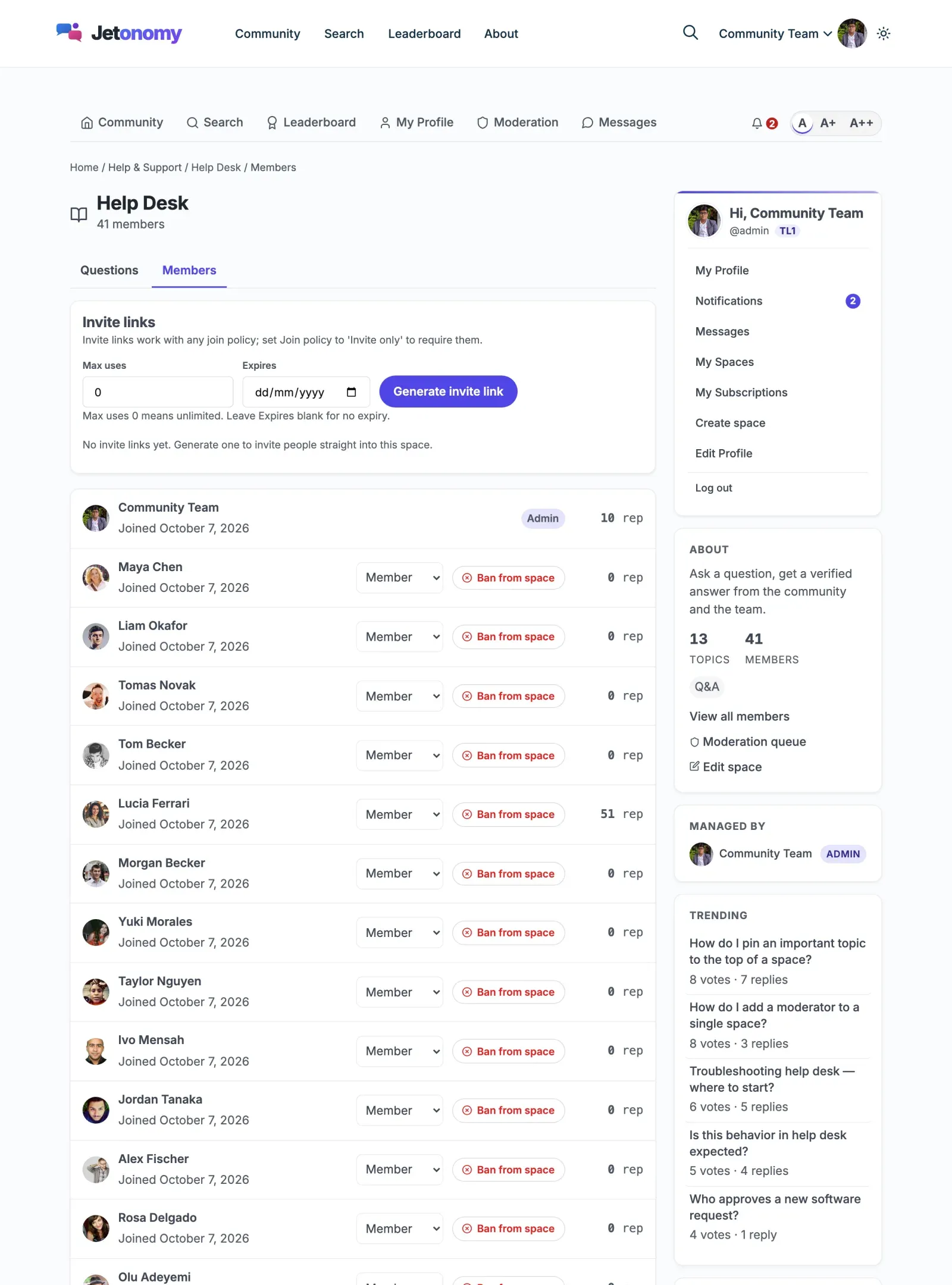
Each link lists Uses and Expires. A link that has run out is marked No longer works. Click Revoke to cancel one early. Anyone still holding it will not be able to join.
Step 3: What the invited person sees
Section titled “Step 3: What the invited person sees”- They open the link.
- If they are signed out, they see “You’ve been invited to join” and the space name.
- They click Create free account or Log in to accept invite. The sign-up button shows only when Anyone can register is on under WordPress Settings → General.
- After signing in, they land in the space as a Member.
Note: If your whole community is private, guests are sent to the WordPress login page first. After login, the link brings them back. See Run a Members-Only Community.
Step 4: Add people yourself (optional)
Section titled “Step 4: Add people yourself (optional)”- Edit the space and open the Members tab.
- Under Add Member, type a name or email in the search box and pick the person.
- Choose a role: Member, Moderator, Admin or Viewer.
- Click Add.
The person must already have an account. Jetonomy does not send invitation emails. You share the link yourself.
Step 5: Approve join requests
Section titled “Step 5: Approve join requests”With Requires Approval, you and the space moderators are notified when someone asks to join. The requester can add a note under “Optional: why do you want to join?”.
In wp-admin:
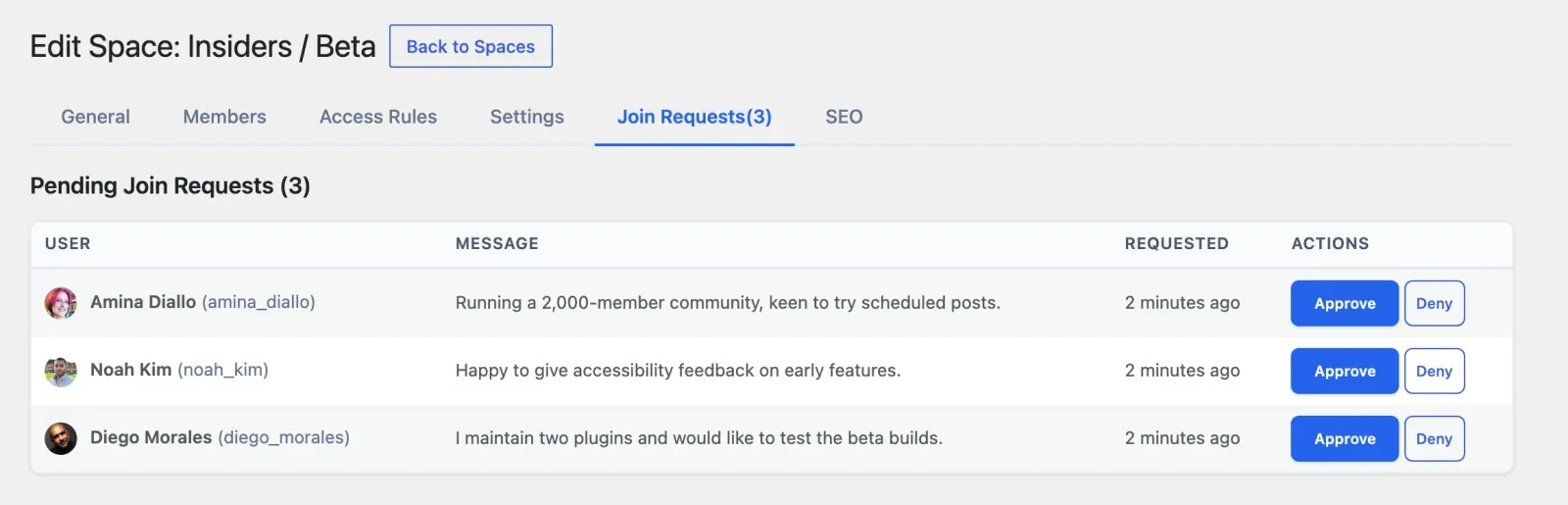
- Edit the space and open the Join Requests tab. It appears only when the policy is Requires Approval or requests are waiting.
- Read the Message, then click Approve or Deny.
On the community side: open the space Members tab and use the Pending join requests panel. It has the same Approve and Deny buttons, so moderators do not need wp-admin.
The requester is told the result. Approved people can post straight away.
Check that it works
Section titled “Check that it works”- In a private window, open your invite link. You should see the invitation page.
- Sign in as a test account. You should land in the space.
- Open the space Members tab as admin. The test account is listed, and the link’s Uses count went up by one.
- For approval spaces, request access from another test account. The request shows under Join Requests. Approve it and confirm the account can post.
Common questions
Section titled “Common questions”Can a moderator create invite links? No. Invite links are a way into a space, so only space admins and site administrators can see or create them.
Can I limit a link to one person?
Set Max uses to 1. It stops working after one person joins.
Does a link work after I switch the policy? Yes. It still admits people, whatever the policy. Revoke it if you no longer want that.
Can I invite someone by email address? Jetonomy does not send invitations by email. Copy the link and send it yourself.