

Add a Moderator and Handle Reports
Jetonomy overviewFree + ProGet Jetonomy →
This guide is for community owners who want help keeping the peace. You will give someone moderator powers, find out where reported posts land, and clear them.
What you will set up
Section titled “What you will set up”- A moderator for one space, or for the whole community
- A place for your moderator to review reports and held posts
- A routine for approving, removing and banning
Before you start
Section titled “Before you start”- You need to be a WordPress administrator.
- The person needs a WordPress account on your site.
- At least one space exists. See Your First Community.
Step 1: Choose the kind of moderator
Section titled “Step 1: Choose the kind of moderator”Jetonomy has two kinds. Pick the one that fits.
| Kind | What it gives | Best for |
|---|---|---|
| Space moderator | Moderation in one space only: review its queue, plus pin, close, move, merge and delete topics there | A volunteer who looks after one topic area |
| Site-wide moderator | The Moderate (queue, flags, bans) capability across every space | Staff who watch the whole community |
Space moderators do not need wp-admin access. They work from the community pages.
Step 2: Make someone a space moderator
Section titled “Step 2: Make someone a space moderator”- Go to Jetonomy → Spaces and click Edit on the space.
- Open the Members tab.
- To add someone new, type a name or email in the search box under Add Member, set the role dropdown to Moderator, and click Add.
- To promote an existing member, find them in the Members list and change their role dropdown to Moderator.
The role change saves as soon as you pick it. There is no Save button for this list.
Tip: The role dropdown also offers Viewer, Member and Admin. A space Admin can also manage the space itself, so give that role sparingly.
Step 3: Make someone a site-wide moderator
Section titled “Step 3: Make someone a site-wide moderator”By default, the WordPress Editor role already holds the moderation capabilities. The simplest route is to set the person’s role to Editor on the WordPress Users screen.
If you do not want to hand out Editor, change the capability grid instead:
- Go to Jetonomy → Settings → Permissions.
- Scroll to the Role Capability Mapping card.
- Tick Moderate (queue, flags, bans) in the column for the role you want.
- Click Save Settings.
Only administrators can change this grid. Others see it read-only. See Role Capability Mapping for every capability.
Tip: Members at the highest trust levels do not become moderators on their own. The moderation power comes from the capability above or a space role.
Step 4: Know where reports land
Section titled “Step 4: Know where reports land”A member reports a topic with the flag button under it (labelled Report) and types a reason. The topic stays visible until someone acts.
Each person who holds the Moderate capability, and every administrator, gets a notification that reads “New content flag requires review”.
You can work the queue in two places.
In wp-admin, go to Jetonomy → Moderation. It has four tabs: Pending Posts, Pending Replies, Flags and Banned Users, each with a count.
On the community pages, site-wide moderators and administrators see a Moderation link in the site header. Space moderators open the Moderation queue link in the sidebar of their own space. Both views have Flags, Awaiting approval, Trash and Banned Members tabs.
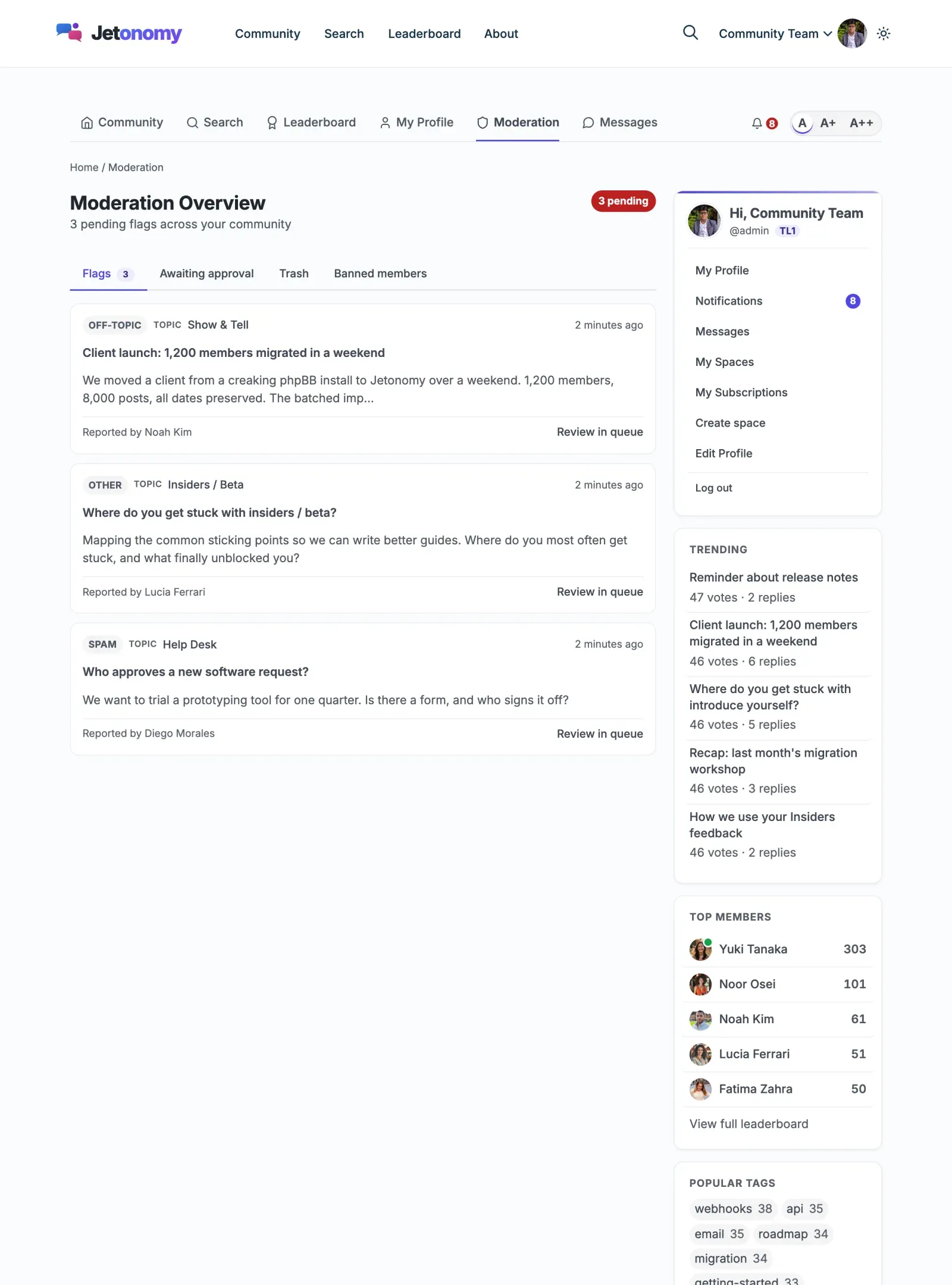
The Banned Members tab only shows for people with the Moderate capability.
Step 5: Act on what you find
Section titled “Step 5: Act on what you find”On the Flags tab in wp-admin, each report has two buttons:
- Valid (Trash): the report was right. The content goes to trash and the flag closes.
- Dismiss: the report was wrong. The content stays and the flag closes.
On the front-end Flags tab, the matching buttons are Remove and Dismiss, plus View to read the content first.
On Pending Posts and Pending Replies in wp-admin, you get Approve, Spam and Trash. Choose Spam for obvious junk. On the front-end Awaiting approval tab, the buttons are Approve and Reject.
To act on a person, go to Jetonomy → Users, find them, and click Ban. In the Ban User dialog pick a Type (Global Ban or Silence), a Duration and an optional Reason. To ban someone from one space only, open that space’s Members page on the front end and click Ban next to them. See Banning Members for what each type does.
To undo a ban, use Unban on the wp-admin Banned Users tab, or Lift on the front-end Banned Members tab.
Check that it works
Section titled “Check that it works”- Open a private browser window and sign in as a normal test member.
- Click the flag (Report) button under any topic and submit a reason.
- In your admin window, open Jetonomy → Moderation → Flags. The report should be listed.
- Click Dismiss and confirm the topic is still visible.
- Sign in to a second window as your new moderator. A space moderator should see Moderation queue in that space’s sidebar. A site-wide moderator should see Moderation in the header.
Common questions
Section titled “Common questions”Can a moderator see reports from spaces they do not moderate? A space moderator only sees queues for their own spaces. A site-wide moderator sees all of them.
Why does a flagged post stay visible? By design. One flag should not hide content on its own. A moderator decides.
Does a moderator get a notification by email? The “Moderator action on your content” row on Jetonomy → Settings → Email → Notification Defaults controls this. It is on for email by default.
Can I stop a moderator from deleting posts? Yes. Give their role Moderate (queue, flags, bans) but leave Delete others’ posts unticked.