

Launch a Support Forum
Jetonomy overviewFree + ProGet Jetonomy →
Use this guide if you sell a product or service and want customers to ask questions, get answers from your team, and mark the best answer. When you finish, you will have a Q&A space where staff are notified of new questions.
What you will set up
Section titled “What you will set up”- A Support category and a Q&A space inside it
- Staff members who can answer and accept answers
- Notifications so your team sees every new question
- Optional labels such as Bug or Billing on each question
Before you start
Section titled “Before you start”- Jetonomy is installed and the setup wizard is finished. See Setup Wizard.
- Your outgoing email works. Send a test first: Jetonomy → Settings → Email → Send Test Email.
- You have a second browser (or a private window) and a test customer account.
Note: If you renamed “Space” under Settings → General → Terminology, use your own word wherever this guide says “space”.
Step 1: Create a Support category
Section titled “Step 1: Create a Support category”- Go to Jetonomy → Categories.
- In Add New Category, type a Name such as
Support. - Leave Visibility on Public so customers and search engines can find your answers.
- Click Add Category.
Step 2: Create the Q&A space
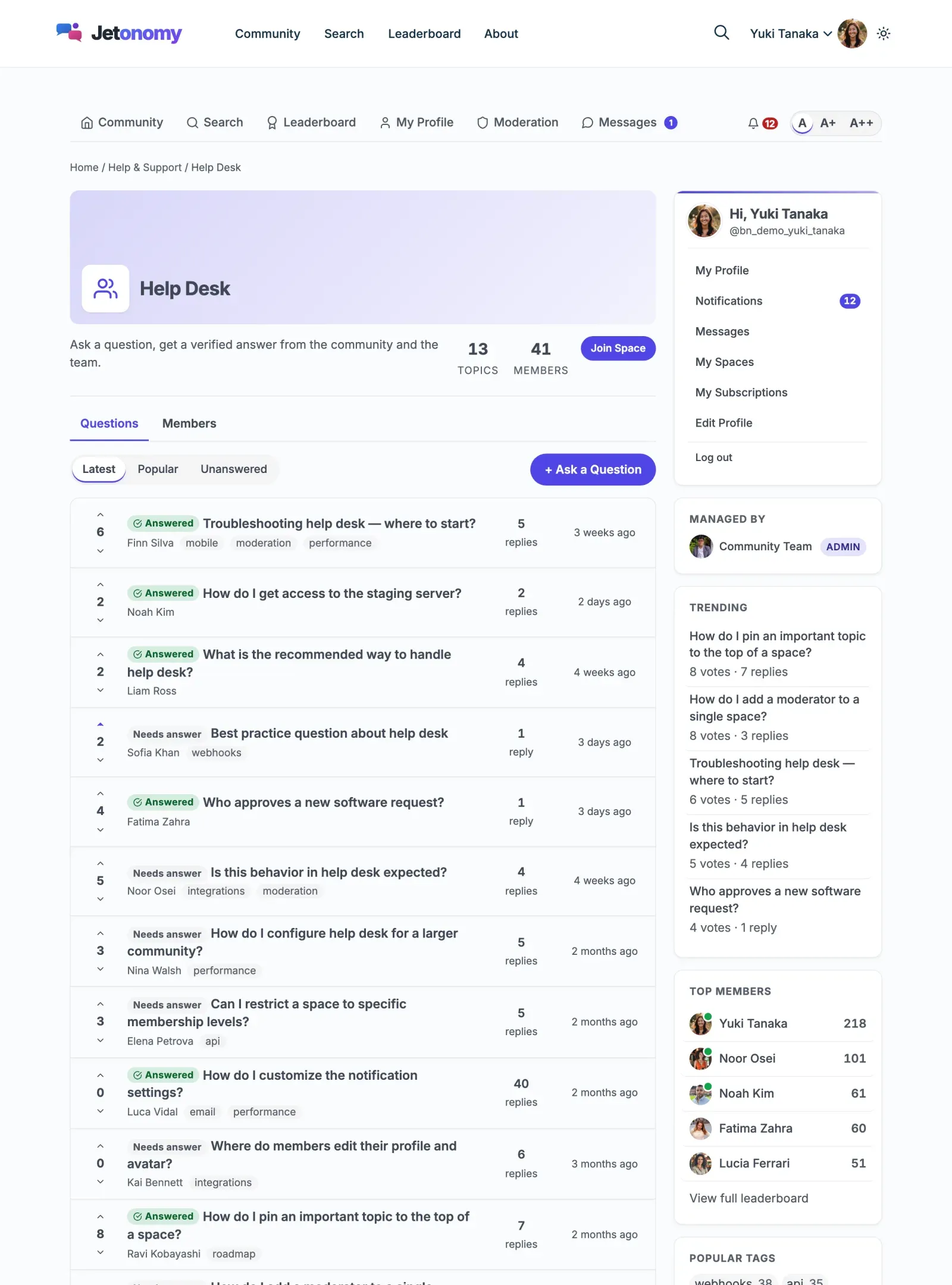
Section titled “Step 2: Create the Q&A space”- Go to Jetonomy → Spaces and click Add New.
- Enter a Title, for example
Help Desk. Add a short Description that tells customers what to ask here. - Set Category to
Support. - Set Type to Q&A.
- Set Visibility to Public and Join Policy to Open.
- Click Create Space.
Tip: Running several products? Create one Q&A space per product inside the same category. Customers then pick the right place before they ask.
Want support for paying customers only? Follow Restrict a Space to Paying Members after this guide.
Step 3: Choose who answers
Section titled “Step 3: Choose who answers”Space moderators can accept an answer on any question and can close, pin or move topics. They do not need access to wp-admin.
- Go to Jetonomy → Spaces and click Edit under your space.
- Open the Members tab.
- Under Add Member, search by name or email.
- Set the role to Moderator and click Add.
Repeat for each team member. Customers who answer each other stay ordinary members. Their answers can still be accepted.
Step 4: Get notified about new questions
Section titled “Step 4: Get notified about new questions”Jetonomy notifies people who follow a space. Your staff are members now, so each of them follows it like this:
- Open the space on the community side and click Follow in the space header.
- Open your profile edit screen (
/community/u/your-username/edit/). - Under Notification Preferences, find New topic in followed space and switch Email on.
Email is off by default for this notification. To turn it on for everyone at once, go to Jetonomy → Settings → Email → Notification Defaults, tick Email on the New post in subscribed space row, and click Save Settings. Members can still change it for themselves.
(Pro) Reply by Email lets people answer a notification email without logging in. See Reply by Email.
Step 5: Add labels (optional)
Section titled “Step 5: Add labels (optional)”Labels help your team sort questions at a glance.
- Edit the space and open the Settings tab.
- Next to Topic Prefixes, tick Enable topic prefixes for this space.
- Click + Add Prefix, type a Label such as
Bug, and pick a colour. - Click Save Settings.
Check that it works
Section titled “Check that it works”- In your second browser, sign in as the test customer and open the space.
- Click + Ask a Question, fill in the form and click Post Question.
- As staff, you should receive the new-question notification. Open the question and post a reply.
- As the test customer, click Accept on the staff reply. The reply gets an Accepted tag.
- Back in the space list, the question now shows an Answered badge. The Unanswered filter no longer lists it.
If the notification does not arrive, check Notification Preferences for that staff member.
Common questions
Section titled “Common questions”Who can accept an answer? The person who asked, plus moderators and admins of that space. A wrong choice can be undone with Unaccept.
Can customers ask a question privately? Yes. The question form shows a Private: only you and moderators can see this topic box. It is always available to signed-in members. You cannot switch it off per space.
Can I let only staff reply? Edit the space, open Settings, and set Who Can Reply to Moderators & Admins. Customers can still ask, but only staff can answer.
Do customers need an account? Anyone can read a public space. Asking and replying needs a signed-in account.