

Setup Wizard
Jetonomy overviewFree + ProGet Jetonomy →
After you activate Jetonomy, a three-step wizard walks you through the only decisions you need to make before your community goes live. The whole process takes about two minutes.
What You Will Learn
Section titled “What You Will Learn”- How to set your community URL slug
- How to choose between creating your first space manually or loading demo data
- What the wizard does, and what you can always change later
Opening the Wizard
Section titled “Opening the Wizard”The wizard opens automatically the first time you activate Jetonomy. To open it again, go to Jetonomy → Dashboard and click Run Setup Wizard in the welcome notice.
That notice only shows until setup is complete and your community has no content. The wizard is its own page (admin.php?page=jetonomy-setup), not an overlay.
Step 1: Community URL
Section titled “Step 1: Community URL”
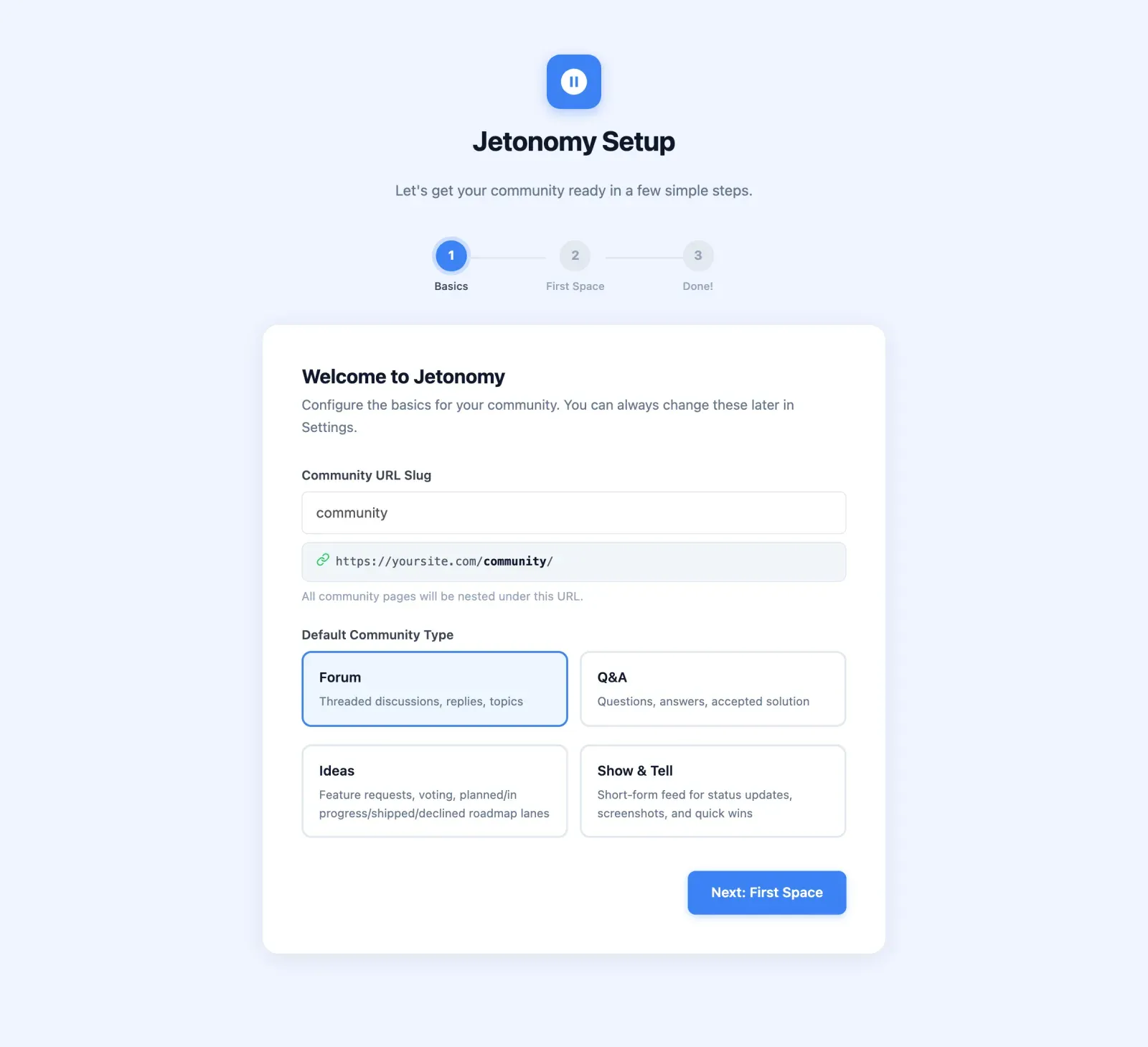
Choose the slug where your community will live on your site.
The default is community, which gives you yoursite.com/community/. You can change this to anything that fits your site: forum, hub, members, discuss, or your brand name.
| Example slug | Resulting URL |
|---|---|
community |
yoursite.com/community/ |
forum |
yoursite.com/forum/ |
hub |
yoursite.com/hub/ |
Default Community Type: Also on this screen, choose the default type for new spaces you create. Your options are:
- Forum - threaded discussions, replies, topics
- Q&A - questions, answers, accepted solution
- Ideas - feature requests, voting, planned, in progress, shipped and declined roadmap lanes
- Show & Tell - short-form feed for status updates, screenshots, and quick wins (called Feed elsewhere in Jetonomy)
You can create spaces of any type regardless of what you choose here. This setting just controls the type that is preselected when you click Add New on Jetonomy → Spaces later.
Tip: You can change your community URL slug later in Jetonomy → Settings → General. Jetonomy automatically flushes permalink rules when you save.
Make the community your homepage: Under Jetonomy → Settings → General → Community Setup, enable Show the community home on the site front page to serve the community home at your site root. This takes precedence over the WordPress “Your homepage displays” setting, and all other community URLs, posts, and feeds keep working unchanged.
Step 2: First Space
Section titled “Step 2: First Space”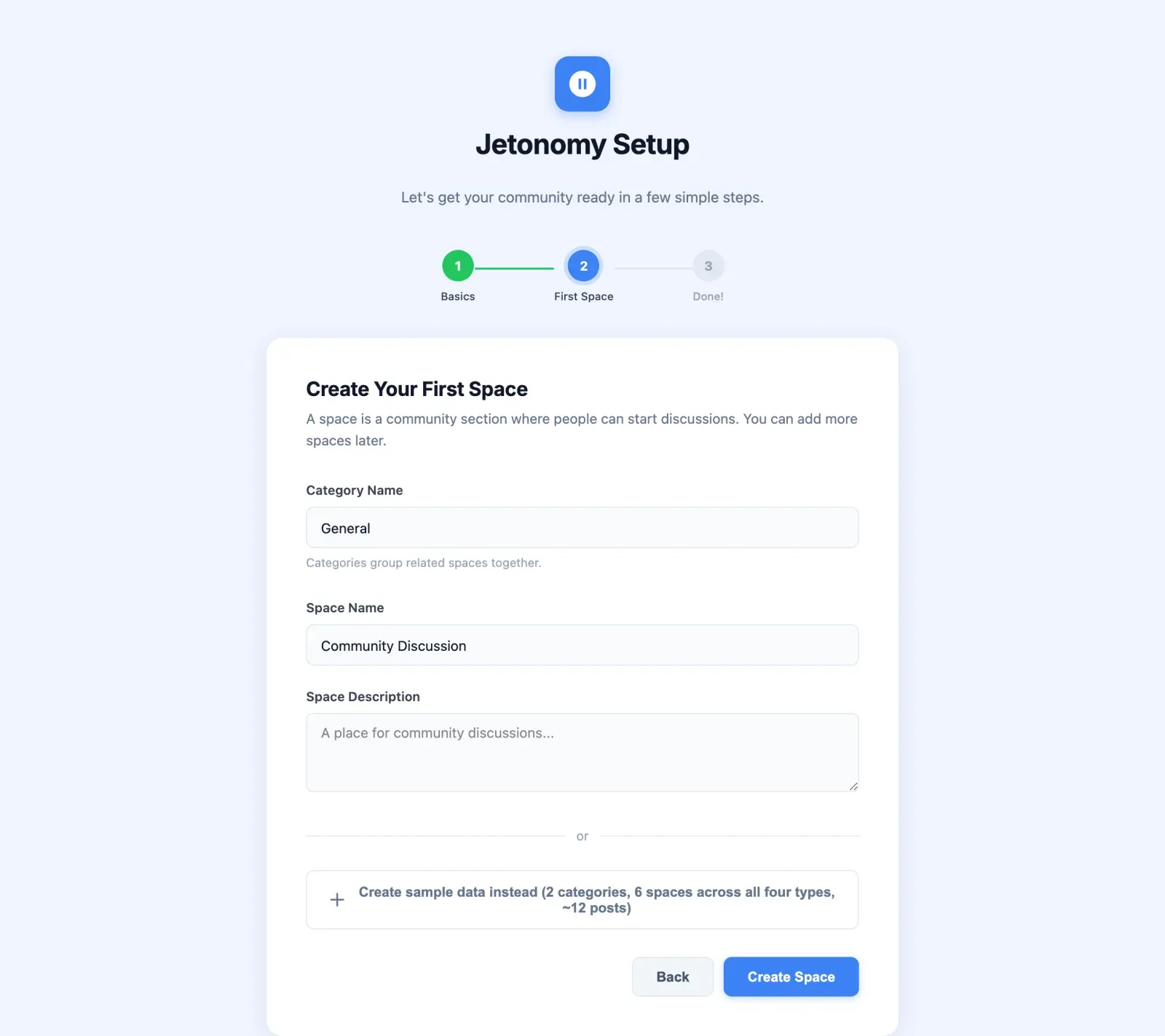
This step gets real content into your community so it is ready to share the moment you finish. Choose the path that fits where you are right now.
Path A: Create Your First Space
Section titled “Path A: Create Your First Space”Choose this if you are setting up a production site and want to start with your own content.
- Enter a Category Name (the default is “General”). Categories group related spaces together.
- Enter a Space Name (the default is “Community Discussion”) and an optional Space Description.
- The space uses the default type you picked in Step 1. You can change a space’s type any time under Jetonomy → Spaces → Edit.
- Click Create Space.
Your space is created as Public with an Open join policy, and it is visible immediately after you finish the wizard.
Path B: Load Sample Data
Section titled “Path B: Load Sample Data”Choose this if you want to try Jetonomy’s features before committing to a structure. Click Import the demo community instead, under the form, rather than Create Space.
Jetonomy imports a demo community into your site:
- Categories to group the spaces
- Spaces across all four types - Forum, Q&A, Ideas, and Feed - so you can see how each type behaves
- Demo users with realistic avatars, trust level badges, and posting history
- Sample posts and replies - enough content to see voting, accepted answers, tags, and notifications working in context
This lets you experience the full community interface as a regular member would see it, without writing any content yourself.
When you are ready to go live, go to Jetonomy → Dashboard and click Remove All Demo Data on the Demo Data Active card. Every demo post, reply, space, category, and user record is deleted in a single operation. Any real content you added alongside the demo data is preserved. If you skipped the sample data, the same card has an import button so you can add it later.
Note: Demo data is tracked internally via a
jetonomy_demo_datarecord. Removal is precise and does not affect any content you created yourself.
Step 3: Done
Section titled “Step 3: Done”The final screen confirms your community is live and gives you two quick links:
- Visit Community - opens
yoursite.com/community/in a new tab so you can see the frontend immediately. - Go to Dashboard - takes you to Jetonomy → Dashboard where you can manage spaces, moderate content, and configure settings.
Everything you configured in the wizard can be changed later:
| Setting | Where to change it |
|---|---|
| Community URL slug | Jetonomy → Settings → General |
| Default space type | Jetonomy → Settings → General (Community Setup) |
| Space name, type, join policy | Jetonomy → Spaces → Edit |
| Email notifications | Jetonomy → Settings → Email (Notification Defaults) |
What’s Next?
Section titled “What’s Next?”Your community is live. Now learn what to do in the first hour: create categories, set up your real spaces, and invite your first members.